
When your Galaxy S26 goes silent, it's usually a quick software hiccup or a setting that got changed. The good news is you can almost always fix it yourself. I'd start with the basics and work your way through these steps.
Check Your Volume and Sound Mode
First, make sure your phone isn't just on silent. Press the volume up button on the side a few times while you're on the home screen or in an app. You should see the volume slider appear.
Next, pull down the Quick Settings panel from the top of your screen twice. Look for the sound mode icon, it might say "Sound," "Vibrate," or "Mute." Tap it to make sure it's set to "Sound."
For more control, go into Settings > Sounds and vibration > Volume. Here you can adjust the media, ringtone, and notification volumes independently. Slide them all up to be sure.
Disconnect Bluetooth and Accessories
Your S26 might be trying to send audio somewhere else. Open Settings > Connections > Bluetooth and turn the toggle off at the top. This instantly disconnects any headphones, speakers, or your car.
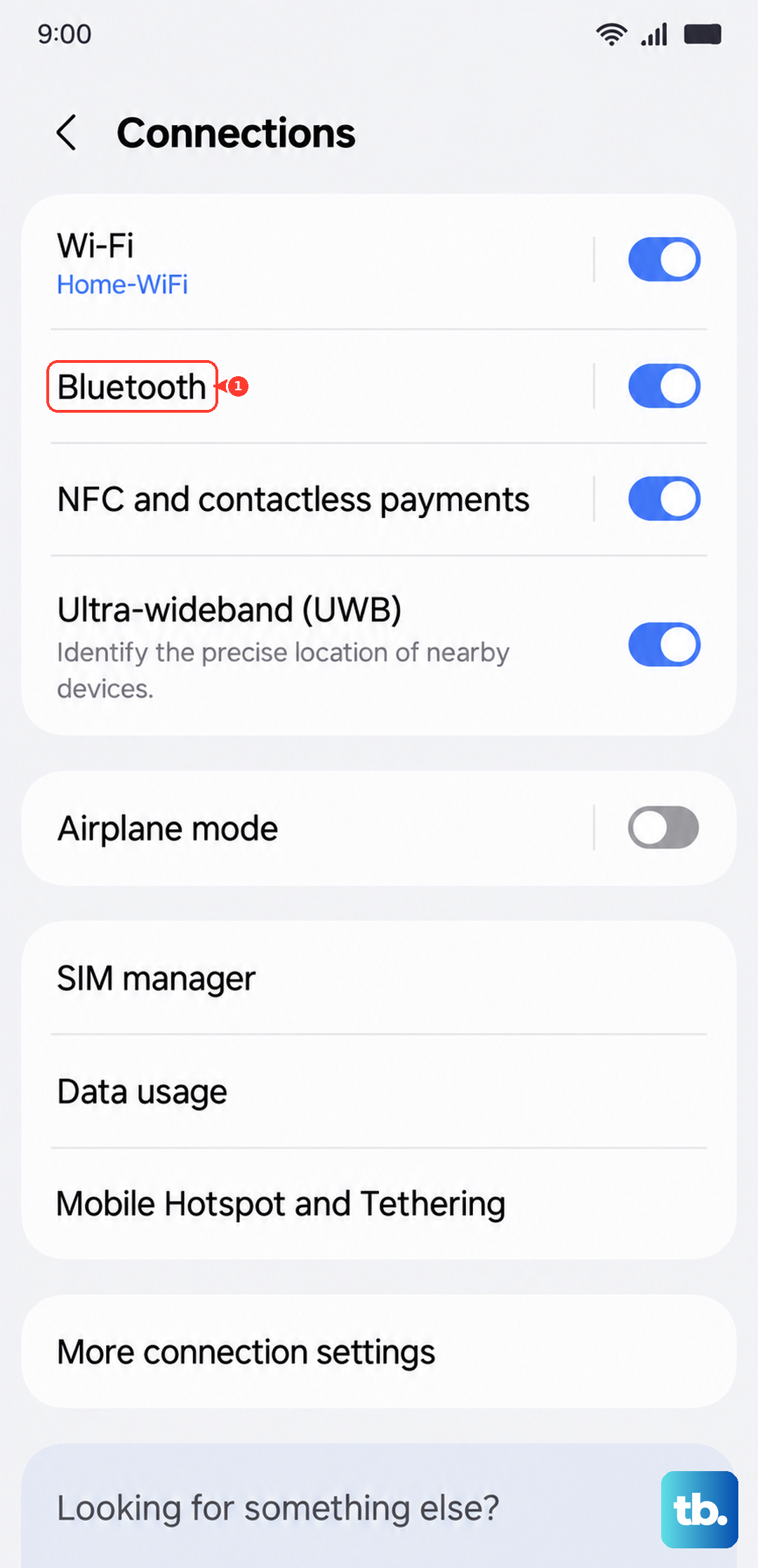
Also, take a look at any physical accessories. A thick case can sometimes muffle the bottom-firing speaker. If you have a USB-C to 3.5mm headphone adapter plugged in, unplug it, as the phone might think headphones are still connected.
Clean the Speaker Grills
Dust and pocket lint love to clog up the small speaker holes. The main speaker on the S26 is on the bottom edge, next to the USB-C port. There's also the earpiece speaker at the top of the screen.
Shine a flashlight on them to check for blockages. Use a soft, dry toothbrush or a clean, dry paintbrush to gently sweep away any debris. You can also try blowing lightly across the grills. Never use a pin or compressed air, as you could easily damage the speaker inside.
Restart Your Phone
A simple restart clears out temporary glitches that can affect audio. Just hold the side power button and the volume down button together until the "Power off" menu appears, then tap "Restart."
If the sound is completely dead and the screen is unresponsive, you'll need a force restart. Press and hold the volume down button and the side power button simultaneously for about 10 seconds. Let go when you see the Samsung logo appear on the screen.
Check for Software Updates
Since the S26 is brand new and runs One UI 8.5, early software bugs are a real possibility. Samsung is quick to push out fixes. Go to Settings > Software update > Download and install.
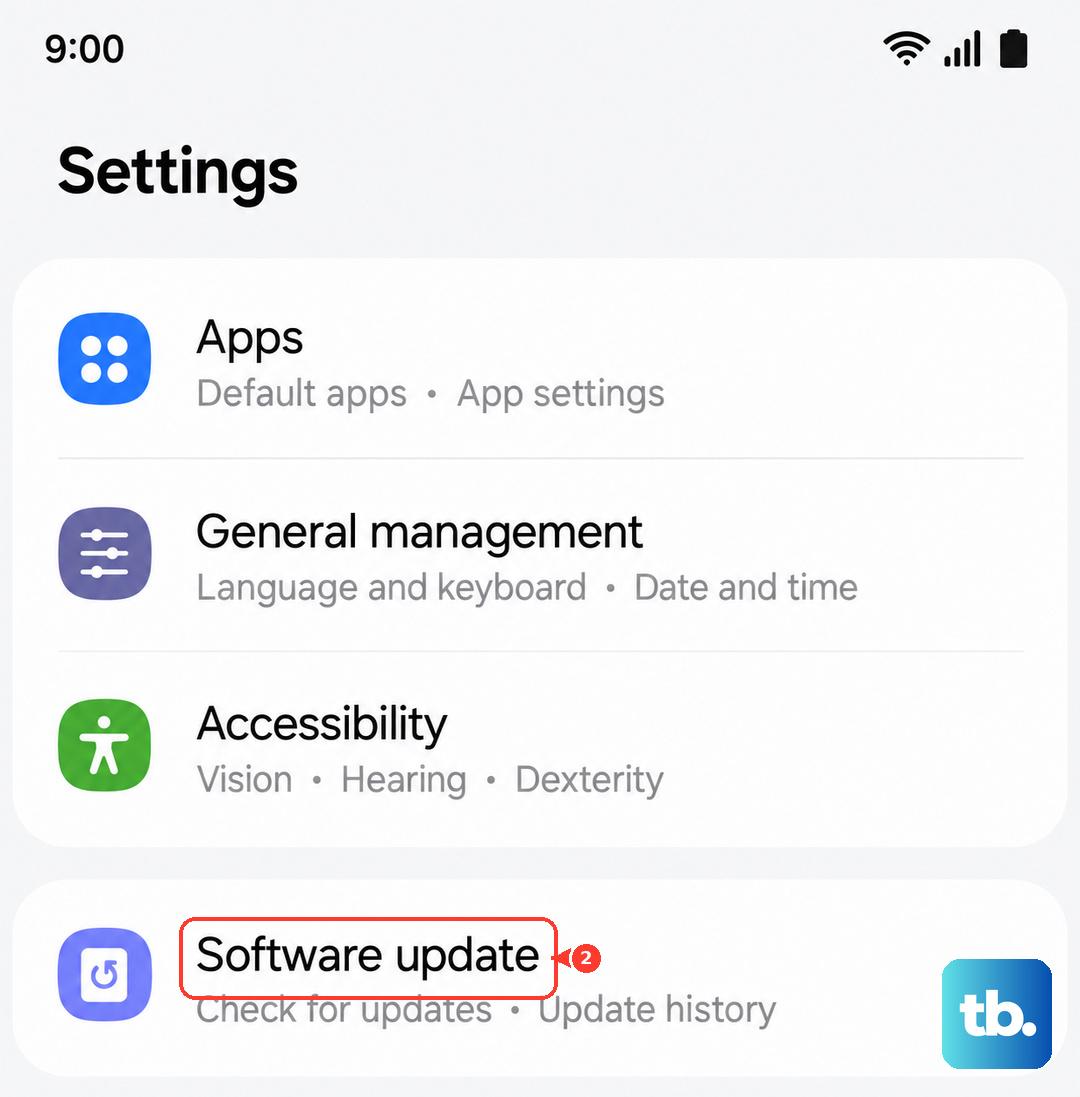
Let it check for updates. If one is available, I'd recommend installing it right away. These updates often include patches for audio drivers and system stability that can resolve mysterious sound issues.
Review Advanced Sound Settings
Samsung's software has a few features that can redirect or mute sound. It's worth a quick look. Head to Settings > Sounds and vibration > Advanced sound settings.
Look for an option called "Separate app sound." If this is turned on for a specific app, all other audio from other apps might be muted. Toggle it off. Also, check Settings > Accessibility > Hearing enhancements to make sure "Mute all sounds" isn't enabled.
Boot Into Safe Mode
This tells you if a recently downloaded app is causing the trouble. To enter Safe Mode, press and hold the power button until the power menu shows up. Then, tap and hold the "Power off" icon on your screen until you see a prompt to reboot to Safe Mode. Tap it.
If your sound works perfectly in Safe Mode, you know a third-party app is the culprit. Restart normally to exit Safe Mode, then try uninstalling apps you installed just before the problem started.
Clear the System Cache
Corrupted cache files from old updates or apps can mess with system functions like audio. Clearing this cache is safe and won't delete your personal data. First, turn off your phone completely.
Now, press and hold the volume up button and the side power button together. Release them when you see the Samsung logo. You'll be in Recovery Mode. Use the volume buttons to highlight "Wipe cache partition" and press the power button to select it. Confirm, then select "Reboot system now."
Reset All Settings
If you're still having issues, this resets every system setting, like Wi-Fi passwords, Bluetooth connections, and sound preferences, back to factory defaults. Your photos, messages, and apps stay put. Go to Settings > General management > Reset > Reset all settings.
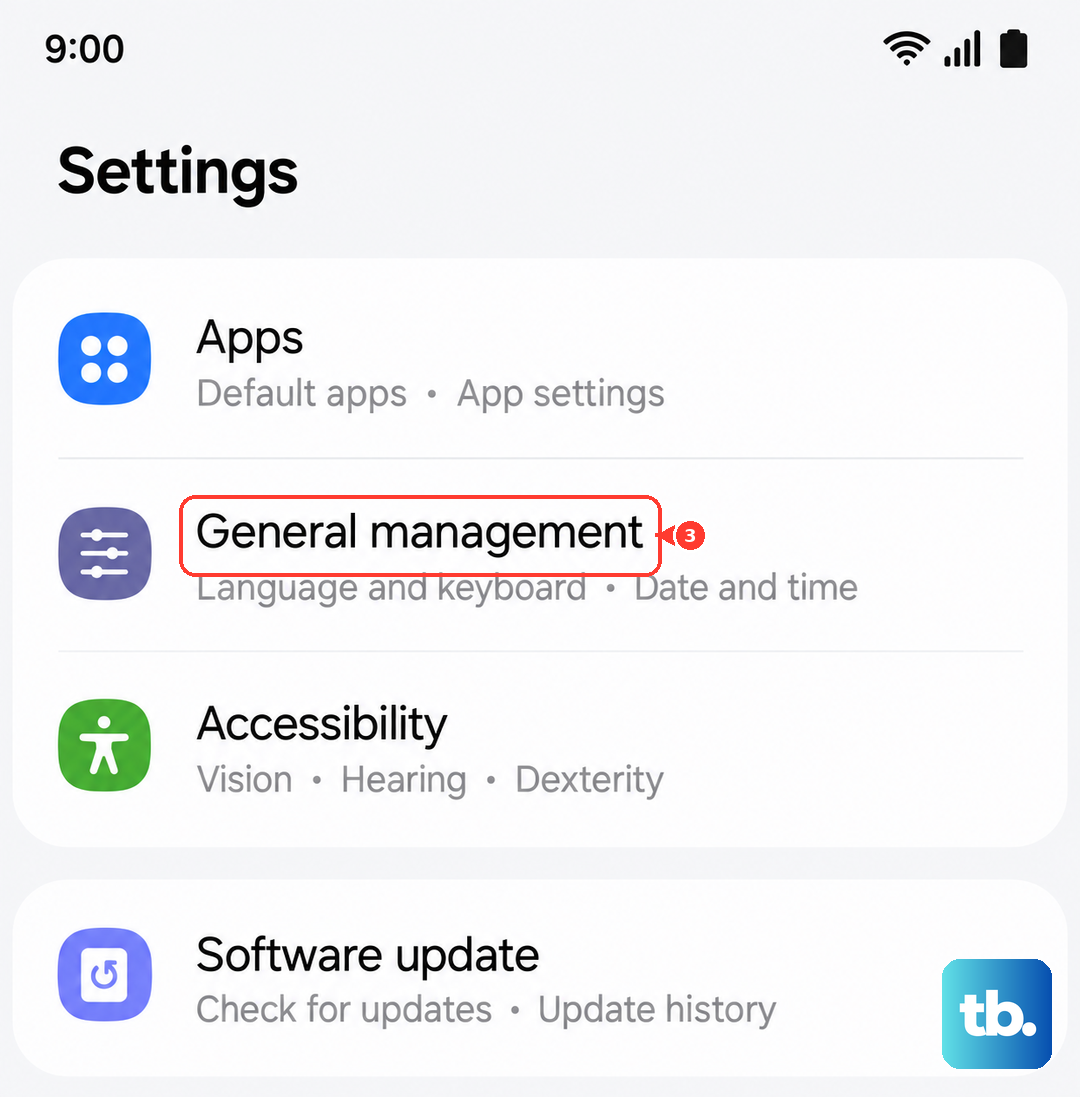
Tap "Reset settings" and enter your PIN if asked. Your phone will reboot. Afterward, you'll need to reconfigure your preferences, but this often clears up deep-seated software conflicts causing the sound to fail.