
Slow internet on your brand new Samsung Galaxy S26 can really put a damper on things, especially when you're trying to enjoy all that 2026 tech. The good news is that with One UI 8.5, there are several settings you can tweak to get things moving faster. I'd start with the simplest fix first.
Before you dive deep, try a quick network reset. This clears all your saved WiFi networks, Bluetooth pairings, and mobile data settings back to default, which often resolves weird glitches. Go to Settings > General Management > Reset > Reset network settings. You'll need to re-enter WiFi passwords afterward, but it's a clean slate for your connections.
Check for a Software Update
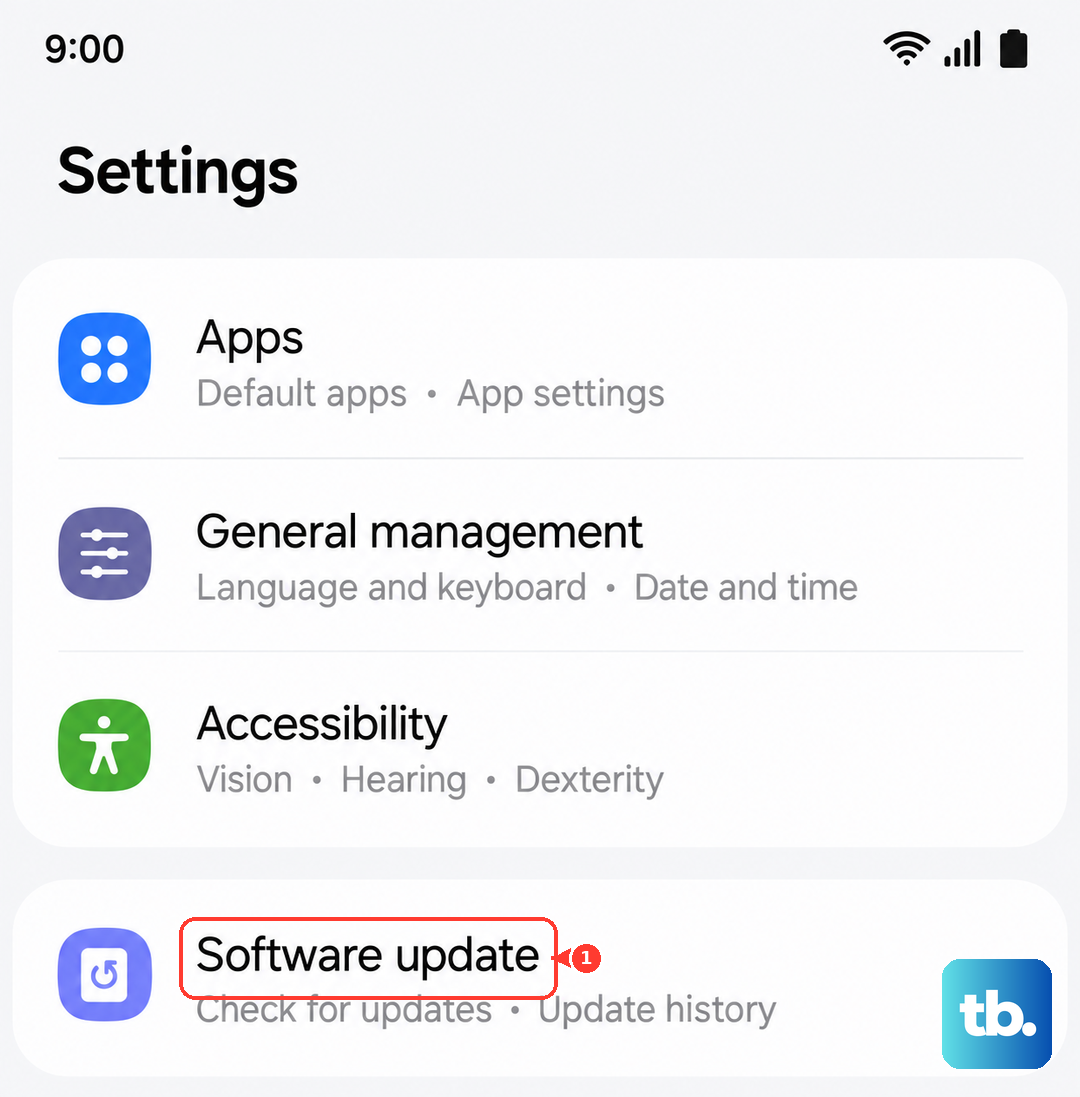
Since the Galaxy S26 is brand new with One UI 8.5, early software bugs affecting network performance are a real possibility. Samsung is likely pushing out updates to smooth things over. Head to Settings > Software update > Download and install. If an update is available, let it run. This is one of the most effective fixes for a new device.
Toggle Your Mobile Data Mode
Your S26 can connect to different types of networks, and sometimes it gets stuck on a slower one. You can force it to use the fastest available. Open Settings > Connections > Mobile networks > Network mode. Here, you can select 5G/LTE/3G/2G (auto connect) to let it choose the best, or if you're in a strong 5G area, you can try selecting 5G/LTE/3G to prevent it from falling back to slower 2G.
Also, check if Data Saver is accidentally limiting your speed. Go to Settings > Connections > Data Usage > Data Saver and make sure it's turned off while you're troubleshooting. This feature restricts background data, which can sometimes make apps feel sluggish.
Use Intelligent WiFi Features
Samsung's Adaptive WiFi is a smart feature that can help, but it can also sometimes cause issues if it's switching networks poorly. It's worth checking its settings. Go to Settings > Connections > WiFi, tap the three-dot menu, then select Intelligent WiFi.
You'll see options like "Switch to mobile data" which uses your cellular plan when WiFi is weak. You can turn this off to see if the constant switching is the problem. Also, try turning off WiFi power saving mode on the same screen, as this can limit WiFi performance to save battery.
Clear the Cache for Key Services
Corrupted temporary files in Google Play Services or your web browser can slow down data fetching. Clearing this cache is safe and doesn't delete your personal data. For Google Play Services, go to Settings > Apps, tap the filter icon and select Show system apps. Find and tap Google Play Services, then select Storage > Clear Cache.
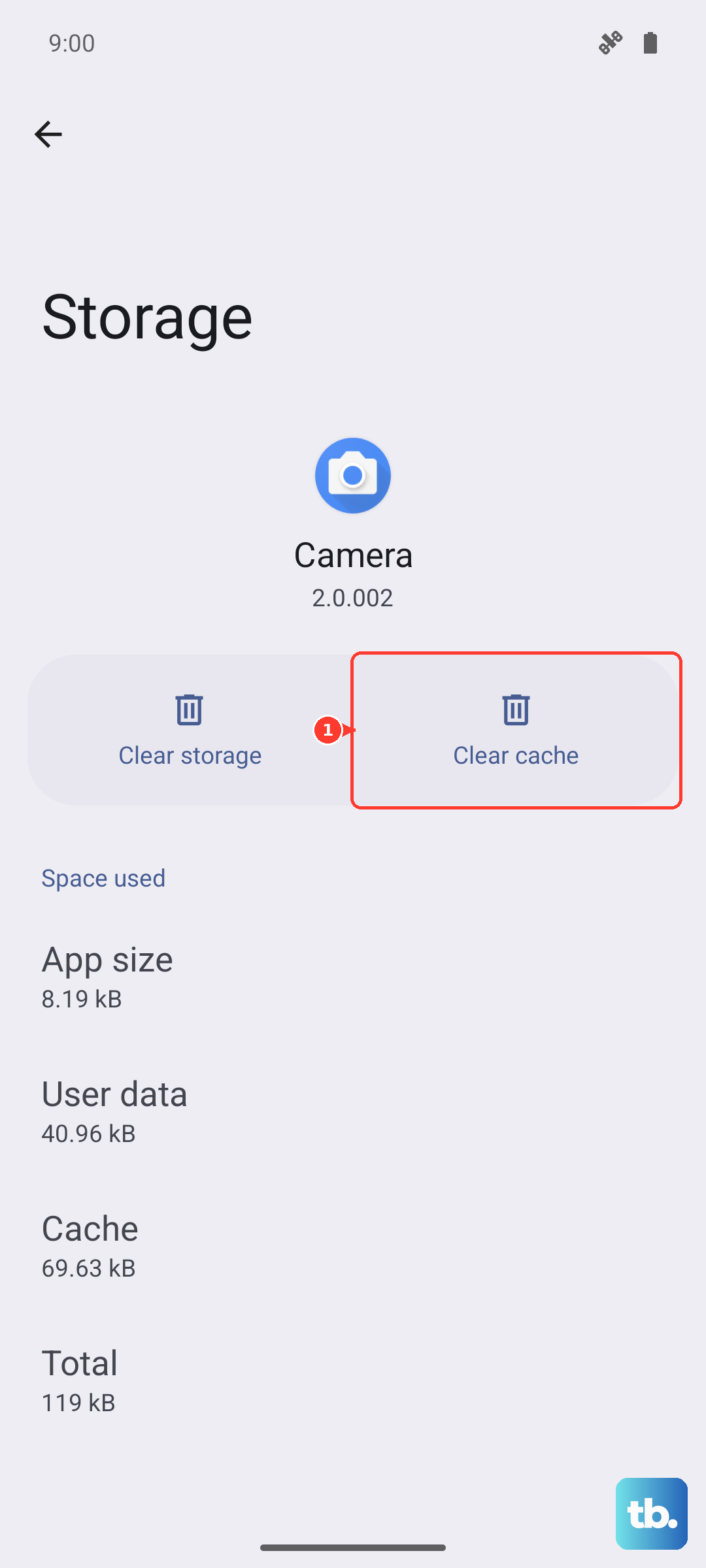
Do the same for your browser, whether it's Samsung Internet or Chrome. For Samsung Internet, open the app, tap the three-line menu, go to Settings > Privacy and security > Delete browsing data. Select Cached images and files and tap delete.
Review Background App Activity
Apps running in the background can eat up bandwidth, slowing down what you're trying to do in the foreground. One UI 8.5 gives you good control over this. Go to Settings > Apps, select an app you suspect, and tap Battery. Here you can set it to Restricted to prevent it from using data in the background.
For a broader look, check Settings > Device care > Battery > Background usage limits. You can put unused apps to sleep here automatically. Closing apps you're not using from the recent apps menu can also free up system resources temporarily.
Disable VPN or Proxy Connections
If you're using a VPN for privacy or work, it will almost always slow down your connection because your data is being routed through another server. Try disabling it completely to see if your speed returns to normal. The same goes for any proxy settings, which you can check under Settings > Connections > More connection settings > Private DNS. Make sure it's set to Automatic unless you know you need a specific one.
Check Your Physical SIM or eSIM
If you're using a physical SIM card, a poor connection in the tray can cause intermittent or slow data. Try turning off the phone, carefully removing the SIM tray with the ejector tool, and reseating the SIM card. Give the gold contacts a gentle wipe with a dry cloth before putting it back in.
For an eSIM, you might need to re-download the profile from your carrier if it's corrupted. You can manage this in Settings > Connections > SIM card manager.
Perform a Soft Reset
A simple reboot can clear out temporary software hiccups affecting the modem or network stack. Press and hold the Volume Down button and the Side/Power button together for about 10 seconds until you see the Samsung logo appear, then release. This forces the phone to restart cleanly.
Test in Safe Mode
If the slowness started after installing a new app, that app could be the culprit. Booting into Safe Mode temporarily disables all third-party apps. To enter Safe Mode, press and hold the power button until the power menu appears. Then, tap and hold the Power off option on your screen until you see a prompt to reboot to Safe Mode.
If your internet speed is normal in Safe Mode, you know a downloaded app is causing the problem. You'll need to uninstall apps one by one, starting with the most recent, to find the offender.