Seeing that "MMS sending failed" message on your Galaxy S26+ can be annoying, especially when you're trying to share a photo or video. The good news is this is usually a quick setting or connection issue you can fix yourself. Let's get your messages flowing again.
Check Your Mobile Data Connection First
MMS requires mobile data to send, even if you're on Wi-Fi. Pull down your quick settings panel and make sure the mobile data icon is active. If you see a small 'x' or no bars, try moving to an area with better signal.
Sometimes the phone can get stuck between networks. Toggle Airplane mode on for about 10 seconds, then turn it off. This forces your phone to reconnect to the cellular network fresh, which often clears up the problem right away.
Verify Your APN Settings
Access Point Name (APN) settings tell your phone how to connect to your carrier's multimedia messaging service. If these are wrong, MMS won't work. Go to Settings > Connections > Mobile networks > Access Point Names.
Make sure the correct APN for your carrier is selected (it should have a filled-in circle next to it). If you're not sure, contact your carrier or visit their website for the correct S26+ APN details. You can tap the three-dot menu to reset them to default.
Enable MMS in Your Messaging App
Open your Samsung Messages app and tap the three-dot menu in the top right. Go to Settings > More settings (or just Settings depending on your version). Look for an option labeled "Multimedia messages" or "MMS messages" and ensure it's toggled on.
While you're there, check the "Group conversation" setting. Some carriers require this to be enabled for MMS to function properly within group chats. It's worth toggling it on if you're having issues there.
Check for a Software Update
Since the S26+ is new with One UI 8.5, early software bugs can sometimes affect messaging. Samsung releases patches to fix these. Connect to Wi-Fi and go to Settings > Software update > Download and install.
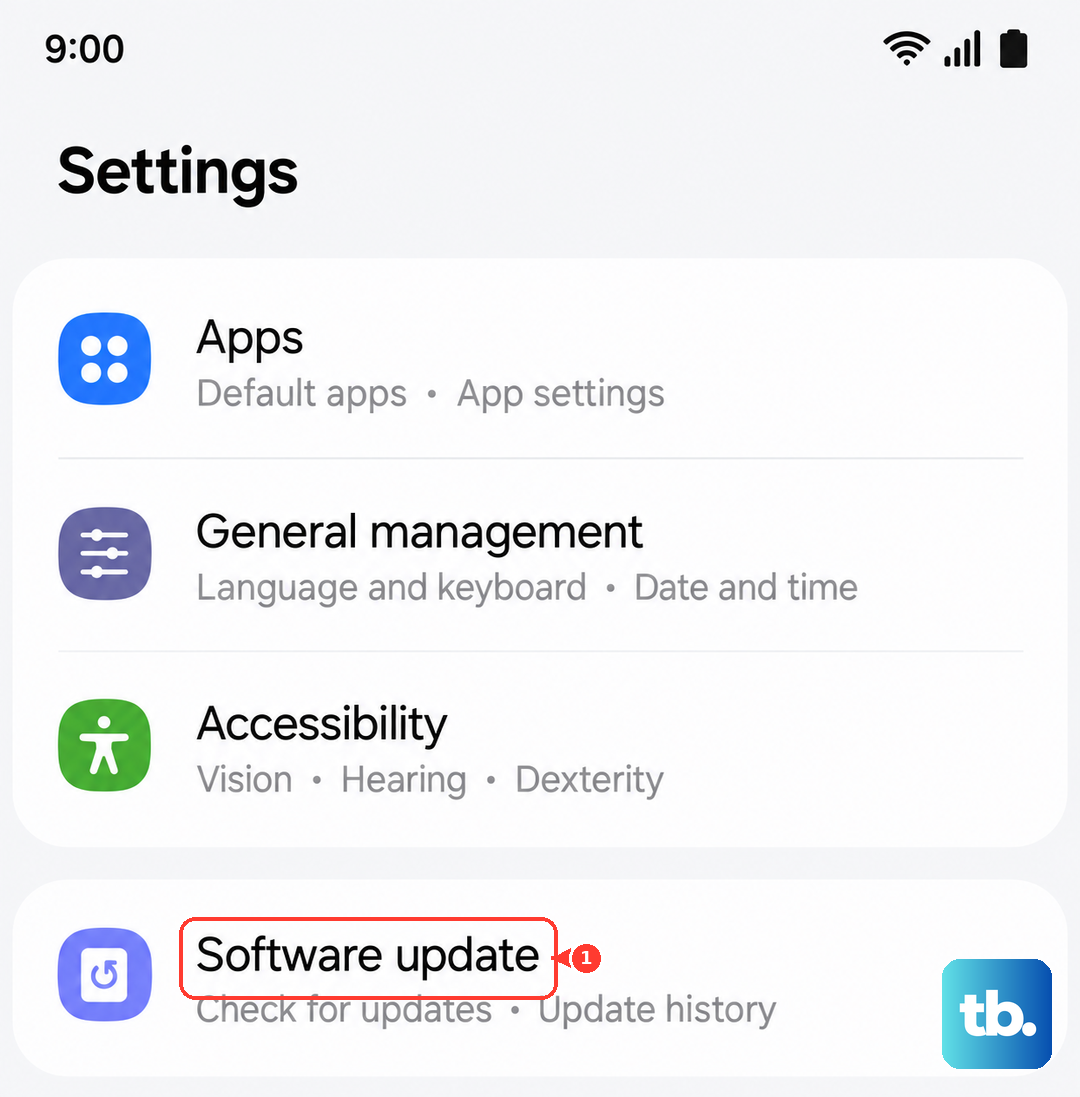
If an update is available, let it install. I've seen updates specifically mention "improved messaging stability" in the patch notes, so this is a solid step. Make sure your phone is charged above 30% or plugged in before starting.
Clear the Cache for Your Messages App
A corrupted cache in the messaging app can cause sending failures. Go to Settings > Apps. Find and tap on Messages (it might be called Samsung Messages). Select Storage and then tap Clear cache.
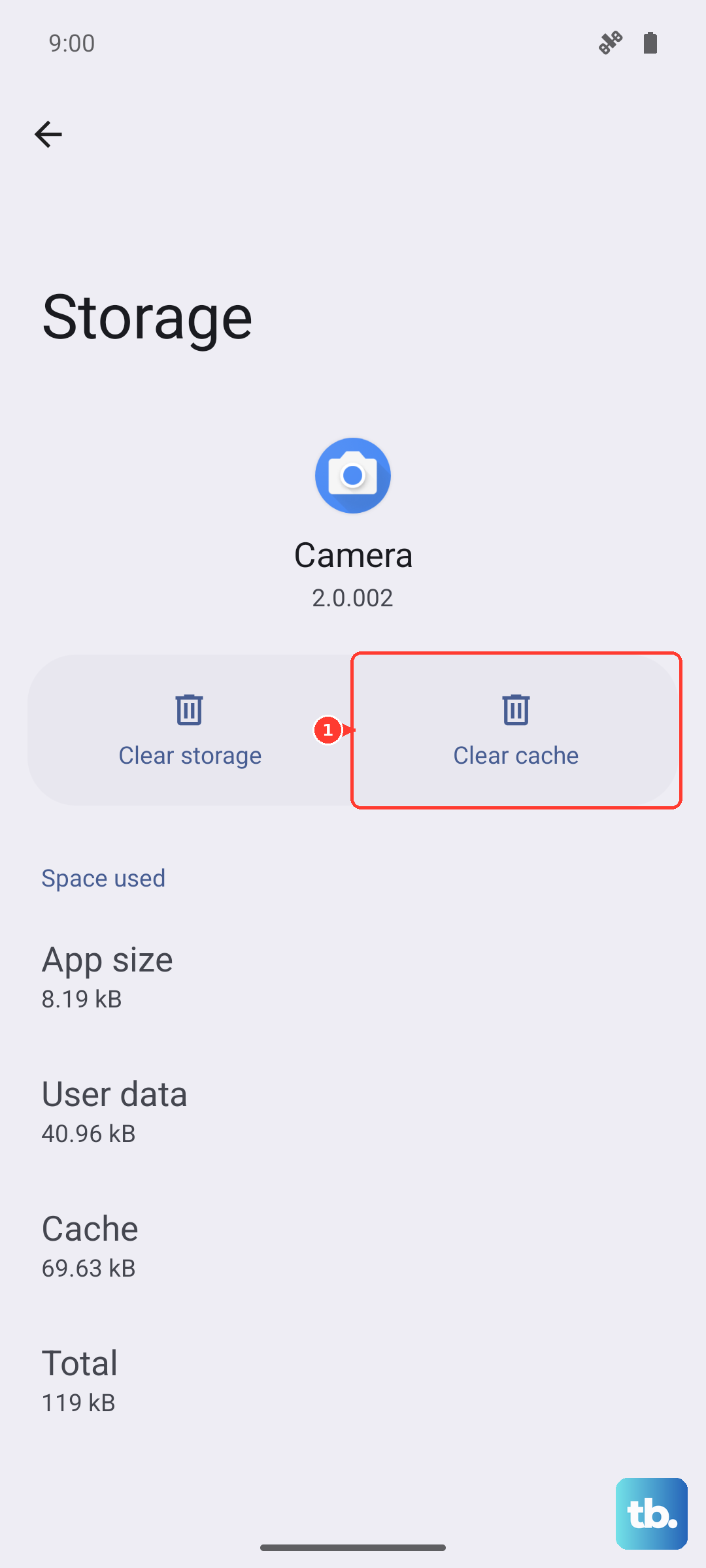
This doesn't delete your actual messages, just temporary data. After clearing, force close the app by swiping it away from your recent apps screen, then reopen it and try sending your MMS again.
Disable Data Saver or Power Saving Modes
Power-saving features can restrict background data, which blocks MMS. Swipe down twice to see all quick settings and ensure both "Data saver" and any battery saving modes are turned off.
You can also check in Settings > Battery. If any power saving mode is active, switch it off. Try sending your picture with these modes disabled to see if that was the culprit.
Try a Different Messaging App
This helps you figure out if the problem is with the Samsung Messages app itself. Download a free alternative like Google Messages from the Play Store and set it as your default.
Give it the necessary permissions and try sending an MMS. If it works, the issue is likely with your stock app's settings or data. You can stick with the new app or use this info to further troubleshoot the original one.
Reset Your Network Settings
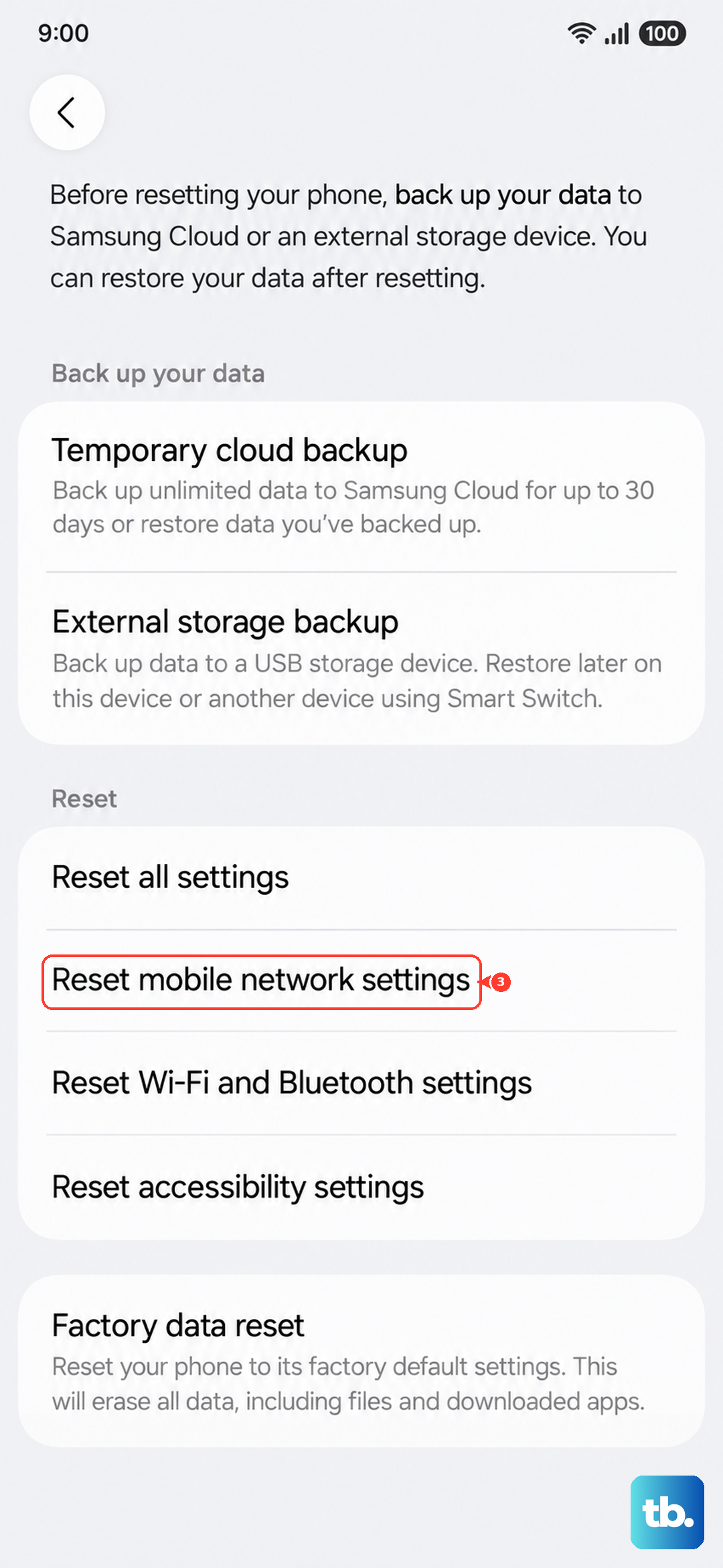
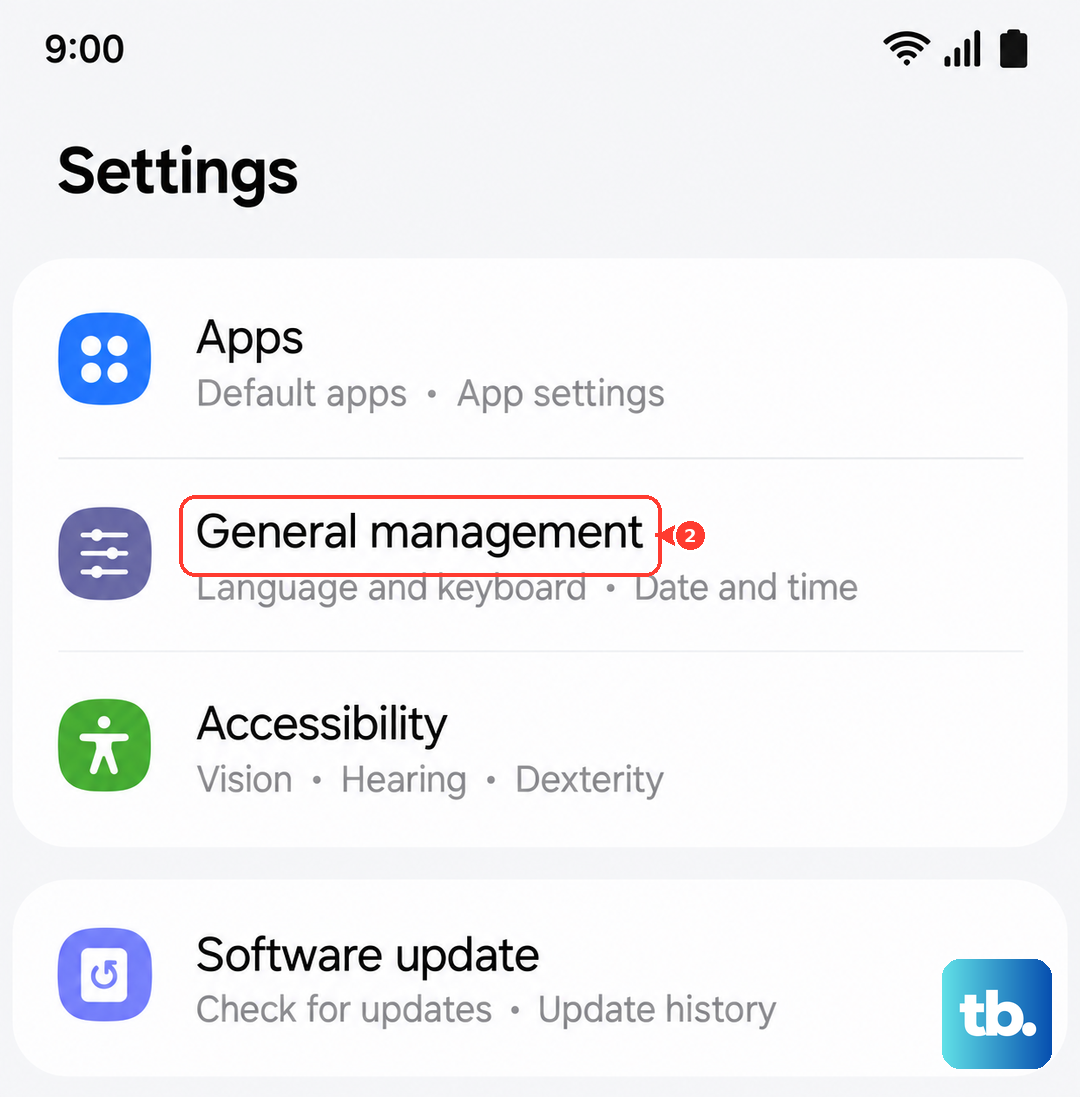
This is a more thorough step that resets all network-related configurations to factory defaults. Go to Settings > General management > Reset > Reset network settings.
You'll need to enter your PIN. This will erase all saved Wi-Fi networks, Bluetooth pairings, and cellular network preferences. After it reboots, you'll have to reconnect to Wi-Fi and re-pair Bluetooth devices, but it often resolves stubborn MMS issues.
Check Your Date and Time Settings
Incorrect time settings can sometimes interfere with network authentication. Go to Settings > General management > Date and time. Make sure "Automatic date and time" and "Automatic time zone" are both enabled.
If they're already on, try turning them off briefly, manually setting the correct date and time, then turning the automatic settings back on. This can refresh the sync with your carrier's network.
Contact Your Mobile Carrier
If you've tried everything else, the issue might be on your carrier's end. They can check if MMS is properly provisioned on your line and if there are any network outages in your area.
Tell them you've already reset network settings and verified APN details on your Samsung Galaxy S26+. They may need to refresh your service on their side or confirm specific MMS settings for your device and plan.