
You're staring at your brand new Samsung Galaxy S26+, seeing that Wi-Fi icon with an exclamation point, and wondering why your cutting-edge phone can't do the basics. Since this is a 2026 device running the latest One UI 8.5, there are a few new quirks to consider, but the fixes are still straightforward. I'd start with the quick toggles and work your way down.
Toggle Wi-Fi and Restart Your Phone
First, pull down the notification shade twice to open your quick panel. Tap the Wi-Fi icon to turn it off, wait a solid five seconds, and then tap it again to turn it back on. This simple refresh forces the phone to drop and reacquire the connection, solving a lot of momentary glitches.
If that doesn't work, give the phone a full restart. On the S26+, press and hold the Volume Down button and the Side/Power button together for about 10 seconds until you see the Samsung logo. This clears out any temporary software bugs in One UI 8.5 that might be blocking the connection.
Use Airplane Mode to Reset Radios
This old trick is still one of the best. Swipe down and tap the Airplane Mode icon. Leave it enabled for at least 15 seconds to let all wireless radios (cellular, Wi-Fi, Bluetooth) fully shut down. Then, turn Airplane Mode off. This forces a clean reconnection to every network and often kicks Wi-Fi back into gear.
Forget and Re-add Your Wi-Fi Network
Your phone might be holding onto corrupted login data. Go to Settings > Connections > Wi-Fi. Tap on the name of your network, then select Forget. Now, tap on the network again from the list, re-enter your password carefully (it's case-sensitive), and connect.
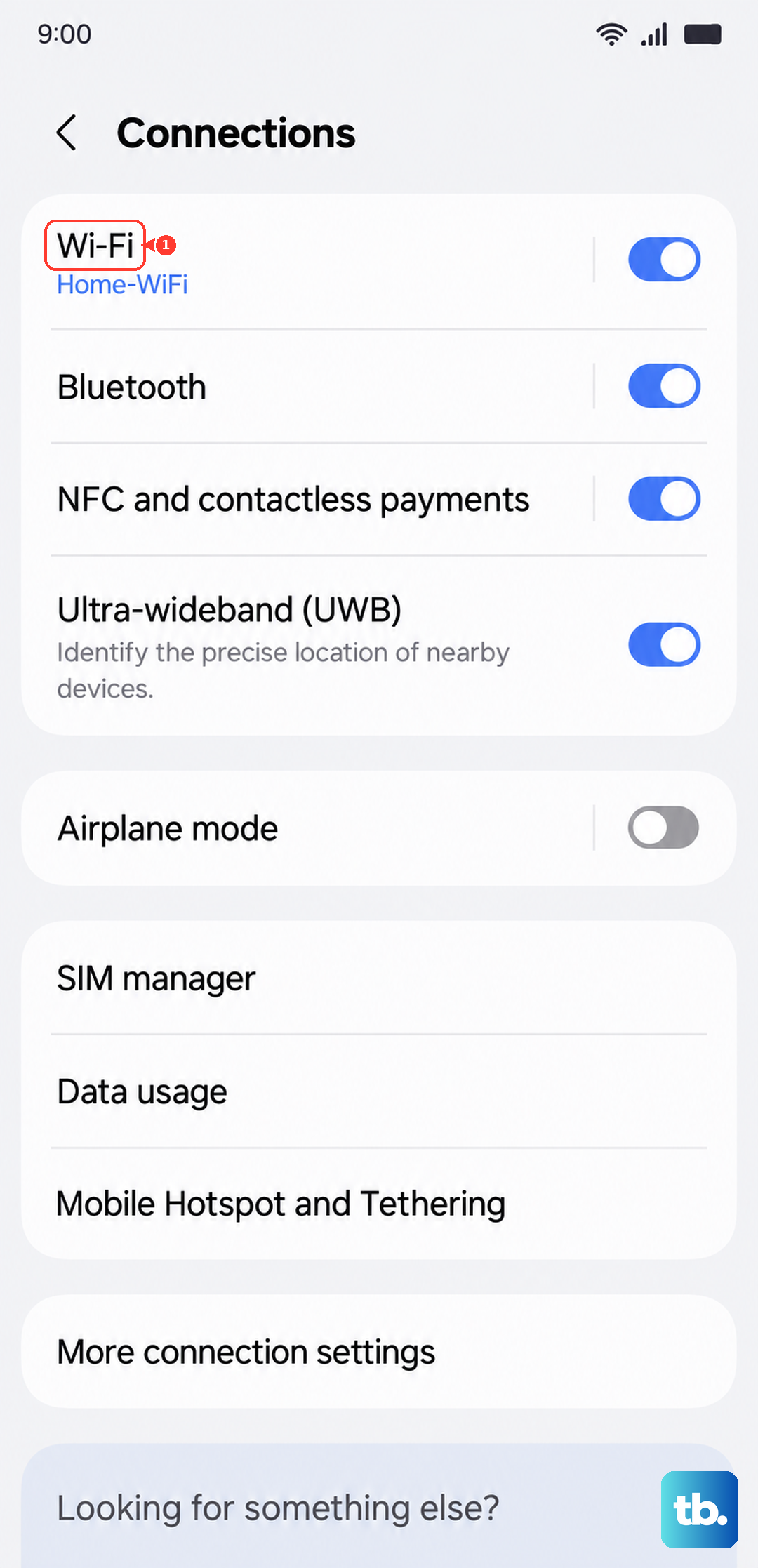
This is crucial if you've recently changed your router's password or got a new mesh system. The S26+ will keep trying the old credentials and fail silently.
Check for Router and Interference Issues
Before you dig deeper into phone settings, rule out the source. Unplug your Wi-Fi router from power, wait a full 60 seconds, and plug it back in. If other devices in your home are also struggling, the problem is almost certainly the router, not your phone.
Also, try turning off Bluetooth from your quick panel. On the 2.4GHz band, Bluetooth can sometimes cause interference with Wi-Fi. If your connection stabilizes with Bluetooth off, you've found a simple fix, just manage when you have both on.
Disable Adaptive Wi-Fi and Power Saving
Samsung's software has some helpful features that can sometimes get in the way. Go to Settings > Connections > Wi-Fi, then tap the three-dot menu and go to Intelligent Wi-Fi. Here, turn off Switch to mobile data. This feature can prevent a stable connection if it mistakenly thinks your Wi-Fi is weak.
Next, check your battery settings. Go to Settings > Battery. If any power saving mode is enabled (like Light or Adaptive), turn it off. These modes aggressively limit background network activity, which can break Wi-Fi.
Update Your Galaxy S26+ Software
Since the S26+ is new with One UI 8.5, early software bugs are a real possibility. Samsung is quick to patch these. Go to Settings > Software update and tap Download and install. Installing the latest patch is one of the most reliable fixes for connectivity issues on a new device.
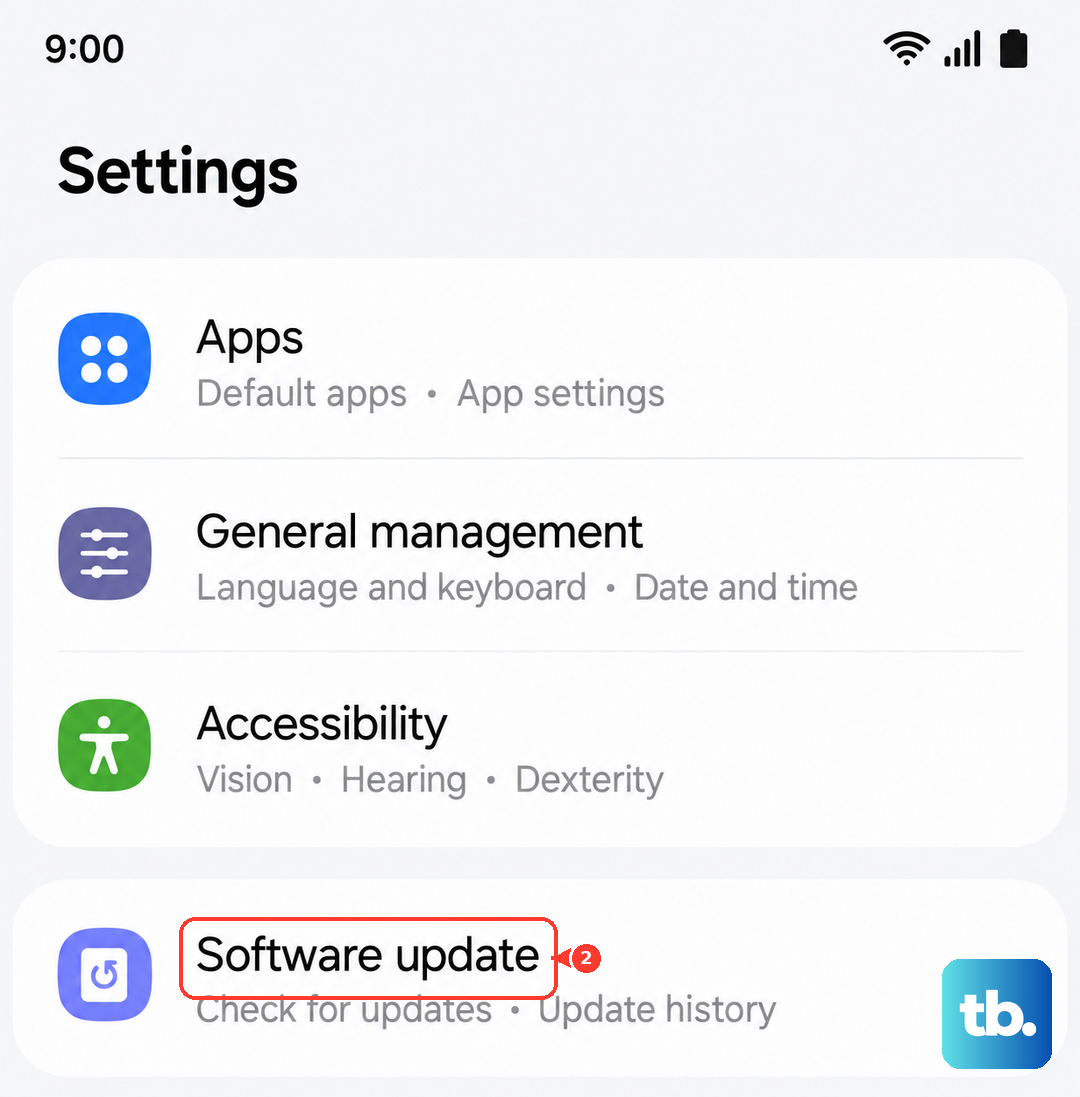
Verify Your Date, Time, and Network Settings
An incorrect system time can break Wi-Fi security certificates. Go to Settings > General management > Date and time. Make sure Automatic date and time is switched on.
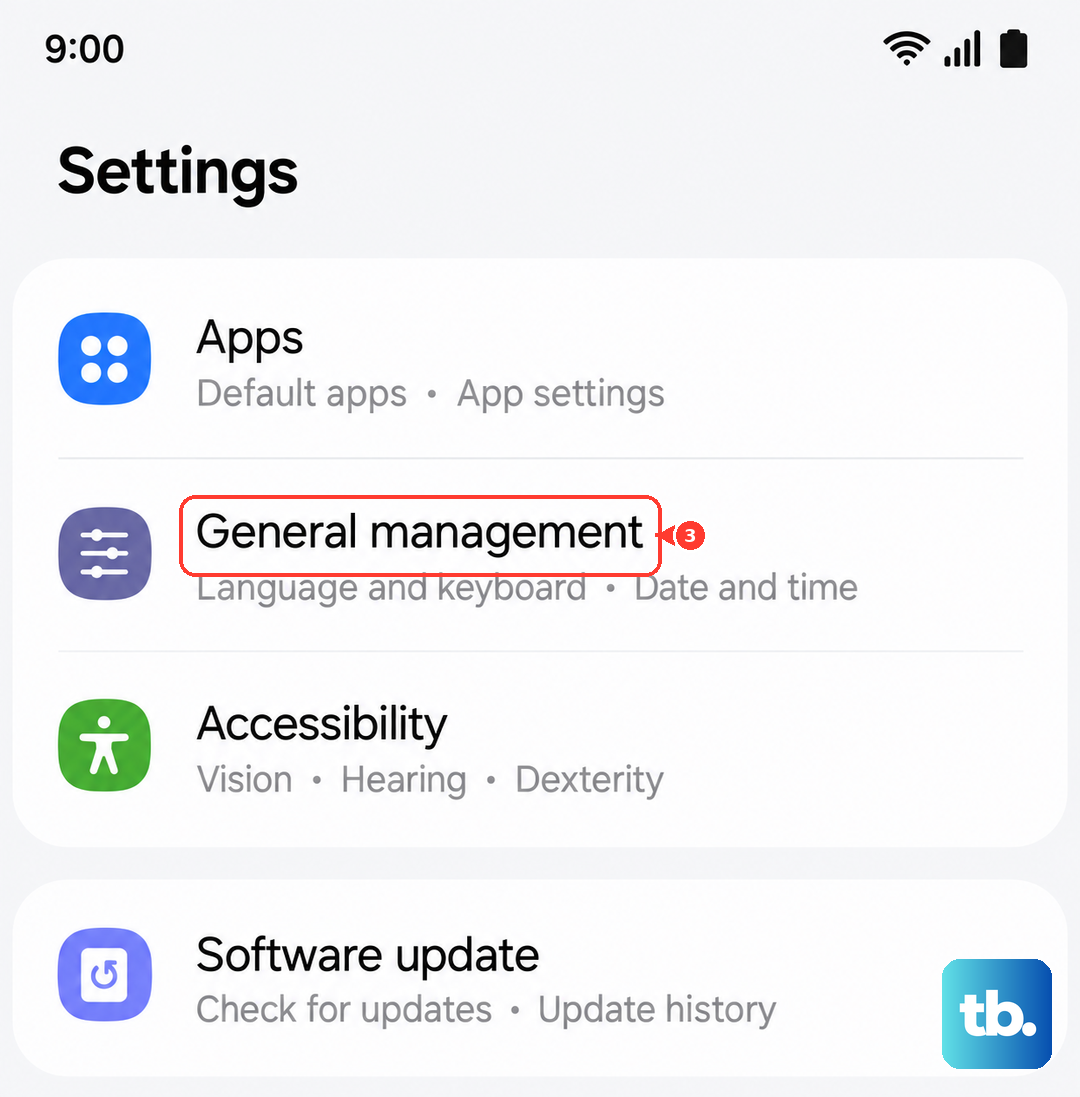
If you're still stuck, a network settings reset is a strong next step. This will erase all saved Wi-Fi networks, Bluetooth pairings, and cellular settings. Go to Settings > General management > Reset > Reset network settings. Tap reset, confirm, and then set up your Wi-Fi again from scratch.
Boot Into Safe Mode to Check for Apps
A third-party app like a VPN, ad blocker, or "cleaner" tool could be interfering. To check, press and hold the Side/Power button until the power menu appears. Then, tap and hold the Power off icon until you see the Safe Mode prompt. Tap to restart in Safe Mode.
If your Wi-Fi works perfectly in Safe Mode, a recently installed app is the culprit. You'll need to uninstall apps one by one (starting with the most suspicious) to find the offender.
Consider a Factory Reset
This is your last resort before considering a hardware issue. A factory reset will wipe your S26+ back to its out-of-the-box state. Make absolutely sure you've backed up everything important first. You can do this through your Samsung account or Google One.
To proceed, go to Settings > General management > Reset > Factory data reset. Follow the prompts to erase all data. After the phone reboots, set it up as new and try connecting to Wi-Fi immediately before restoring your apps. If it works then, you know it was a software problem.