
Slow internet on your brand new Samsung Galaxy S26+ can really put a damper on things, especially when you're trying to enjoy that stunning display or share large files. The issue is often a quick settings fix, not a hardware problem.
Since the S26+ runs the latest One UI 8.5, there are a few specific tweaks that can make a big difference. I'd start with the quick fix below, as it solves the most common slowdowns people see right after unboxing.
Toggle Airplane Mode and Restart
This is the fastest way to refresh your connection to the cellular network. Swipe down from the top of your screen to open the Quick Panel and tap the Airplane mode icon to turn it on. Wait about 10 seconds, then tap it again to turn it off.
If that doesn't do the trick, a full restart can clear out any temporary software glitches. Press and hold the Side key and Volume Down button together for about 10 seconds until you see the Samsung logo.
Check Your Mobile Network Mode
Your phone might be stuck on a slower network type. Go to Settings > Connections > Mobile networks. Tap on Network mode and make sure "5G/LTE/3G/2G (auto connect)" is selected.
This lets your S26+ automatically use the fastest available network. If you're in an area with weak 5G, forcing 5G only can actually slow things down, so the auto setting is usually best.
Enable Adaptive WiFi
One UI 8.5 has a smart feature that switches you to mobile data if your WiFi gets spotty. To turn it on, head to Settings > Connections > WiFi.
Tap the three-dot menu in the top right, select Advanced, and look for "Intelligent WiFi." Toggle on Switch to mobile data. This prevents you from being stuck on a barely-there WiFi signal.
Turn On Data Saver
This might sound counterintuitive, but Data Saver can speed up your active browsing by stopping other apps from hogging bandwidth in the background. Open Settings > Connections > Data usage and tap on Data Saver.
Toggle it on. You can then tap Allow apps while Data Saver is on to make exceptions for apps like your music streamer that you want to run in the background.
Clear the Cache for Google Play Services
Corrupted data in system services can cause general sluggishness, including internet issues. Go to Settings > Apps, then tap the filter icon and select Show system apps.
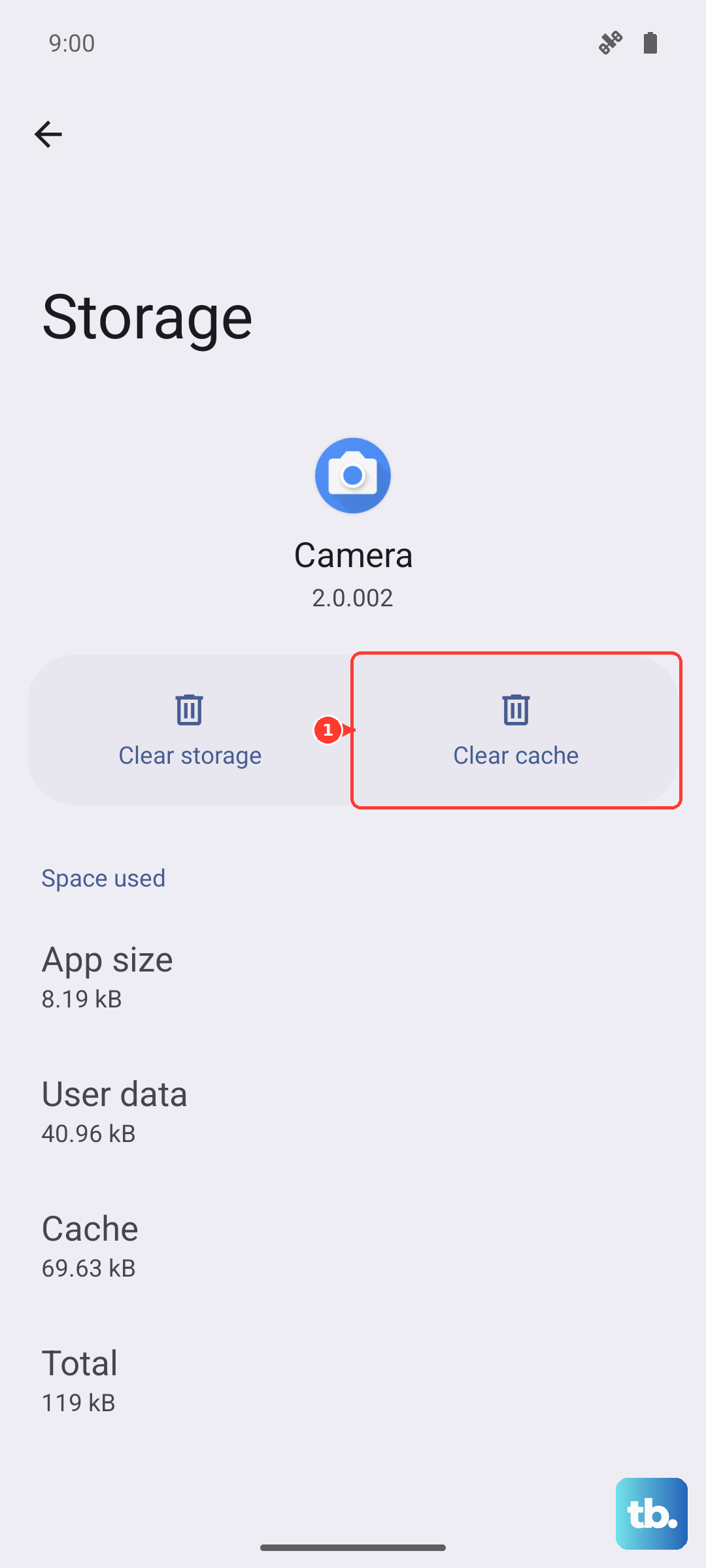
Find and tap Google Play Services. Select Storage, then tap Clear cache. Don't tap "Clear data" as that can cause other issues. This clears temporary files without deleting your information.
Update Your Phone Software
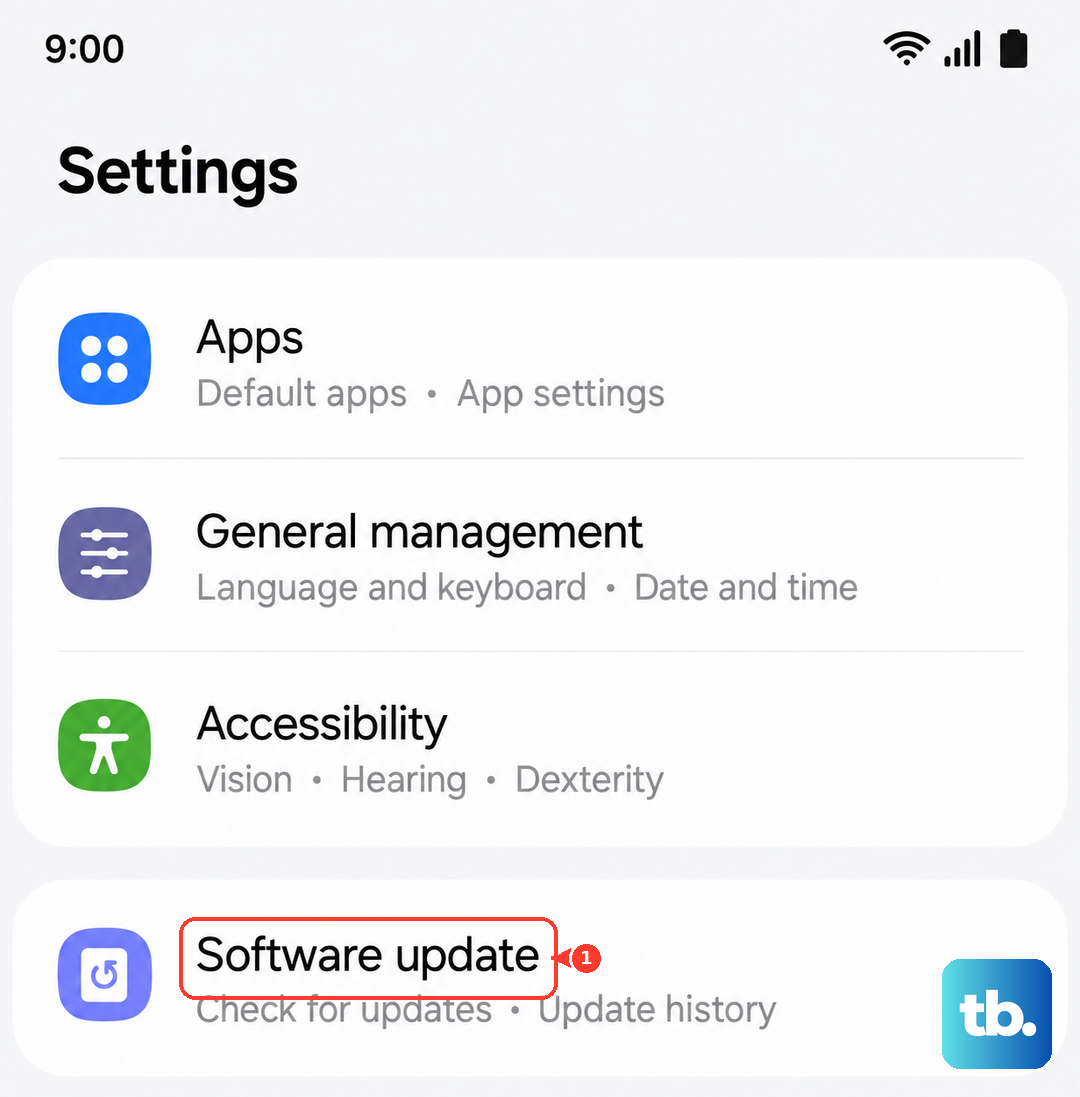
Since the S26+ is a new 2026 device, Samsung is actively releasing One UI 8.5 patches to fix early bugs that could affect performance. Go to Settings > Software update and tap Download and install.
Make sure you're connected to WiFi before starting the update. I've seen these updates resolve a variety of connectivity hiccups reported in the first few weeks after launch.
Reset Your Network Settings
This will erase all your saved WiFi networks, Bluetooth pairings, and mobile network preferences, so you'll have to reconnect to everything. It's a very effective last resort for stubborn problems.
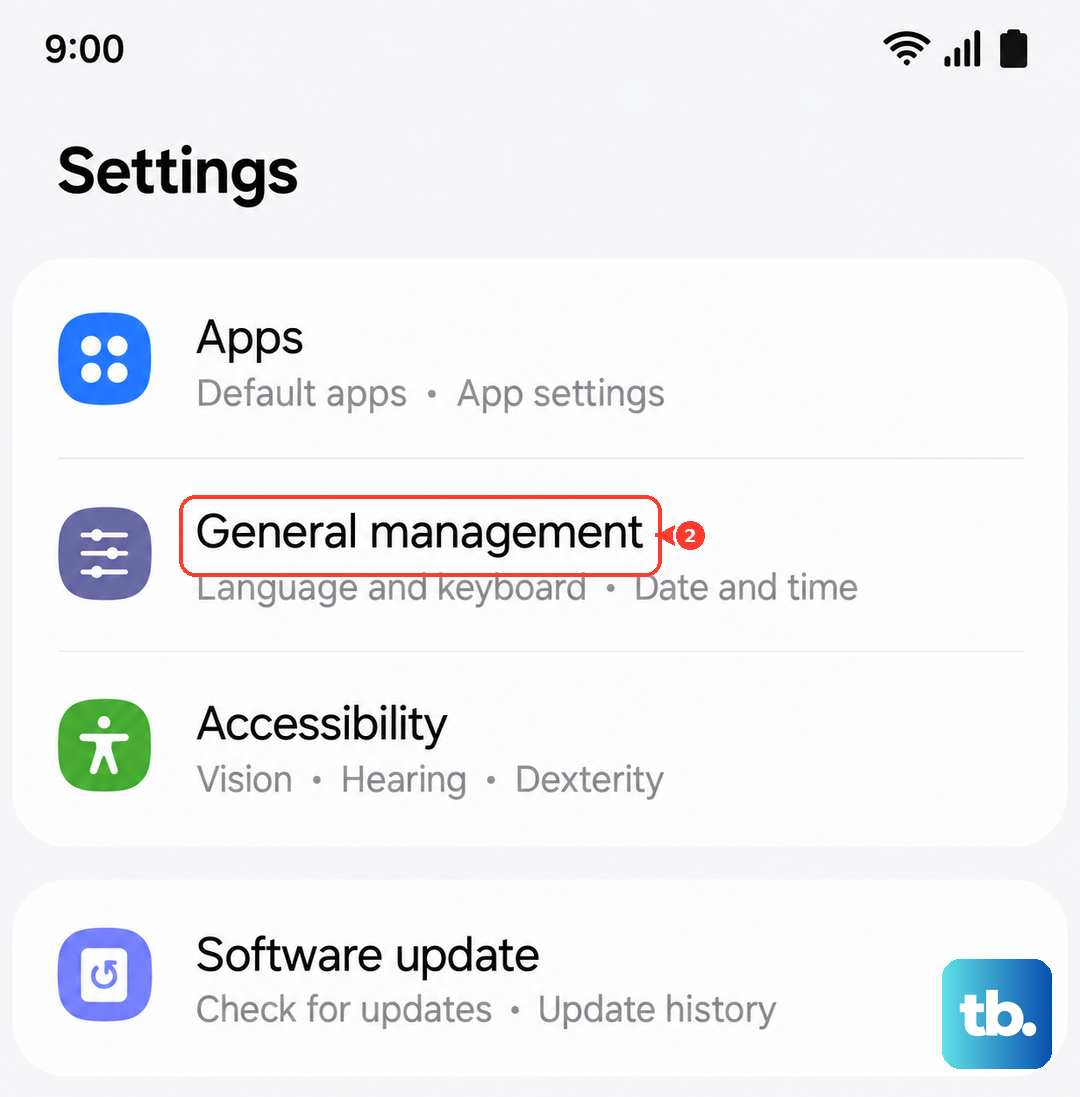
Go to Settings > General management > Reset. Tap Reset network settings and confirm. Your phone will reboot and all your network connections will be fresh.
Try a Different DNS Server
Your internet service provider's default DNS can sometimes be slow. You can change it to a faster public server like Google DNS or Cloudflare. For WiFi, go to Settings > Connections > WiFi and tap the gear icon next to your connected network.
Tap Advanced, then change IP settings from DHCP to Static. Scroll down to DNS 1 and enter 8.8.8.8 (Google) or 1.1.1.1 (Cloudflare). For DNS 2, enter 8.8.4.4 or 1.0.0.1.
Disable Any Active VPN
While VPNs are great for privacy, they route your traffic through another server, which almost always adds some latency. If you're using a VPN app, open it and disconnect, or swipe down the Quick Panel to see if a VPN tile is active.
For a full check, go to Settings > Connections > More connection settings > VPN. If there's a VPN profile set up there, you can tap the settings icon next to it and toggle it off.
Check for App-Specific Issues
If the slowdown is only happening in one app, like Chrome or Samsung Internet, try clearing that app's cache. Go to Settings > Apps, find the app, and select Storage > Clear cache.
You can also try using a different browser temporarily to see if the problem follows you. Sometimes an update for the specific app is needed, so check the Galaxy Store or Google Play Store for updates.