
Is your brand new Samsung Galaxy S26+ feeling sluggish already? That's a frustrating experience with a flagship phone. The good news is, it's almost always a software hiccup you can fix yourself.
Since the S26+ runs the latest One UI 8.5 on Android 16, some early software bugs are possible. A few background processes or a full storage drive can also bring performance to a crawl. Let's get it running like the powerhouse it should be.
Perform a Force Restart
This is the universal first step for any weird phone behavior. It clears the phone's temporary memory and stops any stuck processes without deleting your data.
Just press and hold the Volume Down button and the Side/Power button together for about 10 seconds. Let go when you see the Samsung logo appear on the screen.
Update Your Software Immediately
For a 2026 device, this is the most critical step. Samsung is actively pushing out patches for One UI 8.5 to fix performance bugs and stability issues reported by early users.
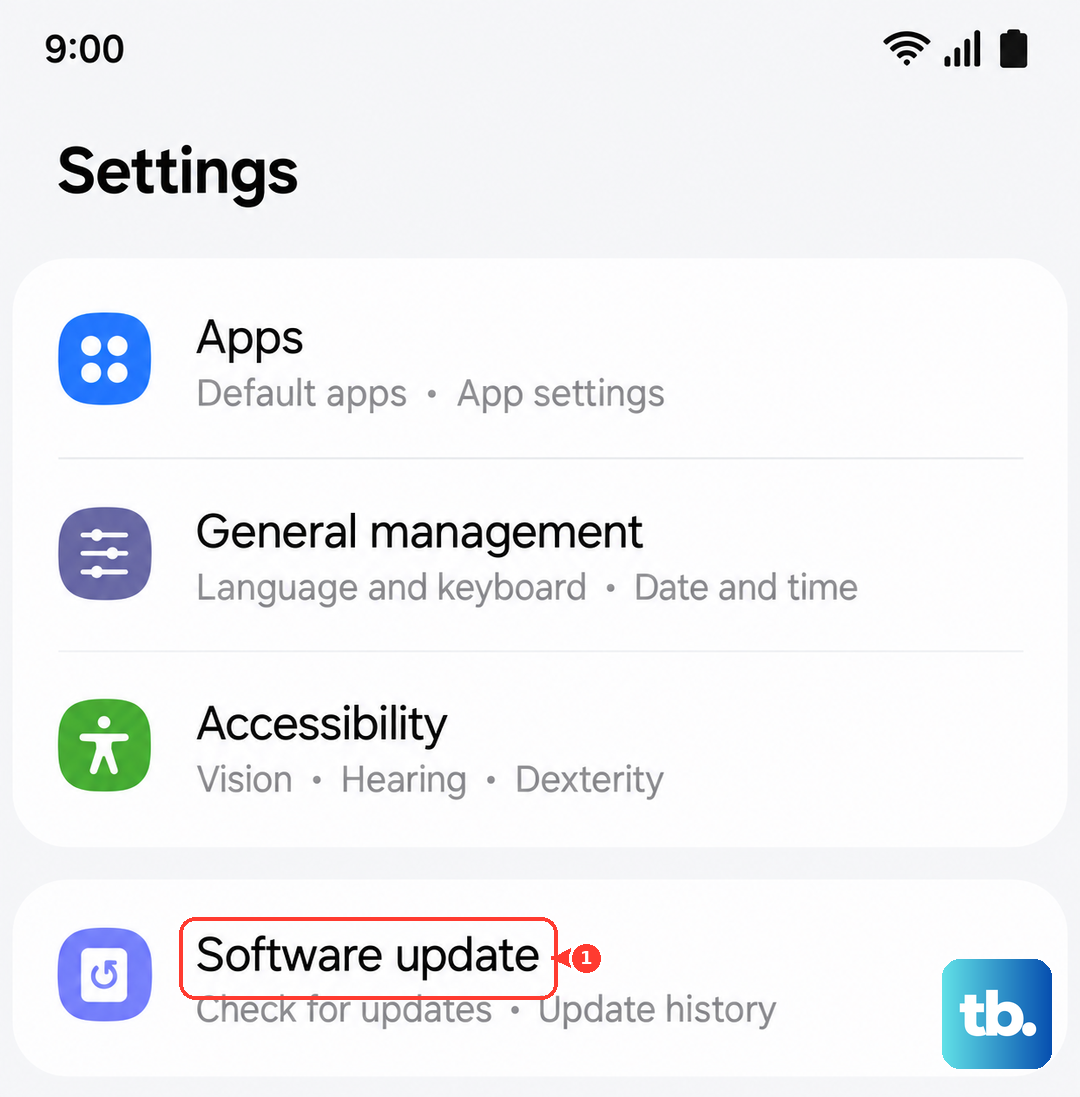
Head to Settings > Software update > Download and install. If an update is waiting, let it install. I've seen day-one updates make a massive difference in how smoothly new Galaxies run.
Close Apps Running in the Background
Too many apps left open can eat up your S26+'s RAM. Don't just tap the home button, actually close them.
Swipe up from the bottom and hold to enter the recent apps view. You can swipe each app card away individually, or tap the three-dot menu and select "Close all" to clear them in one go.
Check and Free Up Storage Space
When your internal storage is nearly full, everything slows down. Samsung's device care makes this easy to check.
Go to Settings > Device care > Storage. Here, you'll see a breakdown of what's using space. Tap on categories like "Images" or "Apps" to clean them out. The "Clean now" button can also remove temporary junk files.
Manage Your Background App Activity
One UI gives you fine control over which apps can run in the background. Restricting this for non-essential apps frees up significant resources.
Navigate to Settings > Apps. Select an app, then tap "Battery". Change the background usage setting to "Restricted" for apps that don't need constant updates, like games or streaming services you only use actively.
Disable or Remove Unused Widgets
Live widgets on your home screen are convenient, but they constantly refresh data. Each one uses a small slice of your phone's processing power.
Take a look at your home screens. Long-press any widget you don't actively need and tap "Remove". Weather, news, and health widgets are common culprits that refresh very frequently.
Clear App Caches (Especially Samsung Internet)
Over time, apps store temporary data that can become corrupted or bloated. Clearing this cache can speed them up without deleting your login info or personal data.
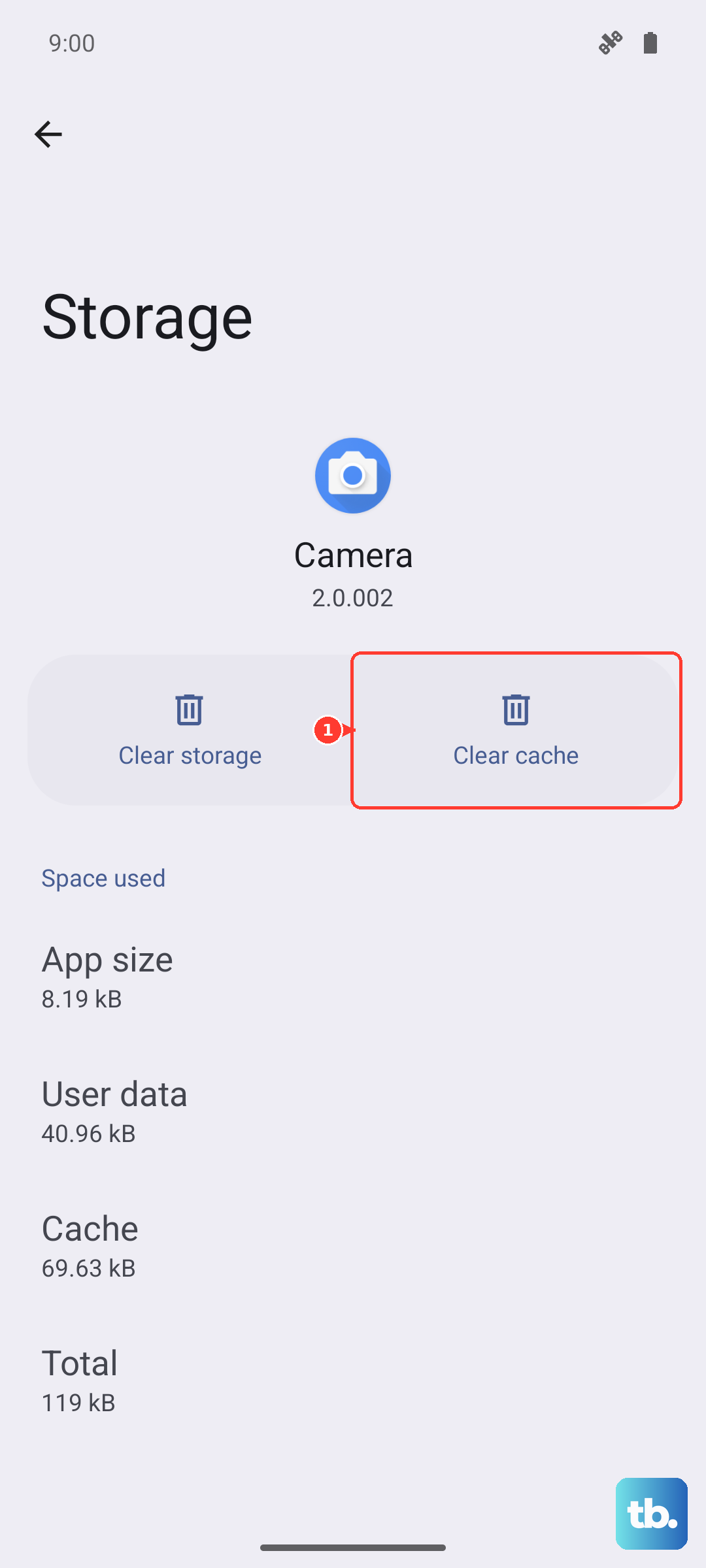
For your browser, open Samsung Internet, tap the three-line menu, go to Settings > Privacy and security > Delete browsing data. Check "Cached images and files" and tap delete. For other apps, go to Settings > Apps, select the app, then "Storage", and tap "Clear cache".
Optimize Battery Settings for Performance
Your S26+ has a "Performance profile" setting that balances battery life with speed. If it's set to "Light" for maximum battery, you might be leaving performance on the table.
Check this by going to Settings > Battery > More battery settings. Look for "Performance profile" and switch it to "Standard" or "High" for everyday use. Also, if you have any battery protection features enabled that limit charging to 85%, consider turning them off temporarily to see if full power helps.
Reduce Animations and Visual Effects
The slick animations in One UI look great, but they take a split second to render. Turning down their speed can make the phone feel instantly snappier.
You'll need to enable developer options first. Go to Settings > About phone > Software information and tap "Build number" seven times. Then, go back to Settings and enter "Developer options". Scroll to the "Drawing" section and change "Window animation scale", "Transition animation scale", and "Animator duration scale" from 1x to 0.5x.
Perform a Network Settings Reset
If the slowness seems tied to internet connectivity, browsing, or apps that use data, a corrupted network setting could be to blame. This resets your Wi-Fi, Bluetooth, and cellular settings.
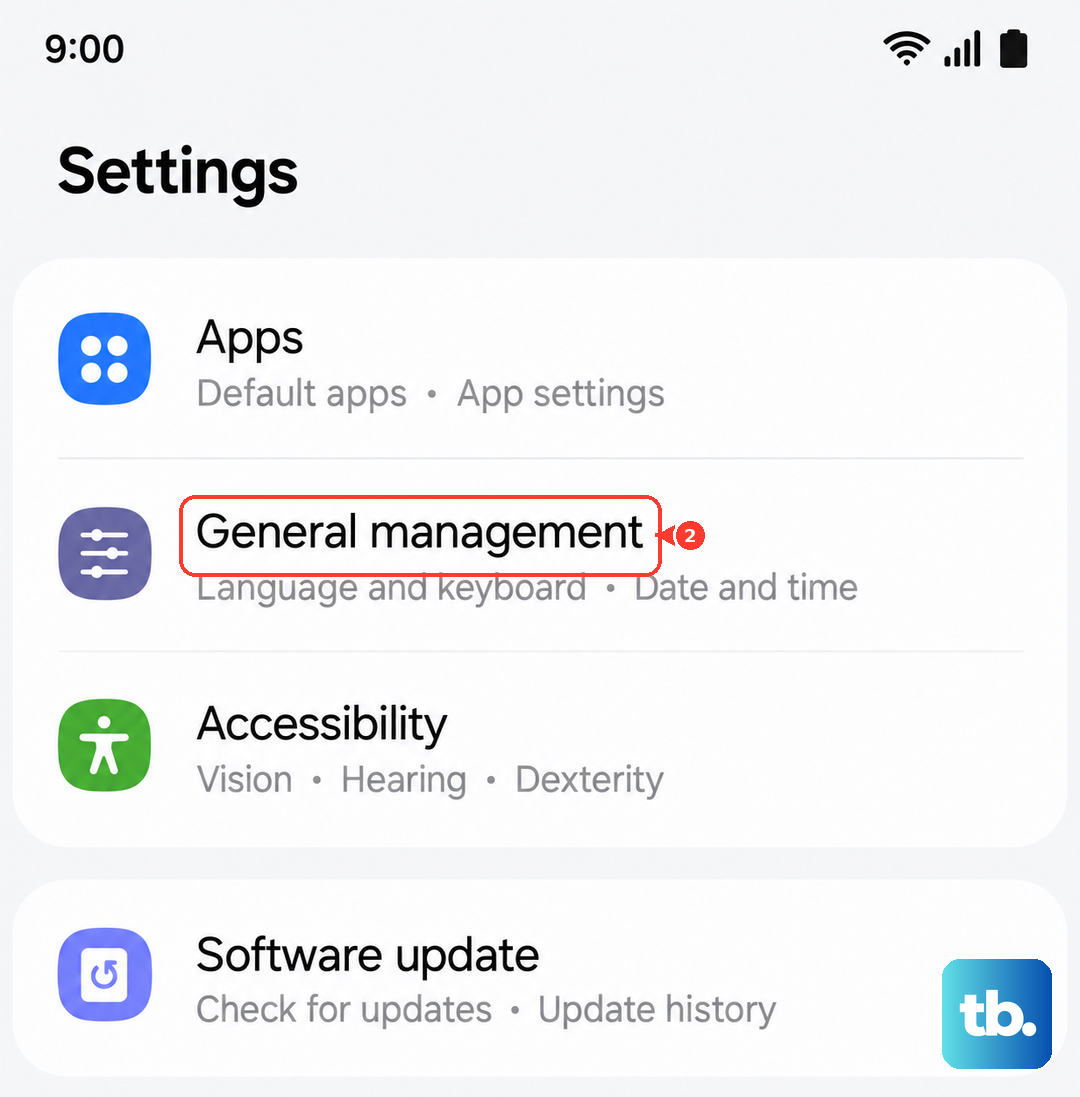
Go to Settings > General management > Reset > Reset network settings. You'll need to re-enter Wi-Fi passwords and re-pair Bluetooth devices afterward, but it can resolve mysterious lag related to connectivity.
Check for Rogue or Poorly Optimized Apps
A single badly coded app can drag down the entire system. Your S26+'s device care tool can help identify problem apps.
Open Settings > Device care > Diagnostics. Look at the "App performance" or "Battery usage" sections for apps using an unusually high amount of resources. If you spot one, try updating it from the Galaxy Store or Google Play, or consider uninstalling it to see if performance improves.
Start with the force restart and software update, as those fix the majority of issues on a new device like the S26+. Work through the list until your phone feels fast and responsive again. Most of the time, one of these tweaks will get it back up to speed.