
If your Samsung Galaxy S26 is suddenly silent when you get a text or app alert, it's a jarring experience. You're not alone, and it's usually something simple. Sound settings or app notification settings may be the cause.
A browser based speaker test helps narrow this down fast. If test tones play clearly, an app or setting may be the cause of the missing notification sound.
I'd start by checking the most obvious culprit. Swipe down from the top right of your screen to open the Quick settings panel. If "Do not disturb" is enabled, tap it to turn it off. Go to Settings > Sounds and vibration and select "Sound" instead of "Vibrate" or "Mute."
Check Your Volume and Sound Mode
It sounds basic, but checking the volume can help. Press the volume up button on the side of your S26. A volume slider will appear on screen. Tap the three-dot menu next to it to expand all volume sliders.
Ensure the notification volume slider is turned up, not all the way down or muted. Also, go to Settings > Sounds and vibration. Under Sound mode, select "Sound" instead of "Vibrate" or "Mute."
Review App-Specific Notification Settings
Sometimes, the problem isn't with the phone but with a single app. Open Settings and go to Notifications. Tap on "App notifications" to see a list of all your apps.
Find the app that isn't making a sound, like Messages or Gmail, and tap on it. Inside, make sure "Allow notifications" is toggled on. If categories aren't visible, go to Settings > Notifications > Advanced settings and enable "Manage notification categories for each app." Return to App notifications, select the app, and tap Notification categories. Choose a category, turn on "Allow notifications," select "Alert," and tap "Sound" to choose a tone. Some apps use their own sound settings.
Disable Do Not Disturb and Focus Modes
Do not disturb can silence notifications or turn on automatically on a schedule. Search Settings for "Do not disturb" and turn off its switch. Make sure the schedule is turned off for now.
Also, check if any "Focus" modes (like Work or Sleep) are active by swiping down on the notification panel. These modes can silence notifications from certain apps. Turn them off to test.
Clear the Cache for the Affected App
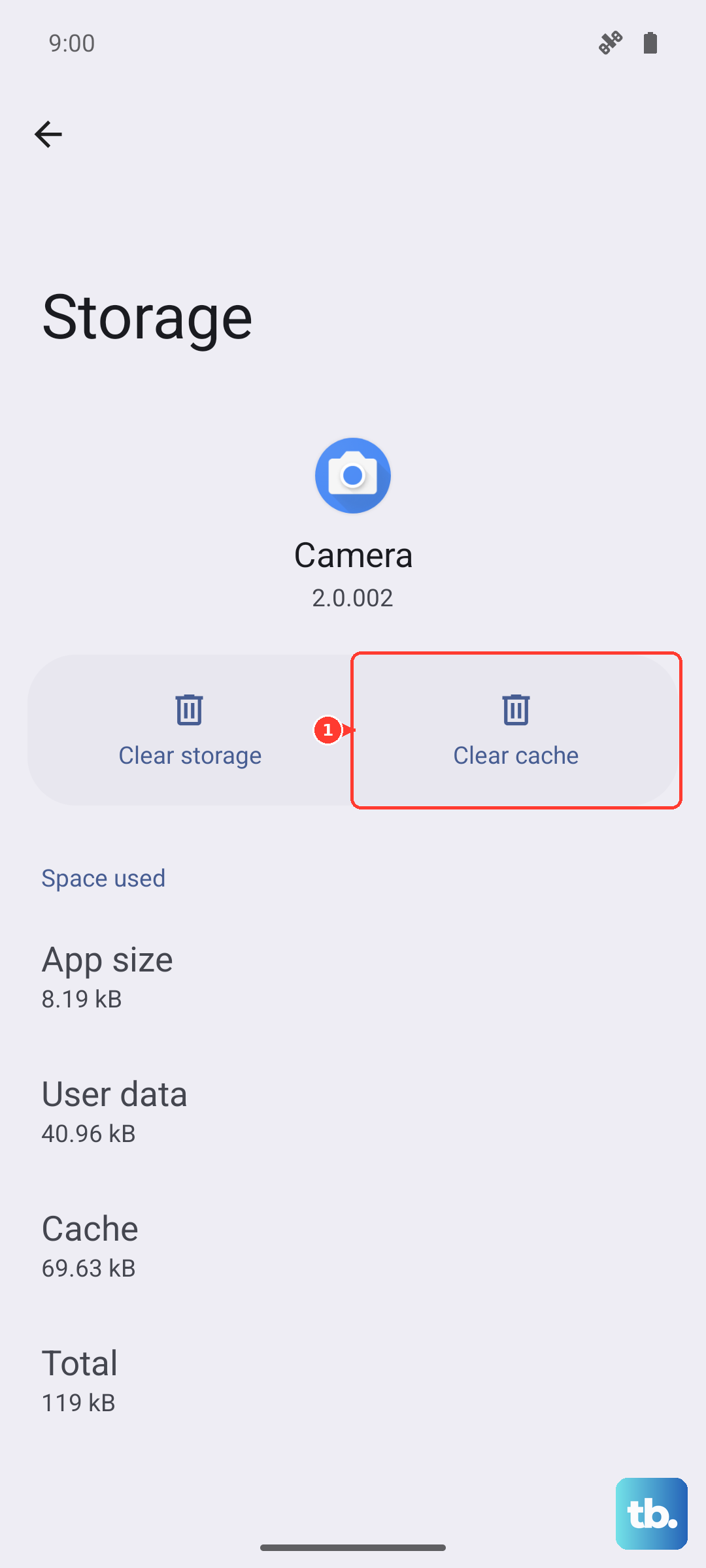
Temporary app data may be causing a glitch. To clear the affected app's cache, go to Settings > Apps and select the app that isn't sending notification sounds.
Tap "Storage" and then "Clear cache," as shown in the example below. This removes temporary files without resetting the app. Avoid "Clear data," which resets the app and removes its saved settings.
Check for a Software Update
Check whether a software update is available for your Galaxy S26. Go to Settings > Software update > Check for updates. Depending on your software version or carrier, the option may be "Download and install," "Check for system updates," or "Check for software updates." If an update is available, follow the on-screen instructions to install it.
Updating can help with software problems. I've seen updates specifically target notification and sound issues.
Verify Your Default Notification Sound
It's possible the default sound was accidentally changed to a silent tone. Go to Settings > Sounds and vibration > Notification sound. Browse the list and select a different tone to test.
Tap on it to preview it. Make sure you hear something. You can also check "Volume" in this menu to double-check the notification volume level independently.
Restart Your Galaxy S26
A restart can help clear temporary system glitches. Press and hold the Side button and Volume down button together for more than 7 seconds until the device restarts, then release.
This force restarts the phone. It's different from a normal power off and on, and it often resolves one-off software hiccups.
Reset App Preferences
Resetting app preferences can help restore app defaults without deleting personal data. Review the confirmation screen to see which preferences will change before proceeding. Go to Settings > Apps.
Tap the three-dot menu and select "Reset app preferences." Confirm. Afterwards, review the affected app's notification settings and test whether its alerts make a sound.
Inspect the Media Volume Limit
Samsung has a feature that can limit volume for safety. Check this setting if media playback through headphones or Bluetooth speakers is also too quiet. Go to Settings > Sounds and vibration > Volume.
Tap the three-dot menu and select "Media volume limit." Make sure it's turned off, or if it's on, check that the maximum limit isn't set to a very low level.
Boot into Safe Mode
This starts your phone with all third-party apps disabled. If notification sounds from a built-in app work in Safe mode, a downloaded app may be causing the conflict. To enter Safe mode, press and hold the Side and Volume down buttons together until the power menu appears.
Then, tap and hold the "Power off" icon on screen until you see a prompt to reboot to Safe Mode. Tap "Safe mode." Test your notifications. To exit, just restart the phone normally.
If the sound works here, you'll need to uninstall recently downloaded apps one by one to find the culprit.