
When your Samsung Galaxy S26 won't send texts, it's incredibly frustrating. You might see a "Message not sent" error, a spinning circle that never goes away, or the message just sits in your conversation. Let's get it working again.
Start With a Quick Restart
First, try a force restart on your Galaxy S26. Press and hold the Volume Down button and the Side/Power button together for about 10 seconds until you see the Samsung logo appear. This simple step clears out any temporary software glitch in One UI 8.5 that might be blocking the messaging app.
Check Your Mobile Data and Signal
Look at the top of your screen. If you don't see the 4G/5G icon or your signal bars are very low, you won't be able to send SMS or MMS. Try moving to a different location. You can also swipe down for the Quick Panel and tap the Airplane Mode icon to turn it on, wait 10 seconds, then tap it again to turn it off. This forces your phone to reconnect to the cellular network.
Verify Your Message Settings
Open the Samsung Messages app and tap the three-dot menu. Go to Settings. Here, make sure Send as SMS is enabled. This lets a failed RCS or chat message send as a regular text instead. Also, tap More settings and ensure MMS messages is turned on, which is required for sending pictures.
Toggle RCS Chats Off and On
If you're using chat features (RCS), which are like Android's version of iMessage, they can sometimes get stuck. In the Messages app settings, tap Chat settings or RCS Chats. Turn the main toggle off, wait a full minute, and then turn it back on. This re-registers your number with the service and can clear up sending failures.
Check for Software Updates
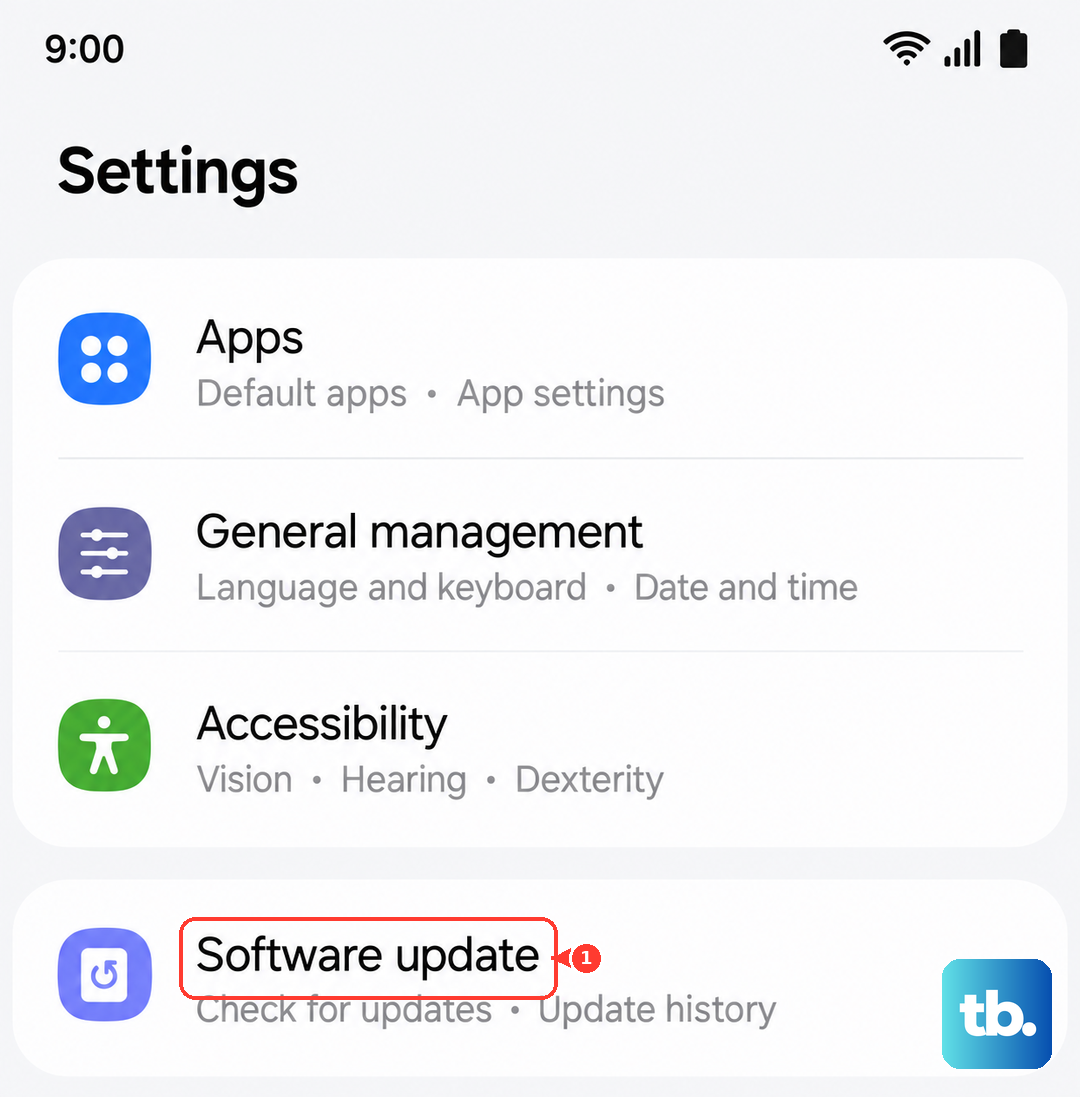
Since the Galaxy S26 is new with One UI 8.5, early software bugs are a real possibility. Go to Settings > Software update and tap Download and install. If an update is available, install it immediately. I've seen day-one updates fix all sorts of communication issues on new Samsung phones.
Clear the Messaging App Cache
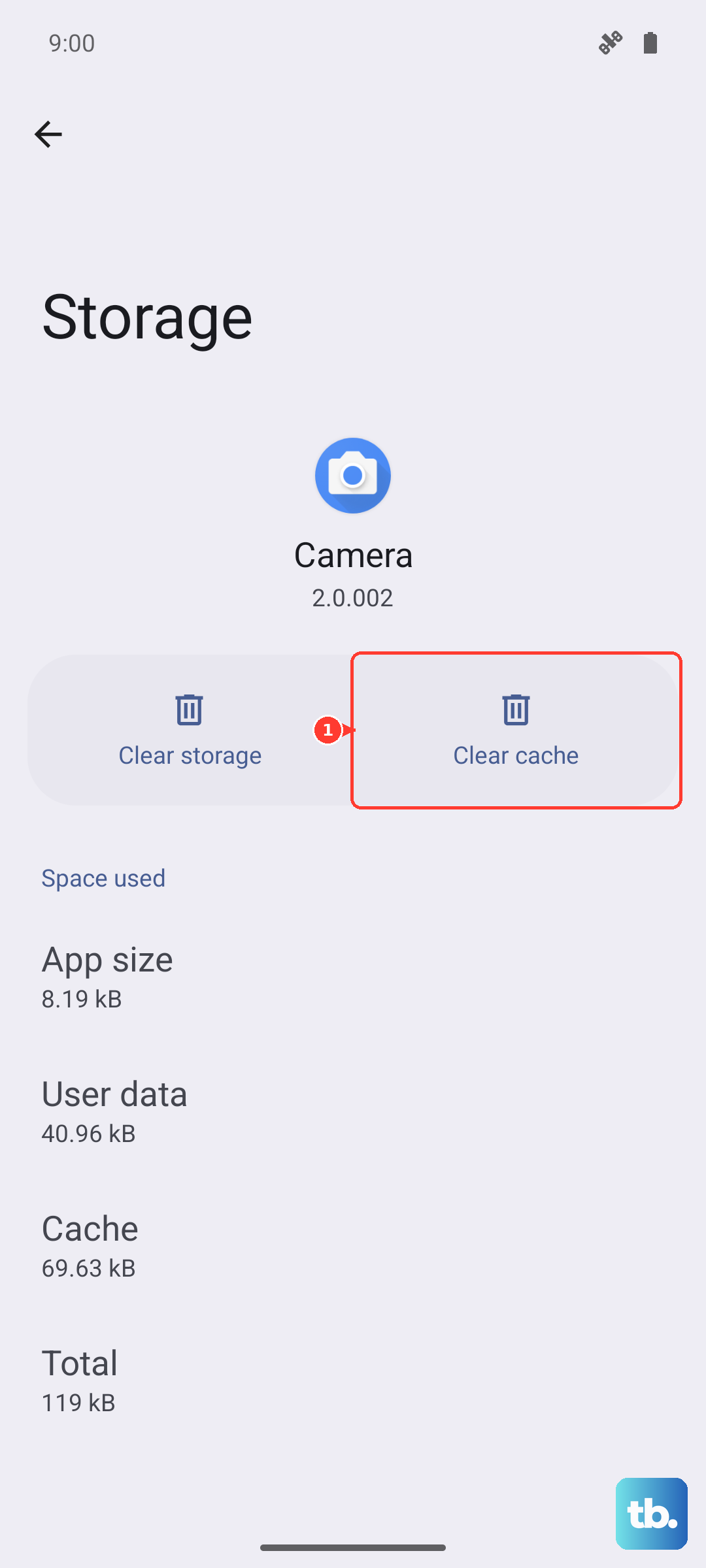
Go to Settings > Apps, find and tap Messages. Select Storage and then tap Clear cache. This deletes temporary files without touching your actual messages. If that doesn't help, you can try Clear data, but be aware this will reset the app to its default settings and you might lose some preferences.
Reset Your Network Settings
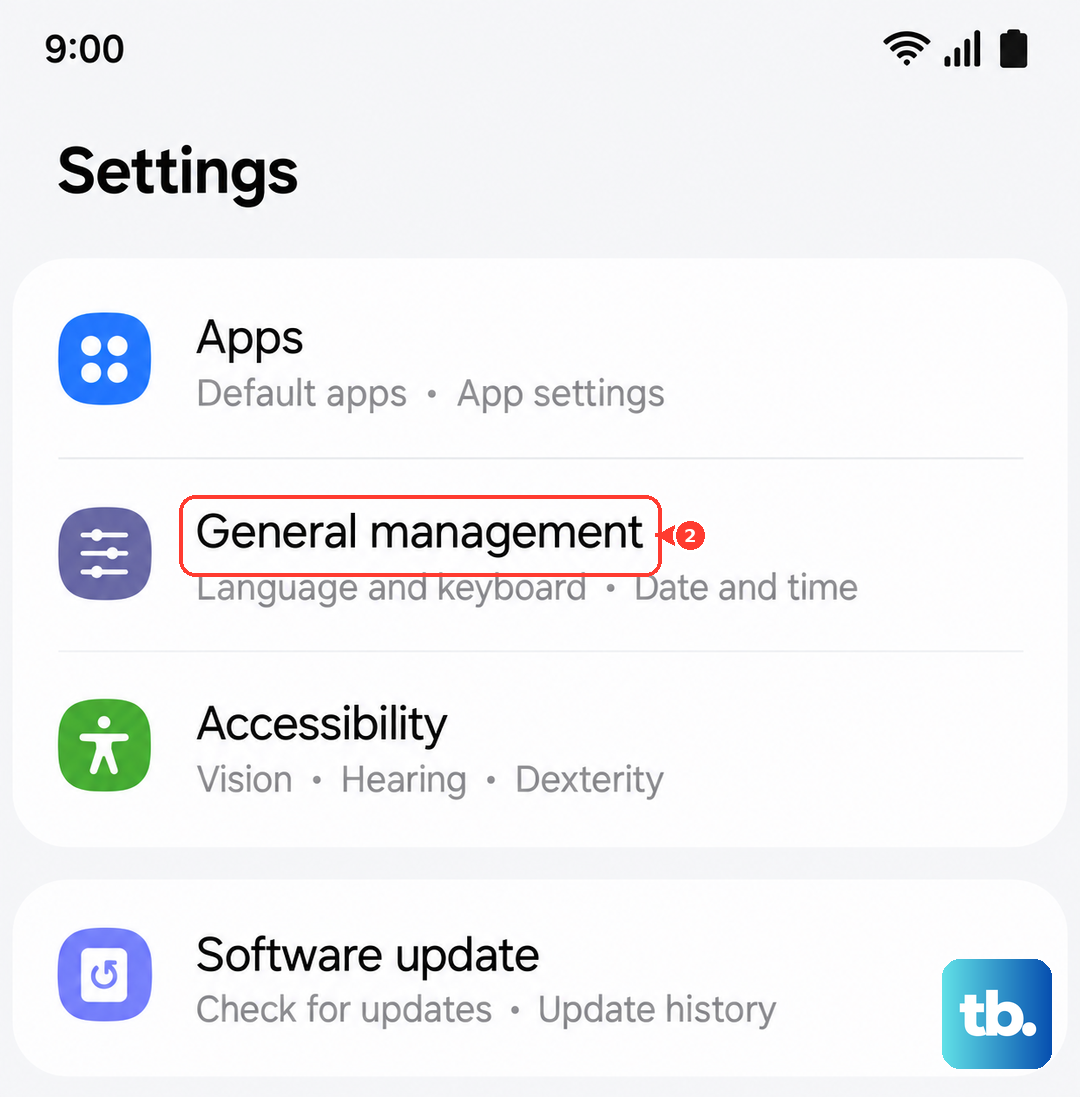
This is a stronger fix for persistent network-related problems. Navigate to Settings > General management > Reset > Reset network settings. Tap to confirm. This will erase all Wi-Fi networks, Bluetooth pairings, and mobile network settings. You'll have to reconnect to Wi-Fi and re-pair Bluetooth devices afterward.
Check Your SIM Card Status
Power off your Galaxy S26. Use the SIM eject tool to pop out the SIM tray and remove the physical SIM card. Give the gold contacts a quick wipe with a dry cloth and reinsert it. If you're using an eSIM, you can try turning it off temporarily in Settings > Connections > SIM card manager, then re-enabling it.
Review Your Blocked Numbers
If texts are failing to send to one specific contact, you might have blocked them by accident. Open the Phone app, tap the three-dot menu, and go to Settings > Block numbers. Scroll through the list to see if the number is there. You can remove it by tapping the minus icon next to it.
Contact Your Mobile Carrier
Sometimes the issue is on your carrier's end. They might need to reprovision your line for messaging services, or there could be a temporary outage in your area. Give them a call or use their support app. Ask them to specifically check the status of SMS and MMS on your account.