That "No SIM" message on your Galaxy S26 can stop you in your tracks. Samsung's current troubleshooting points first to a loose, dirty, or damaged SIM card, a carrier/account issue, or mobile network settings that need to be reset. Because screens and settings can vary by carrier and software version, start with the low-risk checks below before moving to carrier support or service.
Restart and Re-seat the SIM Card
Let's start with the simplest actions. First, give your phone a force restart. Press and hold the Volume Down button and the Side/Power button together for about 10 seconds until you see the Samsung logo. This can clear a temporary system glitch that's blocking the SIM.
If that doesn't work, power the phone off completely. Grab the SIM ejector tool from the box and pop out the tray. Take out the SIM card and give the gold contacts a gentle wipe with a clean, dry cloth. Look for any tiny scratches or debris. Reinsert the card, making sure it's seated firmly and correctly in the tray, then power the phone back on.
Check Your Connection Settings
Sometimes the fix is just a toggle away. Open Quick settings by swiping down from the top right of the screen. Tap Airplane mode to turn it on, wait a few seconds, then tap it again to turn it off so the phone reconnects to mobile service.
Next, verify the SIM is enabled. Go to Settings > Connections > SIM manager. Make sure the switch next to your physical SIM or activated eSIM is on. If you're using more than one line, check Primary SIM or Preferred SIMs so calls, texts, and data use the intended line.
Update Your Software and Reset Network Settings
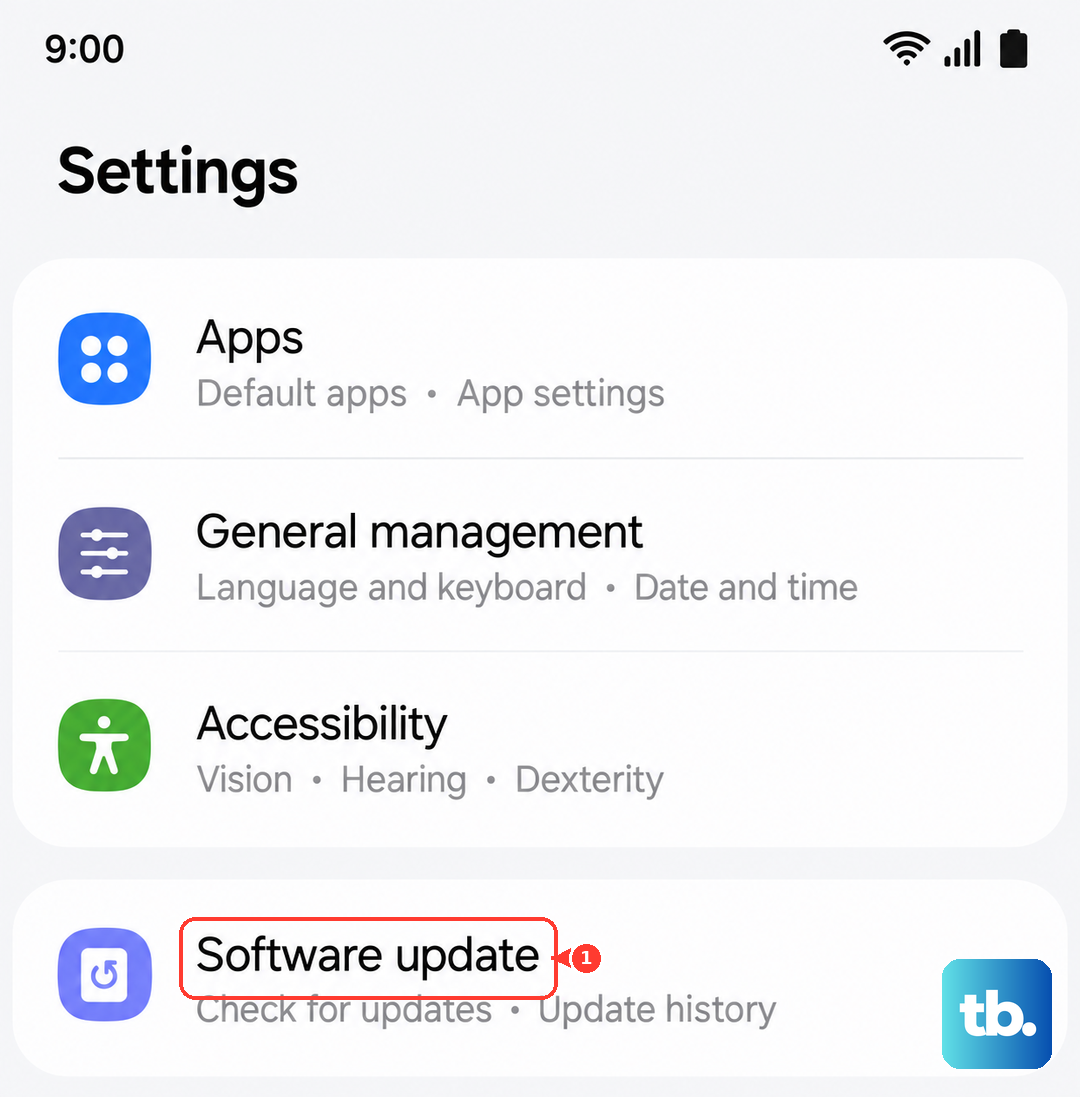
Given that the S26 is running the new One UI 8.5, a software bug could be the culprit. It's a good idea to check for updates frequently. Head to Settings > Software update and tap "Download and install." If an update is available, install it and restart your phone.
If you're still seeing the error, reset the mobile network settings. On the S26, Samsung separates this from the Wi-Fi and Bluetooth reset, so use Settings > General management > Reset > Reset mobile network settings. Review the prompt, tap Reset settings, then confirm with Reset. If you also need to clear Wi-Fi networks or Bluetooth pairings, use Reset Wi-Fi and Bluetooth settings as a separate step.
Inspect and Test the SIM Card Itself
If settings adjustments aren't helping, the problem might be physical. After removing the SIM as described earlier, inspect it closely under good light. Check for any cracks on the plastic or significant wear on the gold contacts.
The best way to rule out a faulty SIM is to test it in another compatible phone. If the other phone also says "No SIM," then the card itself is likely damaged or deactivated. You'll need to contact your carrier for a replacement. If it works perfectly in another device, the issue is with your S26.
Clear System Cache and Check APN
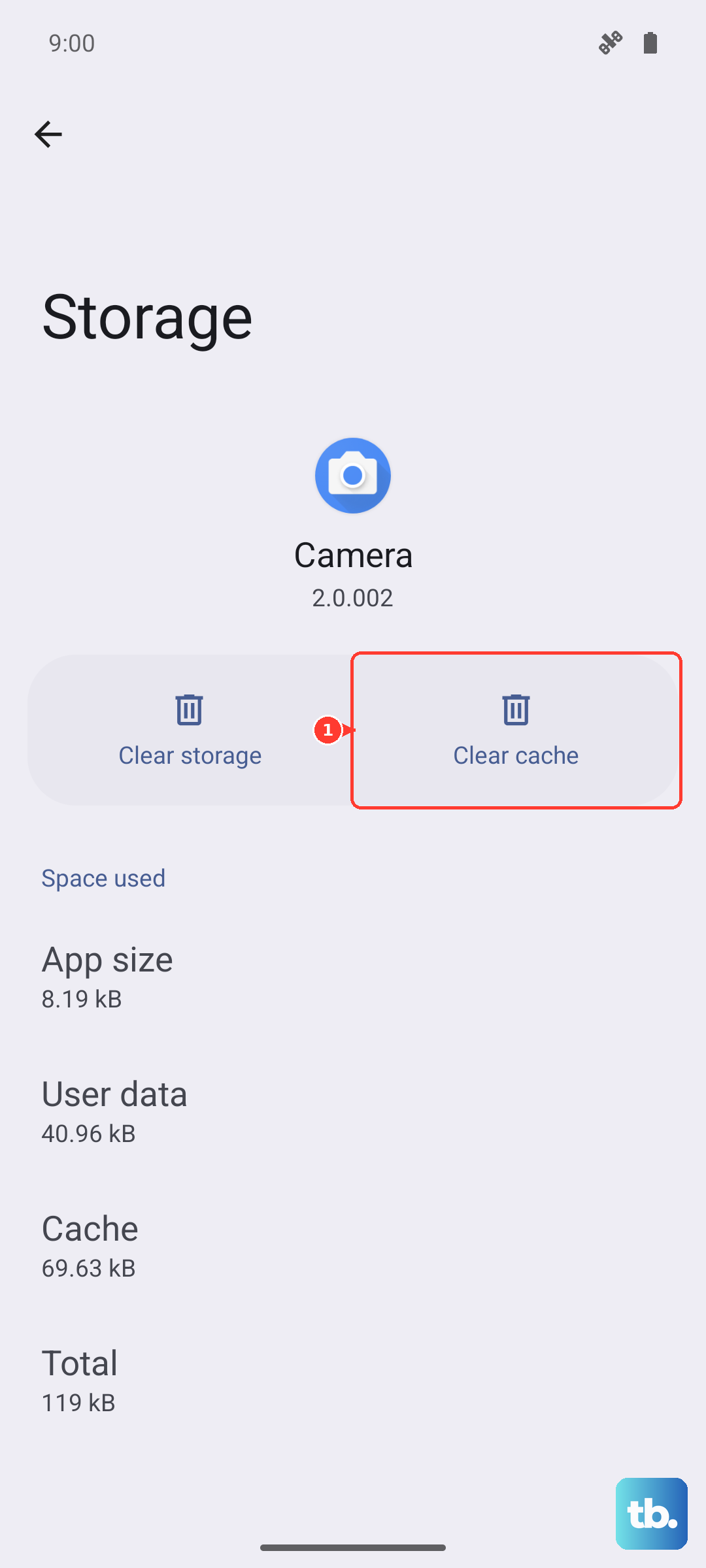
Corrupted cache data in system apps can sometimes interfere. You can clear the cache for the SIM services. Go to Settings > Apps, tap the three-dot menu, and select "Show system apps." Find and select "SIM Toolkit" or "SIM Application Toolkit," then go to Storage and tap "Clear Cache." Do the same for "SIM card manager" if you see it in the list.
Incorrect Access Point Name (APN) settings can also prevent a proper connection, even if the SIM is detected. To reset them, navigate to Settings > Connections > Mobile Networks > Access Point Names. Tap the three-dot menu and select "Reset to default." Your phone should automatically populate the correct settings, but if your carrier gave you specific details, you may need to re-enter them.
Check Network Operator Selection
Your S26 should normally select the carrier automatically. Go to Settings > Connections > Mobile networks > Network operators and make sure Select automatically is on.
If your carrier tells you to choose a network manually, turn Select automatically off, wait while the phone searches, then choose the required network. Turn Select automatically back on afterward so the phone can reconnect when you move out of range.
Consider an eSIM or Factory Reset
The Galaxy S26 supports eSIM. If your physical SIM card slot is problematic or you keep having issues, contact your carrier to see if they can convert your line to an eSIM. This digital SIM can be downloaded directly to your phone and often bypasses physical connection problems.
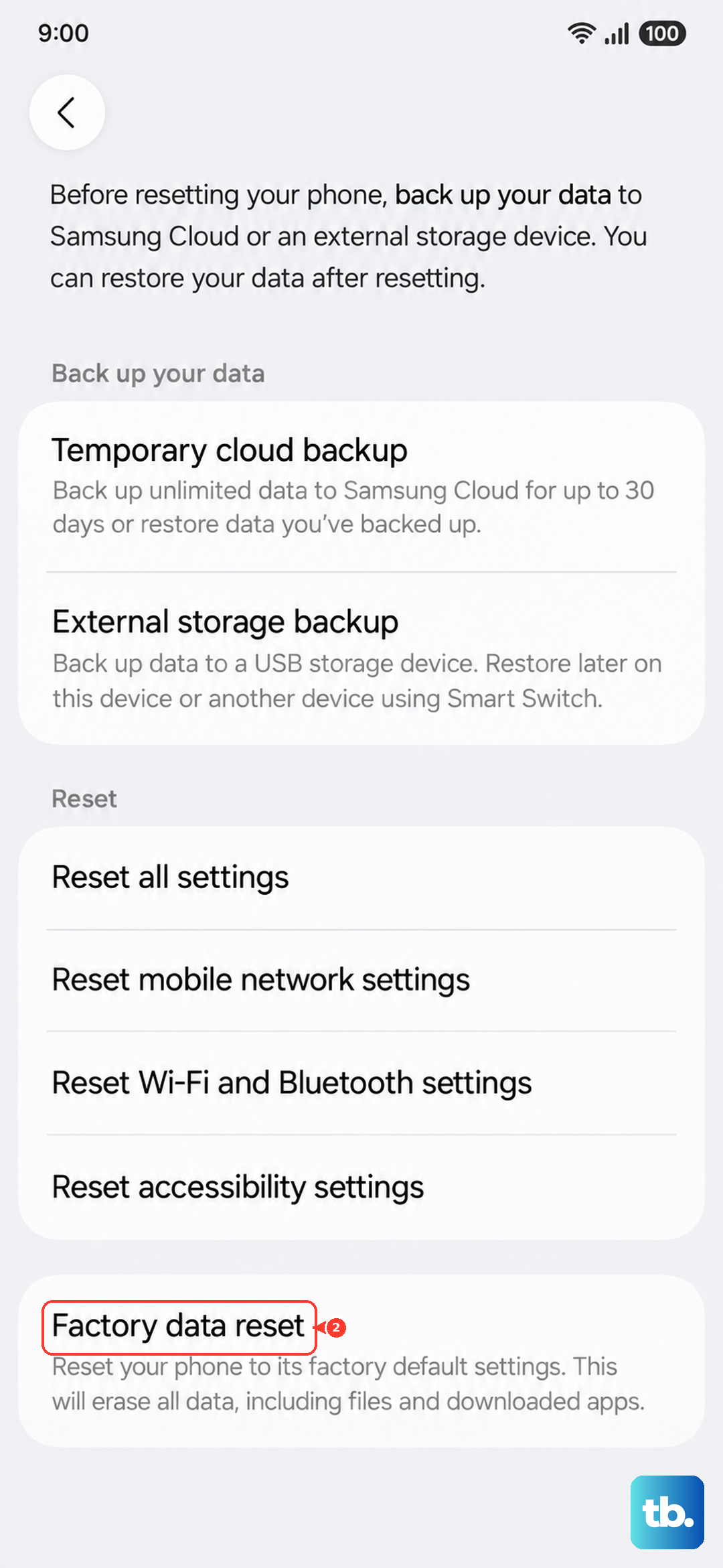
As a last resort for software-related issues, you can perform a factory reset. This will erase all data on your phone, so you must back up everything important first. Once backed up, go to Settings > General Management > Reset > Factory data reset. Follow the prompts to reset the phone. After it restarts, set it up as new initially to see if the SIM is detected before restoring your backup.