If your brand new Samsung Galaxy S26 is already stuttering or freezing, it's incredibly frustrating. You expect top-tier performance from a flagship phone. The good news is, this is almost always a software hiccup, especially with a brand new operating system like One UI 8.5.
Lagging on a fresh device typically points to background app updates, a rogue app, or early software bugs that need patching. I'd start with a simple restart, as it clears the system's temporary memory and stops any misbehaving processes.
Perform a Force Restart
When the screen is completely frozen and won't respond to taps, a force restart is your first move. It's different from a normal power off. Press and hold the Volume Down button and the Side/Power button together for about 10 seconds.
Keep holding them until you see the Samsung logo appear on the screen, then let go. This forces a hard reboot and can instantly resolve temporary freezes.
Check for Software Updates
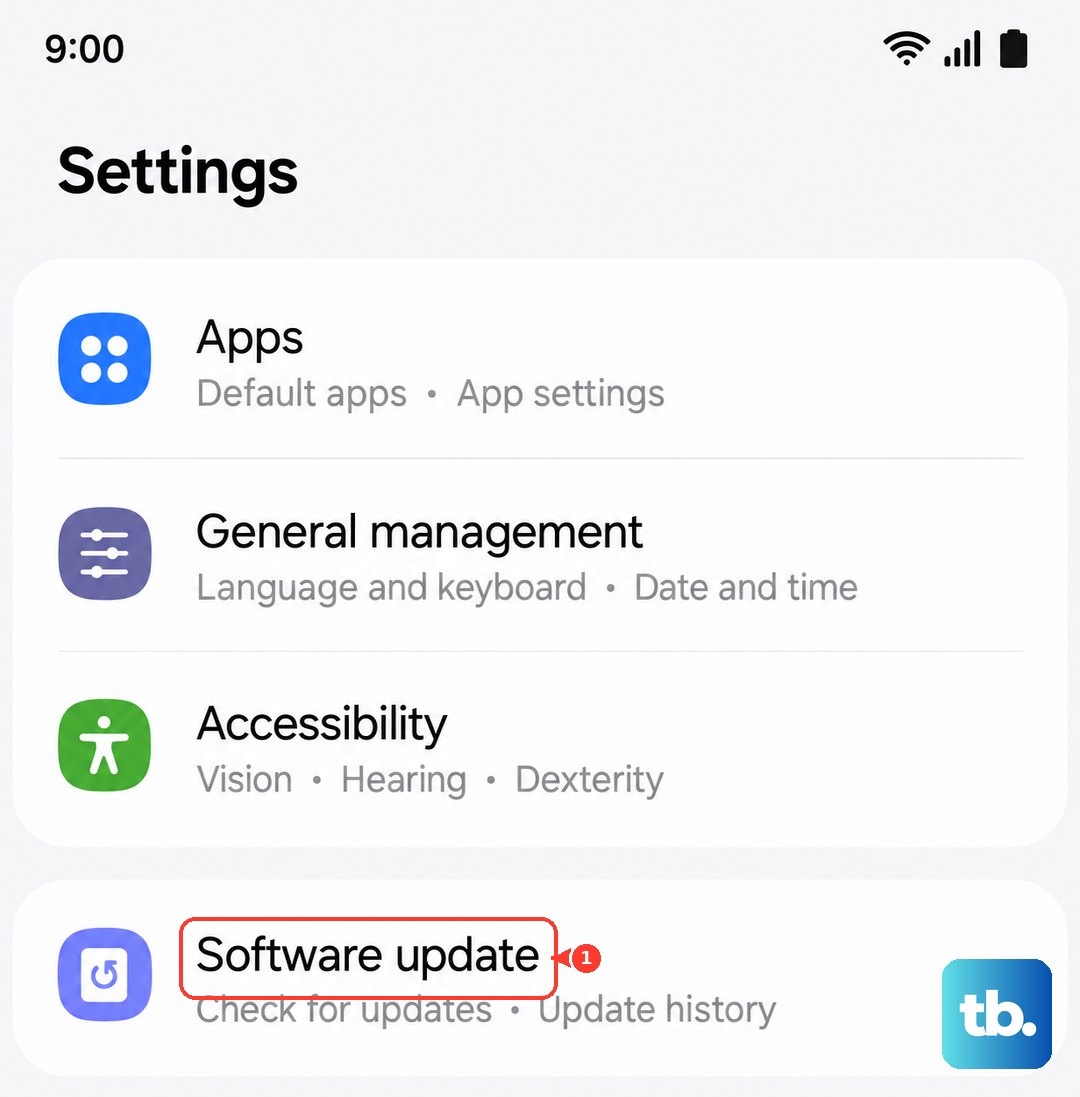
Since the Galaxy S26 ships with One UI 8.5, Samsung is likely pushing out early stability updates to fix performance bugs. It's crucial to check for these regularly. Go to Settings > Software update and tap Download and install.
Make sure you're connected to Wi-Fi and have at least 50% battery before starting the update. An update can specifically target lag and touch response issues.
Close Background Apps and Clear RAM
Even on a powerful phone, too many apps running can cause slowdowns. Swipe up from the bottom and hold to enter the recent apps view. You can swipe each app away individually or tap the three-dot menu and select Close all.
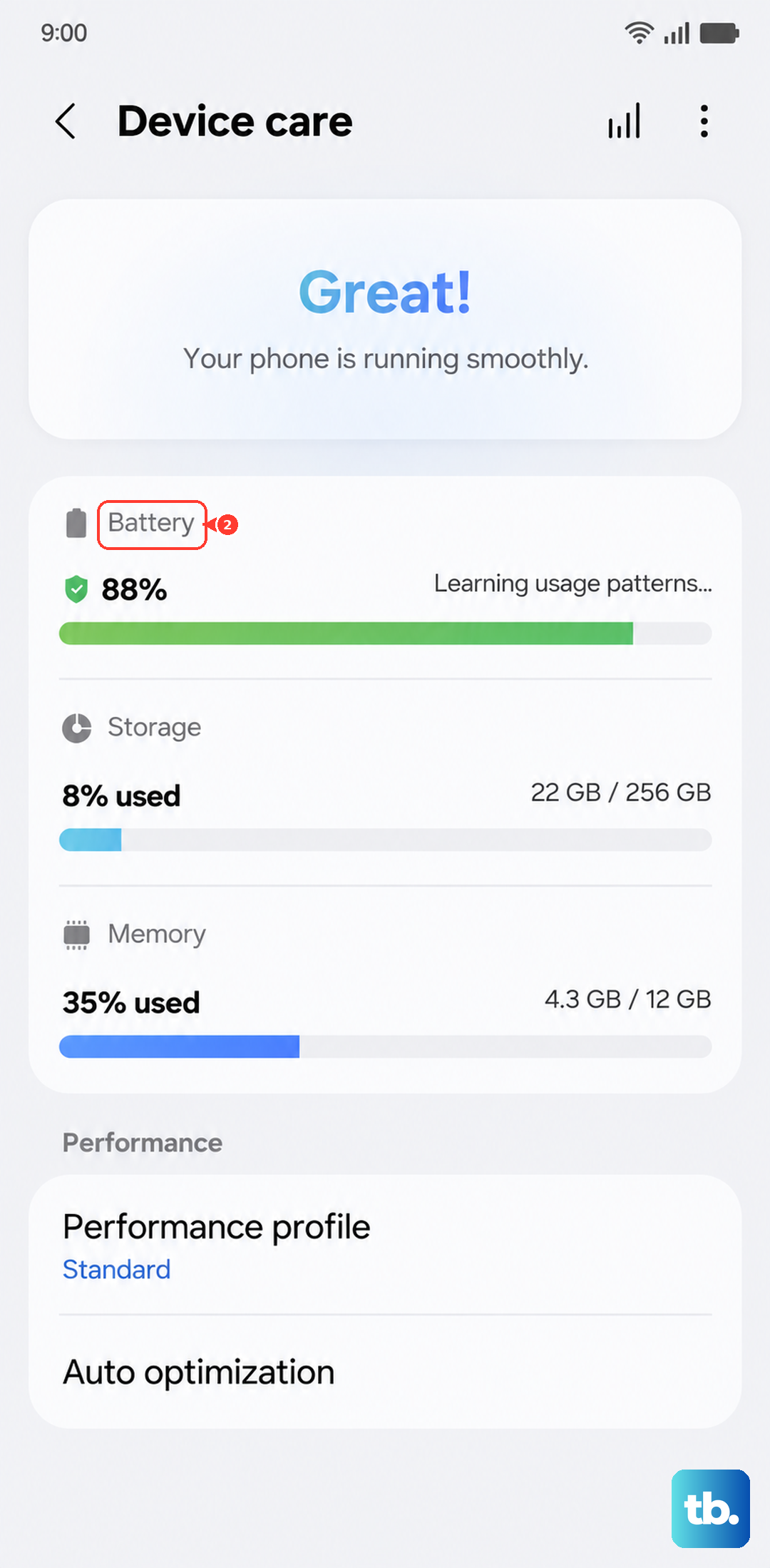
For a deeper clean, you can also clear the cached RAM. Open Settings, go to Device care > Memory, and tap Clean now. This frees up system resources instantly.
Free Up Storage Space
While your S26 likely has plenty of space, filling it up can slow down file management. Head to Settings > Device care > Storage for a breakdown. The system might already suggest cleaning junk files or large, unused apps.
Pay attention to the "Cleaning suggestions" section. It's safe to remove downloaded app packages and duplicate files it finds there.
Put Apps to Sleep or Deep Sleep
One UI has a great feature to automatically manage apps that drain battery and resources in the background. Go to Settings > Device care > Battery > Background usage limits.
Here, you can add apps to "Sleeping apps" (put to sleep when not used) or "Deep sleeping apps" (never run in background). Add any non-essential apps here to prevent them from causing lag.
Check for Problematic Apps
A single poorly optimized app can be the culprit. Think about if the lag started after installing something new. Try booting the phone into Safe Mode to check.
Press and hold the power button until the power menu appears. Then, tap and hold the "Power off" icon until you see the Safe Mode prompt. In Safe Mode, all third-party apps are disabled. If the phone runs smoothly, you know an app is to blame.
Reduce Animation Scale
Speeding up the visual transitions can make the phone feel snappier. You need to enable Developer Options first. Go to Settings > About phone > Software information and tap "Build number" seven times.
Then, go back to Settings and search for "Developer options". Inside, scroll to the "Drawing" section. Change "Window animation scale", "Transition animation scale", and "Animator duration scale" from 1x to 0.5x.
Clear App Caches Individually
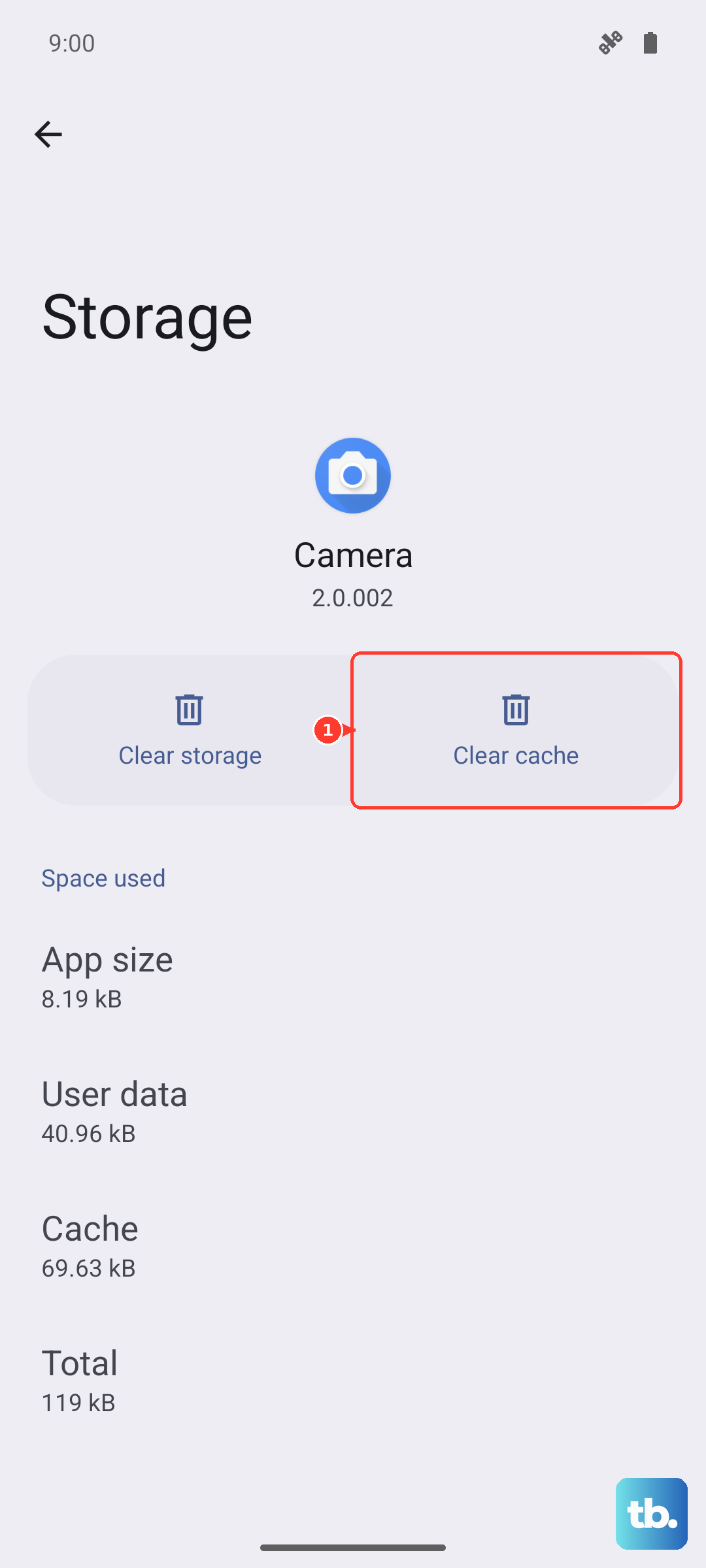
Sometimes, an app's cached data gets corrupted and causes slowdowns. Go to Settings > Apps, select an app you suspect (like Chrome, Instagram, or your launcher), then tap Storage.
Tap Clear cache. This won't delete your login info or personal data within the app, just temporary files. Do this for a few large, frequently used apps.
Disable or Remove Unused Widgets
Live widgets that constantly update weather, news, or email can be resource hogs. Long-press on any widget on your home screen and tap "Remove".
Be selective about which widgets you keep active. I'd recommend removing any that pull data constantly, especially if they're from third-party apps.
Reset All Settings
If the lag persists and you can't pinpoint an app, this is a strong next step. It resets all your system settings (like Wi-Fi passwords, Bluetooth pairings, and display preferences) to default but leaves your personal data and apps intact.
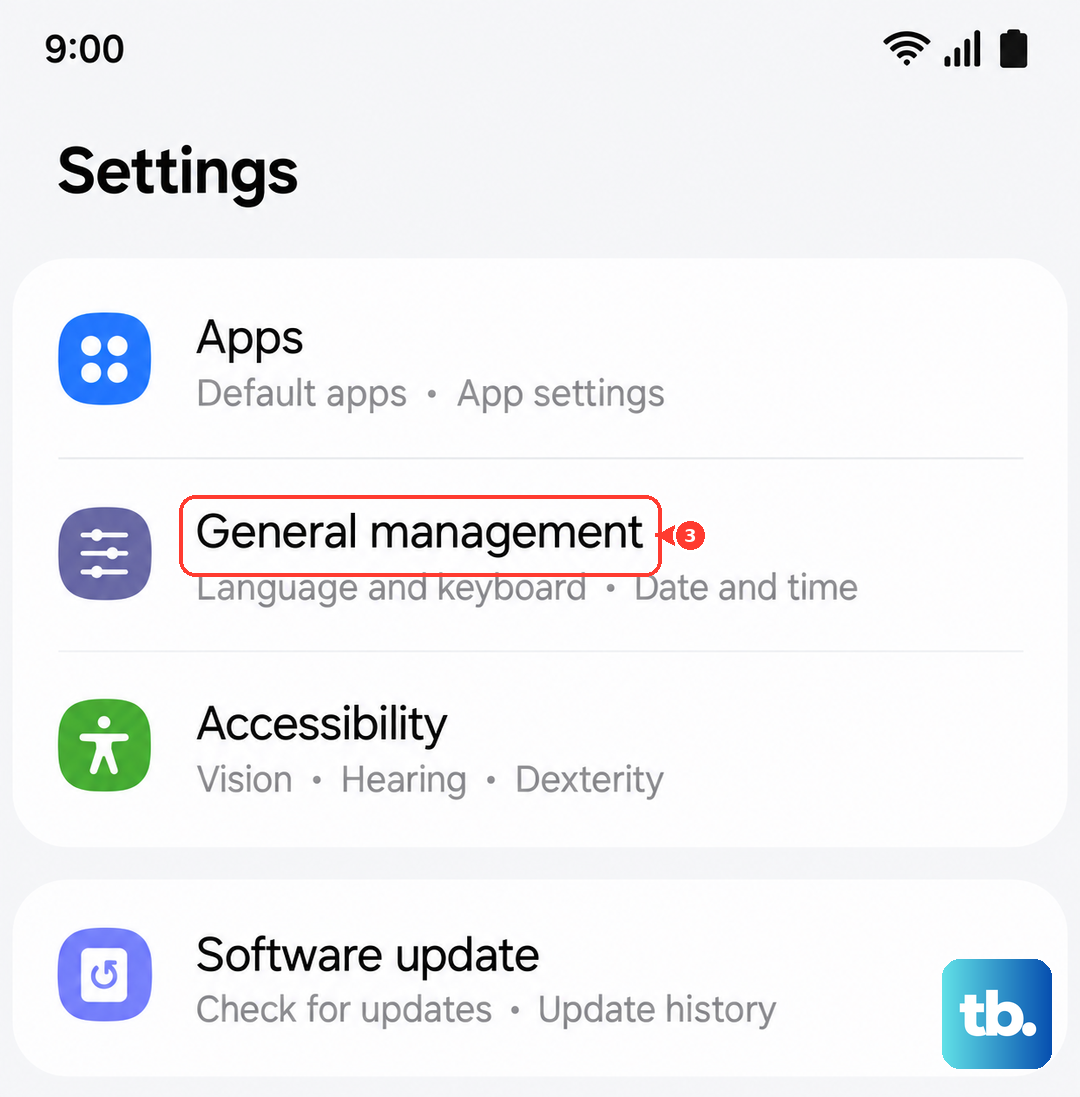
Go to Settings > General management > Reset > Reset all settings. You'll need to enter your PIN and confirm. Afterward, you'll have to reconfigure things like ringtones and connections, but it often clears up weird software glitches.