
When your Samsung Galaxy S26's email stops syncing or sending, it can leave you disconnected from important conversations. Whether you're using the Samsung Email app, Gmail, or Outlook, these problems usually have a fix you can handle yourself. I'd start by checking the basics before moving to more involved solutions.
First, make sure your phone has a solid internet connection, either through Wi-Fi or your mobile data. It's also worth a quick check on your email provider's status page or social media to see if there's a widespread outage. Finally, double-check that you're using the correct email address and password, as a simple typo can be the culprit.
Restart the Email App
A quick restart of the app can clear out temporary glitches that might be preventing it from working correctly. On your Galaxy S26, swipe up from the bottom of the screen and hold to enter the recent apps view. Find your email app and swipe it all the way up to close it. Wait a moment, then tap the app icon to reopen it and see if the issue is resolved.
Check Your Sync and Fetch Settings
Your phone's sync settings control how often it checks for new emails. If these are set too infrequently or are turned off, you won't get messages in real time. Open the Samsung Email app, tap the three-line menu icon, and go to Settings. Select your email account and look for options like "Sync schedule" or "Check frequency."
Set it to "Push" if available, which delivers emails instantly. If Push isn't an option, choose a frequent interval like every 15 minutes. Also, go to your phone's main Settings > Accounts and backup > Manage accounts, select your email account, and make sure the "Sync Email" toggle is switched on.
Toggle Airplane Mode
This is a classic network reset trick that works just as well on Android. Swipe down from the top of your screen twice to open the full Quick Settings panel. Tap the Airplane mode icon to turn it on, wait about 15-20 seconds, and then tap it again to turn it off. This forces your phone's Wi-Fi and cellular radios to reconnect fresh, which can clear up connection hiccups affecting email.
Switch Between Wi-Fi and Mobile Data
Sometimes the problem is with one specific network. If emails aren't coming through on Wi-Fi, try turning it off to force the phone to use your cellular data. You can do this from the Quick Settings panel. If the emails work on mobile data, the issue is likely with your Wi-Fi network, and you may need to restart your router.
Conversely, if emails only work on Wi-Fi, you need to check your mobile data settings for the app. Go to Settings > Connections > Data usage > Mobile data usage. Find your email app in the list and ensure its background data is not restricted.
Verify Your Email Account Credentials
Passwords expire or get changed, especially for work accounts. Try logging into your email account through a web browser on a computer. If you can't log in there either, you'll need to reset your password through your email provider's website.
Once you have the new password, you'll need to update it on your phone. Go to Settings > Accounts and backup > Manage accounts, tap your email account, and select "Account settings." Look for an option to update your password or re-authenticate.
Check for App and System Updates
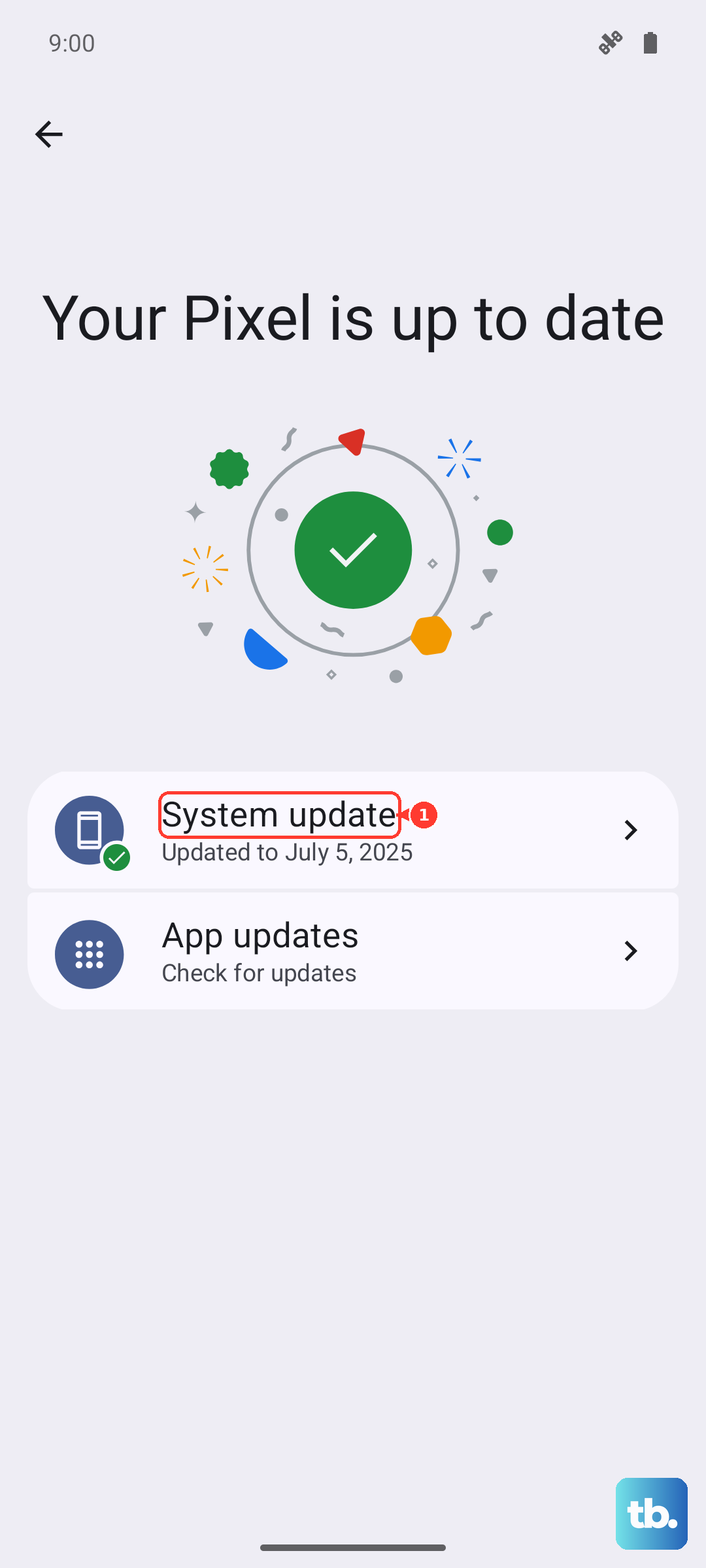
Since the Galaxy S26 runs the brand new One UI 8.5, early software bugs are a possibility. Samsung and app developers release updates to fix these kinds of issues. First, open the Galaxy Store and check for updates to the Samsung Email app. Then, go to Settings > Software update > Download and install to see if a system update is available.
Clear the Email App's Cache and Data
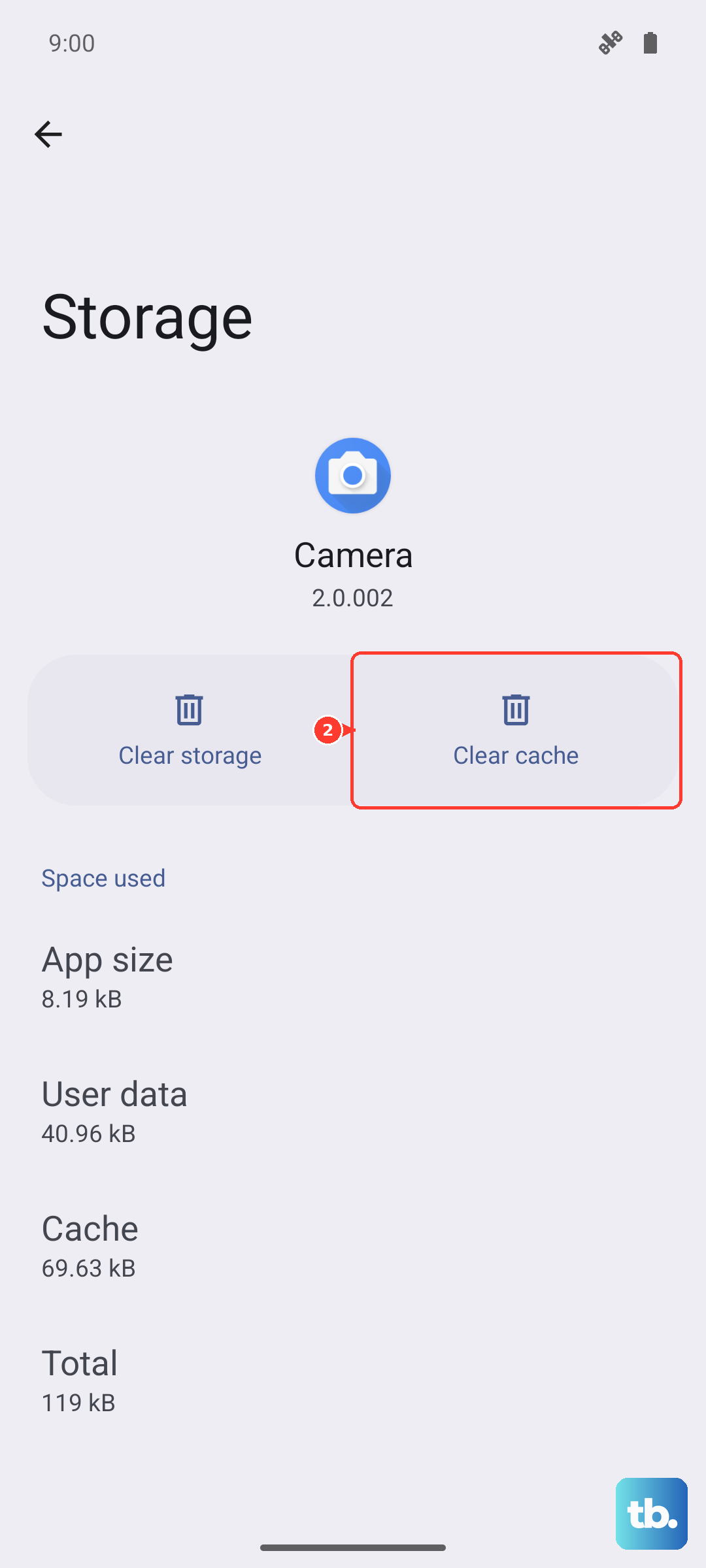
Corrupted temporary files can cause apps to misbehave. Clearing the cache is safe and won't delete your emails or account. Go to Settings > Apps, find your email app, and tap on it. Select Storage, then tap "Clear cache." If the problem persists, you can tap "Clear data" next, but be aware this will remove the app's settings and you'll need to set up your account again.
Disable Battery Optimization for the Email App
Android's battery saving features can sometimes be too aggressive and stop apps from syncing in the background. To prevent this for your email app, go to Settings > Apps, select your email app, and tap Battery. Change the battery setting to "Unrestricted." This tells your S26 to let the app run in the background without restrictions.
Review Your Notification Settings
If emails are arriving but you're not getting alerts, the notification settings might be off. Long-press on your email app's icon and tap App info. Go to Notifications and make sure the toggle at the top is enabled. You can also tap on specific notification categories, like "New messages," to ensure they are set to alert you.
Remove and Re-add Your Email Account
This is a more thorough step that can resolve deeper configuration issues. Go to Settings > Accounts and backup > Manage accounts. Tap on the problematic email account and select "Remove account." Confirm the removal. Then, open your email app and go through the setup process again to add the account back. This often clears up persistent sync problems.
Disable Any Active VPN
A VPN can sometimes interfere with the connection to your email server. If you're using a VPN app, open it and disconnect. You can also check in Settings > Connections > More connection settings > VPN to see if any device-level VPN profiles are active and turn them off temporarily to test your email.
Force Restart Your Galaxy S26
A full restart can fix deeper software glitches. For the Galaxy S26, press and hold the Volume Down button and the Side/Power button simultaneously for about 10 seconds. Release the buttons when you see the Samsung logo appear on the screen. This is different from just turning the screen off and on, as it fully reboots the system.
Check the Date and Time Settings
Incorrect date and time can cause security certificate errors that block email syncing. Go to Settings > General management > Date and time. Make sure the "Automatic date and time" option is turned on. This allows your phone to set the time correctly via the network.
Reset All Network Settings
If you're still having trouble and suspect a network configuration problem, this step resets all Wi-Fi, mobile data, and Bluetooth settings back to default without deleting your personal data. Go to Settings > General management > Reset. Select "Reset network settings" and confirm. You'll need to re-enter Wi-Fi passwords afterward.











