A black screen on your Samsung Galaxy S26 is unsettling, especially when the phone was working fine moments earlier. You press the Side button, nothing happens, and you can't tell whether the device is frozen, drained, or genuinely broken. The good news is that most black-screen situations on the S26 come down to a temporary software hang or a depleted battery, both of which you can clear yourself in a few minutes. This guide walks through the fixes Samsung's official support guidance recommends, starting with the fastest and safest and ending with the data-erasing options and a call to service.
These steps apply to the Galaxy S26, and they also work on the S26+ and S26 Ultra running One UI on Android. The S26 series uses a merged Side button (there is no separate Power button), a USB-C charging port, and Qi wireless charging, so every fix below is matched to what this exact model actually has.
Force restart the phone with Volume down and the Side button
If the S26's screen is black or completely unresponsive, the first thing to try is a forced restart. This clears a temporary software freeze without touching any of your data, and Samsung confirms it works even when the screen will not respond to touch.
Press and hold the Volume down button and the Side button (or Power button) simultaneously.
Keep holding until the device turns off and turns back on.
Watch for the screen to go black, then the Samsung logo to appear.
Samsung's guidance describes holding the buttons until the phone restarts. Related blank-display and stuck-at-logo instructions describe holding for roughly 10 to 20 seconds, so keep holding for that long before you give up. Once the Samsung logo appears, the freeze has cleared and you can stop here.
Take off the case and look for physical or liquid damage
Before trying anything else, rule out a hardware obstruction. Remove any case or accessory that covers the charging port or the buttons, since a tight case can press the Side button or block a clean charge.
Inspect the USB-C connector for corrosion, bent pins, or debris that could prevent charging.
Then check the Liquid Damage Indicator (LDI) by ejecting the SIM tray. A normal LDI is solid white, or white with pink or purple X's. If it shows solid pink, purple, or red, the phone has been exposed to liquid and will need service rather than a software fix.
Charge for an hour, then try to power it on
A fully drained battery can look exactly like a black screen, and a quick tap of the Side button won't wake a phone with no charge left. Plug the S26 into its charger and give it real time to recover.
Connect and charge the phone using the appropriate charger for at least 1 hour.
Be patient with the charging indicator. If the power has been depleted, the battery charging indicator may take up to 10 minutes to appear on the screen.
Disconnect the phone and try to turn it on by pressing and holding the Power button (or Side button) for 15 to 20 seconds.
Keep in mind the S26 ships with a USB Type-C cable but no power adapter in the box, so make sure you are using a proper adapter and not just a low-power source. If the battery was truly empty, that first hour is what makes the difference.
Clear the port if you see a water-drop or Moisture detected icon
Sometimes the screen does turn on but shows a water-drop icon and refuses to charge. That means the phone has detected moisture in the USB-C port, which can happen even without direct water contact or simply in high humidity.
Unplug the cable, then use a dry cloth or gently shake the device 5 to 10 times with the port facing downward to release any excess moisture.
Be gentle, because excessive force or shaking may cause damage to your phone.
If you still can't charge by cable, fall back on a wireless charger, since the S26 supports Qi wireless charging and can top up without the port.
Boot into Safe mode to rule out a misbehaving app
If the screen tends to go black only after you launch certain apps, a downloaded app may be the culprit. Safe mode starts the phone with only its built-in software so you can confirm whether an installed app is causing the crash.
Power the device completely off.
Turn it back on, and when the Samsung logo appears, press and hold the Volume down button.
Keep holding until "Safe mode" displays in the bottom-left corner.
If the black-screen problem disappears in Safe mode, a downloaded app is responsible. Uninstall any recently added or updated apps, then restart the phone normally to exit Safe mode. You can also reach Safe mode from the power menu by pressing and holding the Side button and the Volume down button at the same time, touching and holding the Power off icon, then tapping the Safe mode icon.
Install any pending software update
Outdated software can trigger display glitches and boot problems, and Samsung pushes fixes for exactly these kinds of issues. If the phone is responsive enough to reach Settings, check for an update directly on the device.
Go to Settings > Software update > Download and install, then install any available update.
Before you start, charge to at least 50% and connect to Wi-Fi, since the device reboots as part of the update.
If the phone won't respond on its own, connect it to a PC or Mac with the USB cable and open Samsung Smart Switch.
If an update is available, Smart Switch will prompt you to update and walk you through it.
Wipe the cache partition from Recovery mode
If the phone is stuck on a black screen or hangs at the Samsung logo, clearing the system cache can resolve corrupted temporary files without deleting any of your personal data. This is done from Recovery mode.
- 1.Power the device off.
- 2.Press and hold the Volume Up and Side buttons simultaneously until the device vibrates and the Samsung logo appears, then release the buttons.
- 3.Use the Volume Up and Volume Down buttons to select Wipe cache partition, then press the Power button to confirm.
- 4.Select Yes with the Volume buttons and press Power, then select Reboot device.
One note before you try this. Samsung mentions that newer devices may not include the Wipe cache partition option, so it may not appear on every current model. If you don't see it in the menu, skip ahead to the next step.
Factory reset as a last do-it-yourself step
If nothing above has worked and the phone is still responsive enough to navigate menus, a factory reset is the final fix you can perform yourself. This erases everything on the device, so treat it as a last resort and back up first.
Samsung warns, "Please save any information you need prior to the factory reset because your personal information may not be recovered."
Once you have a backup, go to Settings > General management > Reset > Factory data reset > Reset > Delete all, and enter your security lock and Samsung account password if prompted.
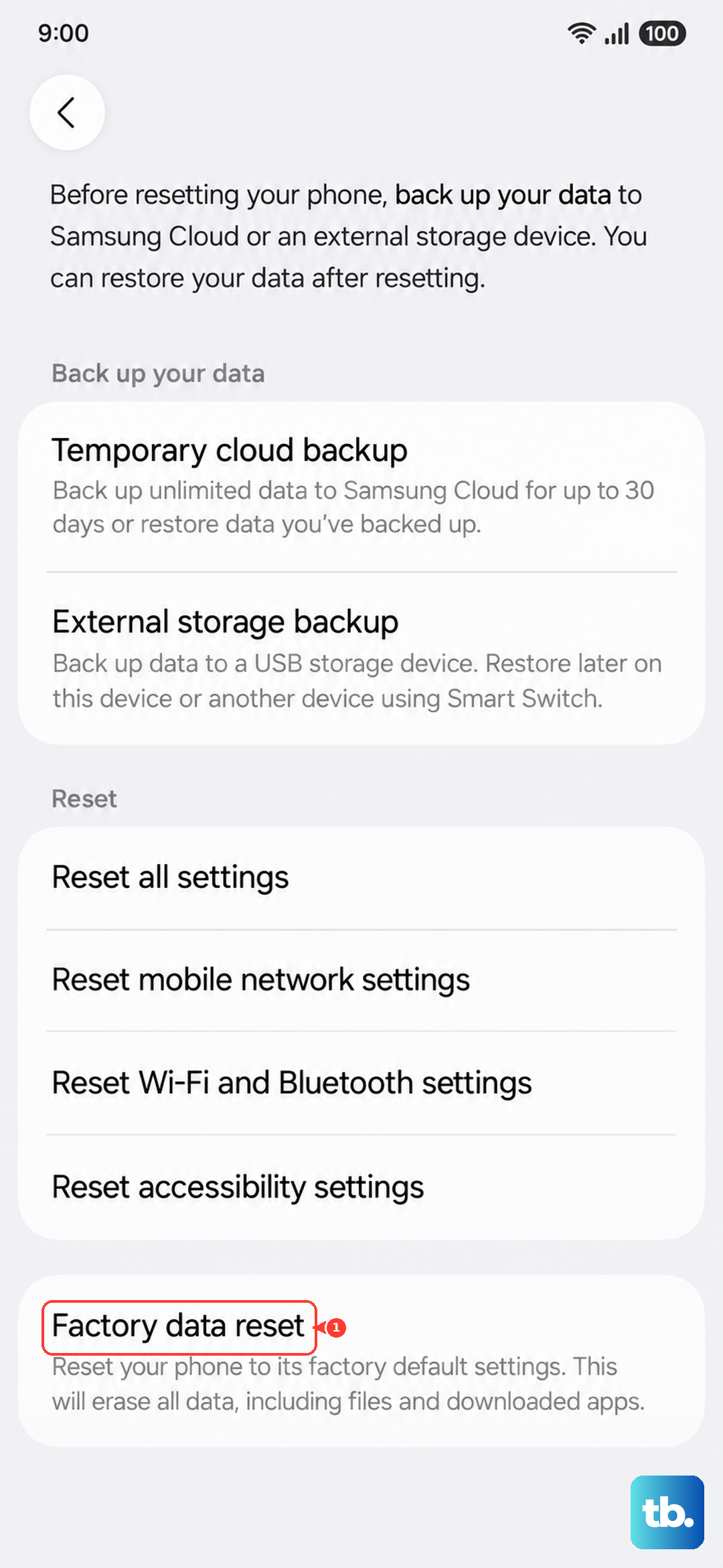
The phone will erase all personal data and restart fresh, which clears software problems that survive every other step.
Contact Samsung Support when the screen stays black
If the screen is still blank after you have force restarted the phone and charged it, Samsung's guidance is clear that the device needs service. A persistently unresponsive screen, particularly alongside a failed Liquid Damage Indicator, points to a hardware fault rather than a software bug.
At that point, reach out to the Samsung Support Center for further assistance, or arrange a repair through Samsung service.
Trying to force the phone open or repeatedly cycle the buttons won't help a hardware failure, so let the official service path take over from here.
Frequently Asked Questions
How long should I hold the buttons to force restart a Galaxy S26?
Press and hold the Volume down button and the Side button (or Power button) at the same time until the device turns off and turns back on. Samsung's related blank-display and stuck-at-logo guides describe holding for roughly 10 to 20 seconds, so keep holding for that long until the Samsung logo appears.
My S26 shows a water-drop icon and won't charge. What do I do?
That icon means the USB-C port has detected moisture, which can happen even in high humidity. Unplug the cable and use a dry cloth, or gently shake the phone 5 to 10 times with the port facing downward to release excess moisture, being careful since excessive force may damage the device. If you still can't charge by cable, use a wireless charger instead.
Will clearing the cache partition delete my photos and files?
No. Wiping the cache partition from Recovery mode clears only temporary system files and does not delete your personal data. Be aware that some newer devices may not show the Wipe cache partition option at all, so it may not appear in the menu.
What can I do if my S26 won't respond enough to reach Settings?
Connect the phone to a PC or Mac with the USB cable and open Samsung Smart Switch, the official desktop tool for updating or recovering a Galaxy phone over USB. If an update is available, Smart Switch will prompt you to update and guide you through it. You can download it from Samsung's support downloads.
When should I just contact Samsung instead of trying more fixes?
If the screen is still black after both a force restart and at least an hour of charging, Samsung says the device needs service. A stuck or unresponsive screen, especially combined with a Liquid Damage Indicator that shows solid pink, purple, or red, points to a hardware problem that the Samsung Support Center should handle.











