
If your Galaxy S26 screen is stuck in one orientation and won't flip when you turn the phone, you're dealing with a classic auto-rotate glitch. It's a common hiccup, especially with a brand new device like the S26 running the latest One UI 8.5. The good news is it's almost always a software or settings issue you can fix yourself.
Let's start with the quickest check, which solves the problem more often than not.
Toggle the Quick Panel Rotation Lock
First, swipe down from the top of your screen twice to open the full Quick Settings panel. Look for the icon labeled "Portrait" or "Auto rotate." If it's gray or shows a little lock symbol, that means rotation is locked.
Just tap that icon once. It should turn blue and the label will change to "Auto rotate." Now, try tilting your phone into landscape mode in an app like Gallery or Chrome to see if it responds.
Enable Home Screen Rotation Separately
By default, Samsung's One UI keeps the home screen and app drawer locked in portrait mode, even when auto-rotate is on. If you want everything to rotate, you need to enable one extra setting.
Open Settings > Home screen and make sure the switch for "Rotate to Landscape Mode" is turned on. This lets your home screens and even the phone app rotate.
Force Restart Your Galaxy S26
A simple reboot can clear out temporary software bugs that might be freezing the sensors. For the Galaxy S26, press and hold the Volume Down button and the Side/Power button together for about 10 seconds.
Keep holding until you see the Samsung logo appear on the screen, then let go. Your phone will restart. This doesn't delete any data, it just gives the system a fresh start. Test rotation again once it's fully booted.
Check for a Stuck App
Sometimes, the issue is with a specific app, not the phone itself. Open a few different apps, like your camera, a video, and a web browser, and try rotating in each one.
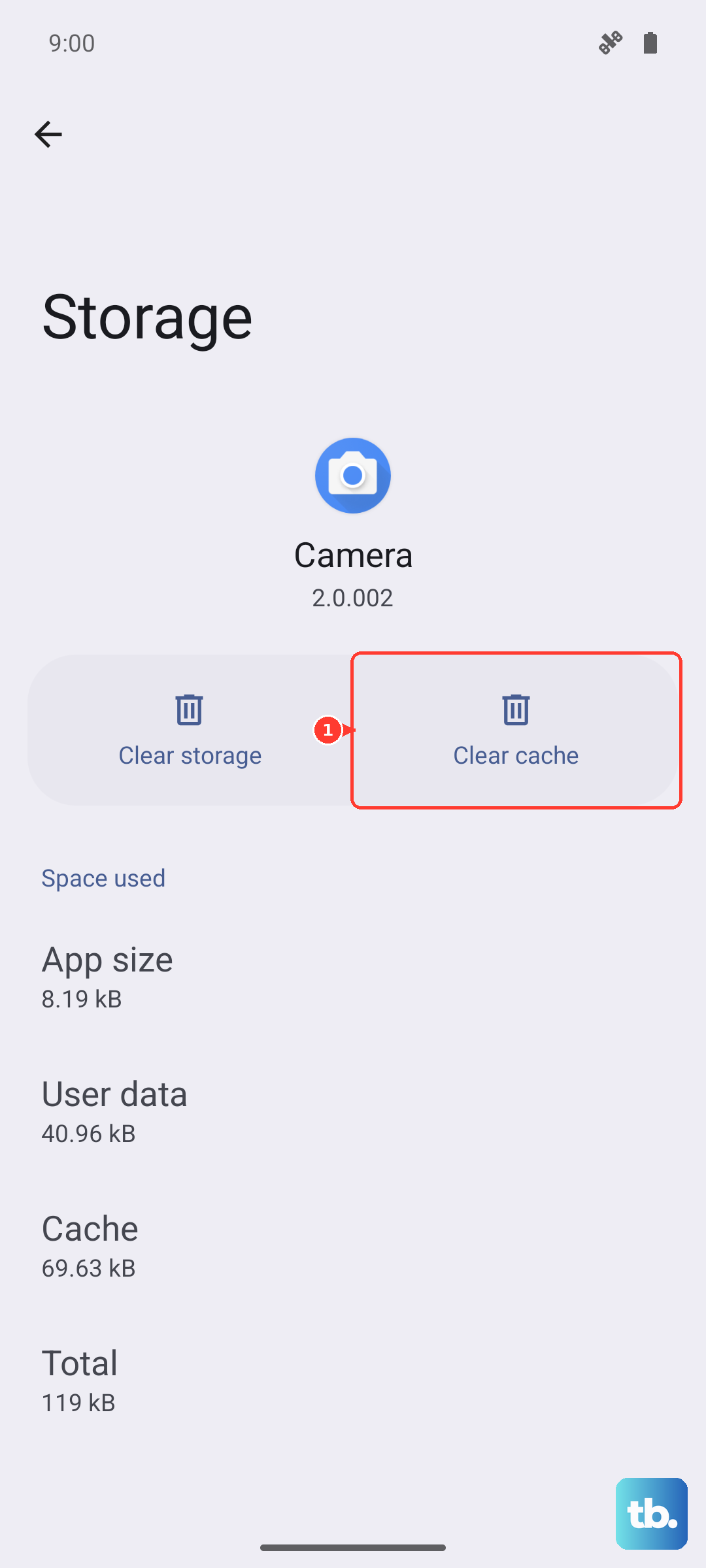
If rotation works everywhere except one particular app, that app likely has its own orientation setting or a bug. Check the app's own settings, or try clearing its cache via Settings > Apps, selecting the app, then Storage > Clear Cache.
Update Your Software
Since the Galaxy S26 and One UI 8.5 are so new, early software bugs are a real possibility. Samsung is quick to push out updates to fix these kinds of issues.
Go to Settings > Software update > Download and install. If an update is available, install it. I'd recommend checking this frequently during the first few months with the phone, as stability patches are common.
Run a Sensor Diagnostic Test
Your phone uses an accelerometer and gyroscope to detect movement. You can test these directly with Samsung's secret diagnostic menu. Open your Phone dialer and enter *#0*#.
This will launch the diagnostic screen. Tap on "Sensor." You'll see a test screen with various readings. Tilt and rotate your phone. The "X_Angle, Y_Angle, Z_Angle" values should change rapidly as you move. If they're stuck at zero or don't change, there could be a deeper sensor issue.
Check for Accessibility or Third-Party App Conflicts
Certain accessibility features or apps that control screen behavior can override the standard rotation. Go to Settings > Accessibility > Advanced settings and look for any options related to screen rotation or locking.
Also, think about any recent app installations, especially those for screen recording, floating menus, or gesture controls. Try booting the phone into Safe Mode by holding the power button, then tapping and holding the "Power off" icon until the Safe Mode prompt appears. If rotation works in Safe Mode, a third-party app is the culprit.
Consider a Software Reset
If all else fails and the sensor test seemed okay, a software glitch might be deeply embedded. Before doing anything drastic, try wiping the cache partition, which clears temporary system files without touching your personal data.
Turn off your phone. Then, press and hold the Volume Up and Side/Power buttons together. When you feel a vibration, release only the Power button but keep holding Volume Up until the Android Recovery screen appears. Use the volume buttons to highlight "Wipe cache partition" and press the power button to select it. Confirm, then select "Reboot system now."