
When your brand new Samsung Galaxy S26 won't download apps, it can stop you in your tracks. You're trying to set up your 2026 flagship, and the Play Store just spins or throws an error. Since the Galaxy S26 runs the latest One UI 8.5 on Android 16, there can be some early software quirks to work through.
Let's get your downloads working. I'd start with the quick checks first, as they solve most problems.
Check Your Connection and Restart
First, make sure you're actually online. Swipe down from the top of your screen to open the Quick Panel and look at the Wi-Fi and mobile data icons. If you're on Wi-Fi, try temporarily switching to 5G to see if the network itself is the problem.
Next, give your phone a fresh start. Press and hold the Volume Down button and the Side/Power button together for about 10 seconds until you see the Samsung logo. This force restart can clear out any temporary glitches in the new One UI 8.5 software that might be hanging up the download process.
Verify the Date and Time
This one catches people off guard. Google's servers use your phone's time to authenticate downloads. If your clock is off, downloads will fail.
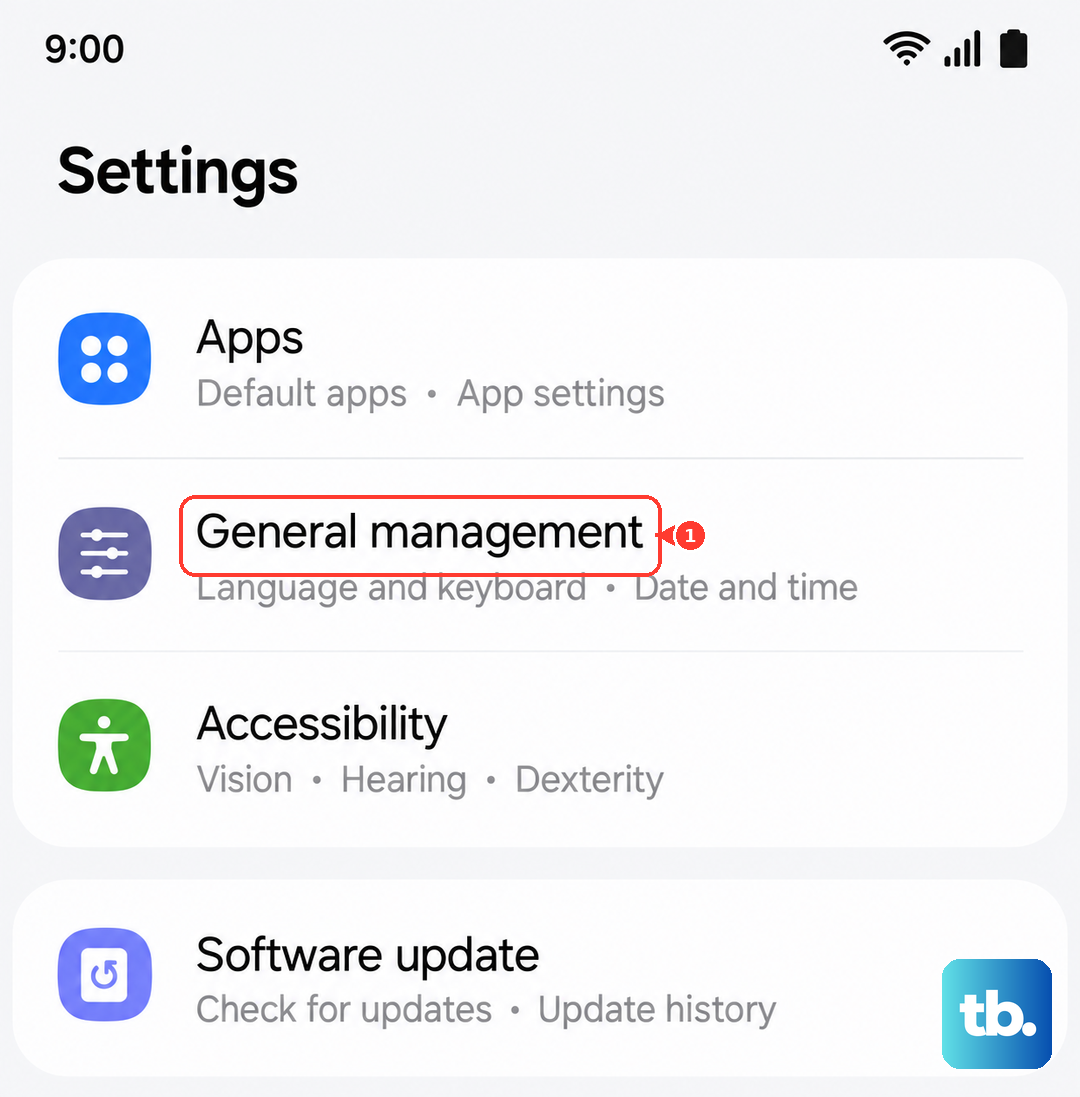
Go to Settings > General Management > Date and Time. Make sure "Automatic date and time" is turned on. If it's already on and you're still having trouble, try turning it off and back on again to refresh the sync.
Clear the Google Play Store's Cache
The Play Store stores temporary data that can sometimes get corrupted, especially during initial setup. Clearing this cache is a safe first step that doesn't delete your apps or account.
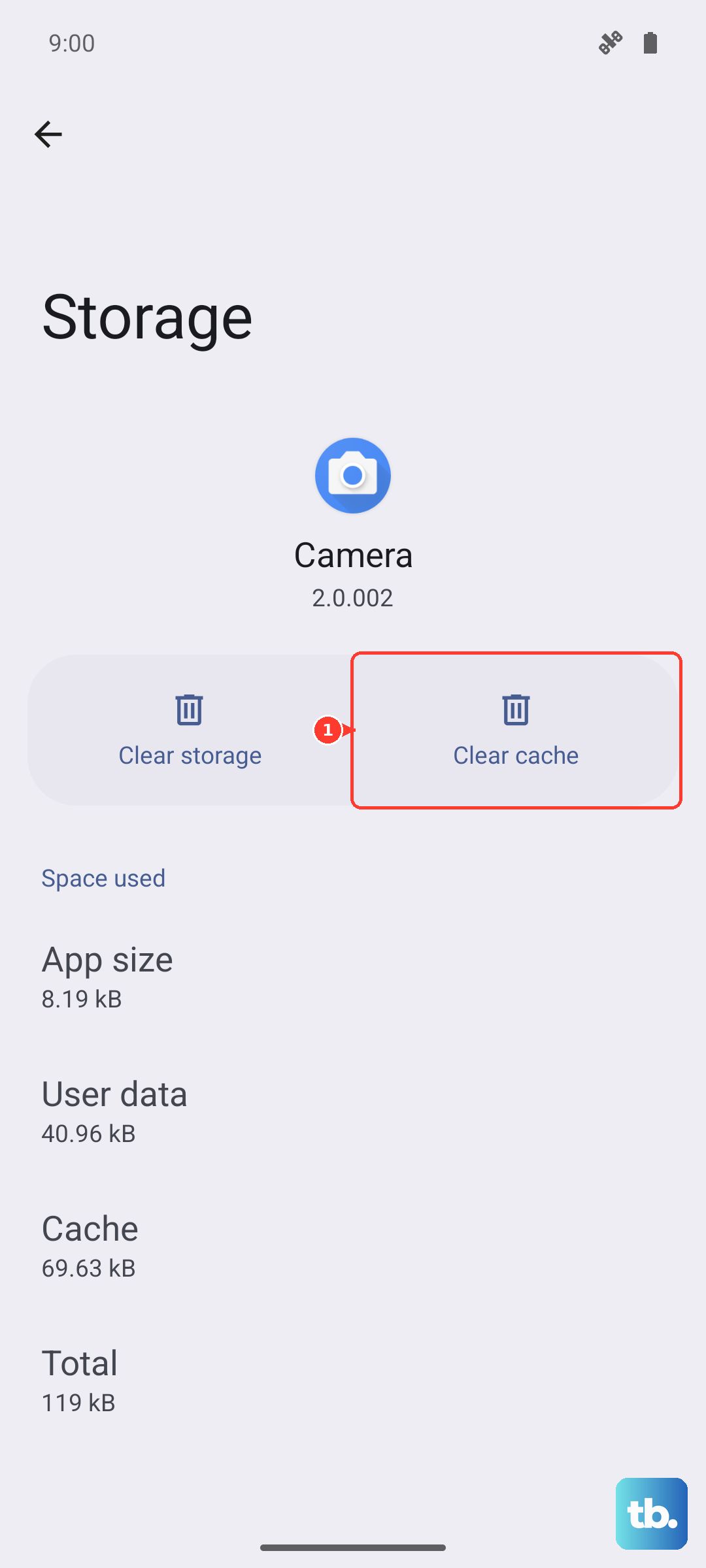
Open Settings, then tap Apps. Find and select Google Play Store. Tap Storage and then hit Clear Cache. Go back and try your download again.
Clear Data for Play Store and Play Services
If the cache clear didn't help, the next step is to clear the stored data for the Play Store and the core Google Play Services app. This is like giving them a fresh start. You'll need to sign back into the Play Store afterward, but it won't remove your installed apps.
For the Play Store, go back to Settings > Apps > Google Play Store > Storage. This time, tap Clear Data and confirm. Immediately after, find Google Play Services in the same Apps list, go to its Storage menu, and tap Clear Cache followed by Manage Storage and then Clear All Data.
Restart your phone with the force restart method, then open the Play Store and let it reload.
Check for a Software Update
Since the Galaxy S26 and One UI 8.5 are so new, Samsung is likely pushing out early bug-fix updates. An update could directly address download issues you're experiencing.
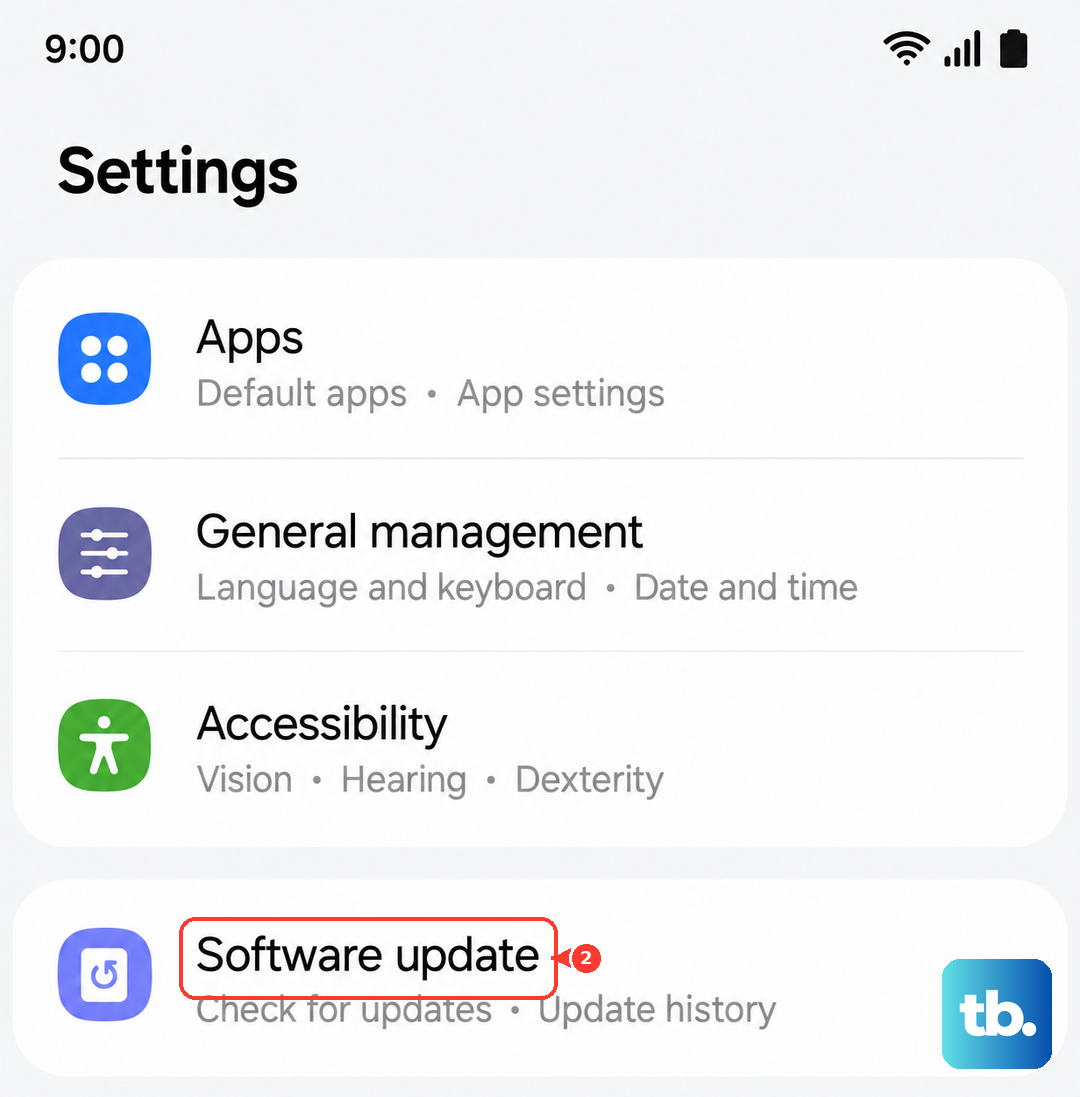
Go to Settings > Software Update and tap Download and Install. If an update is available, let it complete. Your phone will restart on its own. This is a very common fix for problems on newly released devices.
Review Your Google Account Sync
Sometimes the sync between your phone and your Google account gets stuck. Refreshing it can get things moving again. Head to Settings > Accounts and Backup > Manage Accounts.
Select your main Google account. Tap Sync Account at the bottom. You'll see a list of everything that syncs. Tap the three-dot menu in the top right and choose Cancel sync. Wait a moment, then go back and tap Sync Now to restart the process.
Ensure Download Manager is Enabled
Your phone has a system app called Download Manager that handles all downloads, including from the Play Store. It's rare, but it can get disabled. Let's check.
In Settings > Apps, tap the three-dot menu and select Show system apps. Now, search for "Download Manager." If you find it and the button says "Enable," tap it. If it's already enabled, you can go into its Storage and tap Clear Cache just to be thorough.
Check App Permissions for Play Services
Google Play Services needs certain permissions to function properly. Let's verify them. Go to Settings > Apps, find Google Play Services, and tap Permissions.
Make sure permissions like Files and Media (Storage) are allowed. Also, while you're in the Google Play Services app info, look for an option called "Modify system settings" or similar and ensure it is toggled on.
Remove and Re-Add Your Google Account
This step is a bit more involved but often resolves persistent account-related errors. It removes your account from the phone and adds it back fresh. Go to Settings > Accounts and Backup > Manage Accounts.
Select your Google account and tap Remove Account. Confirm. Then, tap Add Account at the bottom, choose Google, and sign back in with your credentials. This can clear up any corrupted authentication data.
Free Up Storage Space
If you're seeing an "Insufficient storage" error, you need to make room. The S26 comes with plenty of space, but if you've been loading it up with 8K videos or large game files, it can fill fast.
Check your storage by going to Settings > Battery and Device Care > Storage. You can use the "Clean now" suggestion or manually review and delete large files. Also, consider moving photos and videos to Samsung Cloud or Google Photos if you haven't set that up yet.