
When a photo gets stuck on "Sending" or fails with an error on your Samsung Galaxy S25, it's usually a quick network or settings hiccup. Let's jump into the most common fix first.
Start by toggling Airplane mode on and off. Swipe down from the top of your screen twice to open the Quick Settings panel and tap the Airplane icon. Wait about ten seconds, then tap it again to turn it off. This refreshes all your cellular and WiFi connections at once, which often clears up the sending problem immediately.
Check Mobile Data, RCS, and MMS
If the send button says MMS, Google says to make sure you have a data connection and reset APN settings to default if MMS still fails. On Galaxy, go to Settings > Connections > Data usage and make sure Mobile data is turned on. If the conversation is using RCS instead, Google Messages can send over Wi-Fi or mobile data.
On a Galaxy S25, start with Google Messages unless your carrier or region provides another default texting app. Open Google Messages, tap your profile picture or initial, then go to Messages settings > RCS chats to check RCS status or resend options. The More settings > Multimedia messages path is for Samsung Messages, not Google Messages, and should not be presented as the S25's main MMS troubleshooting path.
Verify Your Internet Connection
A weak or unstable connection is the most common culprit. If you're on WiFi, check that the icon is solid in your status bar. Try opening a webpage to confirm it's working. If pages won't load, restart your router by unplugging it for 30 seconds.
For cellular data, look at your signal bars. If they're low, try moving to a different location. You can also try switching your network mode. Go to Settings > Connections > Mobile networks > Network mode. Switching from "5G/LTE/3G/2G" to just "LTE/3G/2G" can sometimes provide a more stable connection for sending media.
Force Stop and Clear the Cache for Your Messages App
A temporary glitch in the app itself can cause sending failures. Go to Settings > Apps, find and select "Messages" from the list. Tap Force stop, then tap Storage. Here, tap "Clear cache." This won't delete your messages, but it cleans out temporary files that might be causing trouble.
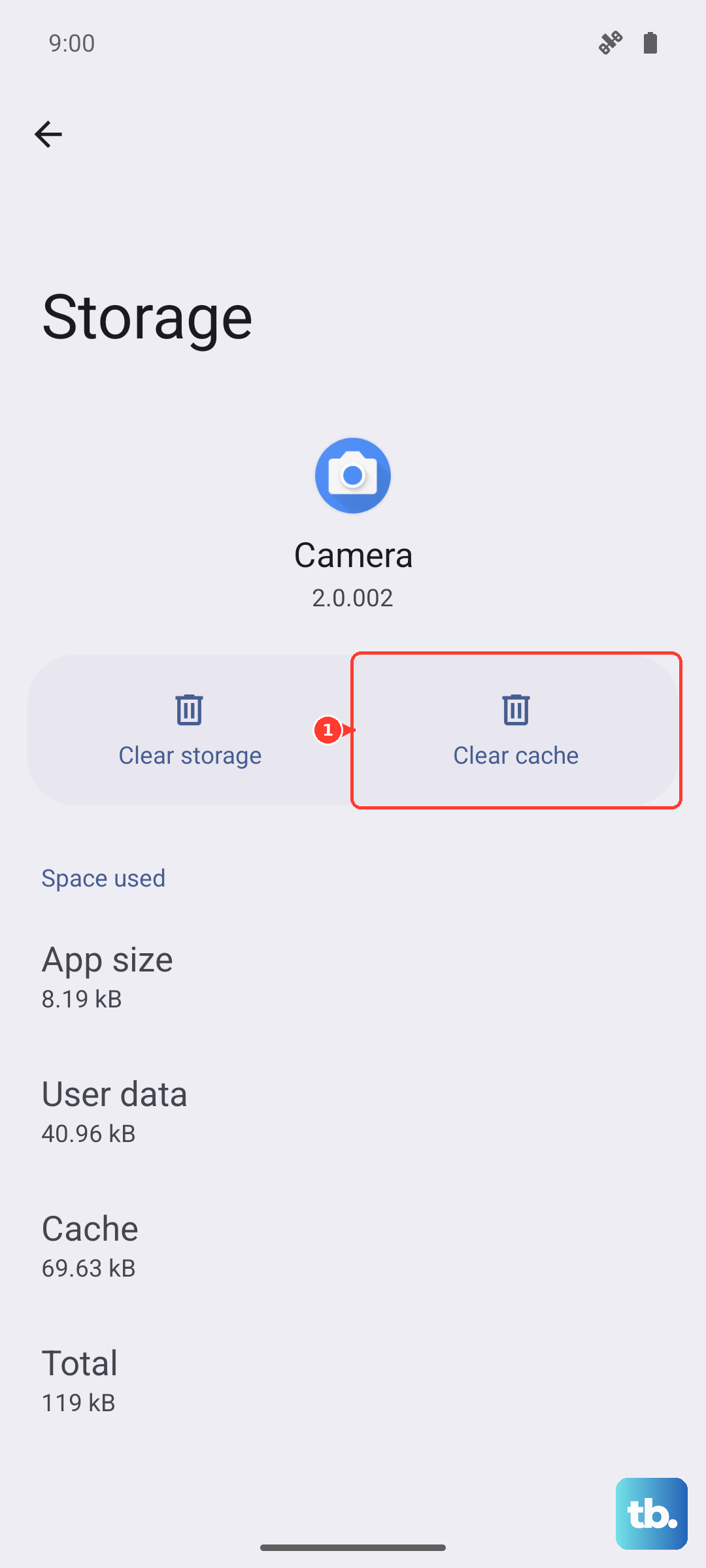
After doing this, reopen your Messages app and try sending the photo again. I've found this resolves the issue more often than a simple app restart.
Disable Data Saver or Power Saving Modes
One UI's battery optimization features can restrict background data, which includes sending MMS messages. Swipe down to your Quick Settings and make sure both "Power saving" and "Data saver" modes are turned off.
You should also check the deeper settings. Go to Settings > Apps > Messages > Mobile data. Make sure "Allow background data usage" is enabled. This ensures the app can work even when it's not open on your screen.
Check the Date and Time Settings
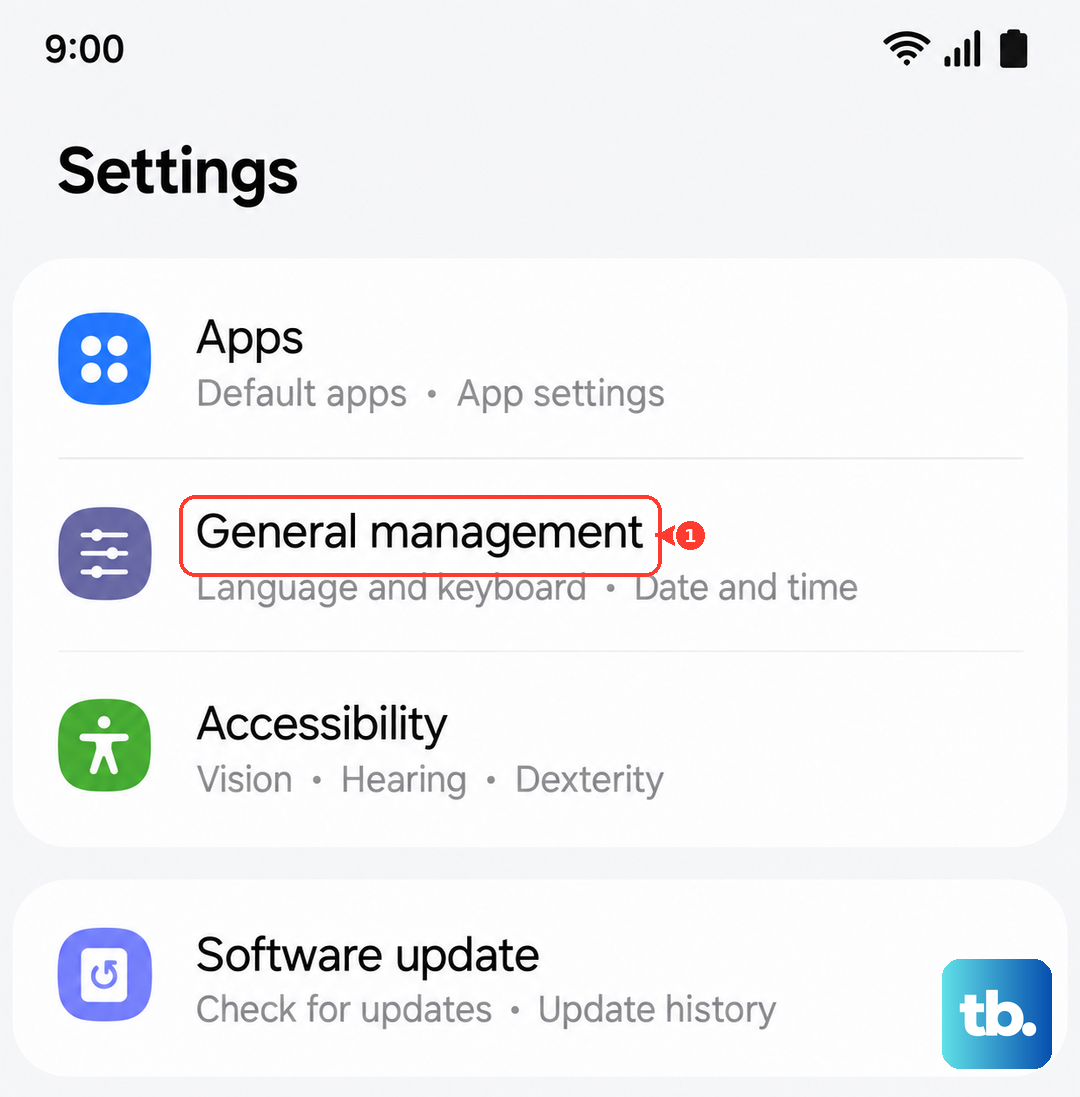
An incorrect date or time can interfere with network authentication, preventing messages from going through. Go to Settings > General management > Date and time. Make sure "Automatic date and time" is switched on. If it's already on, try turning it off and setting the time manually, then switch it back to automatic.
Update Your Messaging App and Phone Software
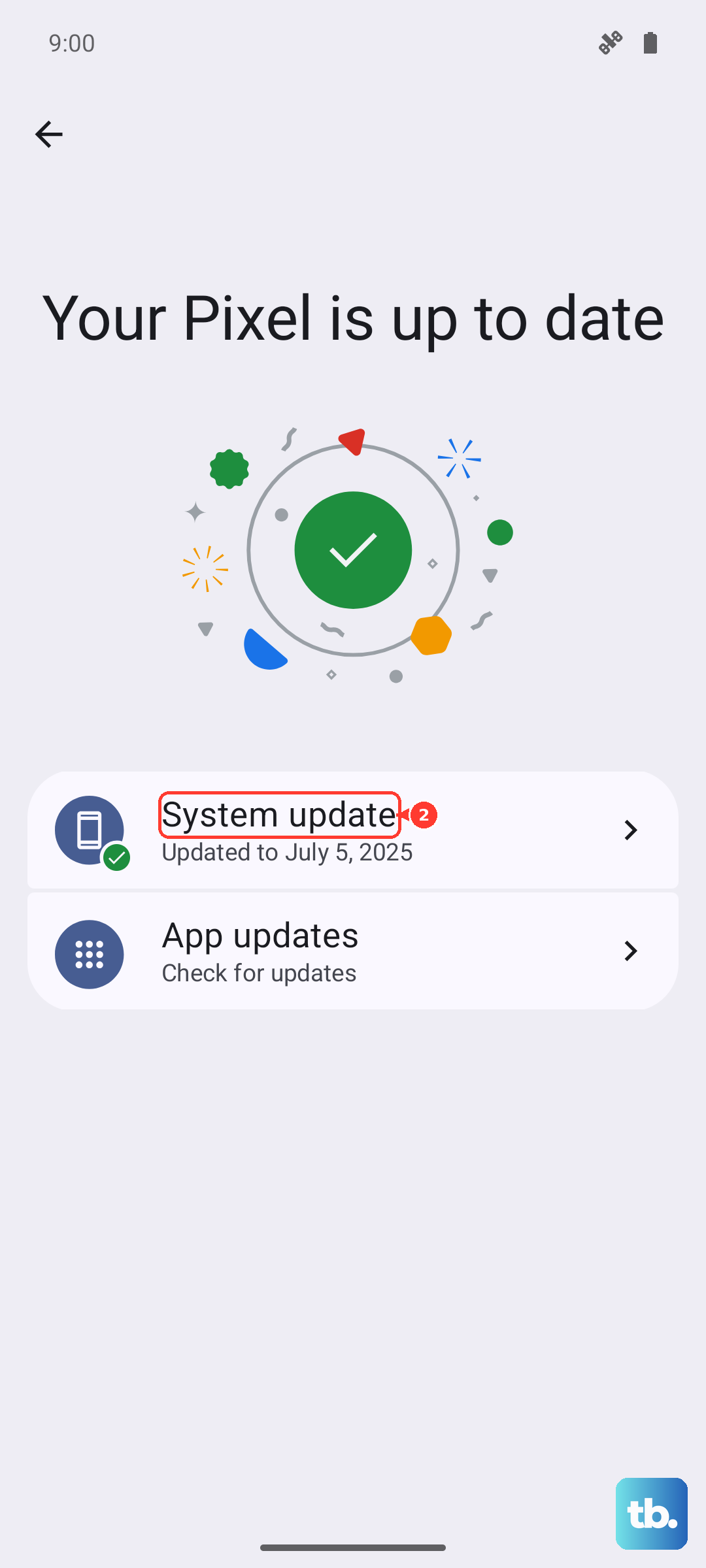
Update Google Messages from the Play Store, then check the phone's system update screen. Go to Settings > Software update or System updates, then tap Download and install, Check for system updates, or Check for software updates, depending on your carrier.
If you only need to identify the carrier software currently active on the phone, go to Settings > About phone > Software information and review Service provider software version. Samsung documents that screen as status information, not as the update checker.
Confirm the Default Texting App
On current Galaxy phones, Google Messages may already be installed, and Samsung points Galaxy users to Google Messages for RCS. If you install or switch messaging apps, go to Settings > Apps > Choose default apps > SMS app and select the app you want to use.
After switching, open Google Messages and check RCS under Messages settings > RCS chats. Google says existing SMS/MMS messages remain available when Google Messages is the default, but proprietary features from a previous app may not carry over.
Reset Mobile Network Settings
This will not erase your apps or data, but it resets the mobile network settings used by your carrier. Go to Settings > General management > Reset > Reset mobile network settings. Tap Reset settings and confirm when prompted.
For a Wi-Fi or Bluetooth problem, use Reset Wi-Fi and Bluetooth settings from the same Reset menu instead. That reset requires reconnecting to Wi-Fi networks and Bluetooth accessories afterward. If you created custom APN entries for your carrier, you may need to reconfigure them after resetting the mobile network.
Restart or Force Restart Your Galaxy S25
If you haven't restarted your phone in a while, restart it first. Press and hold the Volume Down button and Side button together, then tap Restart and confirm. If the phone is frozen, keep holding the Volume Down and Side buttons for 7 to 10 seconds to force a restart.
This does not erase your apps, photos, or messages. Treat it as a reboot for temporary software freezes, not as a system-cache wipe.