
You're staring at your Samsung Galaxy S25, and that Wi-Fi icon just won't turn blue. It's stuck on "Obtaining IP address" or simply refuses to connect, leaving you stranded without a signal. This is a common headache, but on the Galaxy S25 running One UI 7, the fixes are usually straightforward and quick.
Toggle Wi-Fi and Restart Your Phone
Start with the simplest fix. Swipe down from the top of your screen to open the Quick Settings panel and tap the Wi-Fi icon to turn it off. Wait about ten seconds, then tap it again to turn it back on. This forces your phone to drop the current connection and search for networks fresh, which often solves a temporary glitch.
If that doesn't work, give your S25 a full restart. Press and hold the Volume Down button and the Side key (power button) together for about ten seconds. Let go when you see the Samsung logo appear. A reboot clears out minor software bugs that can interfere with the wireless radio.
Forget the Network and Reconnect
Your phone might be holding onto outdated login information for your network. To clear it, go to Settings > Connections > Wi-Fi. Tap on the name of your network and select Forget. Now, tap on the network name again from the list and re-enter your password carefully.
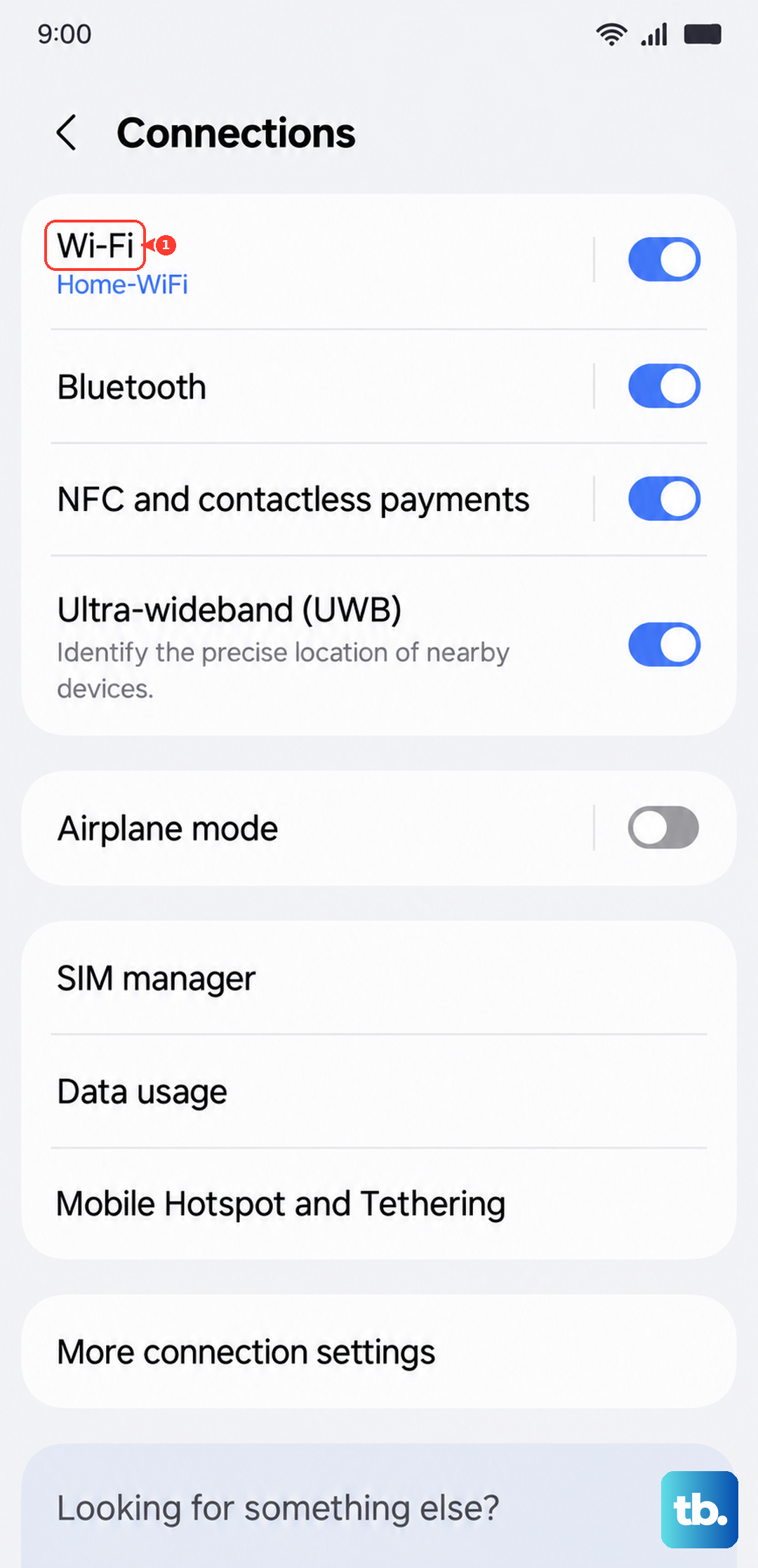
This is crucial if you've recently changed your Wi-Fi password or gotten a new router. Your S25 will keep trying the old credentials, which will never work.
Check for a Software Update
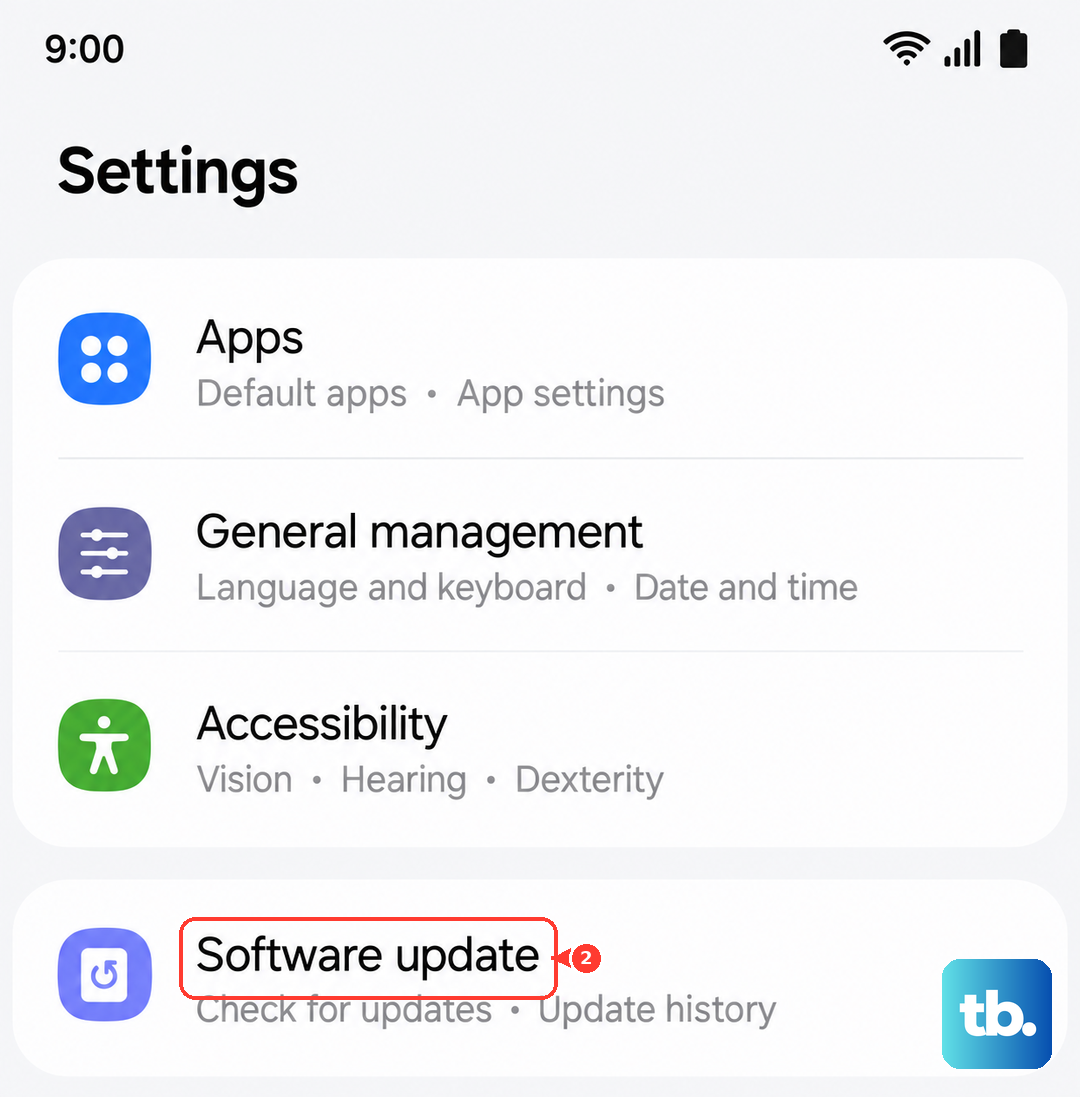
Samsung regularly releases updates for One UI that patch known bugs, including Wi-Fi connectivity issues. Go to Settings > Software update and tap Download and install. If an update is available, let it install completely, as it may contain a specific fix for the wireless module on your S25.
Disable Adaptive Wi-Fi and Switch to Mobile Data
One UI 7 has a feature that can hand your connection off to cellular too aggressively when your Wi-Fi signal dips. Go to Settings > Connections > Wi-Fi, then tap the three-dot menu and go to Intelligent Wi-Fi.
Here, look for and disable Switch to mobile data. This feature automatically switches you to cellular data if your Wi-Fi signal is weak, but it can prevent a stable connection from being established in the first place.
Turn Off Bluetooth Temporarily
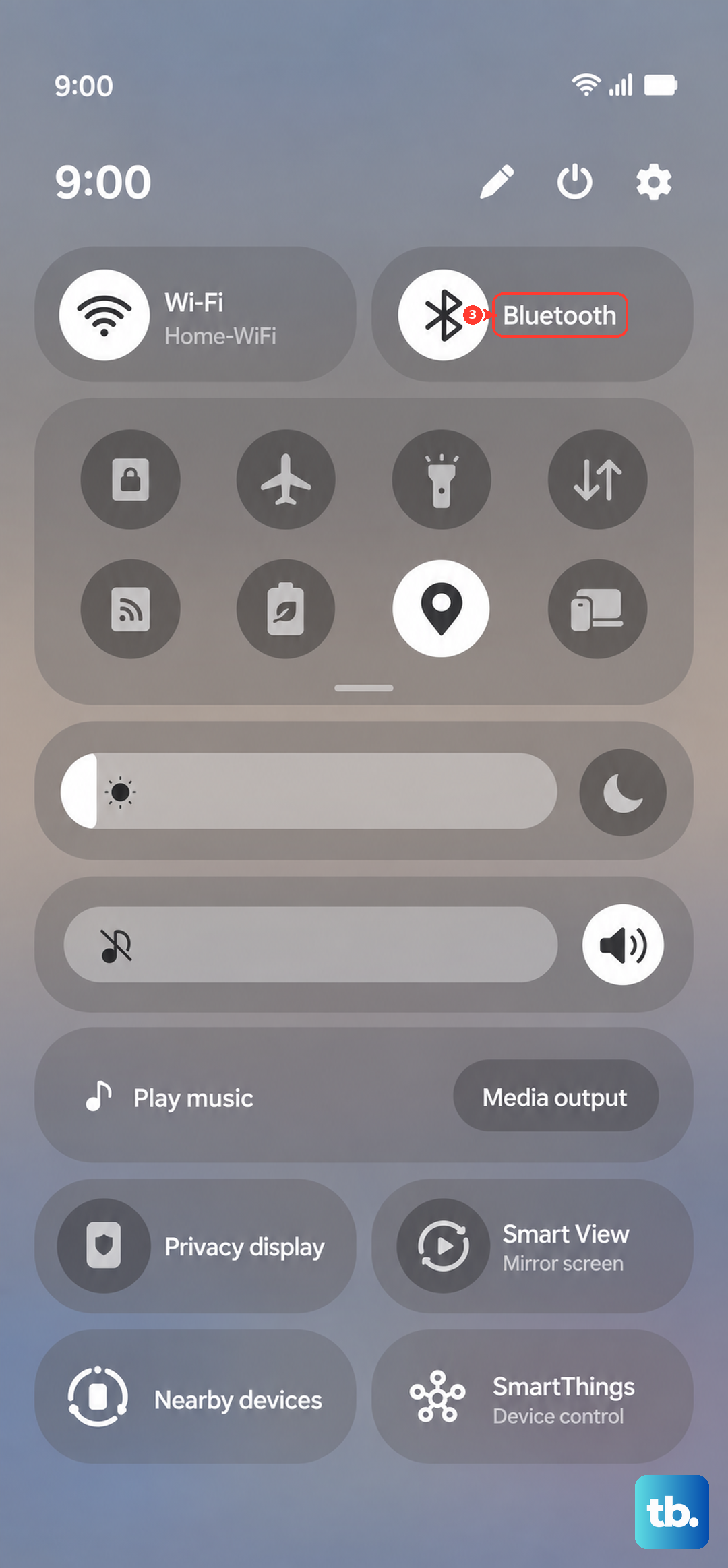
Bluetooth and Wi-Fi can sometimes interfere with each other on the 2.4GHz band. Swipe down your Quick Settings panel and tap the Bluetooth icon to turn it off. Try connecting to Wi-Fi again. If it works, you've found the issue. You can usually turn Bluetooth back on afterward, but you might need to manage which devices are actively connected.
Reset Your Network Settings
This is a more thorough step that resets all wireless connections back to factory defaults. It will erase all saved Wi-Fi networks, Bluetooth pairings, and mobile network settings. To do this, go to Settings > General Management > Reset > Reset network settings.
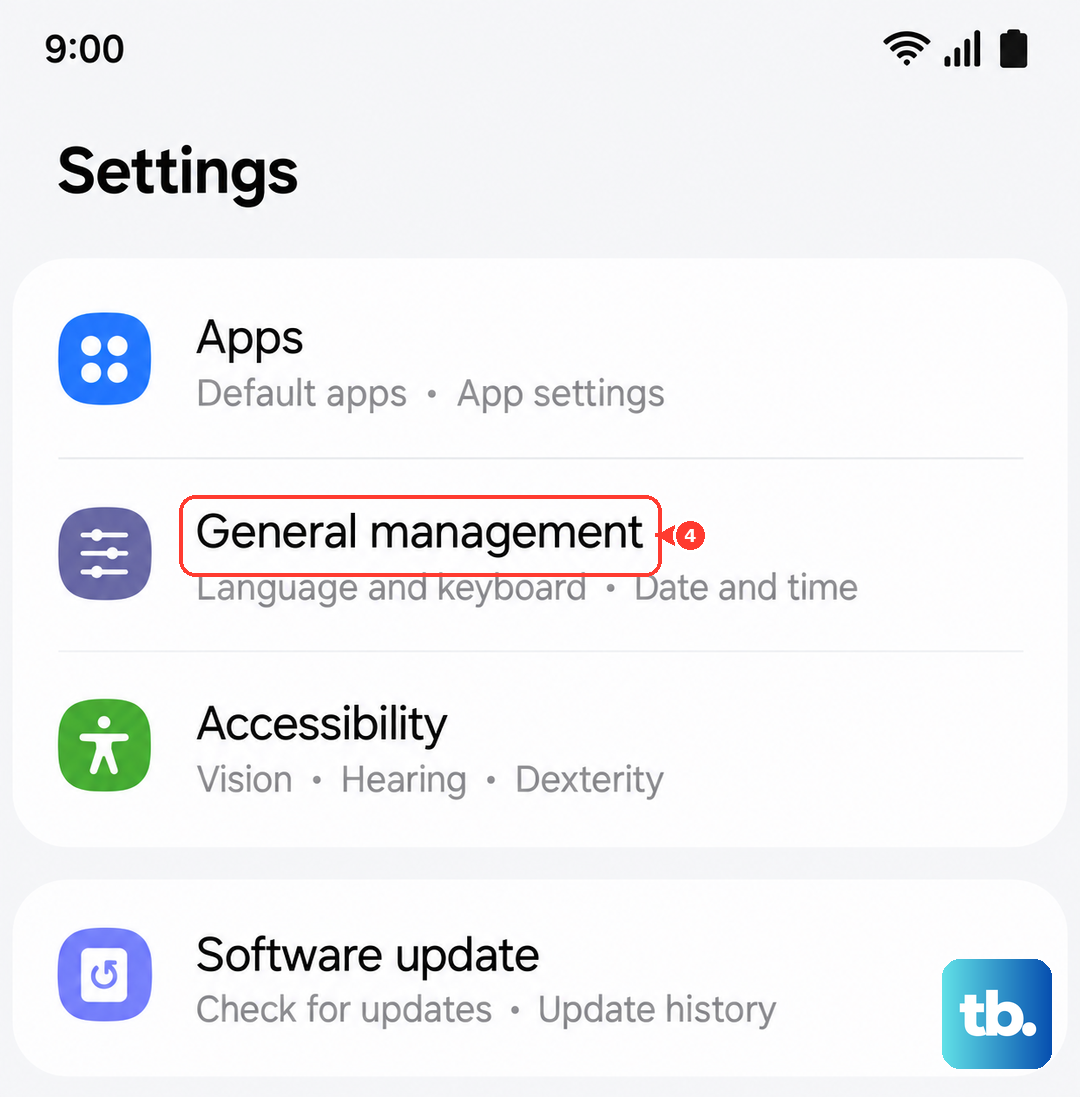
Tap reset and confirm. Your phone will reboot. Afterward, you'll need to reconnect to your Wi-Fi network and re-pair any Bluetooth devices, but this often clears up persistent connection problems.
Check Your Router and Reboot It
The problem might not be your phone at all. If other devices in your home are also struggling to connect, the router is the likely culprit. Unplug your router from power, wait a full 60 seconds, and then plug it back in. This gives it time to clear its memory and re-establish connections properly.
While you're at it, check if your router has a firmware update available. An outdated router firmware can have compatibility issues with newer phones like the Galaxy S25. You can usually check this through your router's admin page or its mobile app.
Boot Into Safe Mode
A third-party app you installed could be causing the conflict. To check, you need to boot your S25 into Safe Mode, which temporarily disables all downloaded apps. Press and hold the Side key until the power menu appears, then tap and hold the Power off option.
You'll see a "Safe mode" prompt. Tap it to reboot. If your Wi-Fi works perfectly in Safe Mode, you know a downloaded app is the problem. You'll need to uninstall apps one by one, starting with recent downloads, VPNs, ad blockers, or security apps, to find the culprit.
Verify Date and Time Settings
This seems unrelated, but it's important. If your phone's date and time are incorrect, it can fail to authenticate with secure Wi-Fi networks because security certificates won't validate. Go to Settings > General Management > Date and time.
Make sure both Automatic date and time and Automatic time zone are turned on. This lets your phone sync correctly with network time servers.
Consider a Factory Reset
This is your last resort before considering a hardware issue. A factory reset will erase everything on your phone and return it to its original out-of-the-box state. You must back up all your important data first. To proceed, go to Settings > General Management > Reset > Factory data reset.
Follow the prompts to reset the phone. After it reboots and you go through the setup, try connecting to Wi-Fi immediately. If it still fails after a full factory reset, the problem could be physical, possibly with the phone's internal Wi-Fi antenna.