If your Samsung Galaxy S25 Ultra videos are stuttering, freezing, or dropping frames, it can ruin the experience of watching your high-resolution recordings. This is a common hiccup that usually has a straightforward fix, especially with the powerful hardware in this phone.
Restart Your Phone First
It sounds basic, but a quick restart can clear out temporary software glitches that might be interfering with video playback. Just press and hold the Volume Down button and the Side button together for about ten seconds until you see the Samsung logo appear. This is the force restart method for the S25 Ultra.
Check Your Available Storage
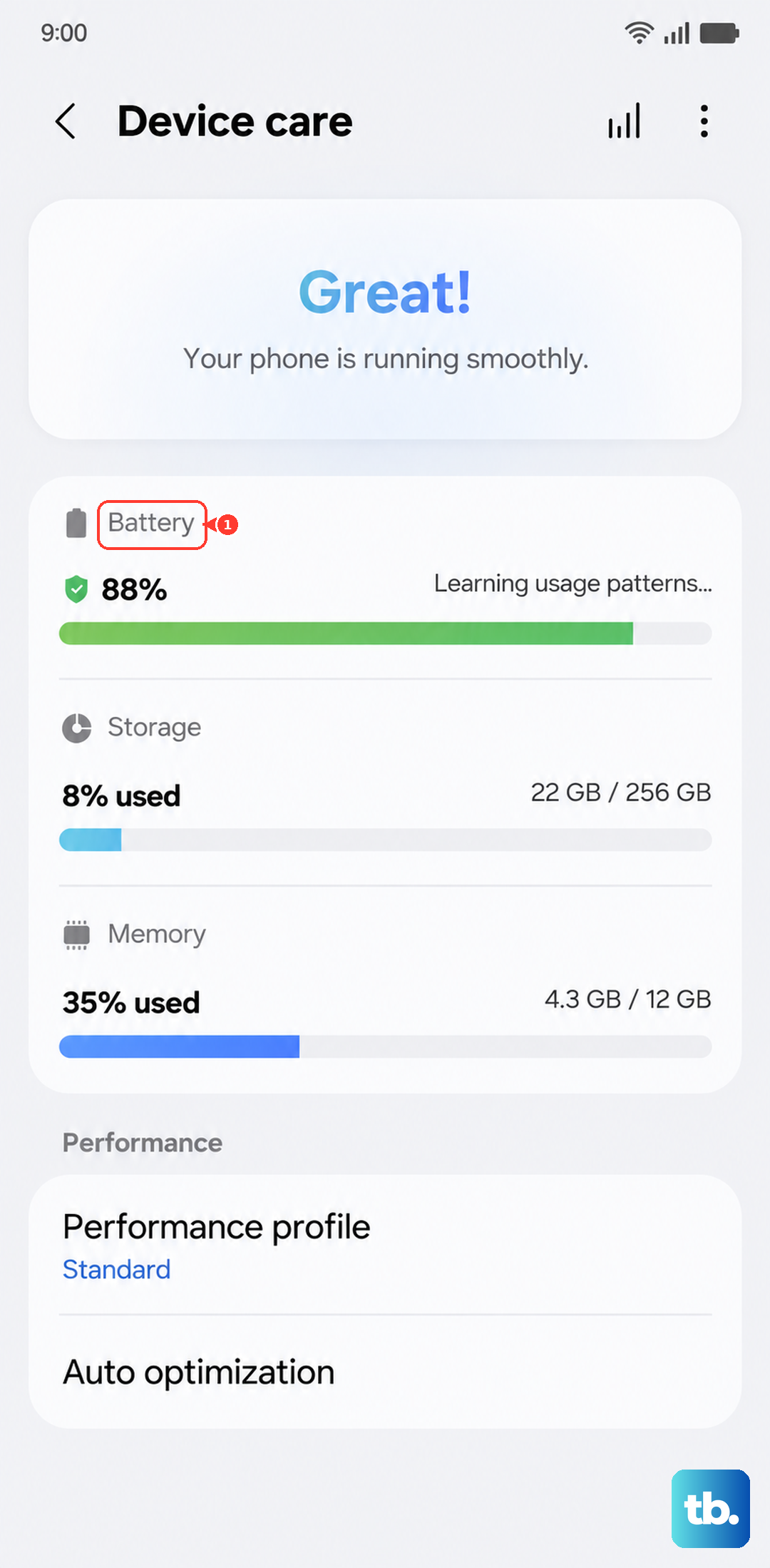
When your phone's storage is nearly full, it struggles to read and write the large video files the S25 Ultra's camera produces. This can cause lag during playback. Head to Settings > Battery and device care > Storage to see how much space you have left.
If you're running low, consider moving photos and videos to cloud storage or an external USB-C drive. Deleting old downloads and clearing app caches can also free up a surprising amount of space quickly.
Update Your Software and Apps
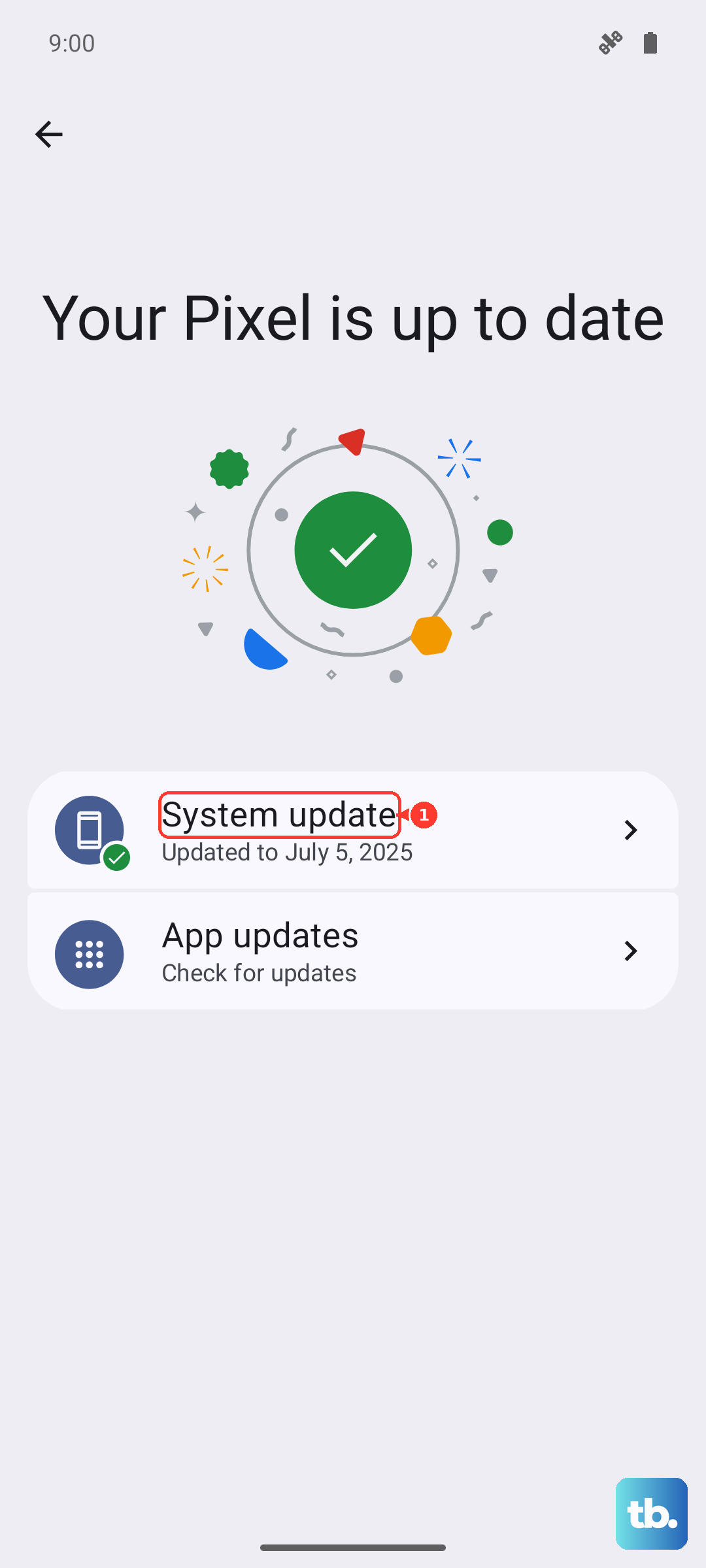
Outdated software can lead to performance bugs, including video lag. Samsung and app developers regularly release updates to fix these issues. Check for a system update by going to Settings > Software update > Download and install.
Don't forget about your apps, especially the one you're using to play the videos. Open the Galaxy Store or Google Play Store and update all your apps, or at least the video player and camera app.
Manage Your Phone's Performance Mode
The S25 Ultra's Snapdragon 8 Elite chip is powerful, but it can throttle under sustained heavy loads to manage heat. If you're trying to play back a very high-bitrate 8K video, this could be a factor. You can adjust this in your settings.
Go to Settings > Battery and device care > Battery > More battery settings. Here, you'll find performance profiles. Switching to "High performance" or "Enhanced processing" (if available in One UI 7) will prioritize smooth playback over battery savings and thermal limits.
Clear the App's Cache and Data
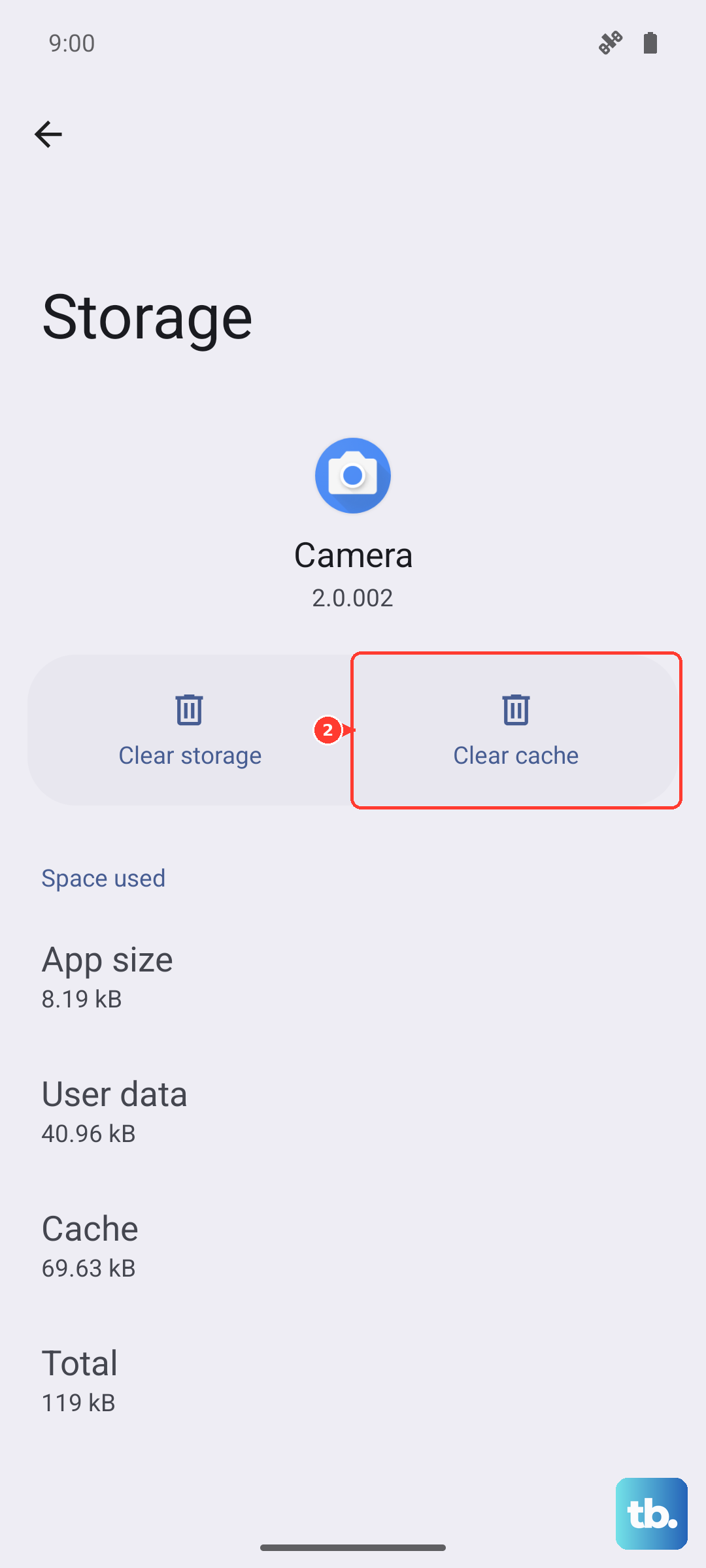
If the lag is happening in a specific app, like the Gallery or YouTube, its stored temporary data (cache) might be corrupted. Clearing it can often resolve playback issues without deleting your personal files. Go to Settings > Apps, select the problematic app, then tap on Storage.
Tap "Clear cache" first. If that doesn't help, you can try "Clear data," but be aware this will reset the app to its default state and you may lose in-app settings.
Test Your Network Connection for Streaming
For videos streaming from YouTube, Netflix, or other services, a poor internet connection is the most likely culprit. The S25 Ultra's high-resolution screen demands a lot of data. Try switching between Wi-Fi and your 5G cellular data to see if the problem is network-specific.
You can also run a quick speed test. If you're on Wi-Fi, try moving closer to your router or restarting it. Streaming in a lower resolution (like 1080p instead of 4K) can also help on slower connections.
Check for Overheating
Modern phones slow down their processors to prevent damage when they get too hot. If you've been recording long videos, gaming, or using your phone in direct sunlight, it might be thermally throttled. Let the phone cool down for a few minutes, preferably out of its case, and then try playing the video again.
I've found that recording long 8K videos, especially in warm environments, can push the temperature up. Giving it a break usually resolves any playback lag caused by overheating.
Try a Different Video Player
The issue might not be with your phone, but with the default video player app. Download a reputable third-party player like VLC or MX Player from the Play Store and try opening your laggy video file there. These apps often support a wider range of codecs and have different decoding methods that might work better.
If the video plays smoothly in another app, you know the problem is software-related to your gallery app, not the phone's hardware or the video file itself.
Disable Any Battery Optimization for the Video App
Android's battery optimization is great for longevity, but it can sometimes aggressively limit background processes for apps, which might interfere with video decoding. You can exclude your preferred video player from these restrictions.
Navigate to Settings > Apps, select your video app, then tap Battery. Change the battery setting to "Unrestricted" to prevent the system from limiting its performance.
Reset All Settings (Without Erasing Data)
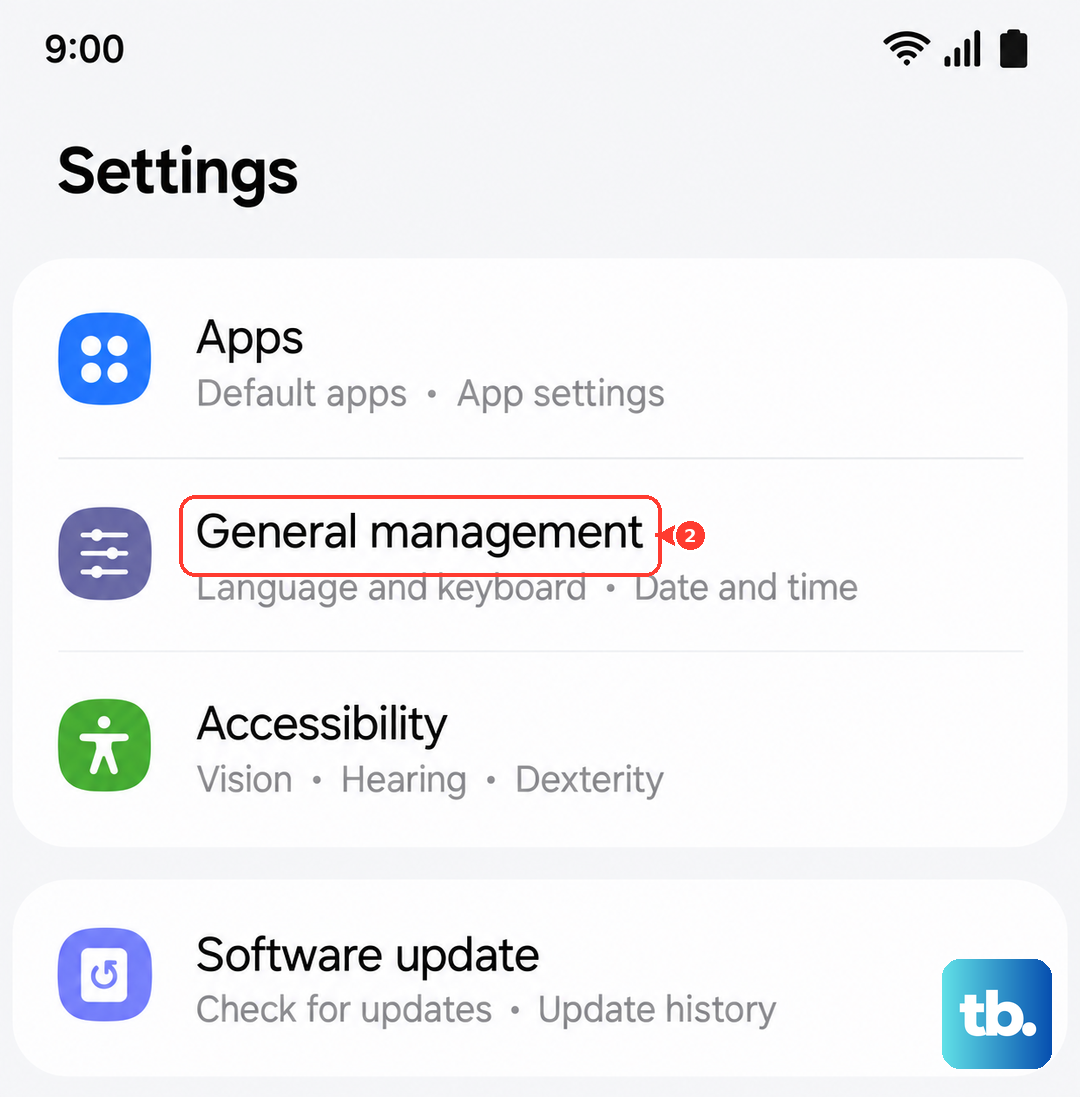
If you've tried everything else and the lag persists across multiple apps and video files, a deeper software glitch might be to blame. You can reset all your system settings back to default without deleting your photos, messages, or apps.
Go to Settings > General management > Reset > Reset all settings. You'll have to reconfigure things like your Wi-Fi passwords, wallpapers, and ringtones, but it often resolves persistent performance issues. This is a solid step before considering anything more drastic.