When your Galaxy S25 Ultra goes silent, it can feel like you're holding a very expensive piece of glass and titanium. Sound issues can pop up out of nowhere, whether it's media playback, ringtones, or call audio. The good news is that with Android 15 and One UI 7, there are several straightforward paths to getting your audio back.
To separate hardware from software, open a online speaker test and play the channel tones. What you hear, or do not hear, tells you which fixes below matter most.
Check Your Volume and Sound Mode
This is always the best place to start. Press the volume up button on the side of your phone a few times. If you see a volume slider on screen but hear nothing, the issue is deeper. Also, swipe down from the top of your screen to open the Quick Settings panel.
Look for the Sound mode icon. Make sure it's not set to Vibrate or Silent. If it is, tap it to switch back to Sound mode. Sometimes a simple mis-tap when pulling the phone from your pocket can trigger this.
Disconnect Bluetooth and Other Audio Routes
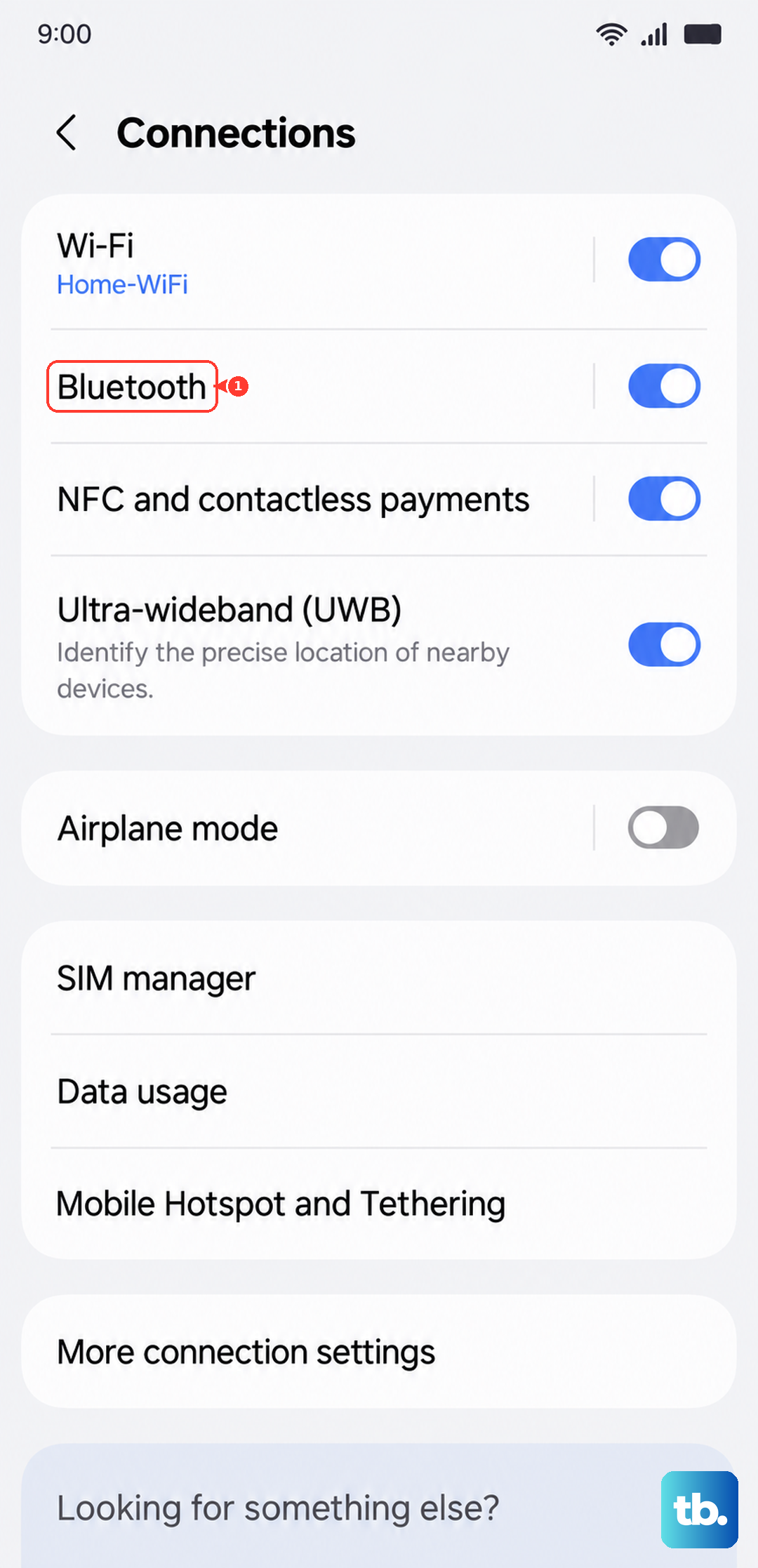
Your S25 Ultra might be trying to send audio somewhere else. Open Settings > Connections > Bluetooth and turn the toggle off. This immediately severs any connection to headphones, speakers, or your car.
Also, if you use Samsung's Separate app sound feature, it could be routing audio from one app to a Bluetooth device while keeping other sounds on the phone. Go to Settings > Sounds and vibration > Advanced sound settings > Separate app sound and toggle it off to test.
Inspect the Speaker Grilles
The S25 Ultra's speakers are powerful but the grilles are slim. Dust, lint, or even a small amount of pocket debris can muffle or block sound completely. Grab a flashlight and take a close look at the top earpiece and the bottom-firing main speaker.
Use a clean, dry, soft-bristled toothbrush or a brand-new makeup brush to gently flick away any visible particles. Never use a pin, paperclip, or compressed air, as you can easily damage the delicate speaker components behind the grille.
Review Do Not Disturb and Accessibility Settings
Do Not Disturb can sometimes be scheduled or activated by a rule you've forgotten. Pull down the notification shade twice and look for the Do Not Disturb icon. If it's active, tap it to turn it off.
Next, check a deeper setting. Go to Settings > Accessibility > Hearing enhancements. Here, ensure that the "Mute all sounds" option is turned off. This setting is designed for specific testing scenarios but can get enabled accidentally.
Force Restart Your Phone
A force restart clears the phone's working memory and can knock out minor software glitches causing the audio driver to hang. On the S25 Ultra, press and hold the Volume Down button and the Side Key (power button) together for about 10 seconds.
Keep holding until you see the Samsung logo appear on the screen, then release. The phone will boot up normally. This doesn't delete any data, it's just a deeper refresh than a standard restart.
Clear the System Cache Partition
Corrupted system cache files, especially after a recent software update, can cause all sorts of erratic behavior, including sound failure. This process wipes those temporary files without touching your personal data.
First, turn off your S25 Ultra completely. Now, press and hold the Volume Up button and the Side Key. When you see the Android recovery screen, release both buttons. Use the volume keys to highlight "Wipe cache partition" and press the Side Key to select it. Confirm, then select "Reboot system now."
Check for a Software Update
Samsung is consistently rolling out updates for the S25 Ultra to optimize performance and squash bugs. A sound issue could be something they've already patched. Go to Settings > Software update > Download and install.
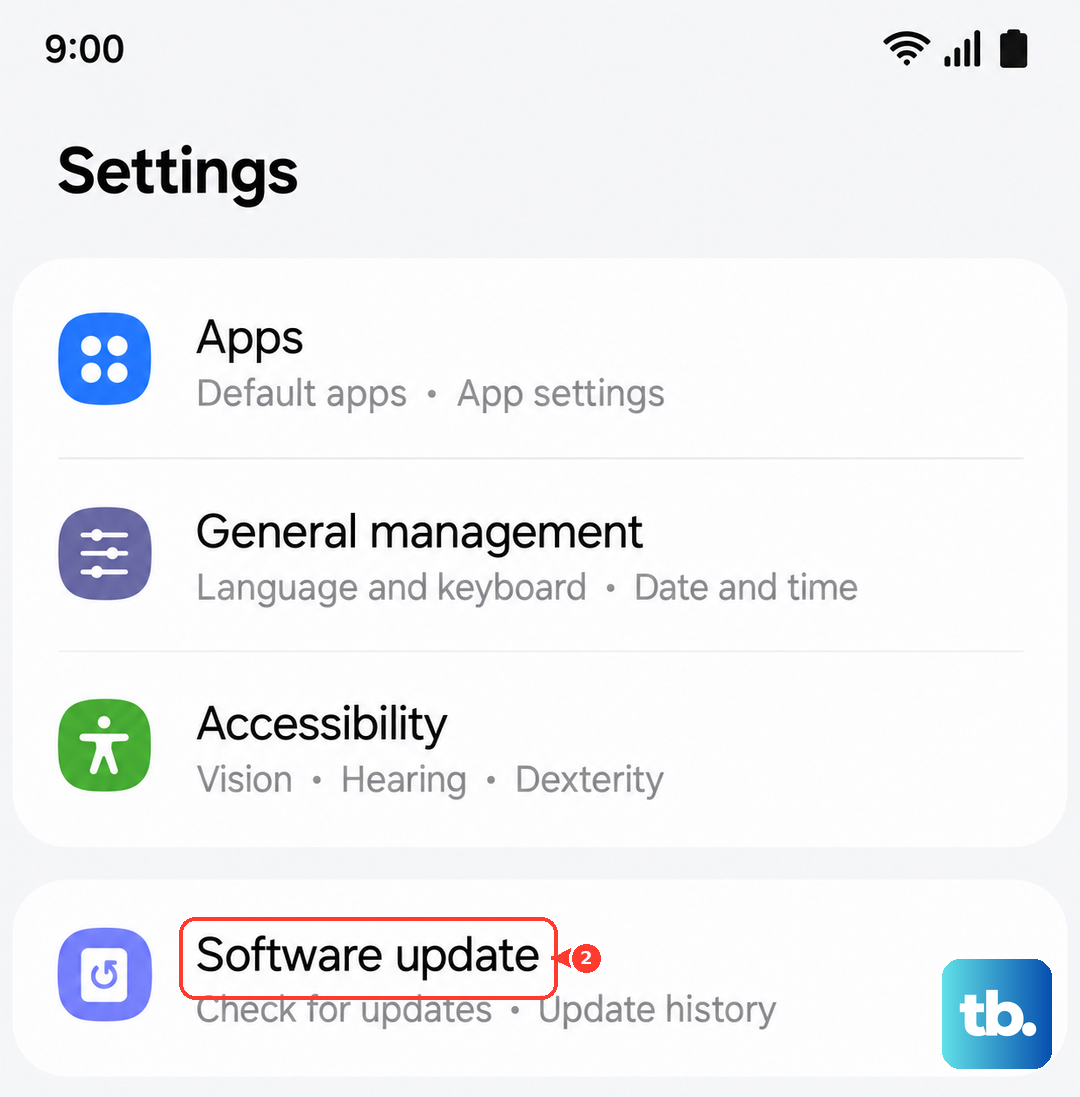
Let the phone check for updates. If one is available, I'd recommend connecting to Wi-Fi and plugging in your 45W charger before proceeding. Installing the latest software can resolve a host of underlying system conflicts.
Boot Into Safe Mode
If the sound works in Safe Mode, you know a third-party app you installed is the culprit. To enter Safe Mode, press and hold the Side Key until the power menu appears. Then, tap and hold the "Power off" option on your screen.
A "Safe mode" prompt will pop up. Tap it to reboot into Safe Mode. You'll see "Safe mode" in the bottom-left corner. Test your sound with a YouTube video or a ringtone. If it works, restart normally and begin uninstalling recently downloaded apps one by one until the sound returns.
Reset All Settings
This is a strong step before considering a full factory reset. It will revert all your system settings, like Wi-Fi passwords, Bluetooth pairings, and display preferences, back to factory defaults, but it leaves your photos, messages, and apps intact.
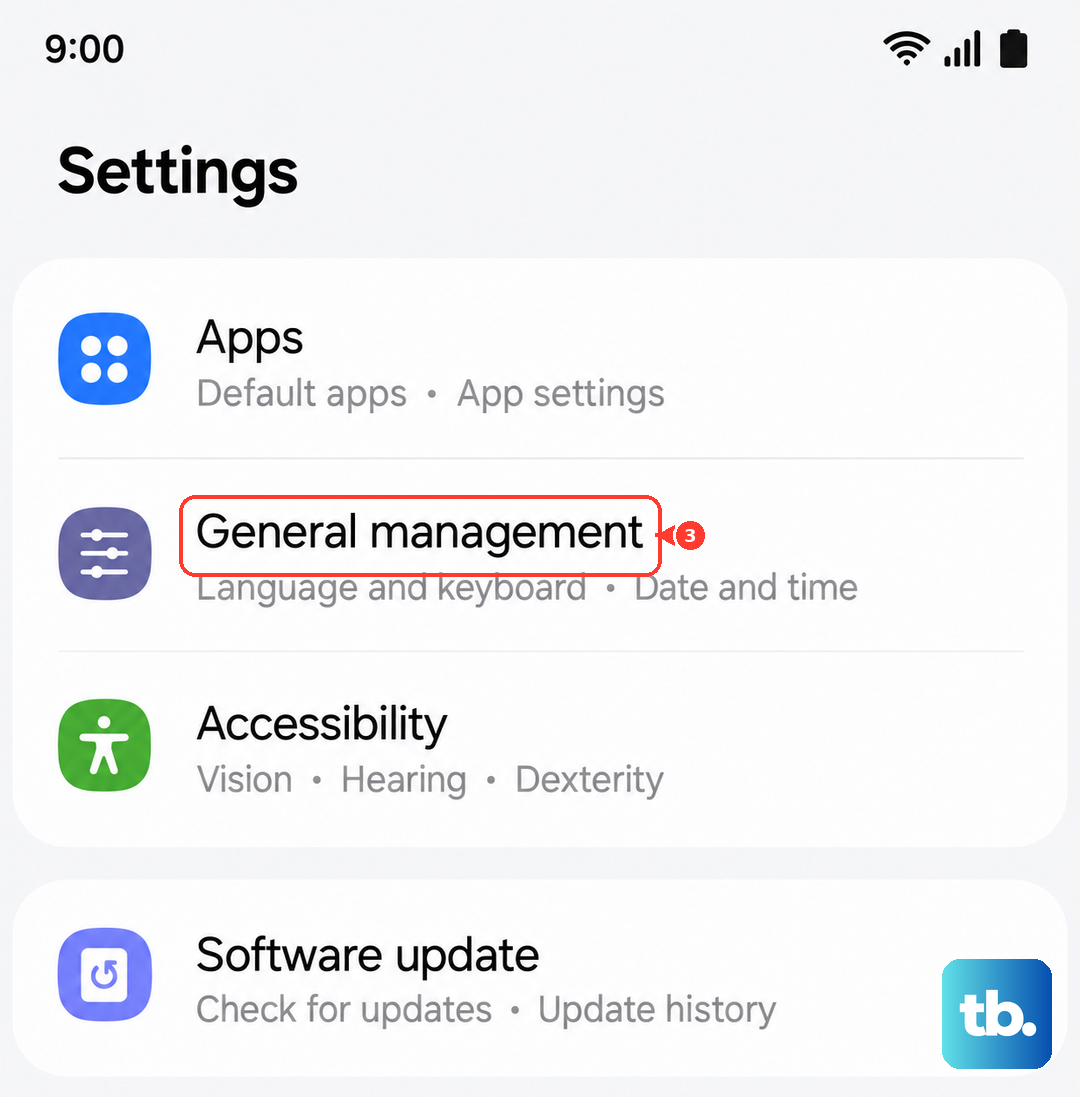
Go to Settings > General management > Reset > Reset all settings. Read the warning, confirm, and let the phone reboot. Afterward, you'll need to reconfigure your preferences, but it often clears out any misconfigured setting that's killing the audio.