
Slow internet on your Galaxy S25 Ultra can really kill the vibe, especially when you're trying to stream a video or load a heavy webpage. Before you blame your carrier, there are quite a few things you can tweak right on your phone that often make a big difference.
I'd start with the simplest fix first: a quick restart. Press and hold the Volume Down and Side button together for about ten seconds until you see the Samsung logo. This clears out any temporary software glitches that might be hogging your connection.
Toggle Airplane Mode to Refresh Your Signal
This is the digital equivalent of taking a deep breath for your phone's modem. Swipe down from the top of your screen to open the Quick Settings panel and tap the Airplane mode icon. Wait about 15 seconds, then tap it again to turn it off.
Your phone will reconnect to the cellular network from scratch, which can often grab a stronger signal or switch to a less congested tower. It's a thirty-second trick that works surprisingly often.
Check and Manage Your Mobile Network Mode
Your S25 Ultra is built for blazing 5G, but sometimes forcing it to stay on 5G in a weak signal area can backfire. It's worth checking what network mode you're using. Go to Settings > Connections > Mobile networks > Network mode.
If you're in an area with spotty 5G, try selecting "LTE/3G/2G (auto connect)" instead. Your phone will use the more stable LTE network, which can actually provide faster and more consistent speeds than a struggling 5G signal. You can always switch it back later.
Enable Adaptive WiFi for Smoother Switching
One UI has a great feature called Adaptive WiFi. If your WiFi signal gets weak, it can automatically switch you to your mobile data to keep things moving without a hiccup. To turn it on, head to Settings > Connections > WiFi.
Tap the three-dot menu in the top right, go to Advanced, and look for "Intelligent WiFi." Make sure "Switch to mobile data" is toggled on. This way, you won't get stuck on a barely-there WiFi signal when a faster cellular connection is available.
Use Data Saver to Stop Background Drains
Apps updating in the background can silently eat up your bandwidth, slowing down what you're actually trying to do. Samsung's Data Saver feature puts a stop to that. You'll find it at Settings > Connections > Data Usage > Data Saver.
Turn the toggle on. Once it's active, you can tap "Allow apps while Data saver is on" to make exceptions for apps you always want to run in the background, like your messaging service.
Clear the Cache for Your Browser and Key Apps
Over time, apps like Chrome and Google Play Services store temporary data that can get corrupted and cause slowdowns. Clearing this cache is safe and won't delete your personal info. For Chrome, open the app, tap the three-dot menu, go to History > Clear browsing data.
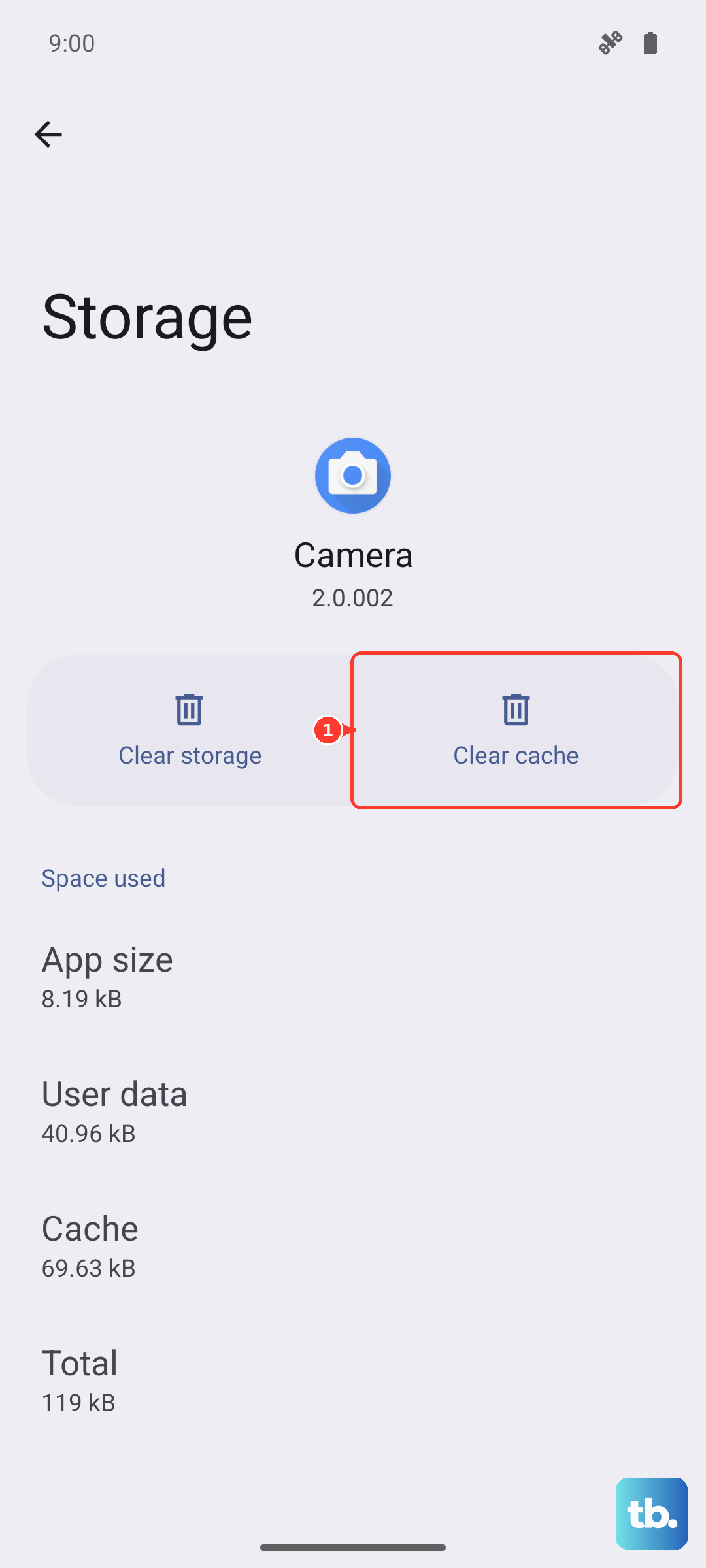
Select "Cached images and files" and tap "Clear data." For a deeper system-level clean, go to Settings > Apps, find "Google Play Services" in the list, tap on it, then go to Storage > Clear cache.
Review and Restrict Background Data for Heavy Apps
Some apps are just data-hungry all the time. You can put them on a diet. Go to Settings > Apps, select an app you suspect, and tap Mobile data. Here, you can turn off "Allow background data usage."
This means the app will only use data when you have it open on your screen. It's a great way to clamp down on social media or news apps that constantly refresh.
Disable Any Active VPN Connections
While VPNs are great for privacy, they route your traffic through another server, which almost always adds some lag and reduces speed. If you're using a VPN app and experiencing slow browsing, try disabling it temporarily to see if your speed improves.
You can usually do this by opening the VPN app and tapping disconnect, or by swiping down your notification panel and turning off the VPN toggle.
Reset Your Network Settings as a Last Resort
If you've tried everything and the slowness persists, resetting your network settings can wipe out any deeper configuration errors. This will erase all saved WiFi networks, Bluetooth pairings, and mobile network preferences, so you'll have to reconnect to everything.
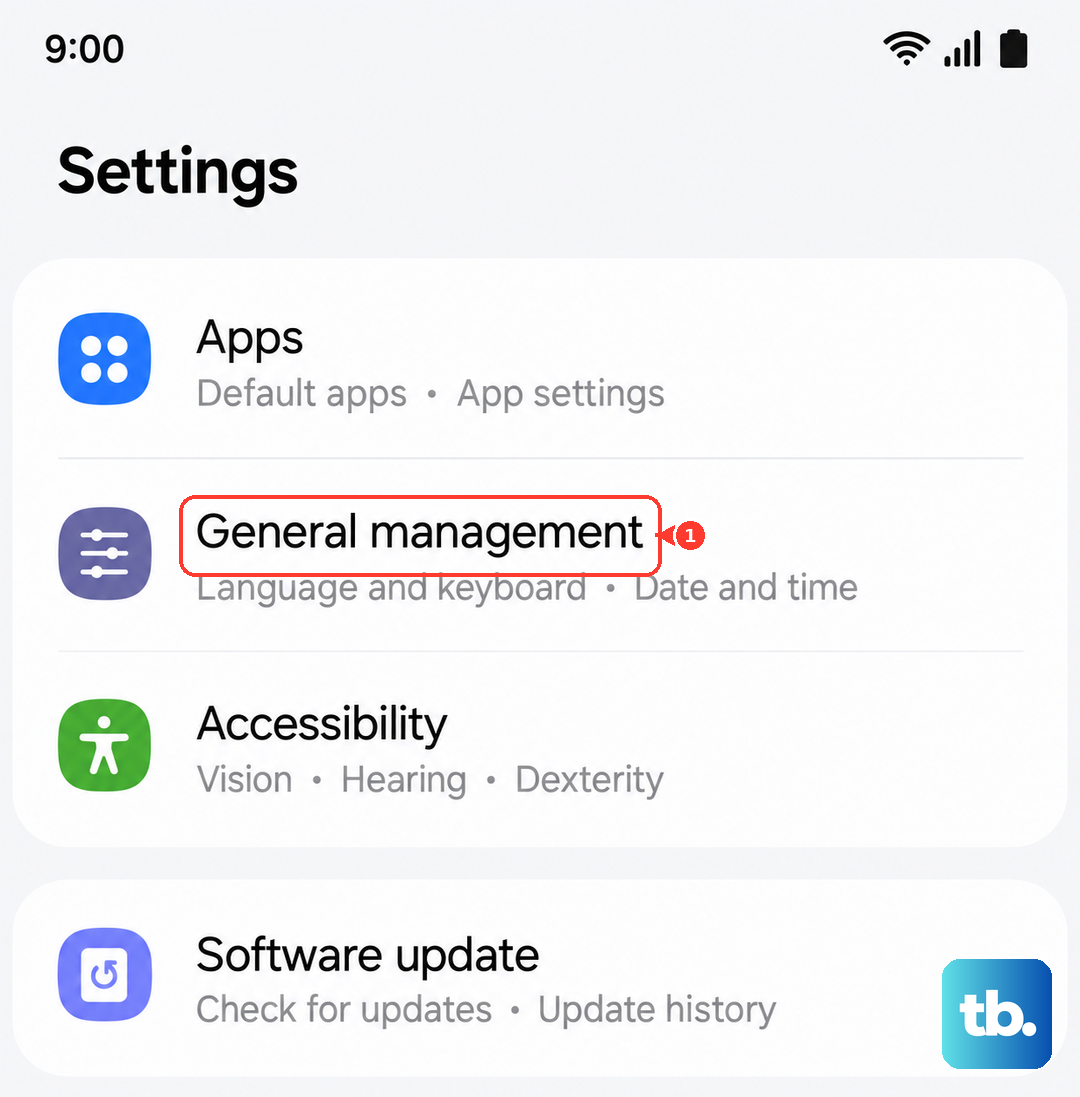
To do it, go to Settings > General Management > Reset > Reset network settings. Tap reset, confirm, and your phone will reboot. After it comes back on, reconnect to your WiFi and see if the problem is cleared up.
Try a Different DNS for Faster Browsing
Your phone uses a DNS server to look up website addresses. Sometimes your carrier's default one can be slow. You can change it to a faster public DNS like Google's or Cloudflare's. For WiFi, go to Settings > Connections > WiFi, tap the gear icon next to your network, and select "Advanced."
Tap "IP settings" and change it from DHCP to Static. You can then set the DNS 1 field to 1.1.1.1 (Cloudflare) or 8.8.8.8 (Google). This can make webpage addresses resolve much quicker.
Check for Software Updates
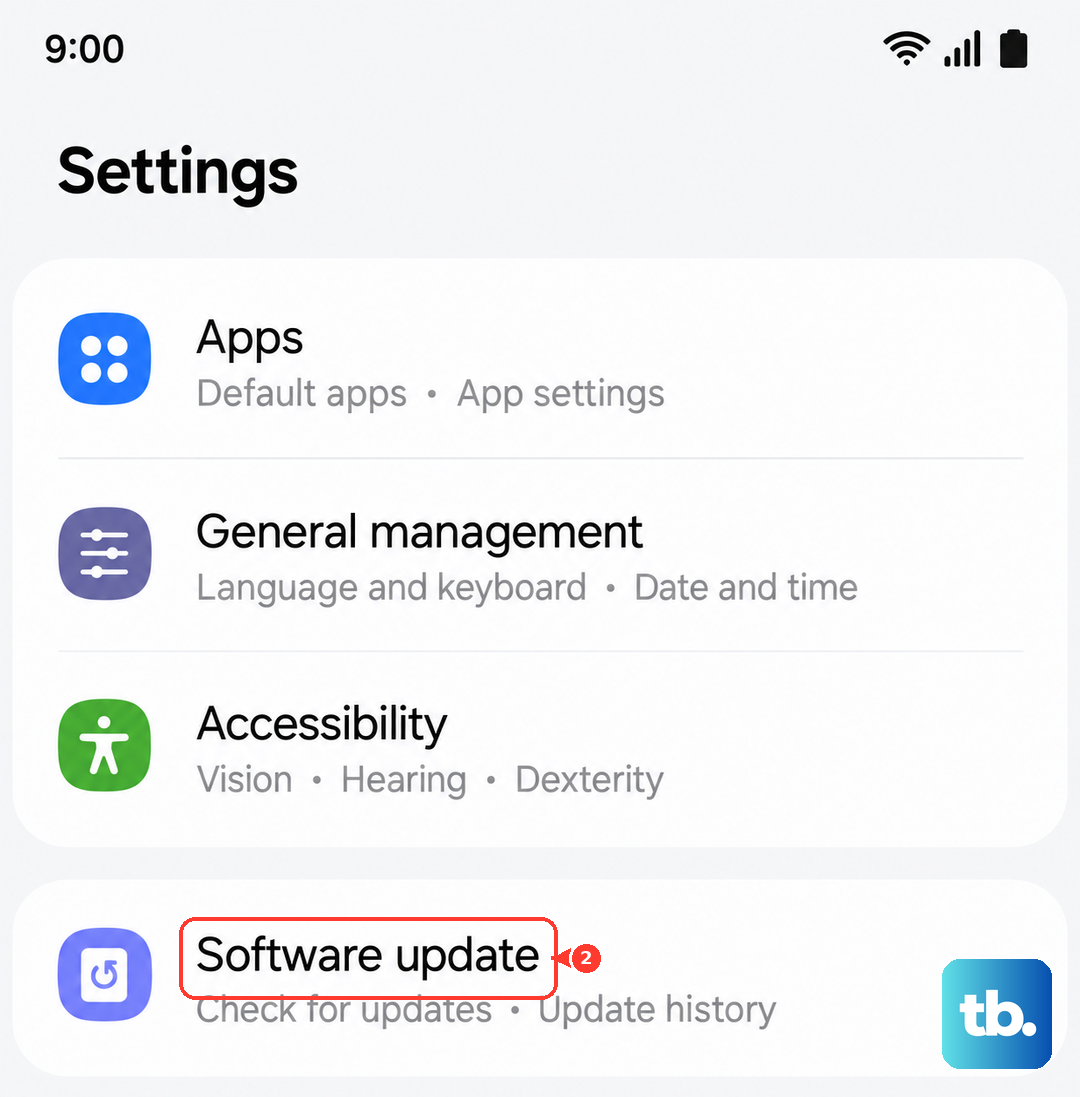
Samsung regularly releases updates that can include modem firmware improvements and connectivity bug fixes. It's always worth making sure you're on the latest software. Go to Settings > Software update > Download and install.
If an update is available, I'd recommend installing it over a WiFi connection. These updates can directly address network performance issues related to the Snapdragon 8 Elite chipset's behavior.