Press and hold the Volume Down button and the Side button together for about 10 seconds. Keep holding them until you see the Samsung logo appear on the screen. This force restart is the fastest way to clear a temporary software glitch that's freezing the touchscreen.
If touches seem to go missing, run an online online touch test first. The grid fills in wherever the screen registers contact, so gaps stand out immediately.
I'd start with this one, as it works for most random touchscreen freezes. It doesn't delete any of your data or settings. If the screen is completely black and unresponsive, you might just feel a vibration when the phone restarts.
Clean the Screen and Remove Any Protector
Power off your S25 Ultra and give the screen a thorough clean with a soft, slightly damp microfiber cloth. Oils, lotion, or dirt can interfere with the touch sensors, especially along the edges. Make sure the screen is completely dry before turning it back on.
If you're using a third-party screen protector, try removing it temporarily. Some cheaper or improperly aligned protectors, especially thick glass ones, can cause dead zones. The built-in Gorilla Armor 2 is quite scratch-resistant, so you might find you don't need one.
Boot Into Safe Mode
Safe mode temporarily disables all third-party apps. If your touchscreen works perfectly here, you know a recently downloaded app is the culprit. To enter Safe Mode, open the power menu by pressing the Power and Volume up buttons together (on Samsung phones, the Side and Volume down buttons) or by tapping the power icon in the quick settings panel, then touch and hold Power off and tap Safe Mode or OK.
Then, tap and hold the "Power off" icon on the screen until you see a prompt to reboot to Safe Mode. Tap "Safe mode" to confirm. Test the touchscreen thoroughly. To exit, just restart the phone normally.
Check for Software Updates
Outdated software can have bugs that affect touchscreen drivers. Connect to Wi-Fi and go to Settings > Software update > Download and install. If an update is available, install it.
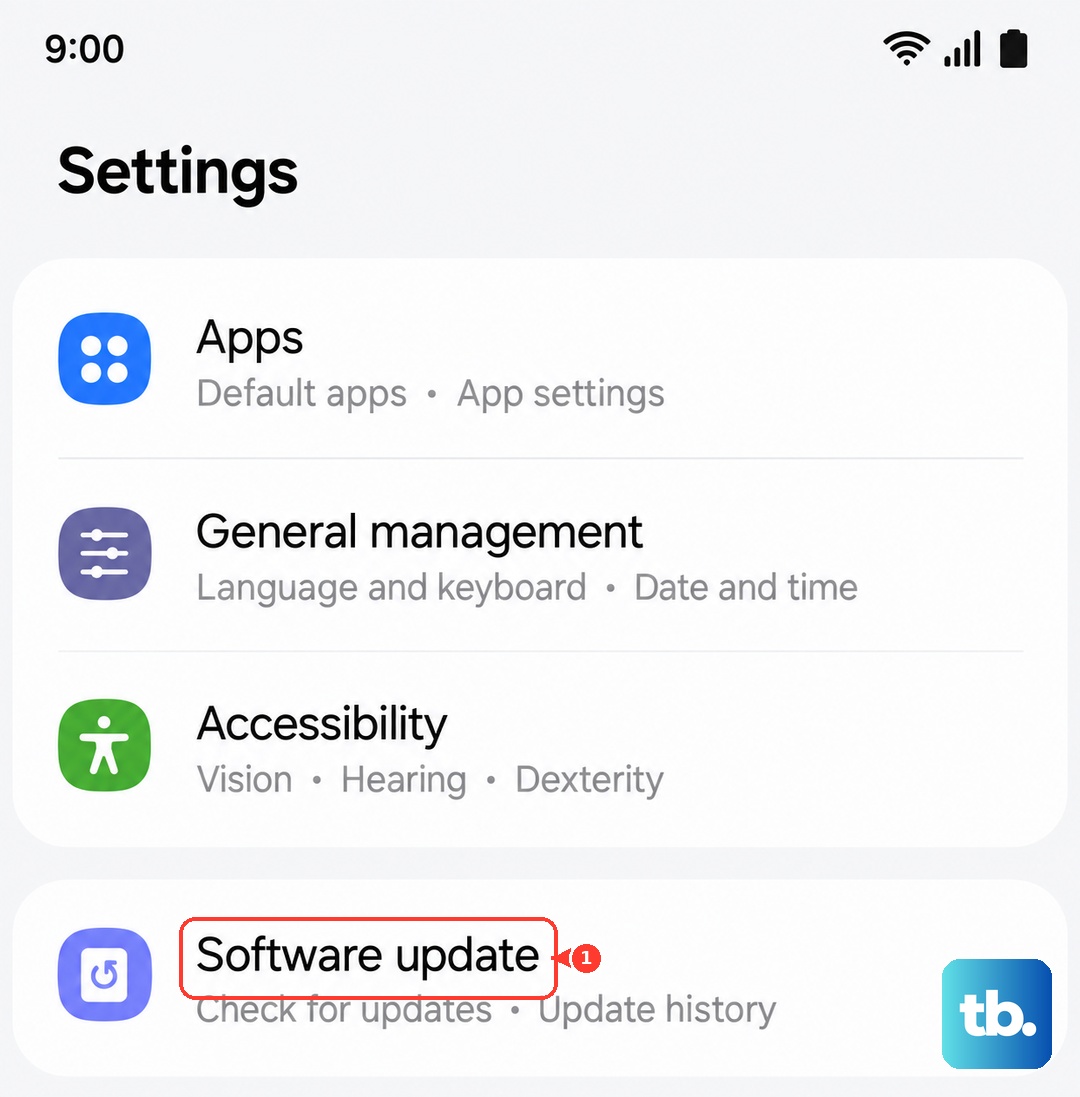
This is a common fix after a major OS update like the jump to Android 15 and One UI 7. Samsung often releases patches for performance and stability issues, including touchscreen responsiveness.
Calibrate the Touchscreen
While Samsung doesn't have a built-in calibration tool in settings anymore, you can use a secret diagnostic code. Open your Phone app and dial *#0*#. This opens the service menu.
Tap "Touch" to run the diagnostic. It will draw patterns on the screen for you to trace. This test can help identify if the issue is hardware-related. If you fail the test consistently in one area, it points to a physical problem.
Reset All Settings
This will revert all your system settings (like Wi-Fi passwords, Bluetooth pairings, and display preferences) back to default without touching your personal photos, messages, or apps. It can fix misconfigured settings causing conflicts.
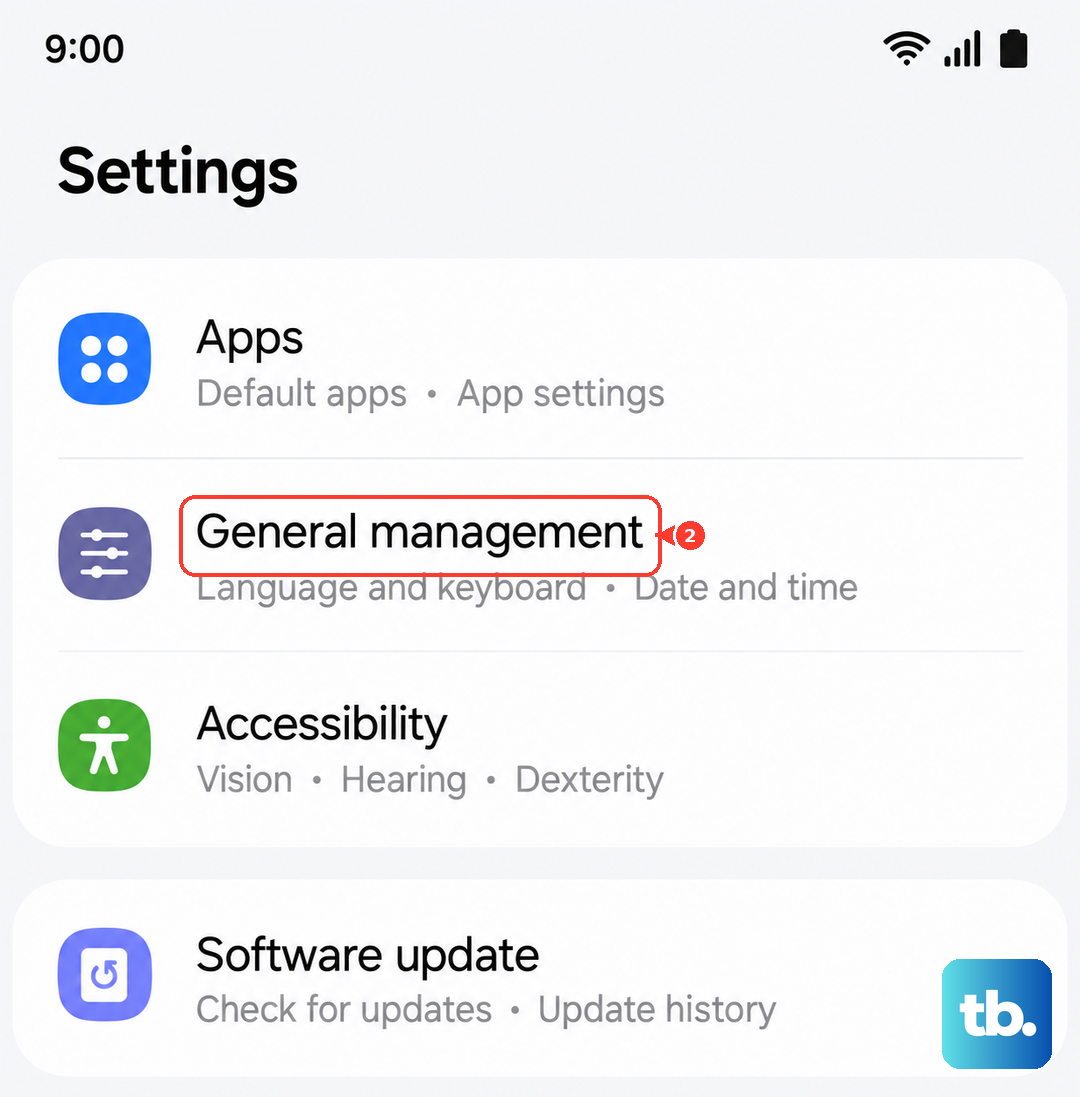
Go to Settings > General management > Reset > Reset all settings. Enter your PIN if prompted and confirm. After the phone reboots, you'll need to set up your preferences again, but your touchscreen should be reinitialized.
Consider the S Pen and Environment
If you have the S Pen out or it's not seated correctly in its slot, the phone's digitizer might be confused. Make sure the S Pen is securely stored inside the phone. Also, avoid using the phone with wet hands or in very humid conditions, as moisture can cause phantom touches.
In my experience, the S Pen Bluetooth connectivity issues some users report can sometimes manifest as general touchscreen weirdness. Keeping the S Pen charged by storing it in the phone helps maintain its proper state.
Perform a Factory Reset
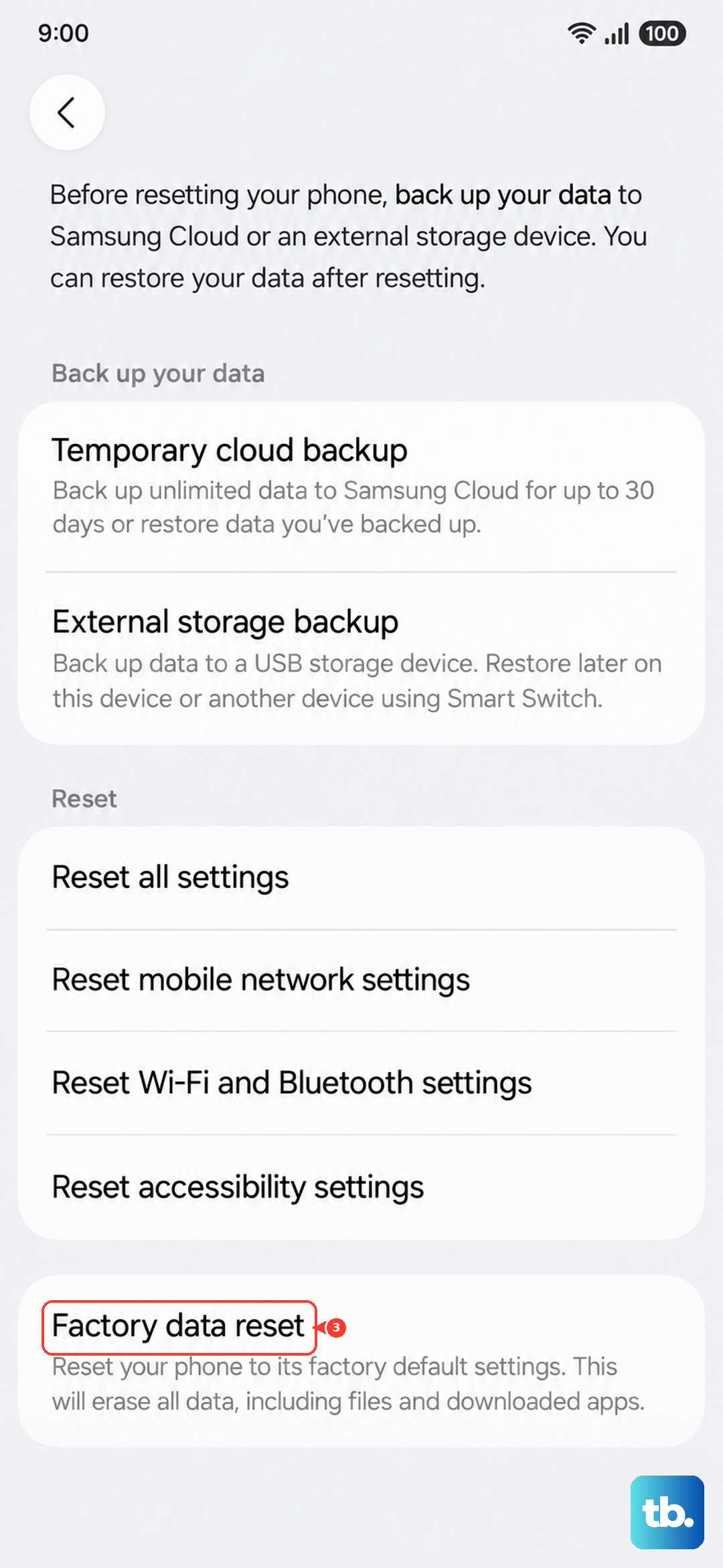
This erases everything and returns the phone to its out-of-the-box state. It's the nuclear option for persistent software corruption. Before you start, ensure you have a complete backup via Samsung Cloud or Google Drive.
You can initiate it from the settings menu at Settings > General management > Reset > Factory data reset. For a completely unresponsive screen, you can use hardware buttons: power off the phone, then press and hold Volume Up and the Side button to boot into Recovery Mode and select "Wipe data/factory reset."