
When the predictive text on your Samsung Galaxy S25 Ultra stops working, it can turn a simple text message into a chore. You might notice the suggestions bar is blank, the words it does suggest are completely wrong, or the feature just seems to have vanished. The good news is this is almost always a software hiccup you can fix yourself.
I'd start with the simplest fix first. Press and hold the Volume Down button and the Side button (power button) at the same time for about ten seconds. Keep holding until you see the Samsung logo appear on the screen. This force restarts the phone and can clear out the temporary glitch that's messing with your keyboard.
Clear the Keyboard's Cache and Data
If a restart didn't do the trick, the next step is to clear out the keyboard's stored files. Go to Settings > Apps. Tap the three-dot menu in the top right and select Show system apps.
Now, find and tap on Samsung Keyboard. Inside its app info page, tap Storage. Here, tap Clear Cache. This deletes temporary files without touching your personal settings.
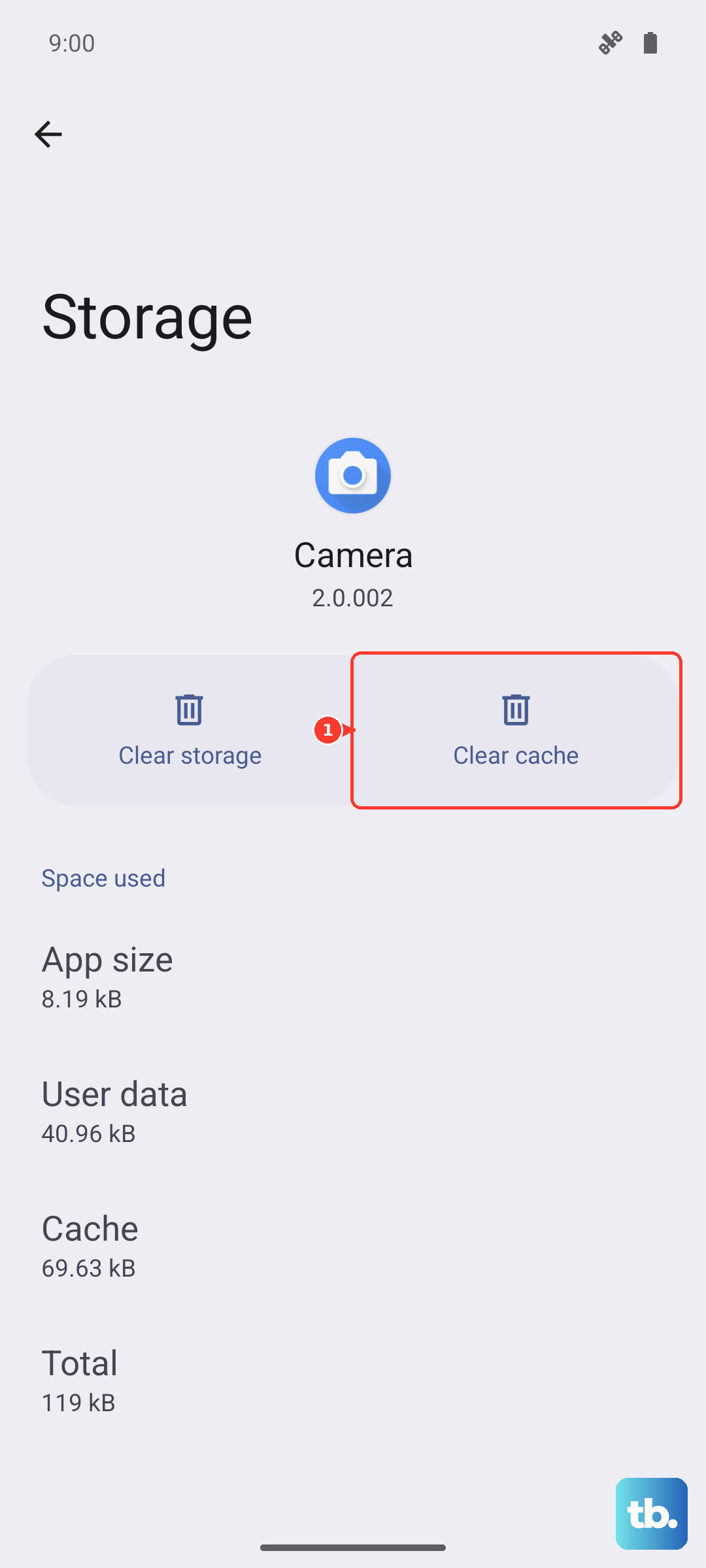
If the problem persists after clearing the cache, go back to the same Storage menu. This time, tap Clear Data. A warning will pop up. This will reset the keyboard to its default state, so you'll lose any custom dictionaries or personalized predictions you've built up.
Check Your Smart Typing Settings
Sometimes the feature gets accidentally turned off. Open Settings and go to General Management > Language & Input > On-screen Keyboard > Samsung Keyboard.
Tap on Smart typing. Make sure the switch next to Predictive text is turned on. While you're here, you can also toggle it off and back on again to refresh the feature. This is a quick fix that often works.
Update Your Keyboard and Language Files
An outdated keyboard app can cause all sorts of issues. Open the Google Play Store, tap your profile icon, and go to Manage apps & device. Look for updates, and see if Samsung Keyboard is listed. If it is, tap Update.
You should also check for language pack updates. Go back to Settings > General Management > Language & Input > On-screen Keyboard > Samsung Keyboard.
Tap Languages and types, then select your primary language (like English US). Tap Manage input languages, hit the three-dot menu, and choose Check for an update. Installing the latest language data can fix prediction problems.
Reset the Keyboard to Its Default Settings
If the suggestions are still off, a full reset might be necessary. This is more thorough than just clearing data. Navigate to Settings > General Management > Language & Input > On-screen Keyboard > Samsung Keyboard.
Scroll down to the bottom and tap Reset to default settings. Confirm your choice. This will wipe all your keyboard preferences, including theme, layout, and any saved words, so use it as a last resort within the keyboard settings.
Consider Your Performance Settings
This is a specific tip for the S25 Ultra. The phone's Snapdragon 8 Elite chip is powerful, but Samsung's software can sometimes throttle background processes to save battery or reduce heat. Go to Settings > Battery.
Look for the Performance profile or Processing speed setting. If it's set to "Light" or "Optimized," try switching it to "High" or "Enhanced." This gives the system more resources, which can help background services like the keyboard's AI prediction engine run more smoothly.