
If your Samsung Galaxy S25 Ultra is getting uncomfortably warm, the first thing I'd try is a simple restart. Press and hold the Volume Down button and the Side button together for about ten seconds until you see the Samsung logo appear. This force restart clears out any temporary software glitches that might be causing the processor to work overtime and generate excess heat.
It's a quick fix that takes less than a minute and solves a lot of random overheating issues.
Check for Rogue Apps and Background Processes
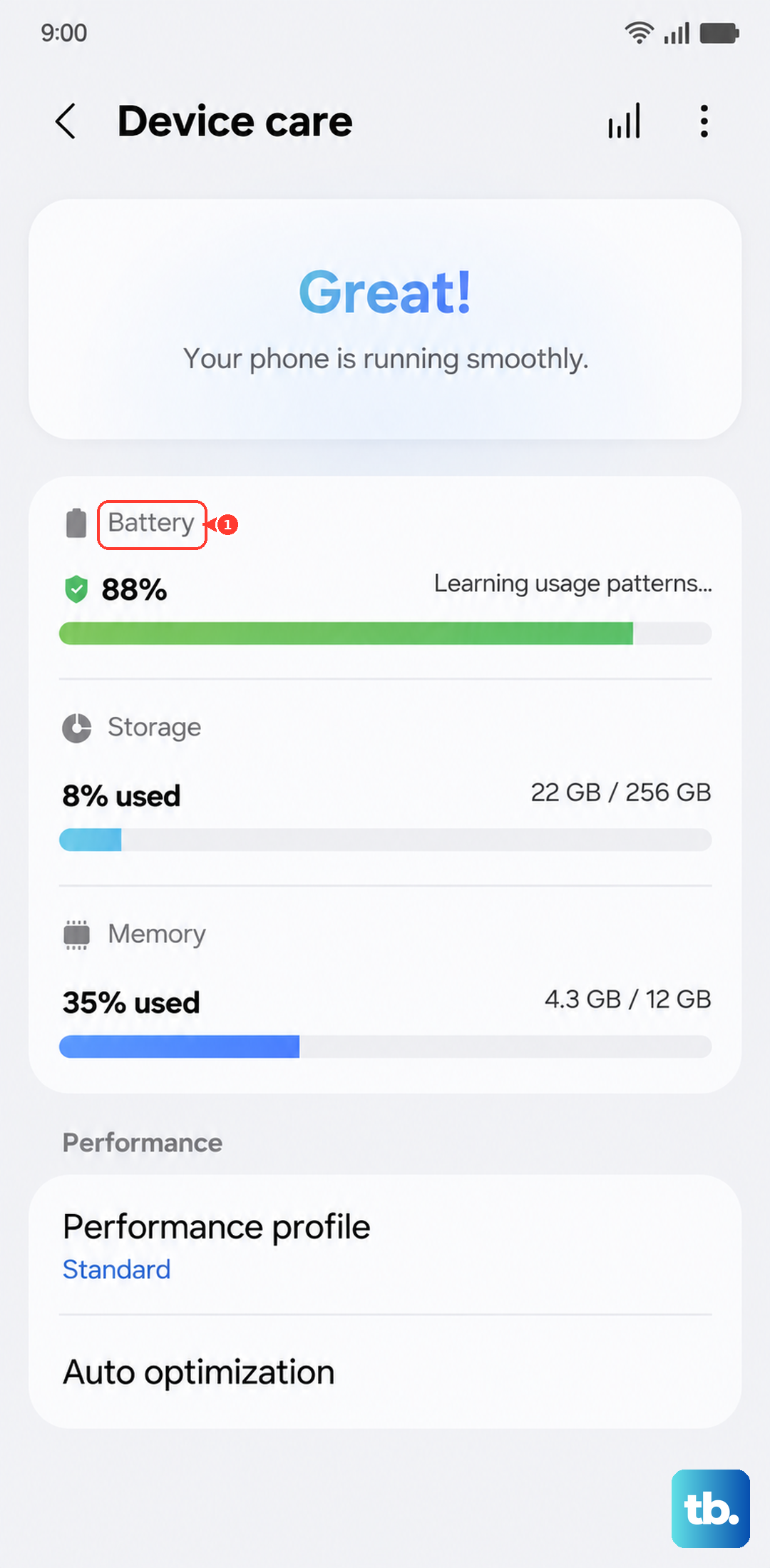
Sometimes, a single misbehaving app is the culprit. Open your Settings and go to Battery and device care > Battery. Scroll down to see which apps have been using the most battery recently. An app causing overheating will often show unusually high battery usage here, even if you haven't been actively using it.
If you spot a suspect, tap on it and select Restrict background activity. For more drastic measures, you can force stop the app or uninstall it entirely to see if the temperature goes back to normal. I've found social media and camera apps are common offenders after updates.
Adjust Your Performance and Display Settings
The S25 Ultra is a powerhouse with a Snapdragon 8 Elite chip and a brilliant display, but pushing them constantly creates heat. Head to Settings > Battery and device care > Performance profile. Here, you can select Light. This slightly limits the peak performance of the CPU and GPU, which can significantly reduce heat during everyday tasks without you noticing much difference in speed.
Also, consider lowering your screen resolution. Go to Settings > Display > Screen resolution. While the WQHD+ setting is stunning, dropping it to FHD+ reduces the workload on the GPU. The display is still plenty sharp, and it can help keep things cooler, especially during long browsing or video sessions.
Manage Your Charging Habits
Fast charging generates heat. If your phone is hot while plugged in, it might be working hard to push a 45W charge. First, make sure you're using a compatible charger. Samsung's own 45W EP-T4510 charger is optimized for this. Using a cheap, uncertified USB-C cable or block can cause inefficient charging that produces more heat.
For a cooler charge, you can disable fast charging. Go to Settings > Battery and device care > Battery > More battery settings and turn off Fast charging and Super fast charging. Your phone will take longer to reach 100%, but it will stay much cooler during the process. This is a good setting to use overnight.
Update Your Software
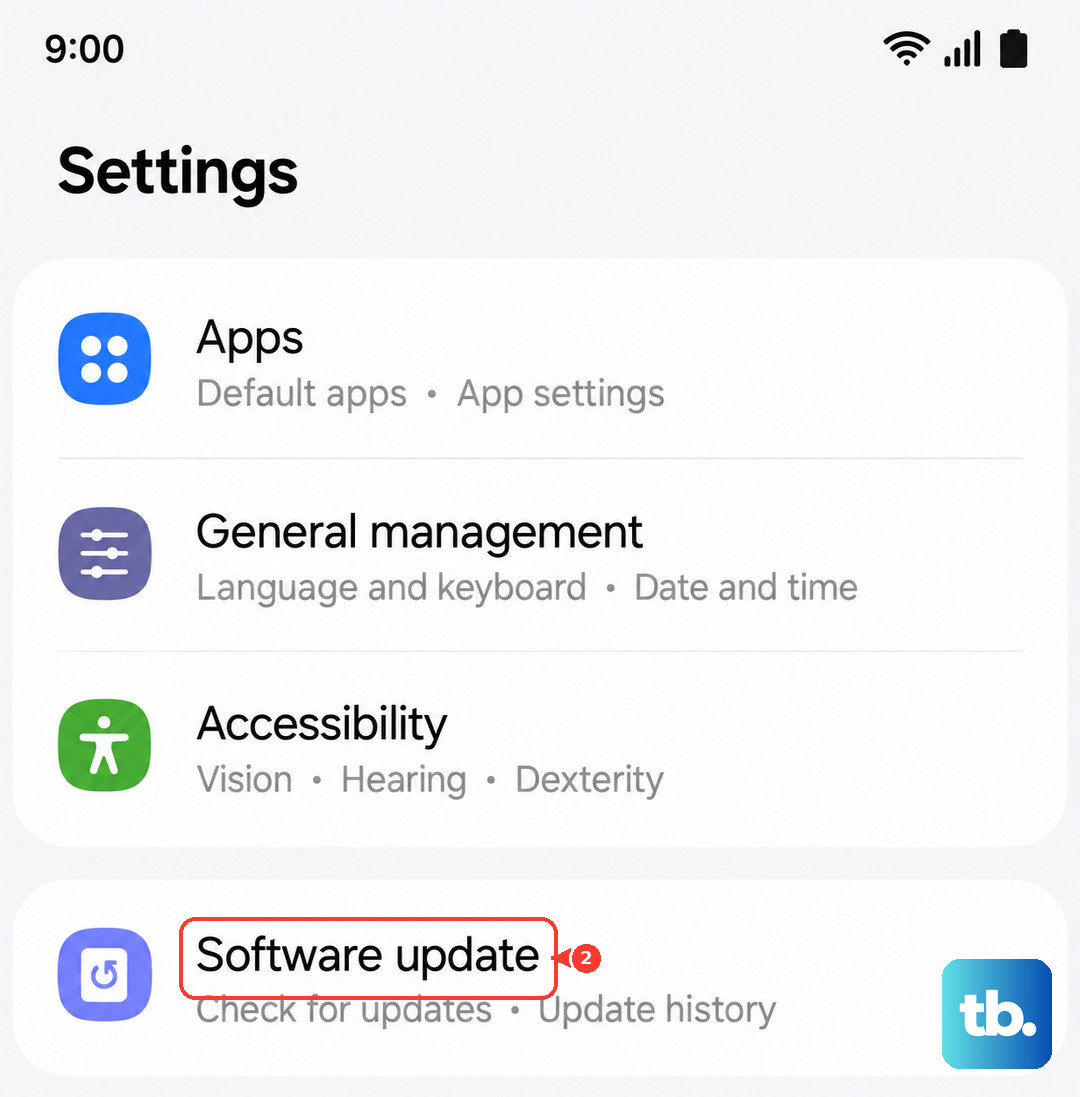
Samsung regularly releases updates that can include optimizations for thermal management and battery efficiency. An outdated version of Android or One UI might not be handling the powerful hardware as well as it should. Check for updates by going to Settings > Software update > Download and install.
It's also worth checking the Galaxy Store for updates to Samsung's own apps and services, as these can include performance tweaks. Keeping everything up to date is one of the easiest ways to ensure your phone runs as cool and efficiently as possible.
Be Mindful of Your Environment and Case
Using your phone in direct sunlight or a hot car will make any overheating problem worse. The dark colors of the S25 Ultra can absorb heat quickly. Try to keep it in the shade when outdoors. Also, take a look at your case. A thick, poorly ventilated case can trap heat like a blanket.
If your phone is hot, take the case off for a while to let it dissipate heat directly. Consider using a slimmer case or one designed with better airflow if overheating is a frequent issue for you.
Limit Intensive Tasks in Hot Conditions
The Snapdragon 8 Elite is designed to throttle its speed under sustained heavy loads to protect itself, which is a known behavior for this chipset. Activities like recording long 8K videos, playing graphically intense games for hours, or using GPS navigation while fast charging will naturally make the phone warm.
If you need to do these tasks, try to do them in a cooler environment and give the phone breaks. Avoid stacking heat-intensive activities, like gaming while wirelessly charging, as the combination of the processor working hard and the inductive charging process will guarantee a hot device.
Scan for Malware and Perform a Cache Wipe
While less common on Android, malicious software can run hidden processes that max out your CPU. It's good practice to run a scan with Play Protect. Open the Google Play Store, tap your profile icon, and go to Play Protect > Scan.
If overheating started after a software update, a corrupted system cache could be the issue. You can wipe the cache partition without deleting any personal data. Turn off your phone, connect it to a computer with a USB cable, then press and hold the Volume Up and Side buttons until the Android Recovery screen appears. Use the volume buttons to highlight Wipe cache partition and press the side button to select it.
Check for Physical Damage or Defects
Finally, consider physical factors. Make sure nothing is blocking the USB-C port, like lint or debris, as this can interfere with both data and charging, potentially causing heat buildup. Inspect the phone for any signs of damage, especially if it was recently dropped.
While the Gorilla Armor 2 screen is tough, it can still pick up micro-scratches, and a significant impact could potentially affect internal components. If the overheating is sudden, severe, and accompanied by other issues like rapid battery drain or swelling, it's time to contact Samsung support, as you may have a hardware fault.