
Missing important calls on your Galaxy S25 Ultra is a real headache. You check your phone and see a missed call notification, but you never heard it ring. This usually comes down to a setting that got changed or a minor software hiccup. Let's run through the fixes, starting with the most common ones.
Check Your Sound Mode and Volume
First, look at the right side of your phone. If you see an orange line above the volume buttons, your phone is in Silent or Vibrate mode. Slide that switch up to turn sound back on. You can also check this quickly by pulling down the notification shade twice to see the full Quick Settings panel.
Make sure the ringer volume itself is turned up. While the phone is unlocked, press the volume up button on the side. A volume bar will appear on screen. Tap the three-dot menu next to it to expand the view, then drag the "Ringtone" slider all the way to the right. You can also adjust this in Settings > Sounds and vibration > Volume.
Turn Off Do Not Disturb and Modes
One UI's Modes and Routines (which includes Do Not Disturb) are powerful but can silence calls if they're active. Swipe down from the top of your screen to open the Quick Settings panel and look for the moon icon. If it's highlighted, tap it to turn Do Not Disturb off.
For a deeper check, go to Settings > Modes and routines. Look at any active modes, like "Sleep" or "Work". Tap into each one and make sure the "Mute notifications and sounds" option isn't enabled, or simply turn the entire mode off for now to test.
Review Your Call Sound Settings
Sometimes the issue is with the specific ringtone file. Try switching to a different one. Head to Settings > Sounds and vibration > Ringtone. Pick a new default Samsung tone and test with a call from another phone.
Also, check for a feature called "Vibrate for calls". If this is set to "Never vibrate", you might not feel the phone either. Go to Settings > Sounds and vibration > Vibration intensity and ensure the "Incoming call" slider isn't at zero.
Disconnect Bluetooth Accessories
If your S25 Ultra is connected to a Galaxy Watch, wireless earbuds like Galaxy Buds, or a car stereo, incoming call audio might be routing there instead of the phone's speaker. The quickest fix is to turn Bluetooth off temporarily.
Swipe down to open Quick Settings and tap the Bluetooth icon to disable it. You can also go to Settings > Connections > Bluetooth and toggle the switch off. See if your phone rings normally with Bluetooth disconnected.
Check for Blocked and Filtered Numbers
You might have accidentally blocked the number trying to reach you. Open your Phone app, tap the three-dot menu in the top right, and go to Settings > Block numbers. Review the list to see if the contact is there.
Also, Samsung has a "Caller ID and spam protection" feature that can silently send suspected spam calls straight to voicemail. Go to Phone app settings > Caller ID and spam protection and toggle it off to test.
Disable Call Forwarding and Other Carrier Services
Call forwarding, often set up through your carrier, redirects your calls before your phone ever has a chance to ring. On your S25 Ultra, open the Phone app, tap the three-dot menu, and go to Settings > Supplementary services > Call forwarding.
Make sure all forwarding options (like "Always forward" or "When busy") are set to "Disable". I'd also recommend checking with your mobile carrier to ensure no network-level call barring or forwarding is active on your account.
Restart Your Phone
A simple reboot clears out temporary glitches in the system that could be affecting the sound services. Press and hold the Side key and Volume Down button together for about ten seconds until you see the Samsung logo appear, then release. This force restarts the phone.
If the phone is completely unresponsive, you can force a shutdown by holding the same buttons for over 15 seconds. Wait a moment, then press the Side key alone to turn it back on.
Check App-Specific Notification Settings
This is crucial if you're missing calls from apps like WhatsApp, Messenger, or Skype. The system ringtone might work, but the app's own notification could be silenced. Open Settings > Notifications > App notifications.
Find the messaging or calling app in the list (e.g., WhatsApp) and tap on it. Ensure notifications are turned "On". Then, tap on the notification category for "Incoming calls" or "Voice calls" and make sure the sound is set to something other than "Silent".
Update Your Software
Software updates for Android 15 and One UI 7 often include bug fixes for audio and calling issues. Connect to Wi-Fi, then go to Settings > Software update > Download and install.
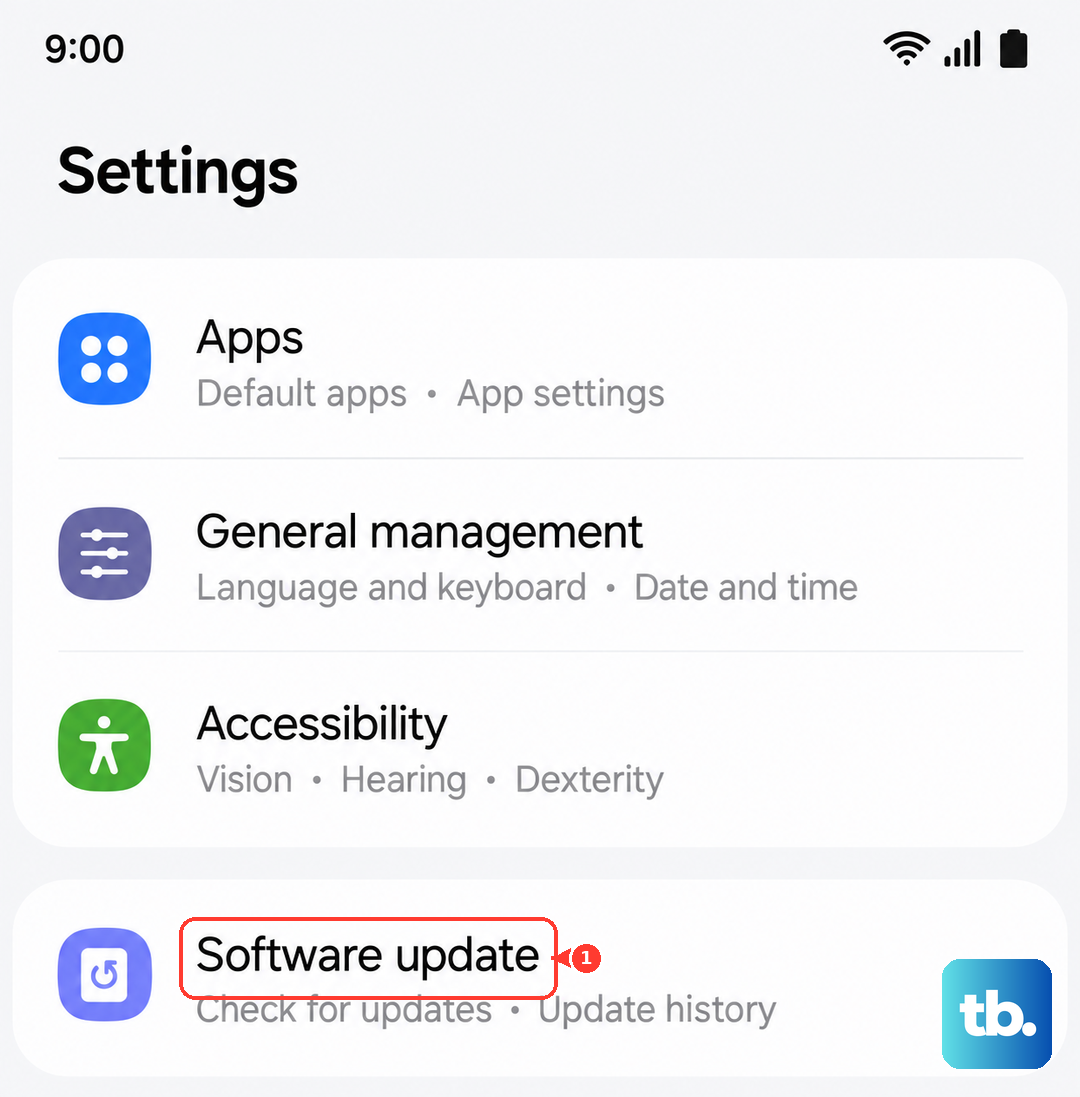
Let the phone check for updates. If one is available, it's a good idea to install it. Make sure your battery is above 50% or plug in your 45W EP-T4510 charger during the update process.
Reset App Preferences
This is a lighter step than a full reset. It reverts all your app notification settings, permissions, and default apps back to their original state without deleting any personal data. Go to Settings > Apps > Menu (three dots) > Reset app preferences.
Tap "Reset" on the prompt. Afterward, you'll need to re-grant permissions like microphone access to your phone app when you make your first call, but it can resolve conflicts causing silent rings.
Boot Into Safe Mode
Safe Mode temporarily disables all third-party apps. If your phone rings normally in Safe Mode, a recently downloaded app is likely causing the conflict. To enter Safe Mode, press and hold the Side key and Volume Down key until the power off menu appears.
Then, touch and hold the "Power off" option on your screen. A "Safe Mode" prompt will appear. Tap it to reboot into Safe Mode. Test a call. To exit, just restart your phone normally.
Reset All Settings
If the problem persists, try resetting all your settings. This will wipe your Wi-Fi passwords, Bluetooth pairings, and customized preferences, but it won't touch your photos, messages, or apps. Go to Settings > General management > Reset > Reset all settings.
Enter your PIN or password if asked, and confirm. After the phone reboots, you'll need to reconfigure your sound modes and volumes, but this often clears deep-seated configuration errors.
Check for Physical or Speaker Issues
While rare, it's worth ensuring the problem isn't physical. Play a YouTube video or a song at full volume to test the main speaker. If all media is silent, there could be a hardware fault.
Also, check the top earpiece grill for any lint or debris that might be blocking sound. A can of compressed air can gently clean it out. If the speaker fails all sound tests, a software reset won't help, and you'd need to look at a repair.
Perform a Factory Reset
As an absolute last resort, you can factory reset the phone. This erases everything, so you must back up your data first using Samsung Cloud or a computer. Go to Settings > General management > Reset > Factory data reset.
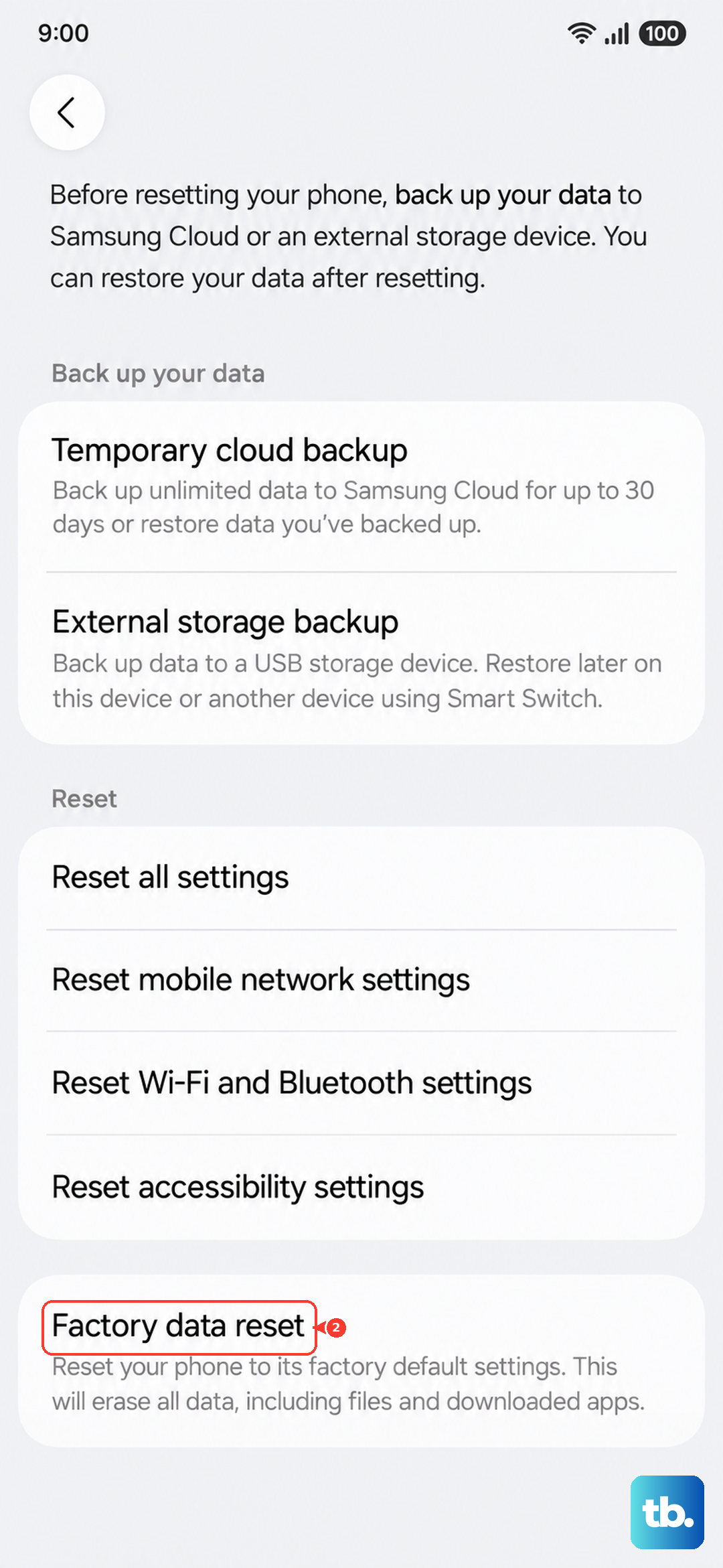
Scroll down and tap "Reset". After the phone wipes itself and restarts, set it up as new without restoring a backup immediately. Test a call right away. If it rings now, a software corruption in your previous data was the cause.