
When your Samsung Galaxy S25 Ultra stops ringing for incoming calls, it can feel like you're carrying a very expensive camera instead of a phone. This is a surprisingly common hiccup with modern smartphones, and on the S25 Ultra, it's often tied to a specific setting or a minor software glitch. I'd start with the quick fixes below, as one of them usually does the trick.
Check Do Not Disturb and Focus Modes
This is the most common culprit. One UI 7 has several layers of notification control that can silently block calls. First, swipe down twice from the top of your screen to open the full Quick Settings panel. Look for the "Do Not Disturb" or "Modes" icon, if it's highlighted, tap it to turn it off.
Next, dive into Settings > Modes and Routines. See if any active mode, like "Sleep" or "Work," has rules restricting calls. You can also check Settings > Notifications > Do Not Disturb to see your schedule and allowed exceptions.
Verify Your Call Barring Settings
Call barring is a legacy feature that can block all incoming calls if it gets enabled by mistake. To check it, open the Phone app and tap the three-dot menu in the top right. Go to Settings > Supplementary services > Call barring.
Make sure "All incoming calls" is not activated. If you see a PIN prompt here and don't know it, you'll need to contact your carrier, as they set the default barring password.
Disable Call Screening and Spam Protection
Samsung's built-in spam protection is great, but sometimes it can be overzealous. Open the Phone app, tap the three-dot menu, and select Settings > Caller ID and spam protection.
Try toggling "See caller and spam ID" off temporarily to see if calls come through. Also, tap "Block numbers" to review your block list, a number might have been added accidentally.
Reset Your Network Settings
Network configuration errors can prevent your phone from registering properly for calls, even if you have data. This reset clears all your Bluetooth and Wi-Fi connections too, so be prepared to re-pair devices.
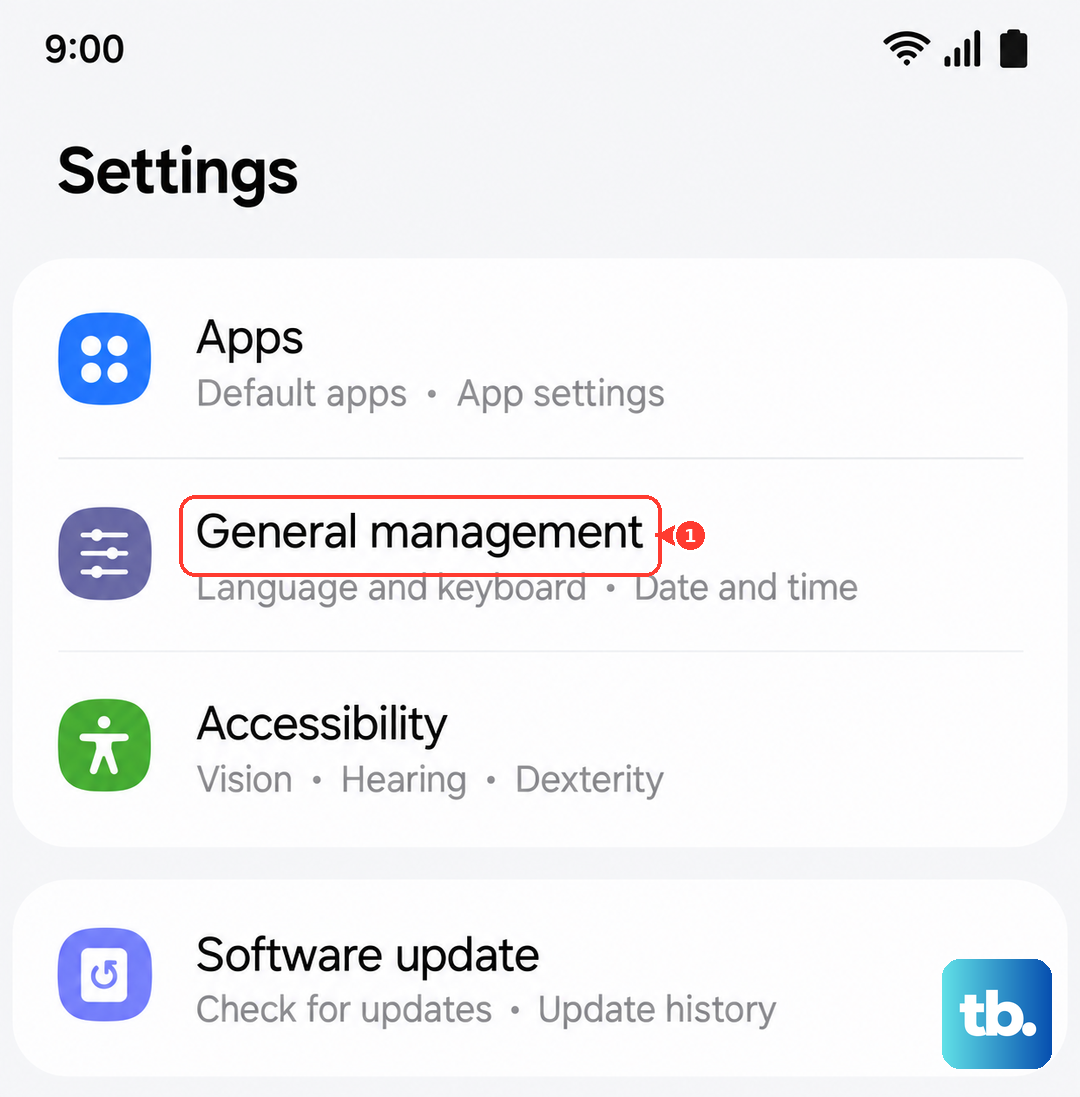
Go to Settings > General Management > Reset > Reset network settings. Tap reset and enter your PIN if prompted. Your phone will reboot, and you'll need to reconnect to Wi-Fi networks afterward.
Reinsert or Clean Your SIM Card
A poorly seated or dirty SIM card can cause intermittent network registration failures. Power off your S25 Ultra completely, then use the SIM ejector tool to pop out the tray. Remove the SIM card.
Gently wipe the gold contacts with a soft, dry cloth and blow any dust out of the SIM tray slot. Reinsert the card, ensuring it's snug in the tray, and power the phone back on. Give it a minute to reconnect to the network.
Check for a Carrier Services Update
Your carrier pushes critical network configuration updates through the "Carrier Services" app and Google Play system updates. Open the Google Play Store, tap your profile icon, and go to Manage apps & device > Manage > Updates available.
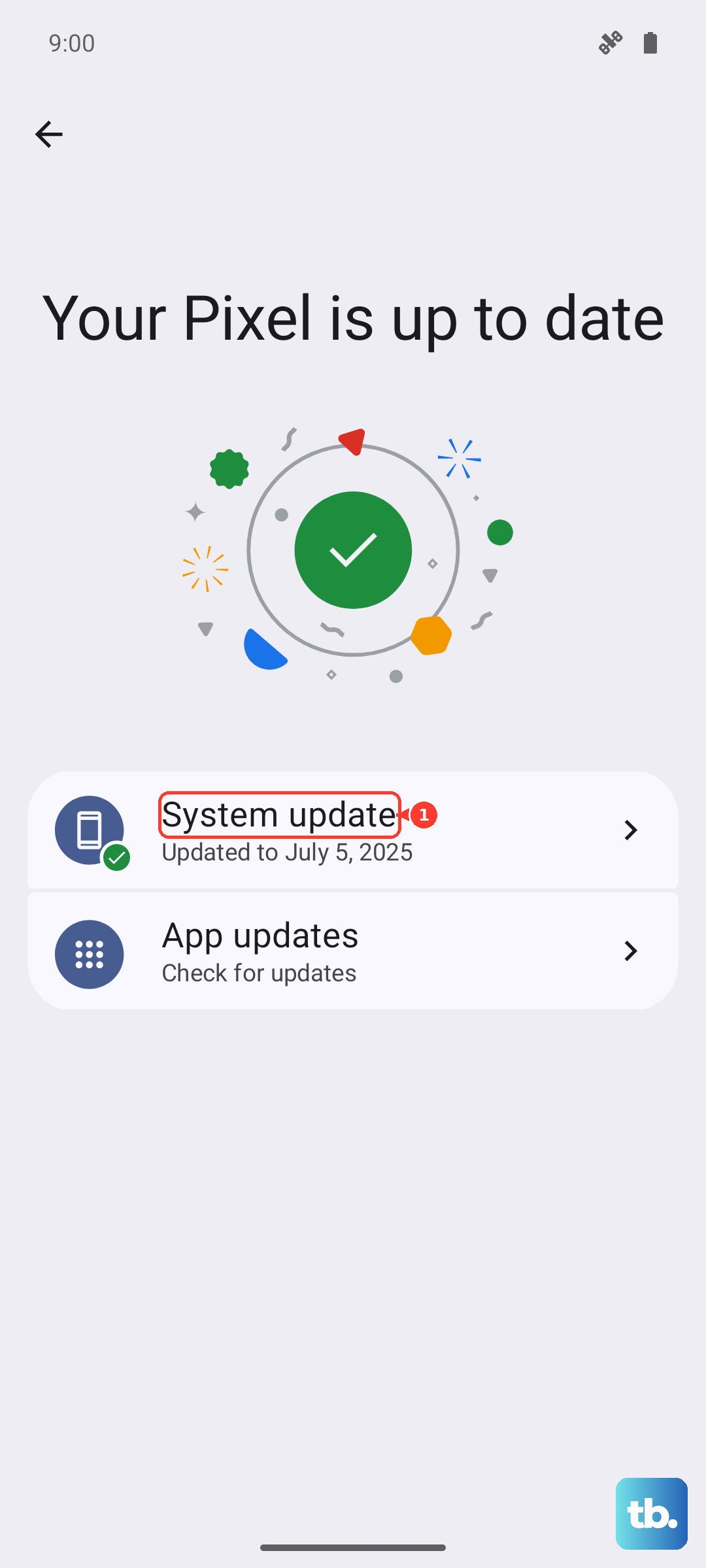
Look for "Carrier Services" and update it. Then, go to Settings > Security and privacy > Updates > Google Play system update to check for any patches there.
Clear the Phone App's Cache and Data
Corrupted data in the Phone app itself can cause it to malfunction. Go to Settings > Apps > Phone. Tap on Storage and then hit Clear cache first. Test to see if calls come through.
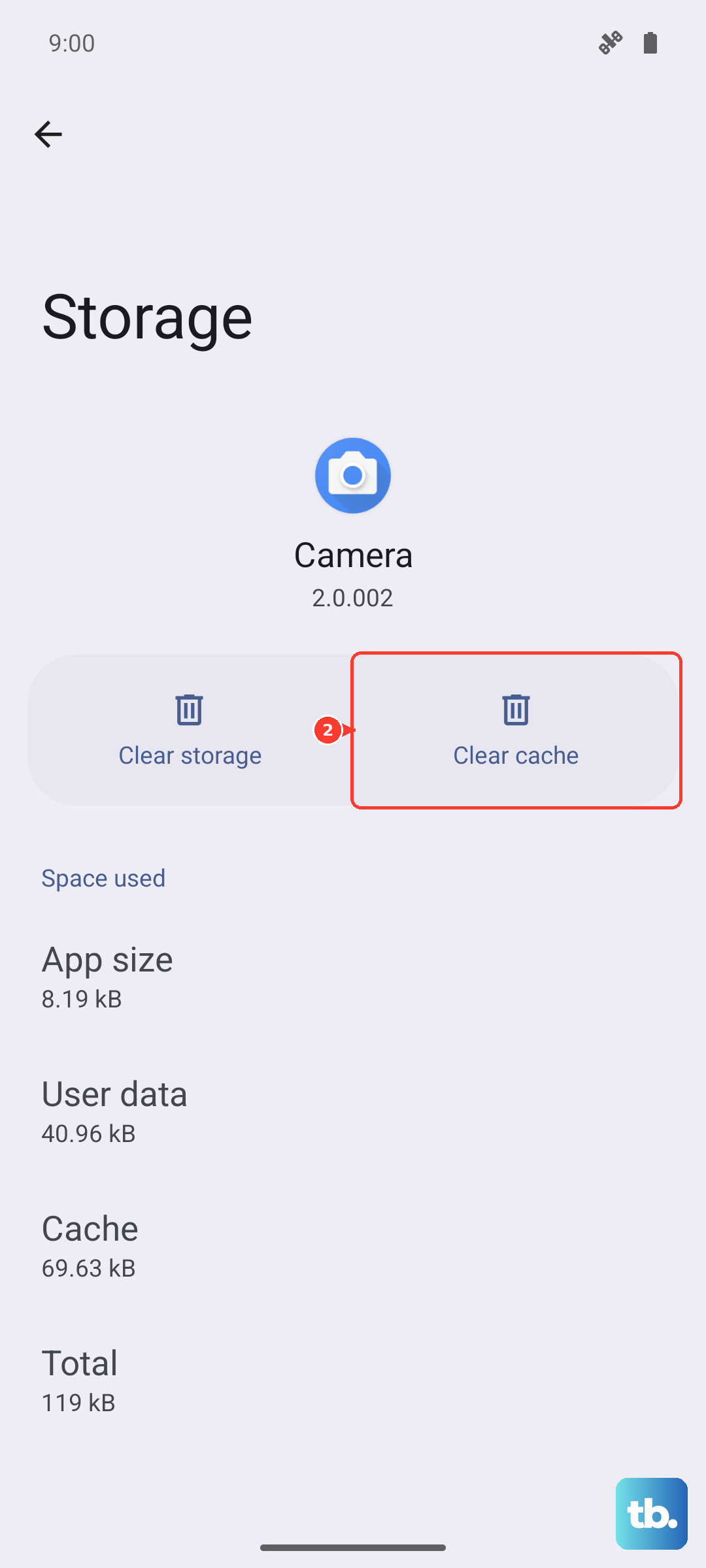
If the problem persists, go back and tap Clear data. Don't worry, this won't delete your contacts or call history, but it will reset the app's preferences to default.
Disable Any Call-Assist or Call-Recording Apps
Third-party apps that manage or record calls can sometimes conflict with the native dialer. Check if you have any apps like Truecaller, Cube ACR, or other call assistants installed.
Try temporarily uninstalling them or, at a minimum, go to Settings > Apps, select the app, and tap Force stop to see if your regular call functionality returns.
Perform a Software Update
Outdated software can contain bugs that affect cellular connectivity. Samsung is typically quick with patches for issues like this. Connect to Wi-Fi and go to Settings > Software update > Download and install.
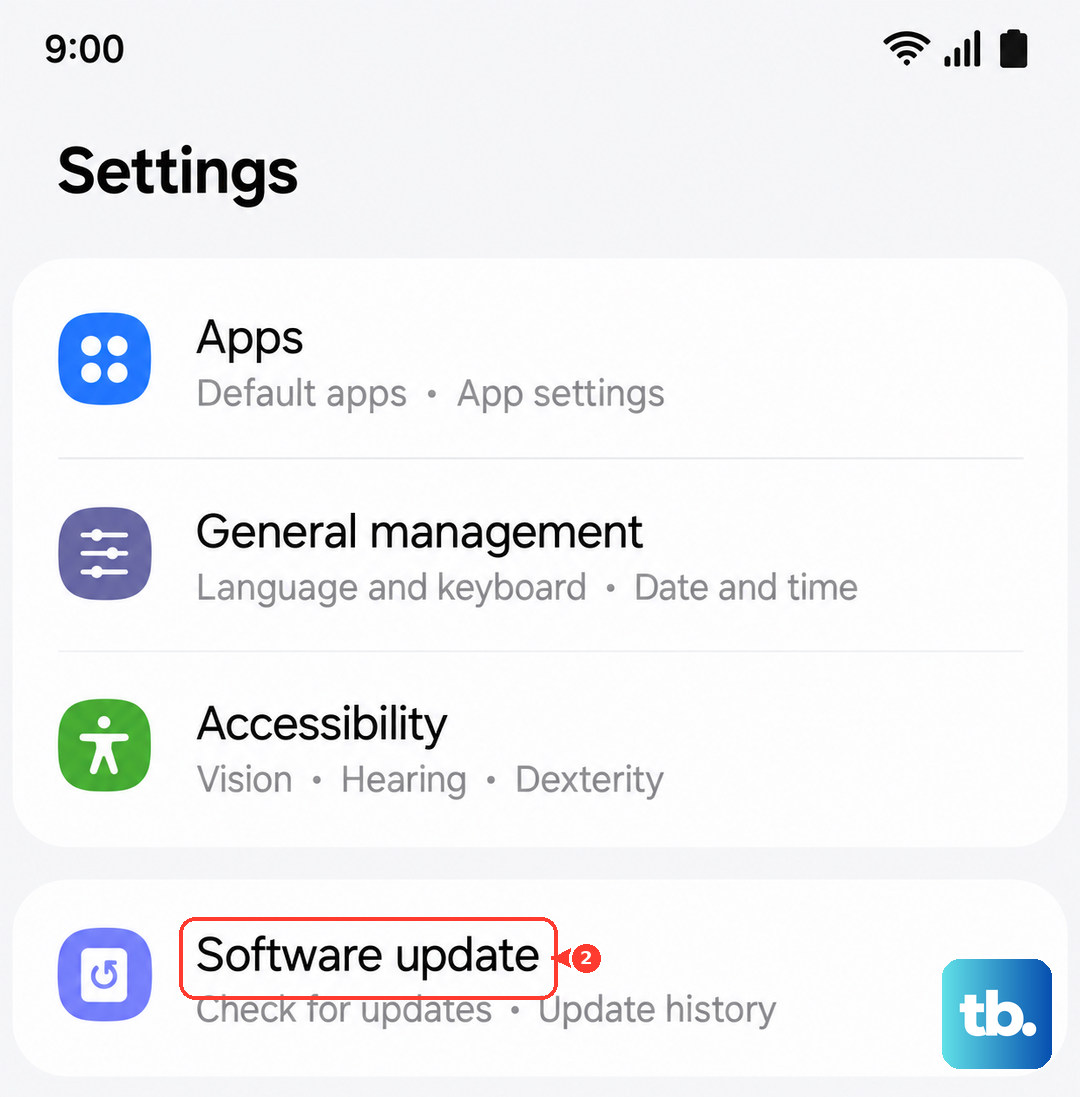
If an update is available, let it install completely. The phone will restart. After an update, it's a good idea to also force restart your phone by holding Volume Down + the Side button for about 10 seconds to clear the system cache.
Contact Your Carrier
If you've tried everything, the issue might be on your carrier's end. They can check for outages, reprovision your line on their network, or identify account-specific issues like a suspended line.
It's also worth asking them to ensure features like "Call Forwarding" aren't accidentally active on your account, which would send all your calls directly to voicemail elsewhere. They can disable this from their side.