So your Samsung Galaxy S25 Ultra won't charge. You've plugged it in, maybe swapped cables, and the screen stays stubbornly dark. It's a frustrating spot to be in. The good news is that checking your charger, port, and settings may help you fix it without a trip to the repair shop.
Whether you're dealing with a USB-C port that feels loose, a wireless charger that won't connect, or a phone that's completely unresponsive, we'll walk through the solutions. Let's start with the quickest fixes and work our way through.
Force Restart Your Galaxy S25 Ultra
A force restart is a quick troubleshooting step. It can help with temporary software glitches that might be interfering with the charging system. Once the phone restarts, you can check whether charging works again.
For the S25 Ultra, press and hold the Volume down button and the Side button simultaneously. Keep holding them for more than 7 seconds until the device restarts.
Once it boots back up, plug it in again. Look for the charging indicator or the lightning bolt icon in the battery symbol. If it shows up, you're back in business.
Inspect and Clean the USB-C Port
Debris in the charging port is one of the most common causes of charging problems. The S25 Ultra's USB-C port is a magnet for pocket lint, dust, and debris. Over weeks and months, that gunk gets packed in so tightly that your cable can't make a proper connection.
First, power the phone off completely for safety. Grab a flashlight and take a close look inside the port. If you see dust, lint, or debris, carefully remove it.
Use a soft, dry brush to carefully remove visible debris. Avoid metal objects and liquids. Once the port is clear, turn the phone back on and reconnect the charging cable securely to see whether it charges.
Test a Different Cable and Power Source
You need to isolate the problem. Is it the phone, the cable, the wall adapter, or the outlet? The only way to know is to swap each component one by one.
Start with a different compatible Samsung USB-C cable and charger. The S25 Ultra supports up to 45W wired charging, but a compatible lower-powered charger can also charge it. Try plugging into a different wall outlet. A computer's USB port may charge more slowly than a wall charger.
Also, remove your phone case. Some thicker cases, especially those with kickstands or alignment magnets for accessories, can prevent the USB-C plug from seating fully.
Check for Software Conflicts and Updates
Sometimes, a buggy app or a system process can interfere with power management. Boot your phone into Safe Mode to see if a third-party app is the culprit. To do this, press and hold the Side and Volume down buttons together until the power menu appears, then touch and hold "Power off" and tap "Safe mode."
If your phone charges normally in Safe Mode, a downloaded app may be causing the problem. Start uninstalling recent downloads one by one to find it.
Also, check for a system update. Software updates can fix bugs and improve your phone's operation. Go to Settings > Software update > Download and install.
Try Wireless Charging
The S25 Ultra supports Fast Wireless Charging 2.0. If wired charging isn't working, placing it on a compatible wireless pad can help you check whether the problem is with the wired charging connection.
Make sure the charger is plugged in and powered on. Center the back of your phone on the charging coil. You should feel a slight vibration and see a charging notification. Remember, wireless charging generates more heat, which can cause the phone to slow or pause charging if it gets too warm.
If your phone charges wirelessly but not via cable, check the cable, wall adapter, and USB-C port. Debris, a poor connection, or damaged charging accessories may be the cause.
Look at Your Battery Protection Settings
Samsung includes several features to help preserve your battery's long-term health, and they can sometimes be mistaken for a charging fault. Head to Settings > Battery > Battery protection.
Check the selected "Battery protection" option. Maximum stops charging at your selected limit of 80%, 85%, 90%, or 95%. Basic stops at 100% and resumes at 95%, while Adaptive limits charging during sleep before switching to Basic near your wake-up time. Select a different option or turn it off if you need a full charge.
Also, open Settings > Battery > Charging settings and turn on "Fast charging" or "Fast wireless charging" for the charging method you're using. The phone chooses the fastest available speed based on the charger and battery status.
Let a Dead Battery Sit on the Charger
If your S25 Ultra's battery was completely drained, it may not wake up immediately when you plug it in. Connect it to a known-good compatible wall charger and give it some time to charge before trying to turn it on.
Don't keep trying to force restart it during this time. Just let it sit. Then try the force restart button combination again while it's still plugged in and look for a charging icon. If it still won't charge, have the phone inspected at a service center.
Charge with the Phone Powered Off
This is a useful diagnostic step. If your phone charges normally when turned off but stops or acts weird when powered on, a software issue may be involved. Charging with the phone off also reduces the power used by apps while you check its charging behavior.
Hold the Side and Volume down buttons for a few seconds, tap "Power off," then tap "Power off" again to confirm. Once the screen is completely black, plug in your charger. Look for a battery icon or charging animation to see whether charging has started.
Consider Temperature and Environment
The S25 Ultra, like all smartphones, has built-in temperature protection. If the phone or its battery gets too hot or too cold, charging may slow down or stop temporarily. This is common if you've been gaming heavily, using the camera for extended periods, or leaving the phone in direct sunlight.
If the phone feels warm to the touch, move it to a cooler spot, take it out of its case, and wait for it to cool down before trying to charge again. Avoid charging on soft surfaces like beds or couches that can trap heat.
Perform a Factory Reset (Last Resort)
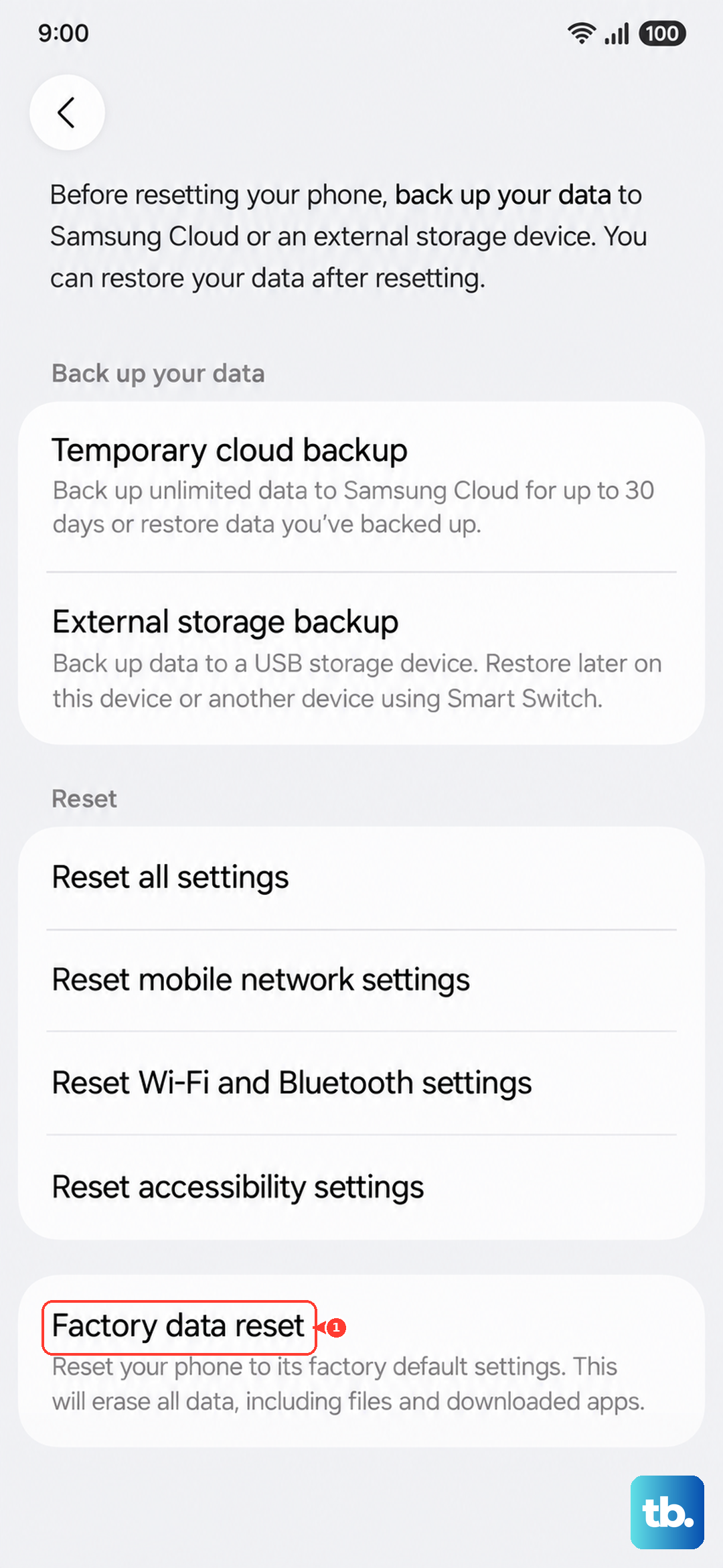
If all else fails, a software corruption might be the root cause. A factory reset will wipe your phone back to its original state, so this is an absolute last resort. Make sure you have a recent backup before proceeding.
You can do this through the settings menu if your phone is operational: go to Settings > General management > Reset > Factory data reset. Review the information, tap "Reset," enter your screen lock and Samsung account password if prompted, then tap "Delete all." If you can't open Settings, Recovery Mode may let you reset the phone with the hardware keys.
On recent Galaxy phones this usually means turning the phone off, connecting it to a computer with a USB cable, then pressing and holding Volume Up and the Side button. Use the volume buttons to navigate to "Wipe data/factory reset" and select it with the Side button. Confirm the reset, then select "Reboot system now." After a Recovery Mode reset, you may need the last Google account used on the phone and your previous screen lock to complete setup.