
That "No SIM card detected" message on your Galaxy S25 Ultra can stop you in your tracks. It usually means your phone can't read the SIM card, which cuts off calls, texts, and mobile data. The good news is, it's often a simple fix you can handle yourself.
Start With a Quick Restart
Before you do anything else, give your phone a fresh start. Press and hold the Volume Down button and the Side button together for about ten seconds. You'll see the Samsung logo appear when it's restarting.
This clears out any temporary software glitches that might be blocking the SIM card reader. I'd start with this one every time.
Check the SIM Card Tray and Contacts
Grab the SIM ejector tool that came with your S25 Ultra. If you can't find it, a small, unwound paperclip will work. Power the phone off completely before you start.
Gently push the tool into the tiny hole on the SIM tray until it pops out. Carefully remove the SIM card and take a close look at the gold contacts. Look for any scratches, dirt, or a white, powdery corrosion.
Use a dry, soft cloth to gently wipe the contacts clean. Blow any dust out of the SIM tray slot on the phone itself. When you reinsert the tray, make sure the SIM card is seated correctly and the tray clicks firmly into place.
Toggle Airplane Mode On and Off
Swipe down from the top of your screen twice to open the full Quick Settings panel. Tap the Airplane Mode icon to turn it on. Wait for about ten seconds, then tap it again to turn it off.
This forces your phone's modem to disconnect from and then reconnect to the network. It's a fast way to refresh the connection without a full restart.
Verify the SIM is Enabled in Settings
Sometimes, a software update or a random bug can accidentally disable the SIM. Open your Settings app and go to Connections.
Tap on SIM card manager. Here, you'll see your physical SIM (and eSIM if you have one set up). Make sure the switch next to your primary SIM card is toggled to the On position.
Update Your Phone's Software
Outdated software can have bugs that affect network connectivity. Go to Settings and scroll down to Software update.
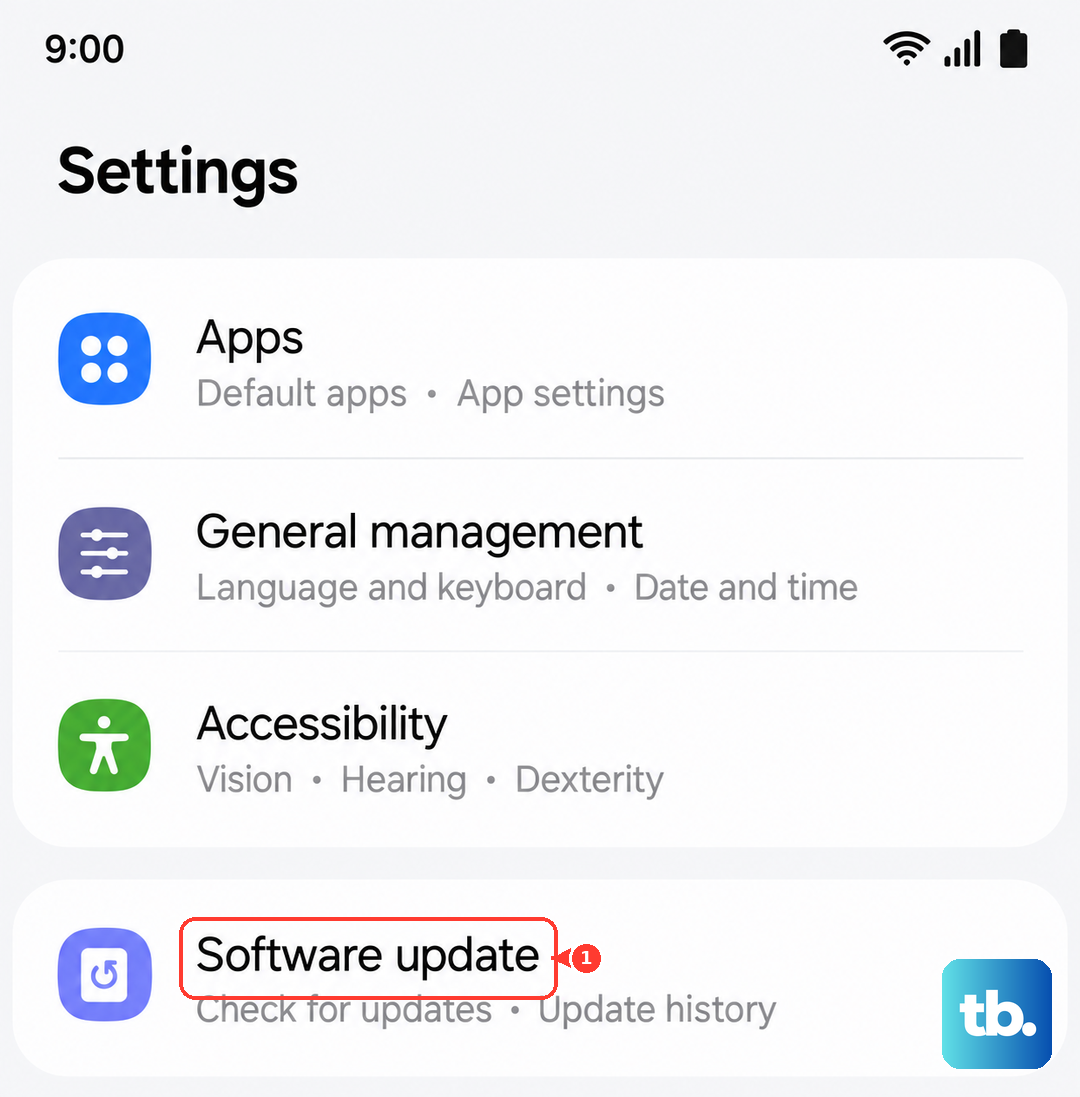
Tap Download and install. If an update is available, let it complete and then restart your phone. Samsung frequently releases patches that fix these kinds of issues.
Reset Your Network Settings
This is a more thorough step that clears all your saved network configurations. It won't delete your photos or apps, but you will need to re-enter Wi-Fi passwords.
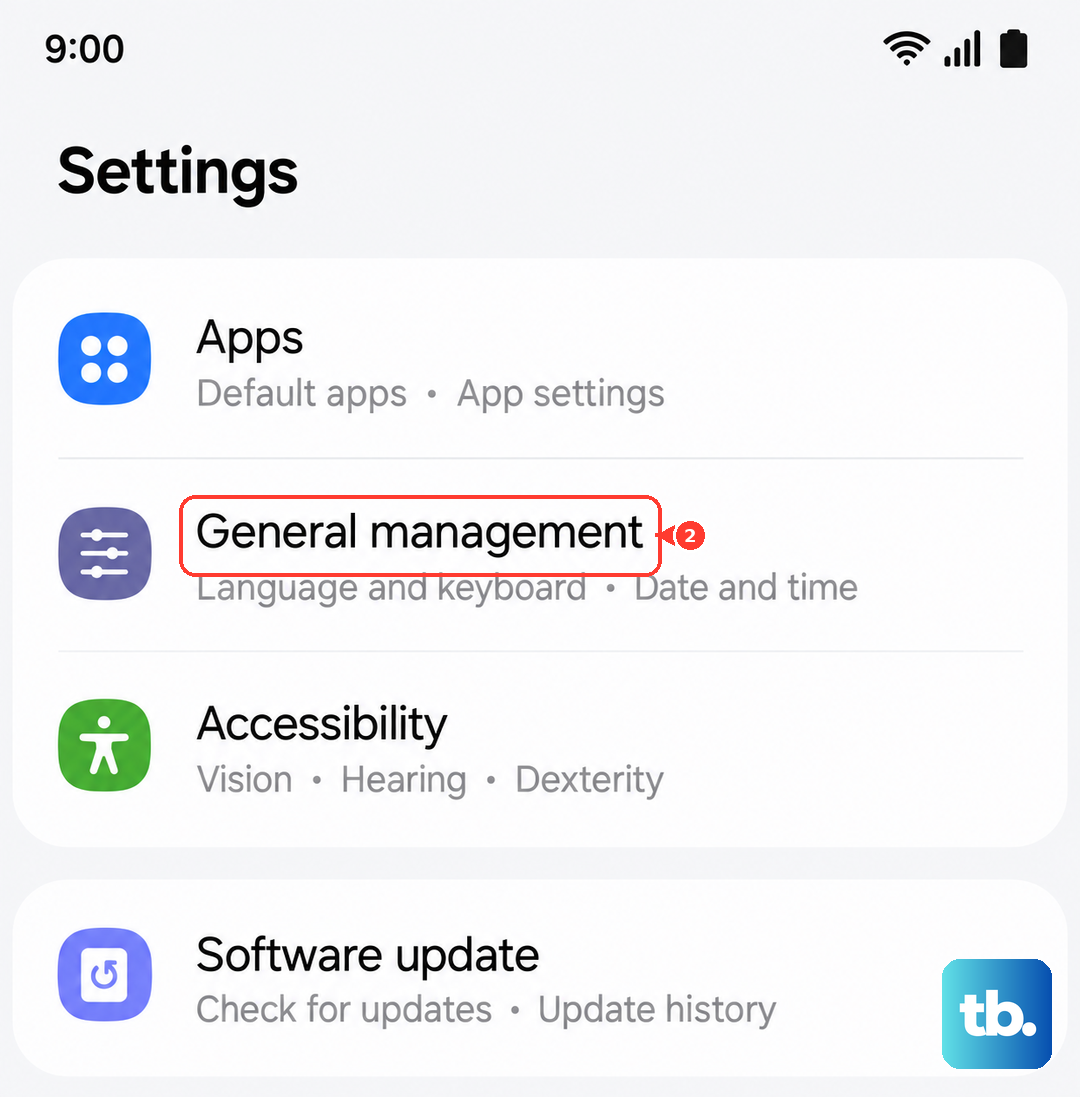
Go to Settings > General management. Scroll down and tap Reset. Select Reset network settings and confirm. Your phone will reboot and restore network settings to their factory defaults.
Manually Select Your Network Operator
Your phone usually picks the best network automatically, but this process can sometimes fail. You can force it to search again. Go to Settings > Connections > Mobile networks.
Tap on Network operators. Your phone will search for a moment. When the list appears, select your specific carrier (like "T-Mobile" or "Verizon") instead of choosing "Select automatically."
Reset Your APN to Default
The Access Point Name (APN) tells your phone how to connect to your carrier's internet. If these settings are wrong, you might see a SIM error. Go to Settings > Connections > Mobile networks > Access Point Names.
Tap the three-dot menu in the top right and select Reset to default. This will load the standard APN settings from your SIM card. After the reset, restart your phone.
Test Your SIM Card in Another Phone
This is the best way to figure out if the problem is with your SIM or your S25 Ultra. If you have access to another unlocked phone, power it off and insert your SIM card.
Turn that phone on. If it also shows a "No SIM" error, the SIM card itself is likely damaged or deactivated. You'll need to contact your carrier for a replacement.
If the other phone reads the SIM perfectly, then the issue is with your Galaxy S25 Ultra's hardware or software.
Consider Switching to an eSIM
The Galaxy S25 Ultra supports eSIM technology. If your physical SIM tray is damaged or you keep having issues, switching to a digital eSIM can be a permanent solution.
Contact your carrier's support. They can help you convert your physical line to an eSIM and guide you through the setup process in your phone's settings under Connections > SIM card manager > Add eSIM.