
When your Samsung Galaxy S25 Ultra's microphone stops picking up your voice, it can turn simple tasks into frustrating ones. Calls, voice notes, and commands for Bixby or Google Assistant all rely on it. Before we jump into the fixes, it's a good idea to confirm which microphone is affected, as the S25 Ultra has several.
Before changing any settings, it helps to know whether the microphone registers anything at all. Run a quick online mic test in your browser, speak normally, and watch the level meter. If it moves, the hardware works and the fixes below will take care of the rest.
Test Your S25 Ultra Microphone
Open your Voice Recorder app and make a quick recording. Speak at a normal volume and play it back. If the audio is muffled, crackly, or completely silent, you've got a confirmed issue.
You can also try making a regular phone call or using a video calling app like Google Meet. Ask the person on the other end if they can hear you clearly. This helps pinpoint if it's a system-wide problem or just affecting certain apps.
1. Check for Physical Blockages
The S25 Ultra has microphone ports at the bottom next to the USB-C charger, at the top of the frame, and on the rear camera module. Take a close look at these tiny holes. Dust, pocket lint, or even a small piece of debris from a case can easily block sound.
Gently brush the openings with a soft, dry toothbrush or use a can of compressed air held upright to blow out any obstructions. Be very careful not to push anything further in. I've seen this simple fix resolve more microphone issues than you might think.
2. Remove Your Phone Case
Some cases, especially rugged or poorly designed ones, can partially cover the microphone ports. Take your S25 Ultra out of its case completely and test the microphone again with a quick voice recording.
If the audio is clear without the case, you've found the culprit. You might need to trim any excess material from the case's microphone cutouts or consider using a different one.
3. Disconnect Bluetooth and Accessories
If your phone is connected to Galaxy Buds, a smartwatch, or a car's Bluetooth system, it may be routing all audio through that device. Open your Quick Settings panel by swiping down from the top of the screen and tap the Bluetooth icon to turn it off temporarily.
Also, if you have anything plugged into the USB-C port, like headphones or a charging cable, unplug it. A faulty accessory or even a dusty port can sometimes interfere with the internal microphone.
4. Force Restart Your Phone
A quick reboot can clear out temporary software glitches that might be affecting the audio subsystem. For the Galaxy S25 Ultra, press and hold the Volume Down button and the Side button (power key) simultaneously for about 10 seconds.
Keep holding until you see the Samsung logo appear on the screen, then release. This forces a fresh start without deleting any of your data or settings.
5. Check App Permissions
Android 15 and One UI 7 give you fine control over which apps can use your microphone. If an app like WhatsApp, Zoom, or your camera can't hear you, its permission might be denied.
On Pixel, go to Settings > Security & privacy > Privacy > Permission manager; on Galaxy, go to Settings > Security and privacy > More privacy settings > Permission manager. Tap on Microphone and look through the list. Make sure the apps you're having trouble with are set to "Allow" instead of "Deny."
6. Close and Reopen Problem Apps
If the microphone only fails in one specific app, that app's process might have gotten stuck. Swipe up from the bottom of the screen and hold to enter the recent apps view. Find the problematic app and swipe it all the way off the screen to close it completely.
Then, tap its icon again to launch it fresh. This clears its temporary cache and often resolves odd behavior like a silent microphone.
7. Clear the App Cache and Data
For a more thorough app reset, go to Settings > Apps. Select the app giving you microphone trouble, then tap Storage. Here, you'll see two options: Clear cache and Clear data.
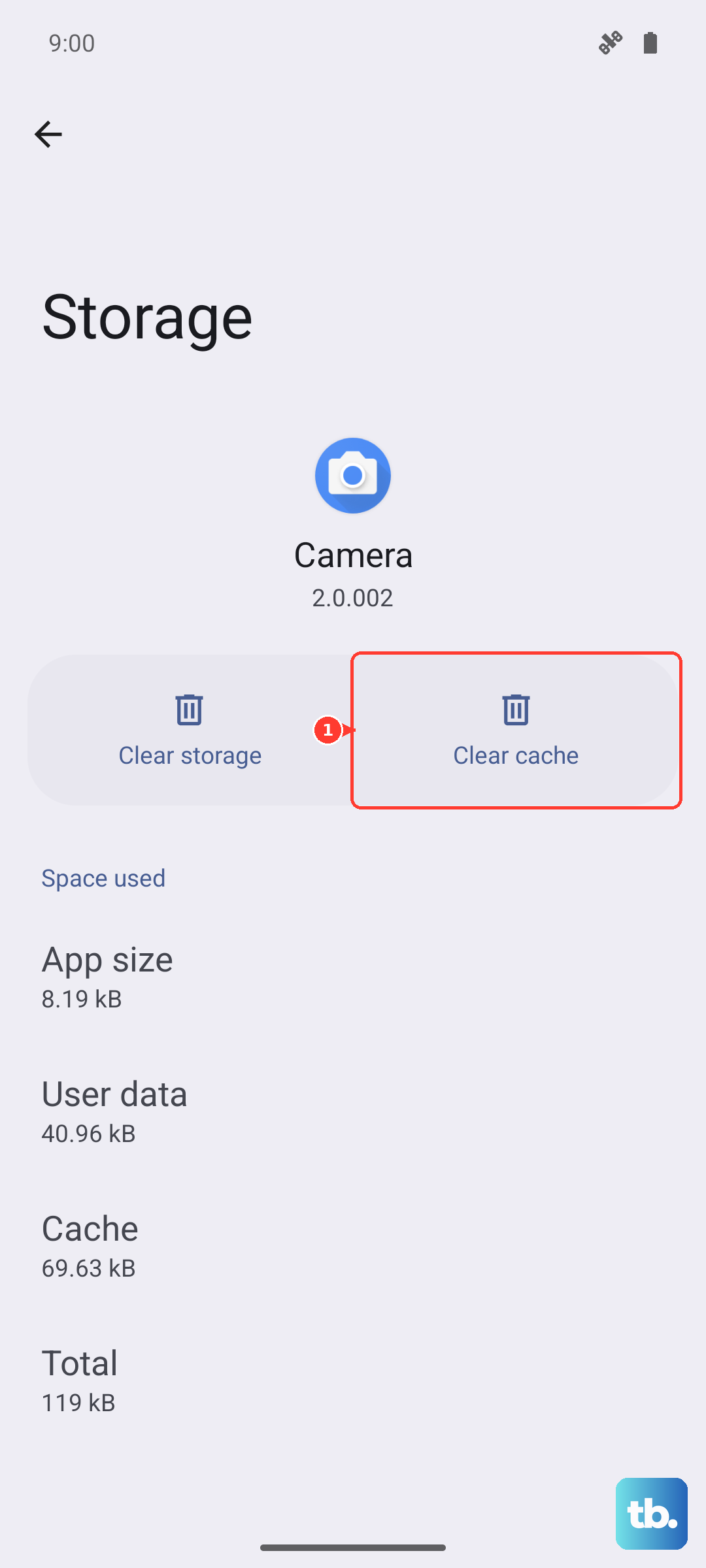
Tap "Clear cache" first and test the app. The cache is just temporary files. If that doesn't work, you can try "Clear data," but be aware this will reset the app to its default state and you may lose saved settings or login information within it.
8. Update Your Software
Samsung regularly releases updates that fix bugs, including audio-related ones. Go to Settings > Software update and tap Download and install. If an update is available, connect to Wi-Fi and let it install.
After the phone restarts, test your microphone again. It's a good habit to keep your S25 Ultra updated, as these patches can prevent a host of small issues.
9. Reset All Settings
This is a more significant step that won't delete your photos, messages, or apps, but it will revert all your system settings back to factory defaults. Your Wi-Fi passwords, home screen layout, and sound settings will be reset.
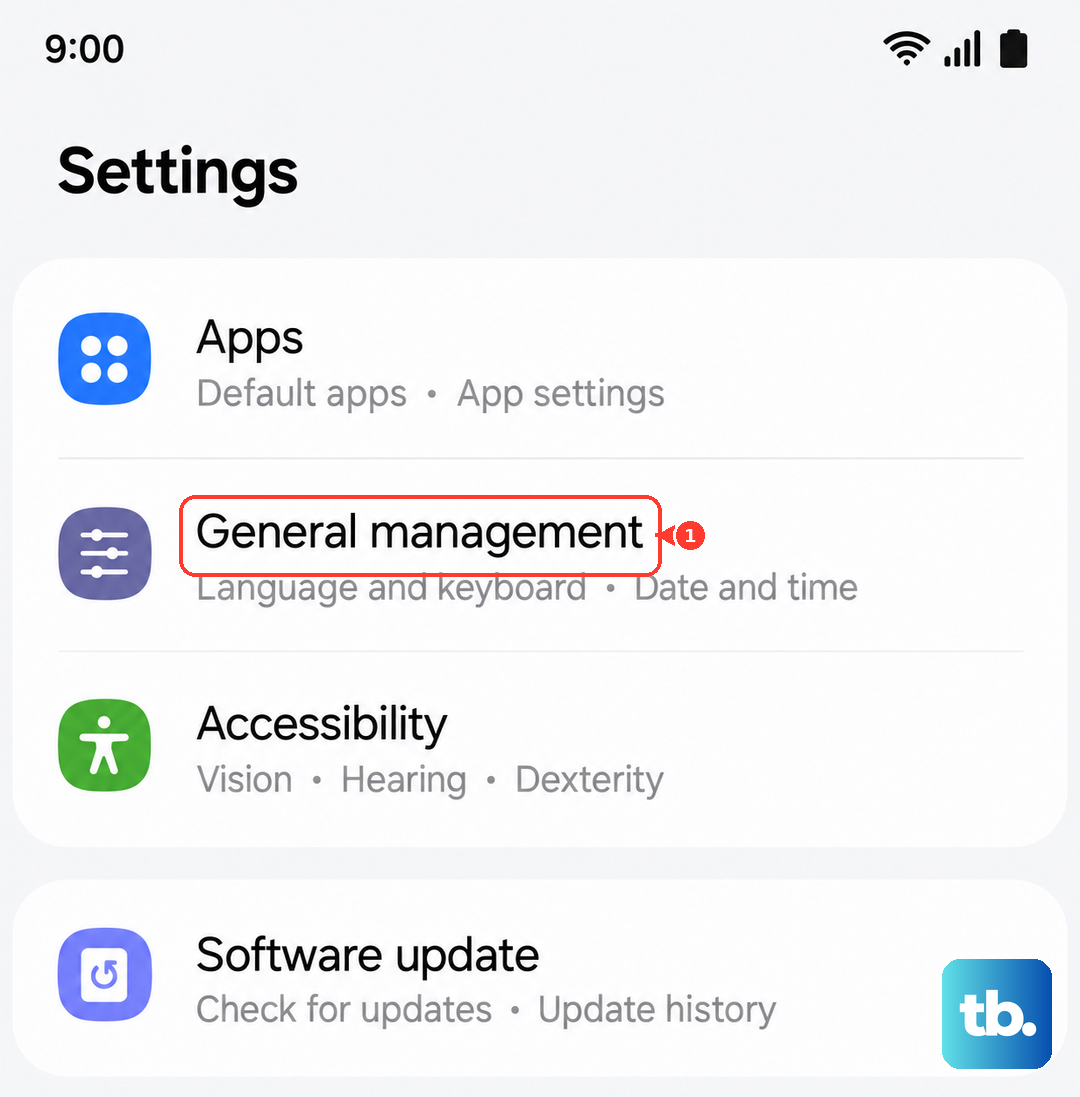
To do this, navigate to Settings > General management > Reset > Reset all settings. Enter your PIN if prompted and confirm. After the phone reboots, you'll need to reconfigure your preferences, but it can eliminate a misconfigured setting causing the microphone problem.
10. Boot in Safe Mode
Safe Mode temporarily disables all third-party apps you've downloaded. If your microphone works perfectly in Safe Mode, it means a recently installed app is causing the conflict. To boot into Safe Mode, press and hold the Side button and Volume down button until the power menu appears.
Then, press and hold the "Power off" option on the screen. A prompt will appear asking if you want to reboot to Safe Mode. Tap it. Test your microphone here. To exit, just restart your phone normally.