
That "Unfortunately, Samsung Keyboard has stopped" message popping up on your Galaxy S25 Ultra is a real roadblock. It usually happens when the app crashes or hits a temporary software glitch. The good news is you can almost always fix it yourself without losing any data.
I'd start by simply force stopping the keyboard app. Swipe down from the top of your screen to open the Quick Panel and tap the Settings gear icon. Scroll down and tap on Apps, then find and select Samsung Keyboard from the list. On the app info page, tap the Force Stop button and confirm. Now, just open any app where you type, like Messages, and see if the keyboard appears.
Restart Your Galaxy S25 Ultra
If force stopping didn't do the trick, a full phone restart is your next best move. This clears out the phone's temporary memory and can stop a lot of weird app behavior. Just press and hold the Side key and Volume Down button together for about ten seconds.
You'll feel a vibration and see the Samsung logo. Let go of the buttons and wait for your phone to boot back up. This is the S25 Ultra's force restart method, and it works even if the touchscreen is being unresponsive. Once you're back at your home screen, try the keyboard again.
Clear the Keyboard's Cache and Data
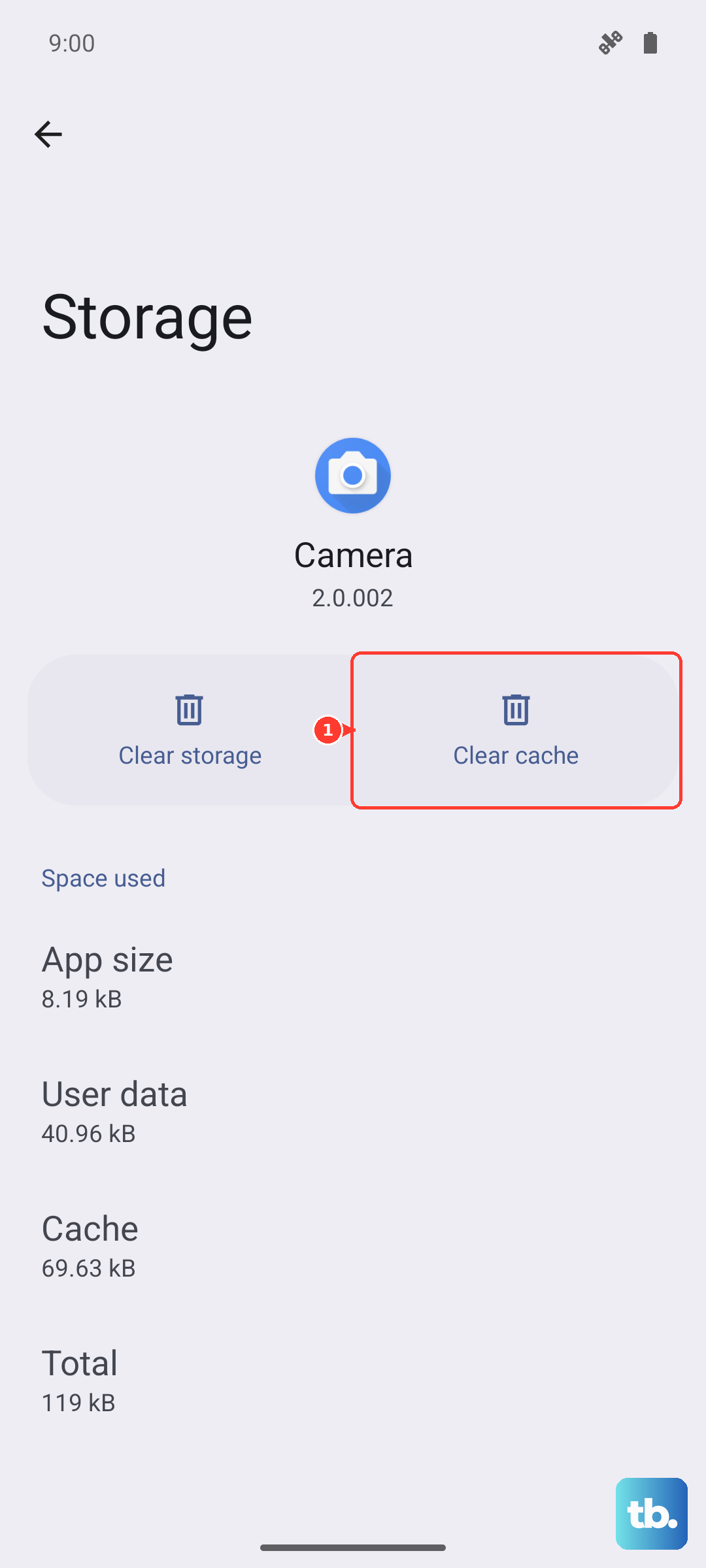
Sometimes, the temporary files (cache) the keyboard app stores get corrupted. Clearing them gives the app a fresh start. Go back to Settings > Apps, find Samsung Keyboard, and tap on it. This time, tap on Storage.
You'll see two options: Clear cache and Clear data. Tap Clear cache first. This only removes temporary files. If the problem persists, come back here and tap Clear data. A warning will pop up saying this will delete all keyboard settings, like your saved words and custom dictionary. Tap OK to confirm. You'll need to grant the keyboard permissions again when you next use it.
Check for App and System Updates
An outdated keyboard app can have bugs that newer versions fix. Open the Google Play Store, tap your profile picture in the top right, and go to Manage apps & device. Under "Updates available," see if Samsung Keyboard is listed. If it is, tap Update next to it.
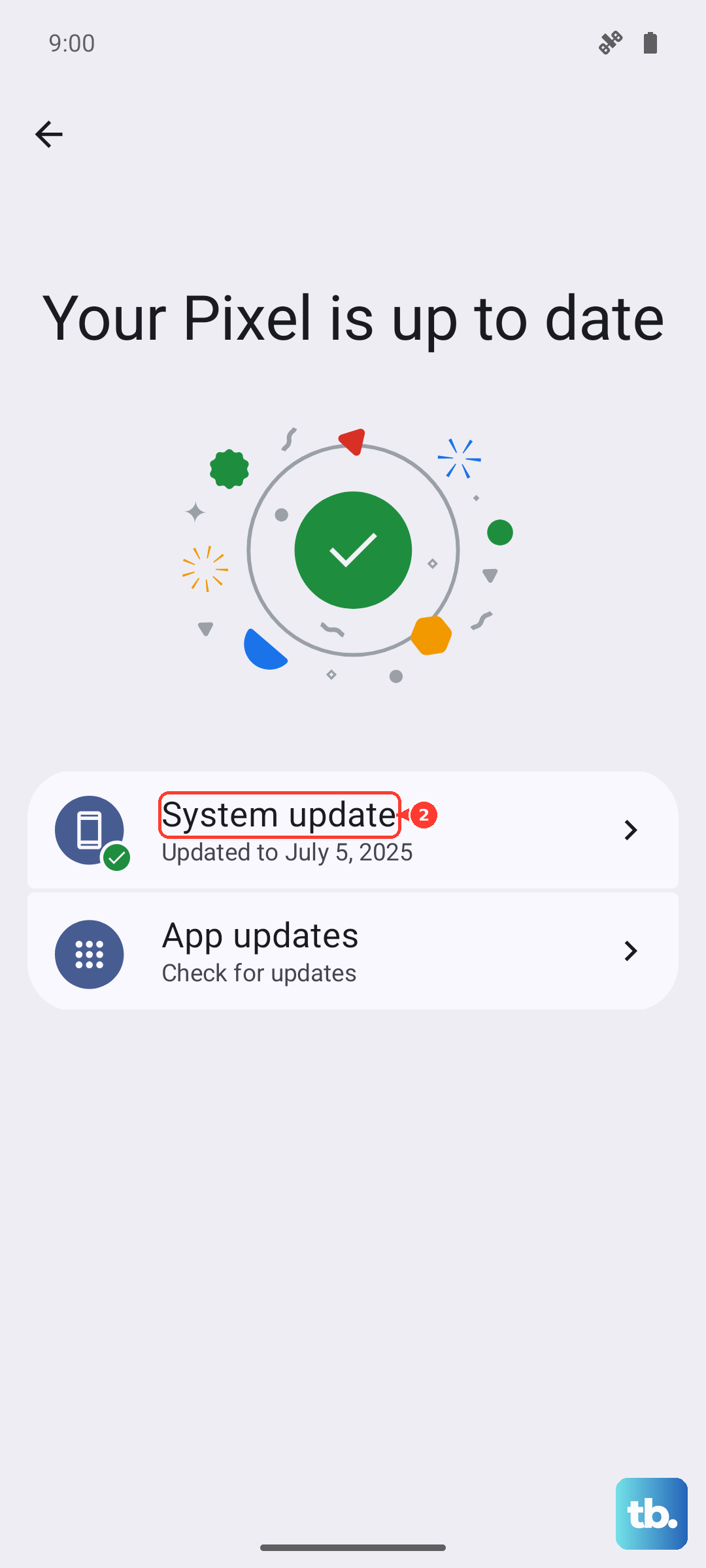
It's also smart to check for a full system update. Samsung regularly pushes out updates for One UI and Android that include stability patches. Go to Settings > Software update and tap Download and install. If an update is available, make sure your phone is connected to Wi-Fi and has a good charge, then let it install.
Boot Into Safe Mode
If the keyboard only fails in certain apps or started after you installed something new, a third-party app might be the culprit. Booting into Safe Mode temporarily disables all apps you downloaded. Press and hold the Side key until the power menu appears, then tap and hold the Power off option.
You'll see a "Safe mode" prompt. Tap it to restart your phone. You'll see "Safe mode" in the bottom-left corner of the screen. Try using the keyboard now. If it works perfectly in Safe Mode, you know one of your installed apps is causing a conflict. Start by uninstalling apps you added around the time the problem began.
Reset Your Keyboard Settings
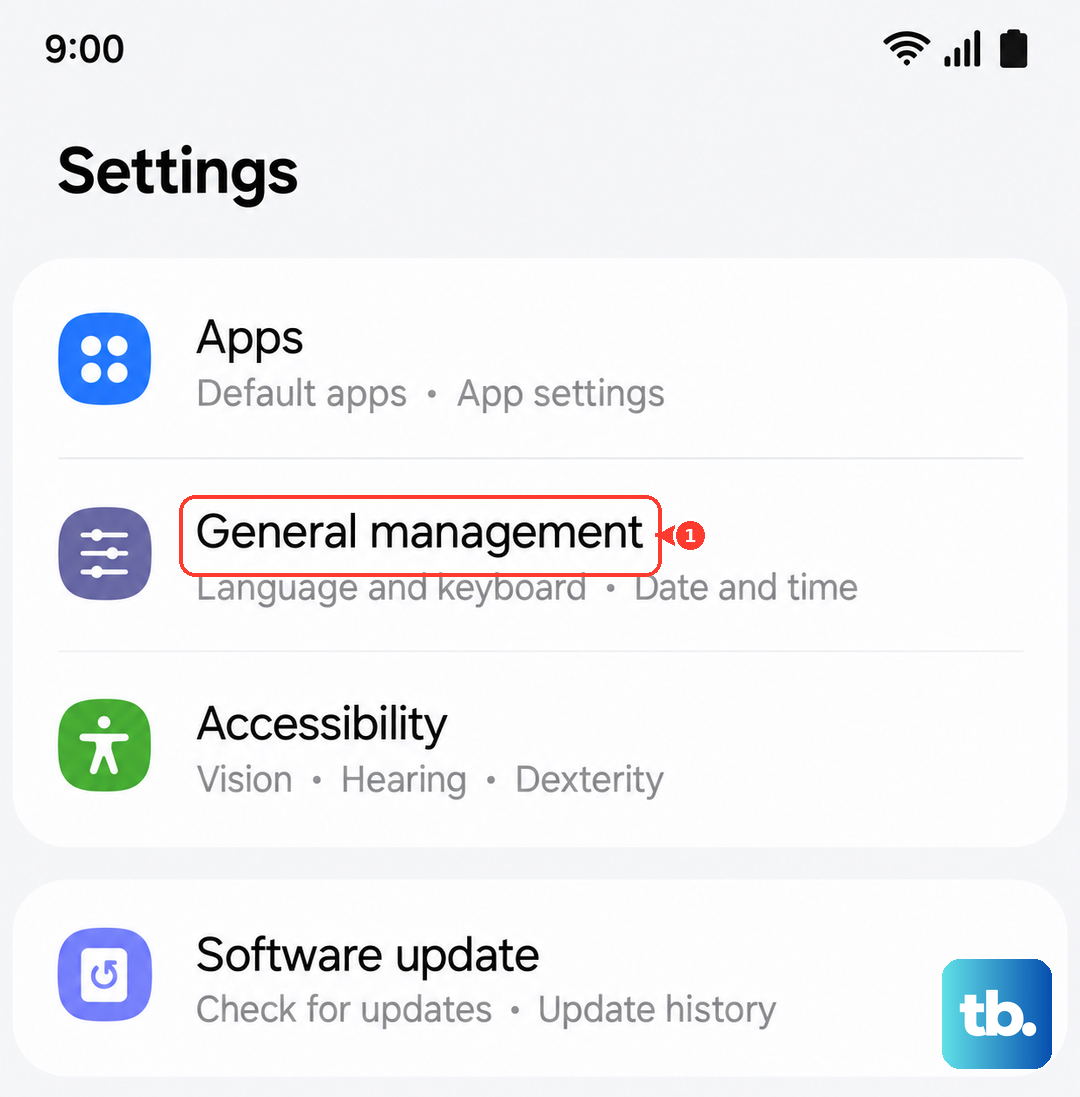
Maybe a setting got changed accidentally and is causing a conflict. You can reset just the keyboard's settings back to factory default without affecting anything else on your phone. Head to Settings > General management > Keyboard list and default.
Tap on Samsung Keyboard, then look for the menu (three dots) in the top right corner. Tap it and select Reset settings. Confirm your choice. This will wipe your keyboard layout preferences, like vibration strength and key-tap sounds, but it often resolves persistent glitches.
Try a Different Keyboard App
While you're troubleshooting the Samsung Keyboard, installing an alternative from the Play Store lets you keep using your phone. Apps like Gboard (Google's keyboard) or SwiftKey are great options. Download one, and when you first open a text field, you'll get a prompt to choose your keyboard.
Tap the new keyboard and select "Always." This switches your default. If the new keyboard works without issue, it confirms the problem is isolated to the Samsung app. You can keep using the new one or use it while you try more fixes on the original.
Reset All Settings on Your Phone
This is a bigger step, but it's not as scary as it sounds. Resetting all settings will revert your network settings, Bluetooth pairings, wallpaper, and all system preferences back to how they were out of the box. Crucially, it does not delete your photos, messages, or apps.
To do this, go to Settings > General management > Reset. Tap Reset all settings, enter your PIN if asked, and confirm. Your phone will restart. After it boots up, you'll need to reconnect to Wi-Fi and re-pair Bluetooth devices, but your keyboard should be back to its default, working state.
Check for Conflicts with the S Pen
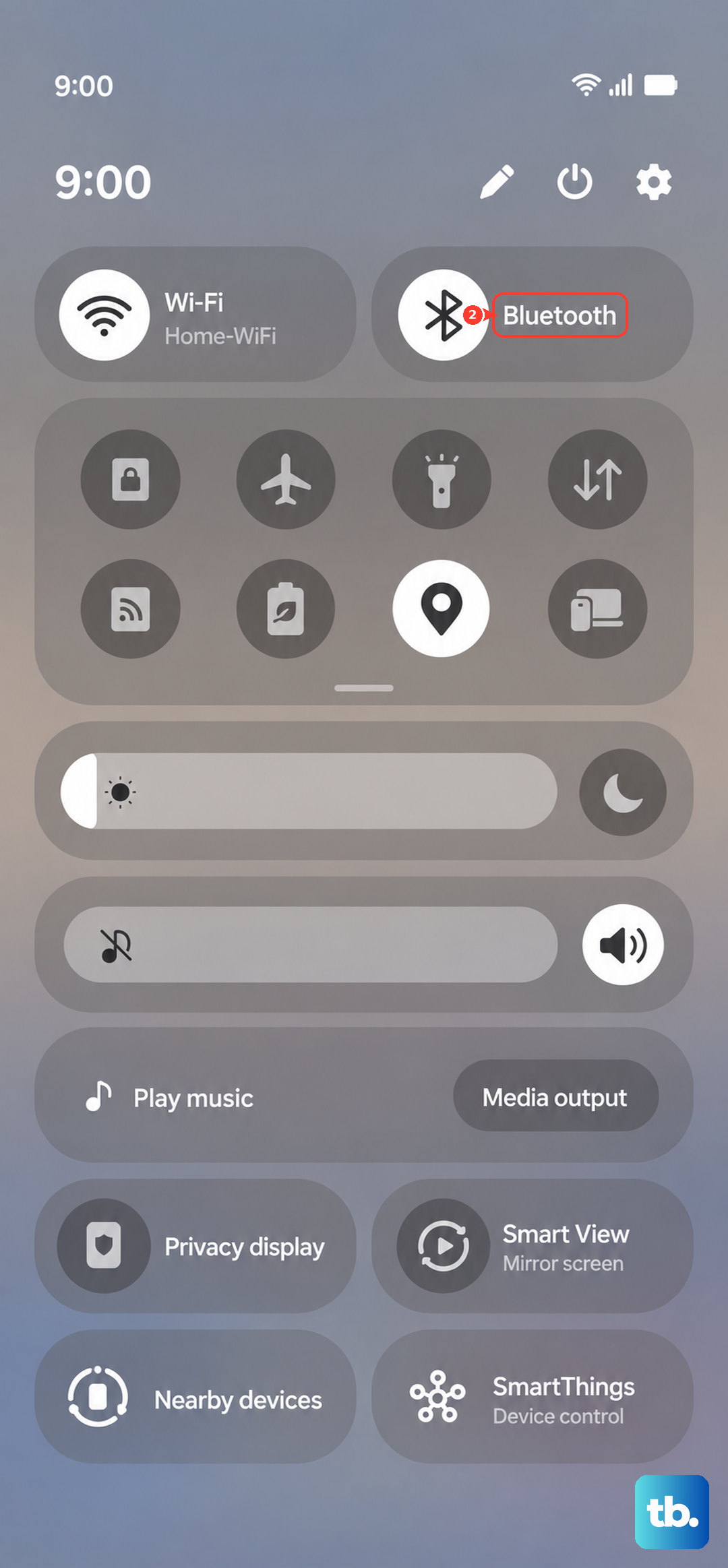
Since the S25 Ultra has advanced S Pen integration, it's worth checking if there's a conflict. Some users have reported Bluetooth-related issues with the S Pen affecting other system functions. Try turning off Bluetooth completely for a moment by swiping down the Quick Panel and tapping the Bluetooth icon.
Also, make sure your S Pen is securely clicked into its slot in the phone. If it's loose or not detected, it can sometimes cause minor system hiccups. Storing it in the phone also keeps it charged, which prevents another potential source of glitches.