You unlock your Galaxy S25 and the screen pulses, blinks, or shows faint horizontal lines that shouldn't be there. Flickering on a brand-new Dynamic AMOLED 2X panel is unsettling, but most of the time it traces back to a display setting, a software hiccup, or even the lighting in the room rather than a broken screen. The good news is that the S25 gives you direct control over the exact display options that cause this, and Samsung publishes a dedicated guide for screen flickering on Galaxy phones. Work through the fixes below in order, starting with the safest and easiest, and you'll usually clear it before you ever need a service center.
To narrow down whether the screen or the signal is at fault, open a monitor test and step through its patterns. A clean result shifts suspicion to the cable or source device.
First, Make Sure It Isn't the Room Lighting
Before you change a single setting, check where the flicker actually appears. If it only shows up inside the Camera app or in videos you shoot indoors, this is almost certainly not a phone fault at all. Samsung notes that this kind of flicker is caused by the indoor lighting and is not a sign of a problem with the phone.
Indoor lights cycle far faster than your eye notices, but a camera sensor can pick up that flicker as banding in the frame. To work around it, add more light to the room so the camera doesn't have to compensate, or move to a brighter spot. If the flicker disappears once you're outside or recording in brighter light, your screen is fine and you can stop here.
Tune the Display Controls That Cause Flicker
The S25's 1 to 120Hz adaptive panel exposes several settings that can trigger flicker, and adjusting them is the most effective software fix for everyday cases. Each of these lives in one place, so you can test them quickly one after another.
- 1.Open Settings > Display.
- 2.Turn off Dark mode or Night mode.
- 3.Turn off the switch next to Adaptive brightness, then raise the brightness manually.
- 4.Tap Motion smoothness, and then tap Standard. If the flickering happens while the phone is charging, set this to Adaptive instead.
- 5.Tap Screen resolution, and then select a different option.
Change one item at a time and watch the screen for a moment after each, so you can tell which control was responsible. Adaptive brightness and the variable refresh rate are the two most common culprits, since both adjust the panel on the fly and can produce visible pulsing under certain conditions.
Restart to Clear a Temporary Glitch
A simple restart clears out the temporary software state that often sits behind sudden flickering. It costs you nothing and takes under a minute, so it's worth doing before anything more involved.
Open the Power menu, tap Restart, and then tap Restart again. Let the phone boot fully and use it normally for a few minutes to see whether the flicker returns. If a background process was the cause, this alone can resolve it.
Force a Restart When the Screen Won't Respond
Sometimes the flicker comes with a frozen or unresponsive screen, and the normal Power menu won't open. In that situation you need a hardware-level restart that doesn't depend on the touchscreen.
Press and hold the Volume down button and the Side button (or Power button) simultaneously until the device turns off and turns back on. The screen will go black and then the Samsung logo will appear. There's no fixed timer to count; just keep holding until the phone restarts on its own. This is the official method for an unresponsive Galaxy S25 and it does not erase any of your data.
Free Up Memory and Storage
A phone that's low on free memory or cluttered with leftover files can behave erratically, and Samsung's built-in maintenance tools handle this automatically. Running them takes only a few taps.
- 1.Go to Settings > Device care.
- 2.Tap Optimize now to close background apps and scan for issues.
- 3.Under Memory, tap Clean now.
- 4.Under Storage, delete any unnecessary files.
This won't remove your apps or personal content; it simply tidies up the system so it has more room to operate smoothly. If a memory shortage was contributing to the flicker, optimizing here can settle it down.
Update the Software and Your Apps
Outdated software is a common cause of display problems, and Samsung pushes fixes through regular updates. Installing the latest version is one of the more reliable ways to clear a flicker that started after a while of normal use.
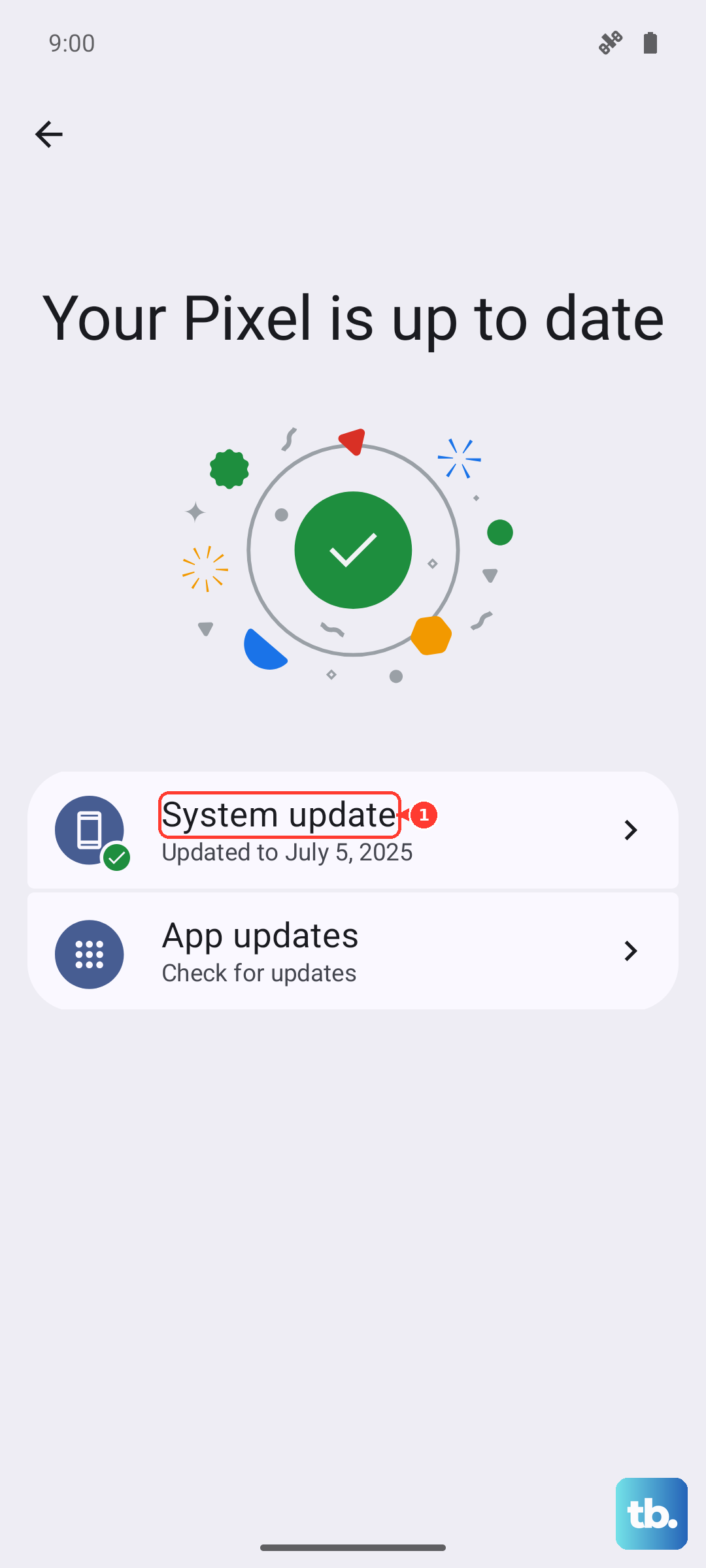
Swipe down and open Settings, then tap Software update and tap Download and install. On some carriers this option reads Check for system updates or Check for software updates instead. Follow the on-screen instructions to let any available update install. While you're at it, open the Galaxy Store and the Play Store and update all of your apps too, since a single misbehaving app can also be responsible.
Use Safe Mode to Expose a Problem App
If the flicker started after you installed something new, a third-party app may be the trigger. Safe mode loads the phone with only its built-in software, so you can confirm whether an app you downloaded is to blame.
There are two ways into Safe mode on the S25. For the first, power the phone off, then turn it on and, when the Samsung logo appears, press and hold the Volume down button until "Safe mode" shows in the bottom-left corner. For the second, press and hold the Side button and the Volume down button at the same time, touch and hold the Power off icon, and then tap the Safe mode icon.
Watch the screen while in Safe mode. If the flickering stops, an installed app is the cause. Restart the phone to exit Safe mode, then uninstall recently downloaded apps one at a time, checking after each removal, until the flicker is gone for good.
Reset the Phone as a Last Software Step
If none of the above clears the flicker and you've confirmed the hardware looks fine, a factory data reset returns the software to a clean state. This is a serious step because it erases everything on the phone, so back up your data first. Samsung warns: "Please save any information you need prior to the factory reset because your personal information may not be recovered."
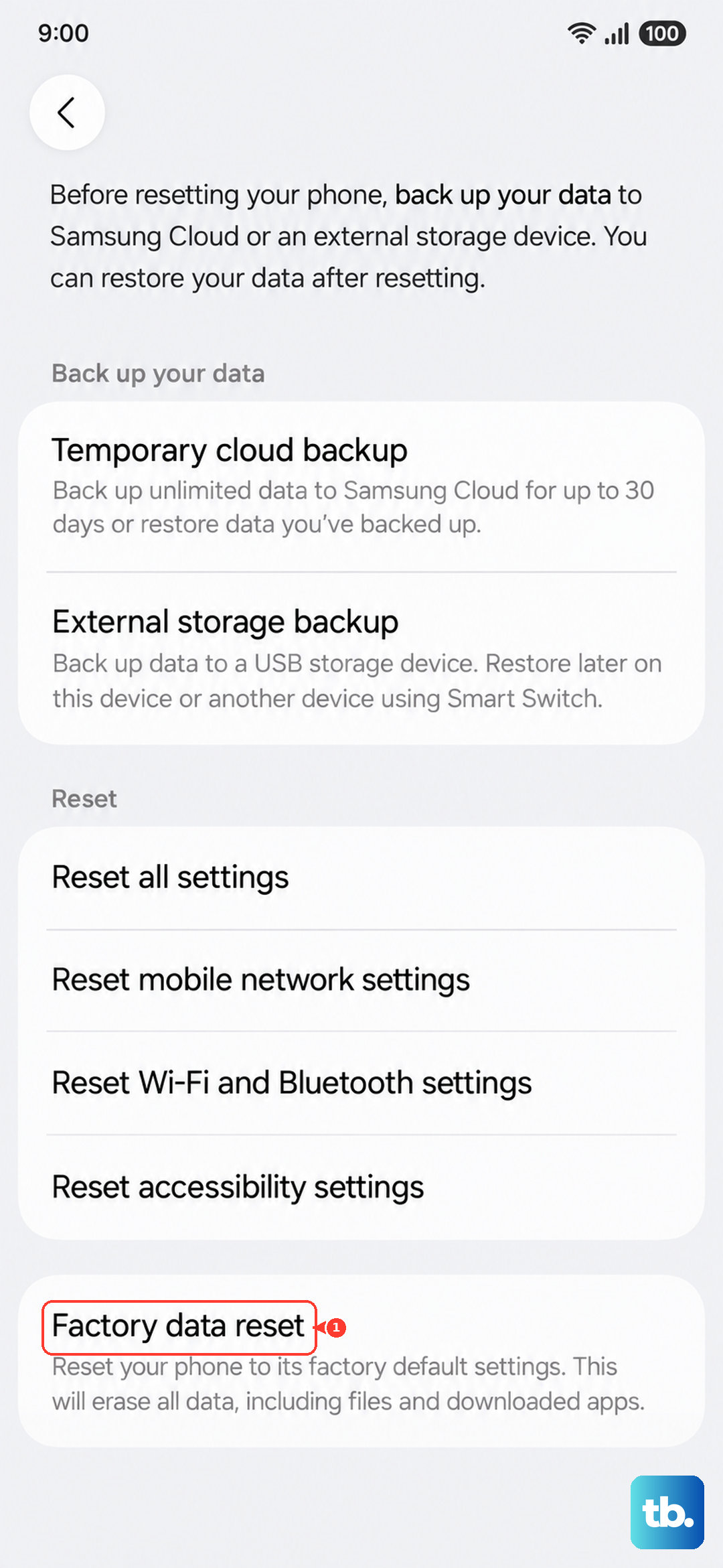
Once your backup is complete, go to Settings > General management > Reset > Factory data reset. Review the information shown, tap Reset, and then tap Delete all. You may be prompted to enter your credentials or Samsung account password to continue. After the reset, set the phone up and watch for the flicker before restoring everything, so you can tell whether the problem was truly software-related.
When to Have It Serviced
Some flickering is physical rather than software. If the screen is cracked or smashed, or if the flicker persists after you've worked through every step above, it's time to have the panel evaluated by an authorized technician. You can visit a Samsung walk-in service center or schedule a repair through Samsung's official support.
Having the phone assessed by an authorized service center protects your warranty and ensures any genuine hardware fault gets the right repair. If the device is still under warranty, an authorized repair keeps that coverage intact rather than risking it with an unofficial fix.
Frequently Asked Questions
Why does my Galaxy S25 only flicker when I'm using the camera indoors?
That's caused by your indoor lighting, not the phone. Samsung notes that this effect comes from indoor lighting and is not a sign of a problem with the phone. Add more light to the room or move somewhere brighter, and the banding should disappear from your shots.
Could Adaptive brightness be causing the flicker?
It can. Adaptive brightness constantly adjusts the panel, which some people perceive as flicker. In Settings > Display, turn off the switch next to Adaptive brightness and raise the brightness manually to see if it helps. The refresh-rate setting under Motion smoothness can have a similar effect.
Will a factory reset definitely fix screen flickering?
Only if the cause is software. A factory data reset clears the system to a clean state, but it erases everything on the phone, so back up first. If the flicker continues after a reset, the issue is likely hardware and the screen should be evaluated by a service center.
How do I restart my S25 if the screen is frozen and won't respond?
Use a force restart. Press and hold the Volume down button and the Side button (or Power button) simultaneously until the device turns off and turns back on. There's no fixed time to count; just hold until it restarts. This won't delete any of your data.
How do I know whether an app is causing the flicker?
Boot into Safe mode, which runs only the phone's built-in software. If the flickering stops in Safe mode, a downloaded app is responsible. Restart to exit, then uninstall recently added apps one at a time until the problem is gone.











