When your Samsung Galaxy S25+ volume buttons stop responding, it's a real nuisance. You press the rocker, but nothing happens on screen, and you don't feel the usual haptic feedback. The good news is this is often a software hiccup or a simple obstruction that you can fix yourself without a trip to the service center.
I'd start with the quick fixes at the top of this list. They solve the majority of these issues in just a few minutes.
Remove Your Phone Case
Take off your case first. Some cases, especially rugged ones or those that aren't perfectly aligned, can press against the volume rocker and prevent it from clicking properly. With the case off, press the buttons a few times to see if they feel different.
Perform a Force Restart
A force restart clears out temporary software glitches that can make system hardware, like the buttons, unresponsive. This is completely safe and won't delete any of your photos, messages, or apps.
For the Galaxy S25+, press and hold the Volume Down button and the Side key (power button) together for about 10 seconds. Keep holding until you see the Samsung logo appear on the screen, then you can let go. The phone will boot up normally.
Clean the Volume Rocker
Dust, lint, and pocket debris are common culprits. The slim design of the S25+ means even a small particle can get lodged in the crevice around the button. Use a can of compressed air to blow gently around the edges of the rocker.
For sticky residue, you can dampen the corner of a microfiber cloth with a tiny bit of isopropyl alcohol (90% or higher is best) and carefully wipe around the button. Don't pour liquid directly onto the phone, and make sure it's completely dry before turning it back on.
Check for App Interference
Some apps, particularly those that control volume or audio effects, can sometimes hijack the hardware buttons. Try testing the volume in different situations. Open the YouTube app and try to change the volume, then go to your music player and try again.
If it works in one app but not another, the problem is likely with that specific app. Try force-stopping the app that's having issues by going to Settings > Apps, selecting the app, and tapping Force stop.
Test in Safe Mode
Booting into Safe Mode temporarily disables all third-party apps. If your volume buttons work perfectly in Safe Mode, you know a downloaded app is causing the conflict. To enter Safe Mode on the S25+, press and hold the Side key until the power menu appears.
Then, tap and hold the "Power off" icon on the screen until you see a prompt to reboot to Safe Mode. Tap it. Once in Safe Mode (you'll see "Safe mode" in the bottom corner), test your buttons. To exit, just restart the phone normally.
Update Your Software
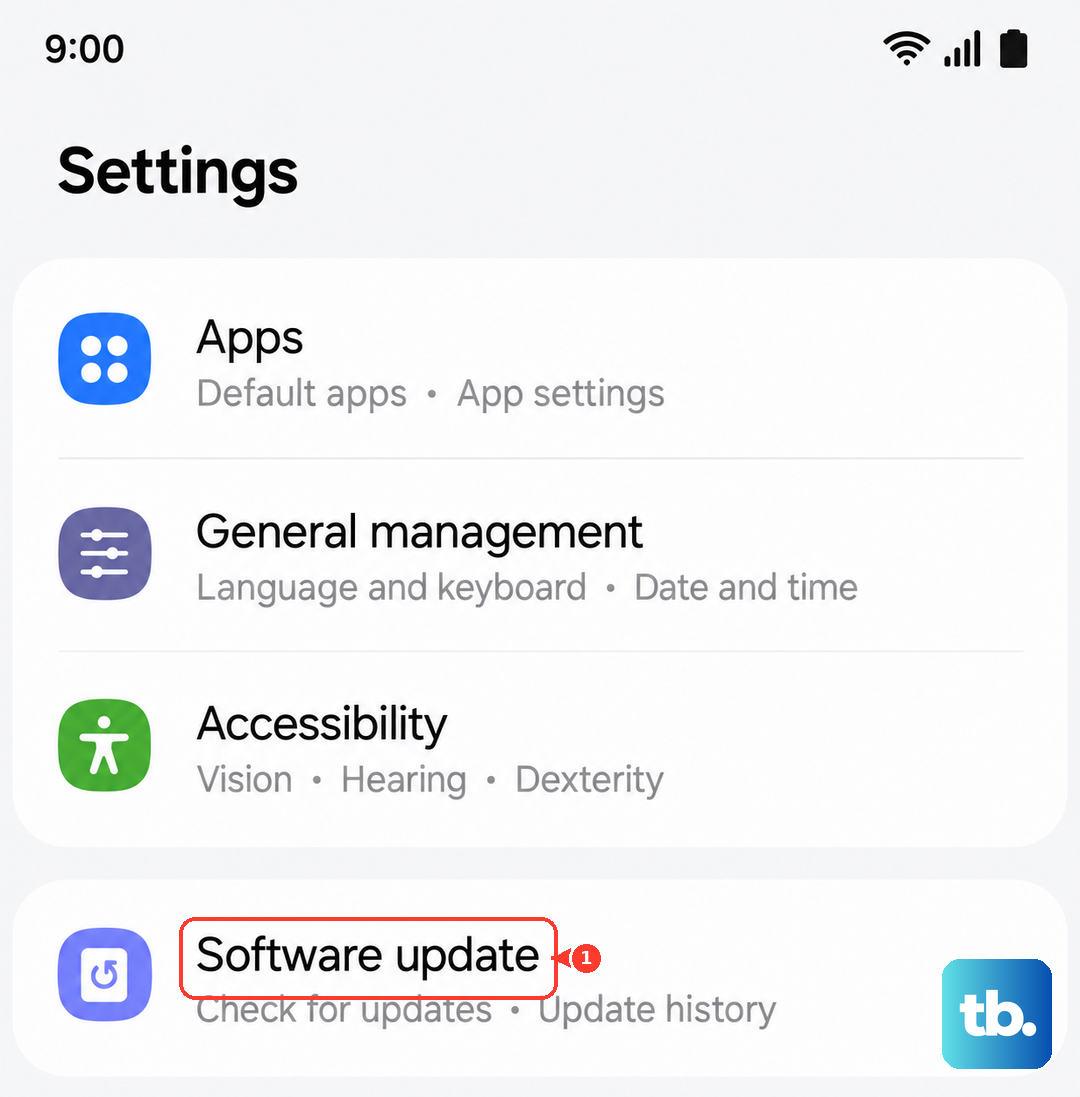
Software bugs in Android 15 or One UI 7 can occasionally cause input issues. Samsung regularly releases updates with fixes. Make sure your phone is connected to Wi-Fi and has at least 50% battery, then go to Settings > Software update and tap Download and install.
If you've recently updated and the problem started afterward, it's worth checking Samsung Members or community forums to see if others are reporting the same issue, which would signal a pending fix.
Check Sound Settings and Accessibility
It's worth a quick look in your settings to ensure nothing was accidentally changed. Go to Settings > Sounds and vibration. Make sure your media volume isn't already at zero. While you're there, also check Settings > Accessibility > Interaction and dexterity.
Features like "Block touches" or certain accessibility shortcuts could potentially interfere with normal button operation. Temporarily turn off any accessibility features you recently enabled to test.
Enable and Use the On-Screen Volume Panel
You can still control your volume easily. Just press any physical volume button once to bring up the on-screen slider, then adjust it by tapping and dragging the slider with your finger. You can also access volume controls by pulling down the quick panel twice and tapping the slider icon under the brightness control.
Inspect for Physical Damage
Take a close look at the volume rocker itself. Has the phone been dropped recently? Look for any cracks in the frame near the button, or see if the button feels loose, wobbly, or stuck in one position compared to the firm click of the power button.
Even a small amount of liquid damage from humidity or a spill can corrode the internal contacts over time. If you suspect physical damage, the internal flex cable connecting the buttons to the motherboard might be faulty.
Reset All Settings (Last Software Step)
If you've tried everything else and the buttons are still unresponsive, a settings reset can help. This will revert all your system settings (like Wi-Fi passwords, Bluetooth pairings, and display preferences) back to default but will leave your personal data, photos, and apps intact.
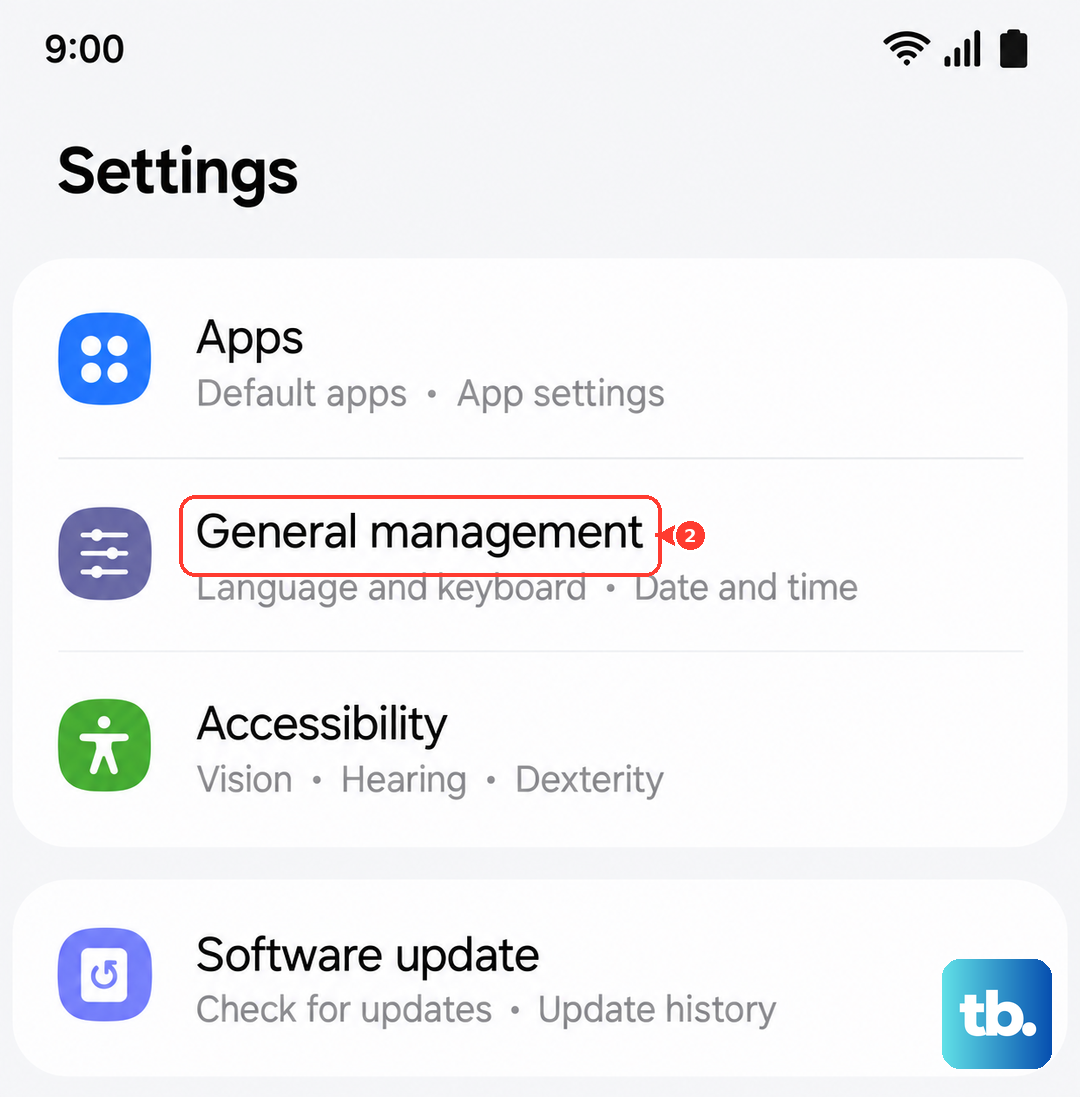
Go to Settings > General management > Reset > Reset all settings. Enter your PIN if prompted and confirm. After the phone reboots, you'll need to reconfigure your preferences, but it often clears deep software conflicts.