When Bixby or Google Assistant stops responding on your Galaxy S25+, it can feel like a step backwards. The voice assistant that's supposed to help you hands-free suddenly won't listen. Here's how to get it working again, whether you're using Bixby, Google Assistant, or both.
Start With a Quick Restart
Before diving into settings, give your phone a fresh start. A simple restart clears out temporary software glitches that can cause the voice assistant to freeze. Just press and hold the Volume Down and Side button together for about ten seconds until you see the Samsung logo.
I've found this fixes the issue about half the time, especially if the problem started suddenly. It's the quickest thing to try and takes less than a minute.
Check Your Default Assistant App
Your S25+ can have multiple assistants installed. If you've recently set up a new one, the system might be confused about which one should respond to your "Hey Google" or "Hi Bixby" command.
Open your phone's Settings, then go to Apps, and select Choose default apps. Look for the Digital assistant app section. Tap it and make sure your preferred assistant (Google or Bixby) is selected as the default. This ensures your voice wake-up phrase triggers the right app.
Verify the Wake-Up Phrase is Enabled
This is the most common culprit. The setting to listen for the wake-up phrase can get turned off, sometimes after a software update or if you were trying to save battery.
For Google Assistant, open the Google app, tap your profile picture, go to Settings, then Google Assistant. Look for the "Hey Google" section and make sure "Hey Google" is toggled on. You might need to retrain your voice model here.
For Bixby, open the Bixby app by pressing and holding the Side button, then tap the three-line menu icon. Go to Settings and then Voice wake-up. Ensure "Hi Bixby" is turned on. You can also check the "Use while screen is off" option if you want it to work from standby.
Check for Microphone Blockages
The S25+ has several microphones for noise cancellation and clear audio. If they're covered, your assistant can't hear you. Check the small pinhole at the bottom next to the USB-C port and the ones near the top of the frame.
Look for any lint, dust, or a phone case that might be obstructing them. A can of compressed air can gently clear any debris. Also, if you have a screen protector, ensure it's not covering the top earpiece grill where another microphone is located.
Review Your Sound and Accessibility Settings
Certain features in One UI 7 can interfere with voice detection. Go to Settings and then Accessibility. Look for an option called Sound detectors or Sound notifications. If this is turned on, it can sometimes prevent other apps from using the microphone for wake-up phrases.
Also, check your general sound settings. If your phone is in Silent or Do Not Disturb mode, some assistant features might be muted. You can usually find an option within each assistant's settings to "Respond when device is locked" or similar, which overrides this.
Update Your Apps and Software
An outdated version of the Google app, Bixby, or Android itself can have bugs that break voice features. First, open the Galaxy Store and check for updates to Bixby and related Samsung apps.
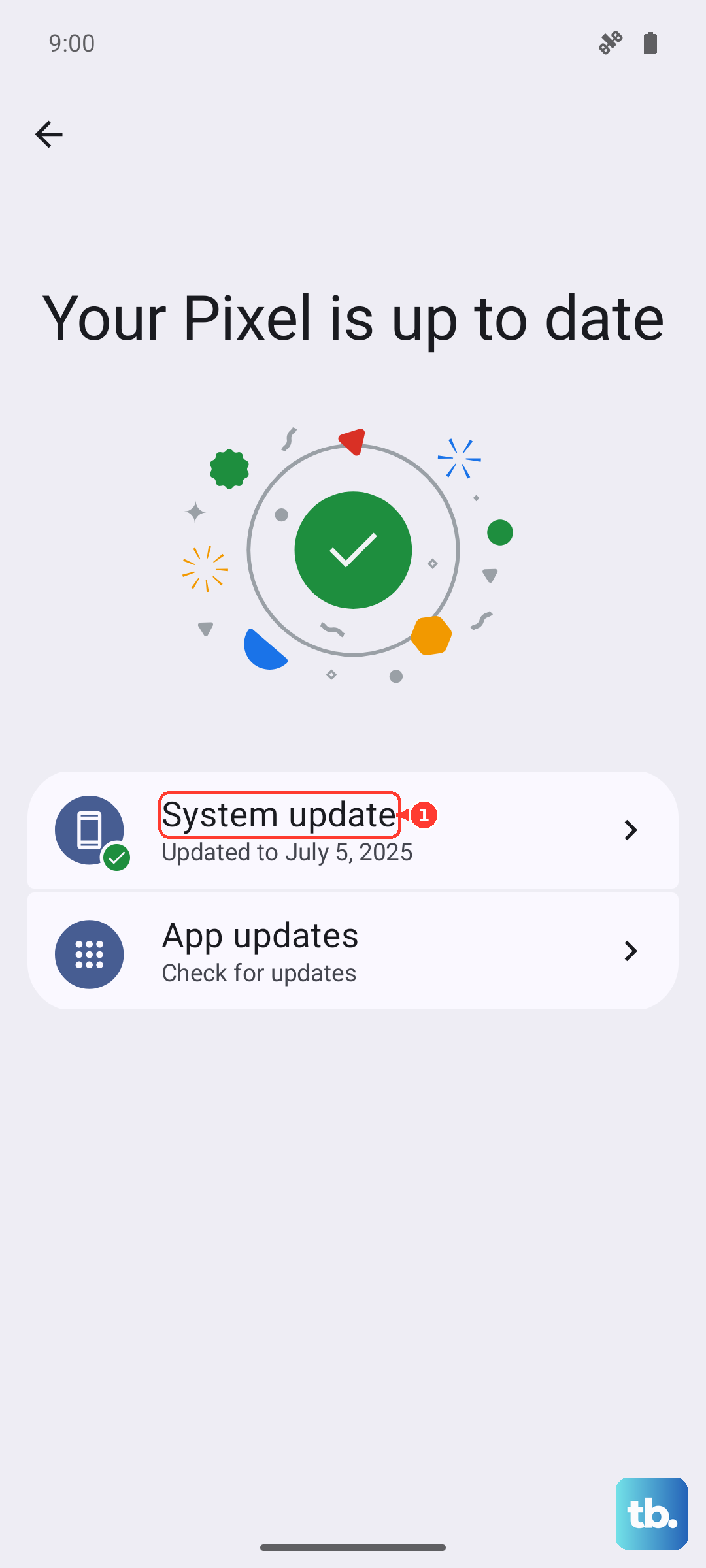
Then, open the Google Play Store, tap your profile icon, and go to Manage apps & device. Under "Updates available," see if the Google app needs an update. Finally, check for a system update by going to Settings, then Software update, and tapping Download and install. Android 15 updates often include patches for audio and AI services.
Clear the Assistant App's Cache
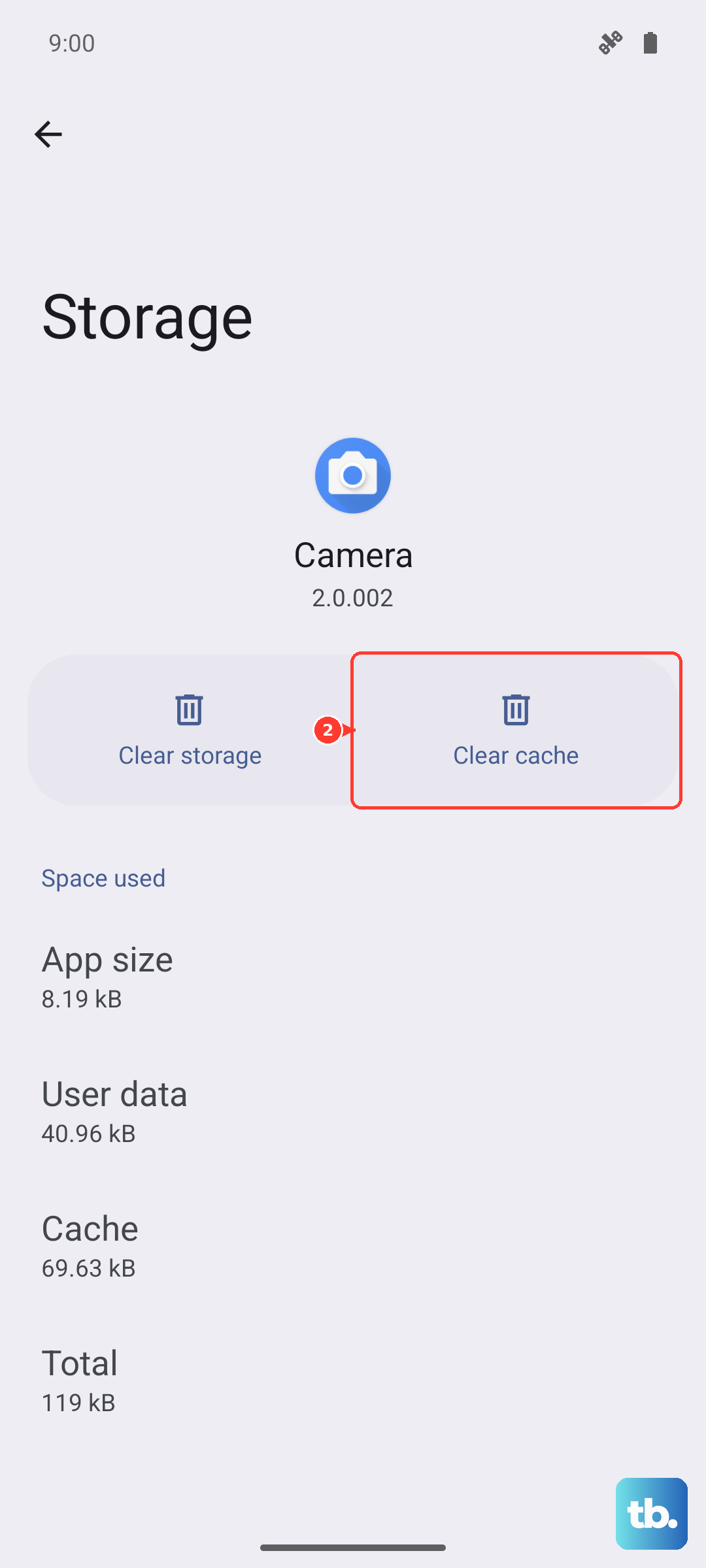
Corrupted temporary data can cause the voice service to crash. This won't delete your personal data or settings. Go to Settings, then Apps. Find either "Google" or "Bixby" in the list and tap on it.
Select Storage and then tap Clear cache. After doing this, restart your phone using the Volume Down + Side button method. This gives the app a clean slate to work from when it boots up.
Check Your Internet Connection
While basic commands might work offline, voice wake-up and more complex queries need a data connection. The assistant might fail silently if your Wi-Fi is unstable or mobile data is off.
Try toggling Airplane mode on and off from the quick settings panel to reset your connections. If you're on Wi-Fi, know that some S25+ units have had occasional disconnection issues with new Wi-Fi 7 routers. Trying a different network or using mobile data for a test can rule this out.
Reset All App Preferences
This is a broader fix than clearing a single cache. It resets permissions, default apps, and background restrictions for all applications without deleting any of your personal files.
Go to Settings, then Apps. Tap the three-dot menu in the top right and select Reset app preferences. Confirm your choice. Afterward, you'll need to re-grant microphone permission to your assistant app when you first use it, which can often kick-start the service back to life.
Perform a Network Settings Reset
If connectivity seems to be the core issue, this can help. This reset clears your Wi-Fi networks, Bluetooth pairings, and mobile data settings. You'll have to reconnect to Wi-Fi and re-pair Bluetooth devices afterward.
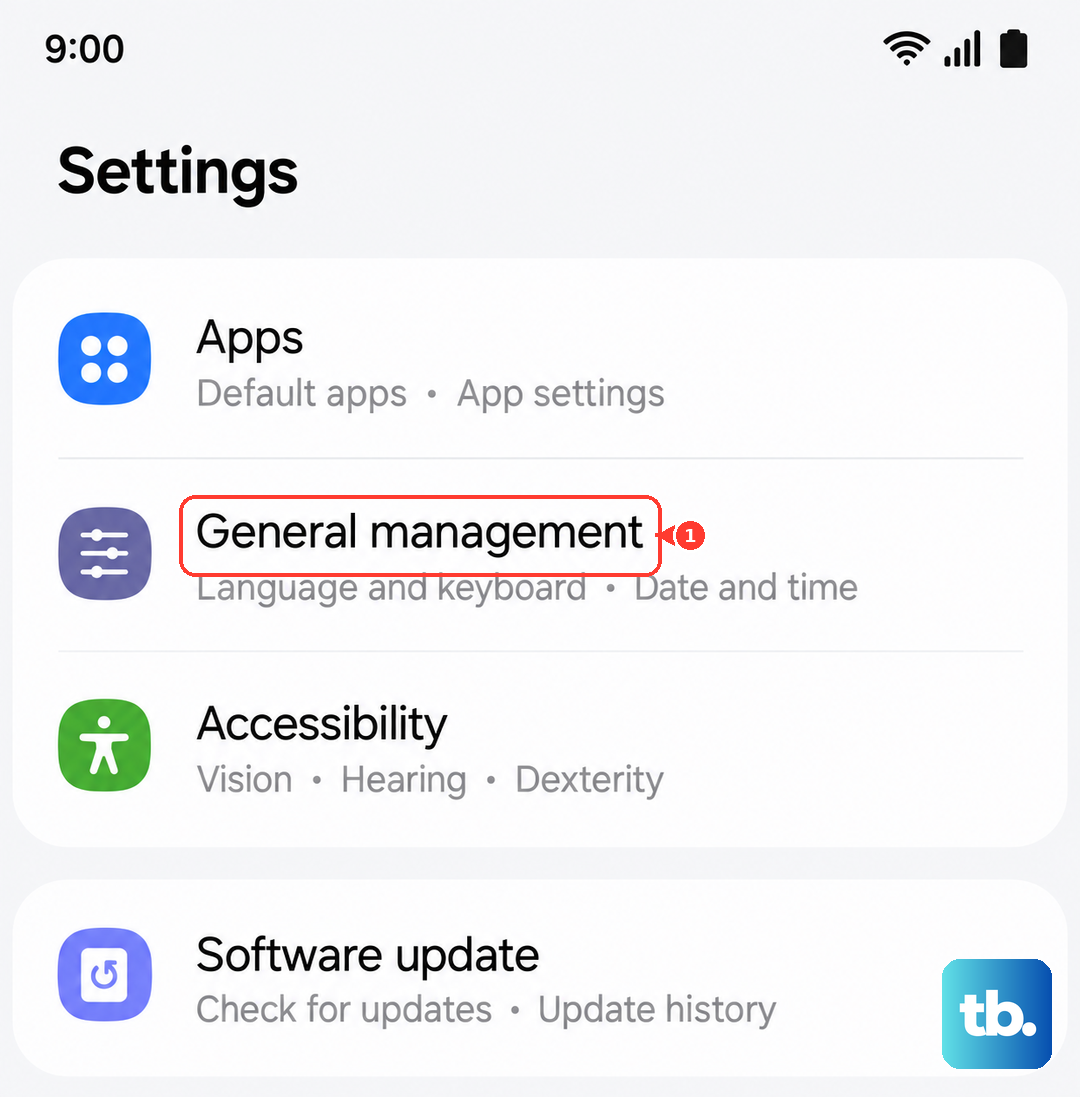
Navigate to Settings, then General management. Tap Reset and select Reset network settings. Enter your PIN if prompted and confirm. Once your phone reboots, test your assistant on both Wi-Fi and mobile data to see if the problem is resolved.