When your Galaxy S25+ goes silent, it can feel like you're suddenly cut off from everything. The sound might drop out during a call, your favorite song might play without a whisper, or your alarm could fail to make a peep. I've found that on the S25+, these audio glitches are almost always a quick software setting or a temporary bug, not a hardware failure.
To separate hardware from software, open a quick sound test and play the channel tones. What you hear, or do not hear, tells you which fixes below matter most.
Let's start with the most common fix that solves this issue in about thirty seconds.
Force Restart Your Galaxy S25+
This is my go-to first step for any weird behavior on a new phone like the S25+. A force restart clears the phone's temporary memory and stops any background processes that might be hijacking the audio. It's different from a normal restart and often fixes glitches that a standard reboot won't.
Press and hold the Volume Down button and the Side button (power button) at the same time. Keep holding them for about 10 seconds or until you see the Samsung logo appear on the screen. Let go and let the phone boot up normally. Check your sound immediately after it restarts.
Check All Volume and Sound Modes
The S25+ has several layers of volume control that can be independently muted. First, just press the Volume Up button on the side of the phone a few times while you're on the home screen or in an app. You should see the volume slider appear.
Next, swipe down from the top of your screen to open the Quick Settings panel. Look for an icon that says "Sound" or "Vibrate." If it says "Mute," tap it to turn sound back on. Also, make sure the "Do Not Disturb" moon icon isn't active, as this silences all notifications and calls.
For a deeper check, go into Settings > Sounds and vibration. Here, tap on "Volume." You'll see separate sliders for Ringtone, Media, Notifications, and System. Make sure none of them are slid all the way to the left. Sometimes an app can lower the media volume independently, so it's worth checking here.
Disconnect Bluetooth and Other Audio Routes
Your S25+ might be trying to send sound somewhere else. If you have Bluetooth headphones, a smartwatch, or a car stereo paired, the phone could still be connected to them even if they're out of range or turned off, which results in no sound from the phone's speaker.
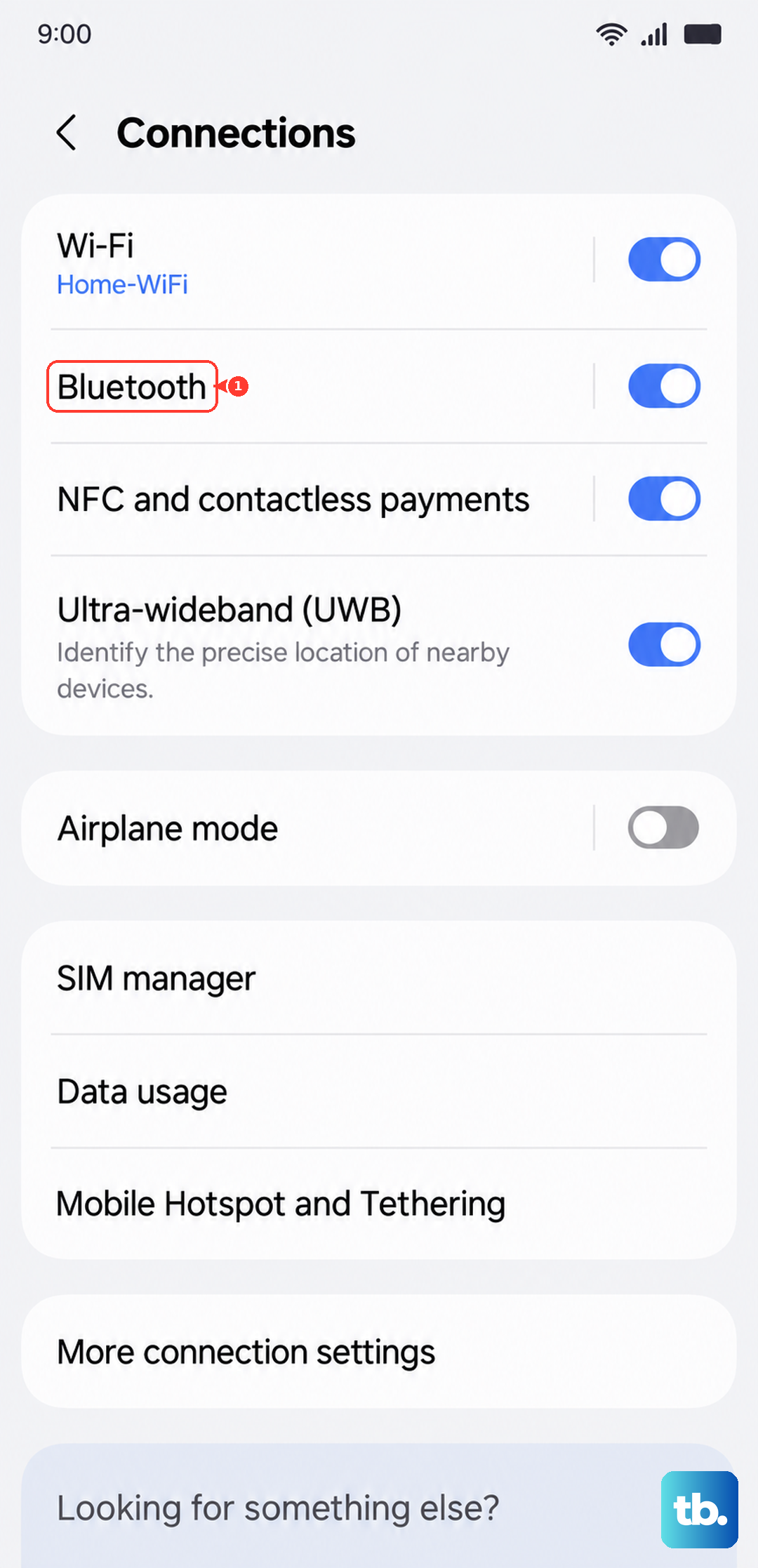
Open Settings > Connections > Bluetooth. If Bluetooth is on, toggle it off completely. This will immediately cut any audio connection to external devices and route sound back to your phone's internal speaker. Also, physically check that no headphones or USB-C audio adapters are plugged into the charging port.
Inspect the Speaker Grills for Blockages
The S25+ has a slim speaker grill along the top edge of the frame. It's very easy for pocket lint, dust, or debris to get packed in there, especially if you don't use a case. Even a small amount can muffle or completely block sound.
Take a close look at the earpiece speaker at the top of the screen. Use the flashlight from another phone to illuminate it. If you see dust, gently tap the side of the phone against your palm to dislodge it. You can also use a clean, dry, soft-bristled toothbrush to very lightly brush across the grill. Never use compressed air or poke anything sharp like a pin into the openings, as you'll likely damage the speaker behind it.
Review App-Specific Sound Settings
One UI on the S25+ has a feature called "Separate app sound" that can cause confusion. This setting lets you route audio from a specific app, like Spotify or YouTube, to a different audio output. If it's set up incorrectly, that app will play sound to nowhere.
To check, go to Settings > Sounds and vibration > Advanced sound settings. Tap on "Separate app sound." If this feature is turned on and an app is selected, try turning the toggle off. This will reset all app audio back to your default speaker.
Boot Into Safe Mode to Check for App Conflicts
If the sound works sometimes but not in certain apps, a third-party app you installed might be the culprit. Safe Mode temporarily disables all downloaded apps, letting you see if the problem is with the phone's core software or something you added.
To enter Safe Mode, turn off your S25+. Then, press and hold the Side button until you see the Samsung logo. As soon as the logo appears, release the Side button and immediately press and hold the Volume Down button. Keep holding it until the phone finishes starting up. You'll see "Safe mode" in the bottom-left corner of the screen.
Try playing a video or some music from a built-in app like Samsung Gallery. If the sound works perfectly in Safe Mode, you know a downloaded app is causing the issue. Restart your phone normally to exit Safe Mode, and then try uninstalling apps you installed recently, one by one, testing the sound after each one.
Clear the System Cache Partition
Corrupted system cache files from old updates or app data can interfere with basic functions like audio playback. Clearing this cache is safe, it doesn't delete any personal data, and it can resolve a lot of strange system behavior on the S25+.
First, power off your phone completely. Connect it to a computer with a USB cable. Now, press and hold both the Volume Up button and the Side button. When you see the Android recovery screen (a blue menu with text), let go of the buttons. On the Galaxy S25+, the "Wipe cache partition" option was removed from Recovery Mode with the February 2026 update, so the recovery menu now only shows "Reboot system now," "Wipe data/factory reset," and "Power off." Samsung now clears this cache automatically during its seamless (A/B) updates, so there is no manual wipe-cache step to run here. If you want to free up cached data, clear an individual app's cache under Settings > Apps instead.
Check for a Software Update
Samsung regularly releases updates for the S25+ that fix bugs, including audio-related issues. It's always worth making sure you're running the latest version of Android and One UI.
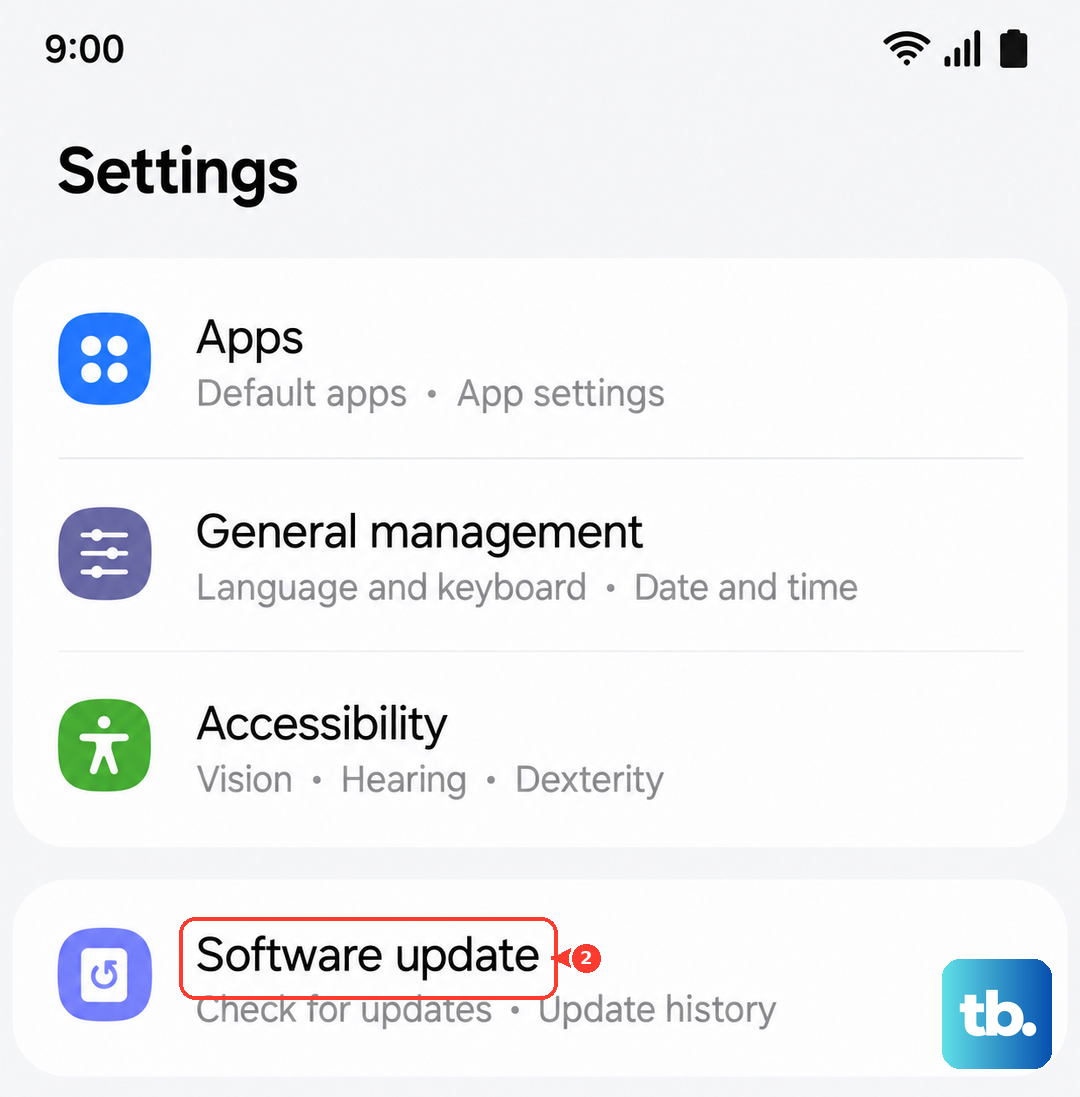
Go to Settings > Software update and tap "Download and install." If an update is available, I'd recommend installing it while your phone is connected to Wi-Fi and has a good charge. These updates often contain patches for specific problems that users have reported.
Reset All Settings
If you've tried everything else and the sound is still not working correctly, this step can help without erasing your photos, messages, or apps. It will reset all your system settings, like Wi-Fi passwords, Bluetooth pairings, and sound profiles, back to their factory defaults.
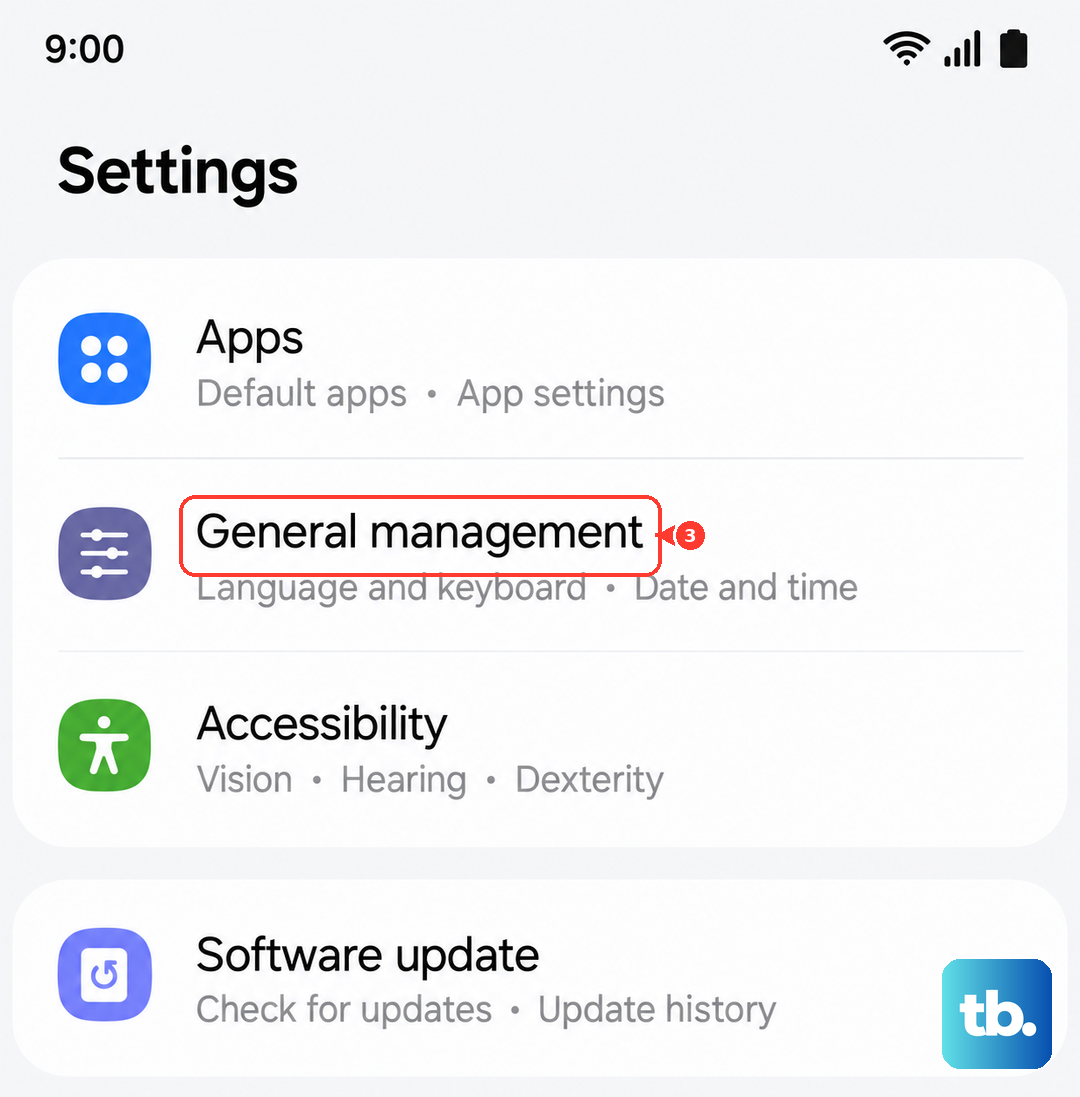
Open Settings > General management > Reset. Tap on "Reset settings." You may need to enter your PIN or password. Confirm that you want to proceed. Your phone will restart, and you'll need to reconfigure your preferences, but this often clears out any deep-seated configuration error that was muting your audio.