
If your Samsung Galaxy S25+ is getting uncomfortably warm, the first thing I'd try is a simple restart. Press and hold the Volume Down button and the Side button together for about ten seconds until you see the Samsung logo. This force restart clears out any temporary software glitches that might be making the processor work overtime and generate extra heat.
It's a quick fix that solves a surprising number of issues. After it boots back up, give it a few minutes to see if the temperature starts to normalize during light use.
Check What's Running in the Background
Your S25+ can feel hot if too many apps are running tasks in the background. Swipe down from the top of the screen twice to open the Quick Settings panel, then tap the percentage next to the battery icon. This opens the Battery settings.
Look at the battery usage graph and the list of apps below it. If you see an app using a high percentage despite you not actively using it, that's a prime suspect. Tap on that app, then tap Background usage. You can set it to Restricted to prevent it from running when you're not using it.
Also, take a quick trip to Settings > Apps. Tap the three-dot menu in the top right and select Special access > Optimize battery usage. Make sure all apps are being optimized, which helps One UI manage their background activity more aggressively.
Manage Your Display and Connectivity Settings
The display is one of the biggest power draws on any phone. If you have the Always On Display enabled, try turning it off for a while. Go to Settings > Lock screen > Always On Display and toggle it off. This can make a noticeable difference in both heat and battery life.
Next, consider your screen brightness. Having it set to automatic is usually best, but if you're in a bright environment and the phone is constantly ramping up to maximum brightness, it can contribute to warmth. Manually lowering it a notch can help.
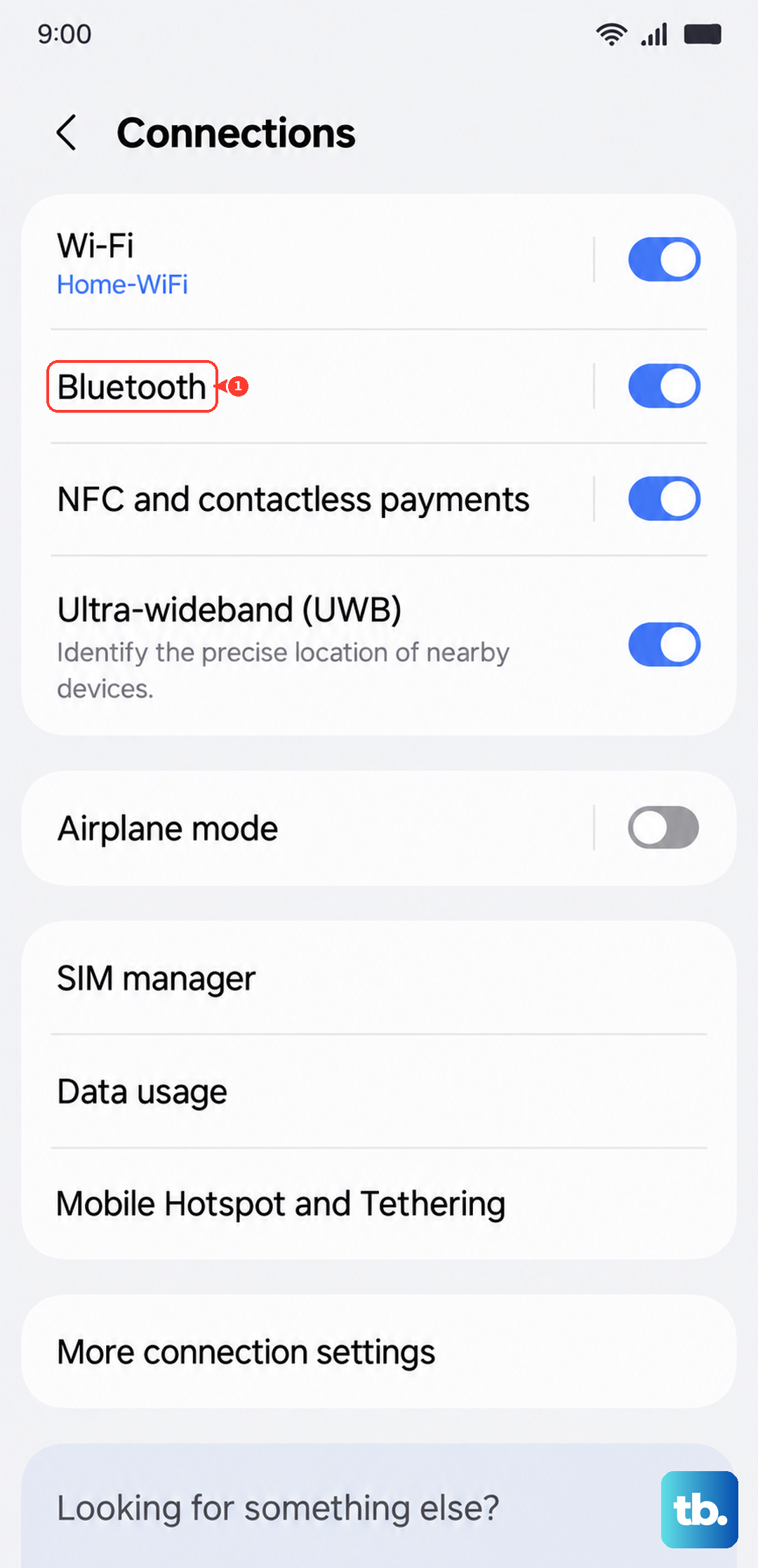
Connectivity features like 5G, Bluetooth, and location services also generate heat when searching for signals. If you're not using them, try turning off 5G (switch to LTE/4G in Settings > Connections > Mobile networks), or disable Bluetooth and GPS from the Quick Settings panel when they're not needed.
Be Mindful of Charging Habits
It's completely normal for any phone, including the S25+, to get warm while charging, especially if you're using it at the same time. The 45W wired and 15W Qi2 wireless charging are fast, and that speed generates heat. For the coolest charge, use the phone as little as possible while it's plugged in or on a wireless pad.
Make sure you're using a compatible charger. While the S25+ doesn't come with a charger in the box, using an official Samsung 45W charger or a high-quality third-party PD (Power Delivery) charger ensures proper power management. Cheap, uncertified chargers can cause inefficient charging that produces excess heat.
Also, avoid charging on soft surfaces like a bed or couch, which can insulate the phone and trap heat. Place it on a hard, flat surface like a nightstand or desk for better airflow.
Update Your Software and Apps
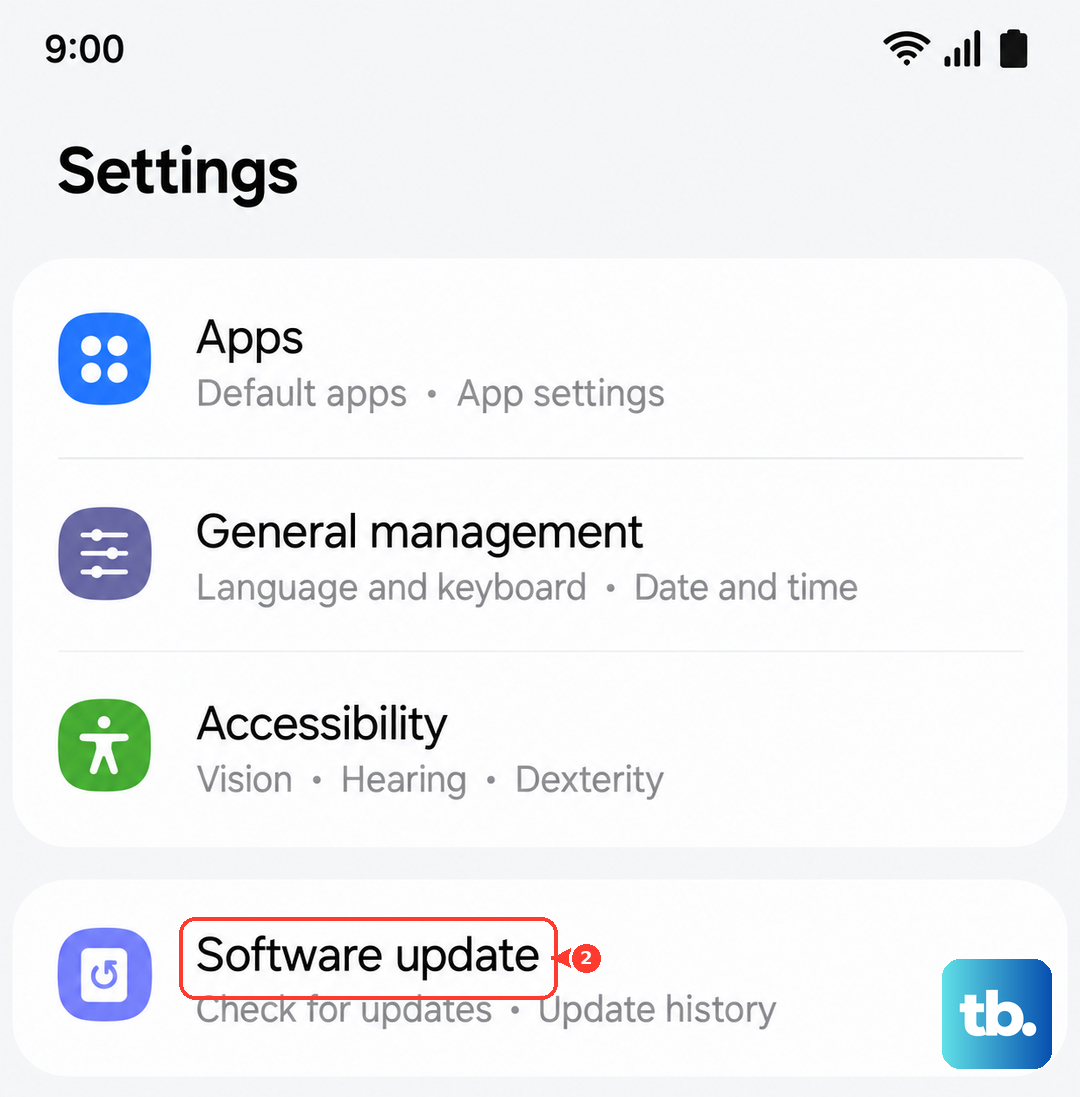
Software updates often include optimizations and bug fixes that improve thermal management. Go to Settings > Software update and tap Download and install to check for the latest version of Android and One UI.
Outdated apps can sometimes have bugs that cause excessive CPU usage. Open the Galaxy Store and Google Play Store, tap your profile icon, and check for updates to ensure all your apps are running the most efficient versions available.
Give It Time After Setup or Major Updates
If your S25+ is new or you just performed a major software update, it's normal for it to run warm for a day or two. The phone is working hard in the background indexing files, optimizing apps, and learning your usage patterns. This process, called Adaptive Battery, is intensive but temporary.
I'd recommend just using the phone normally but avoiding long gaming sessions or 4K video recording during this 24 to 48 hour period. The heat and any unusual battery drain should settle down once this background work is complete.
Identify and Close Problematic Apps
If the heat seems to start when you use a specific app, like a game or social media app, that app might be poorly optimized. Try closing it completely by opening the recent apps view and swiping it away. See if the phone cools down afterwards.
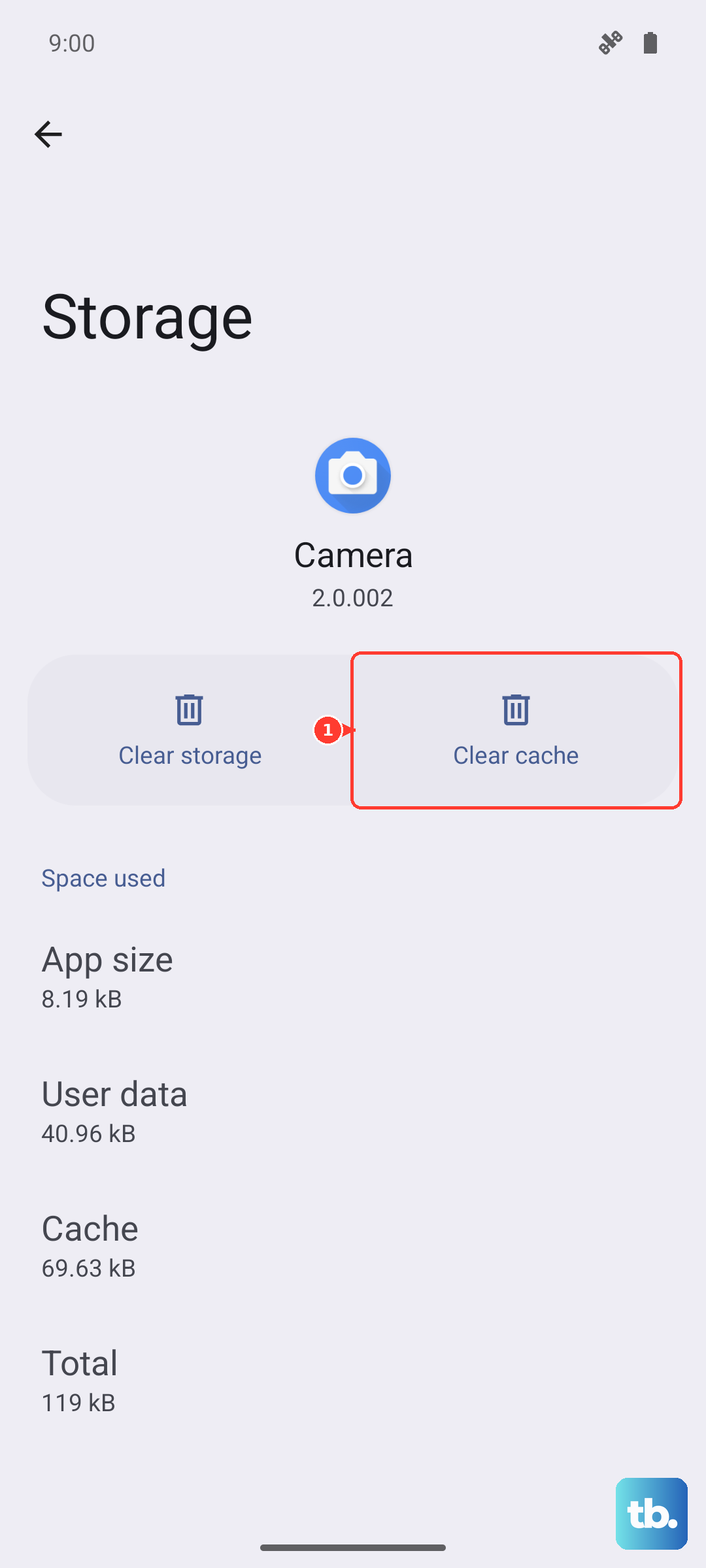
For persistent offenders, you can try clearing the app's cache. Go to Settings > Apps, select the problematic app, then tap Storage > Clear cache. This won't delete your personal data in the app, but it can resolve performance issues caused by corrupted temporary files.
As a last resort for a single app, you can uninstall and reinstall it. This gives you a fresh start with the app's data and can clear up any deep-seated glitches causing high CPU load.
Consider Your Environment and Case
Using your phone in direct sunlight or a hot car will naturally make it warmer, as the ambient temperature makes it harder for the device to cool itself. Try to use it in the shade or indoors when possible.
Your phone case can also play a role. A thick, insulating case might be trapping heat, especially during charging or intensive tasks. Try taking the case off for a little while when you're at home and see if the phone feels cooler. If it does, you might want to look for a case designed with better heat dissipation in mind.