
Missing calls on your Samsung Galaxy S25+ can be incredibly annoying, especially when you see the notification pop up after the fact. The phone is supposed to be smart, but sometimes the settings get a little too clever for their own good. This usually comes down to a handful of common settings in One UI 7 or Android 15 that have been toggled, or a temporary software hiccup.
Check Your Sound Mode and Volume
First, look at the right side of your phone. Press the volume up button a few times and watch the on-screen indicator. If you see a bell icon with a line through it, your phone is in silent or vibrate-only mode. Tap the settings gear next to the volume slider to open the sound panel directly.
You can also swipe down twice from the top of your screen to open the full Quick Settings panel. Look for the "Sound" icon, it might show as "Sound," "Vibrate," or "Mute." Tap it to cycle through the modes until it's set to "Sound." While you're there, make sure the physical volume level for "Ringtone" is turned up to a level you can actually hear.
Review Do Not Disturb and Focus Modes
Do Not Disturb is a major culprit. When it's active, your phone won't ring for calls unless you've made specific exceptions. Pull down your notification shade and check for a small moon icon in the status bar at the very top of your screen. If you see it, Do Not Disturb is on.
To manage it, go to Settings > Notifications > Do Not Disturb. Here, you can turn it off completely. Also, look at any schedules or "Bedtime mode" that might be activating it automatically. Samsung's Focus modes work similarly, so check Settings > Digital Wellbeing and parental controls > Focus modes to ensure none are actively blocking calls.
Disconnect From Bluetooth Accessories
If your S25+ is connected to a smartwatch, wireless earbuds like Galaxy Buds, or a car stereo, incoming call audio is often routed to that device instead of your phone's speaker. This can make it seem like the phone isn't ringing at all.
The quickest fix is to swipe down and tap the Bluetooth icon in Quick Settings to turn it off temporarily. For a more permanent solution for certain devices, go to Settings > Connections > Bluetooth, tap the gear icon next to a connected device, and turn off the option for "Calls" while leaving "Media audio" on if you prefer.
Verify Your Ringtone and Notification Settings
Sometimes the selected ringtone file itself can become corrupted or set to "None" by accident. Open Settings > Sounds and vibration > Ringtone. Tap on a different default ringtone to select it, then have a friend call you to test.
Also, check the notification settings for the Phone app specifically. Go to Settings > Notifications > App notifications, find "Phone" in the list, and tap it. Ensure notifications are turned on, the category for "Incoming calls" is enabled, and that the sound is set properly within that category.
Check for Blocked Numbers and Call Forwarding
You might have accidentally blocked the person trying to reach you. Open your Phone app, tap the three-dot menu in the top right, and go to Settings > Block numbers. Review the list to make sure no important contacts are there.
Call forwarding is another setting that can redirect calls silently. Open the Phone app, tap the menu, go to Settings > Supplementary services > Call forwarding. Make sure all forwarding options (like "Always forward" or "When busy") are set to "Disable."
Examine Advanced Calling Features
Features designed to screen calls can sometimes be too aggressive. Go to Settings > Apps > Phone (or Call Settings) and look for "Spam and call blocking" or "Caller ID and spam protection." You can temporarily disable these to see if they're the issue.
Also, look for a setting called "Silence unknown callers" or "Block unknown callers." If this is on, any number not in your contacts will go straight to voicemail without ringing. You'll find this in the same Phone app settings menu.
Restart Your Phone
A simple restart clears out temporary glitches in the system software or the Phone app that could be causing the silence. Press and hold the Side key and Volume Down button together for about ten seconds until you feel a vibration and see the Samsung logo appear on the screen.
This force restart method works even if the touchscreen is unresponsive. I'd start with this before moving on to more involved software fixes, as it often resolves odd behavior immediately.
Update Your Software
Samsung regularly releases updates that fix bugs, including ones related to call handling and audio. Connect to Wi-Fi, then go to Settings > Software update > Download and install. If an update is available, let it install completely, your phone will restart during the process.
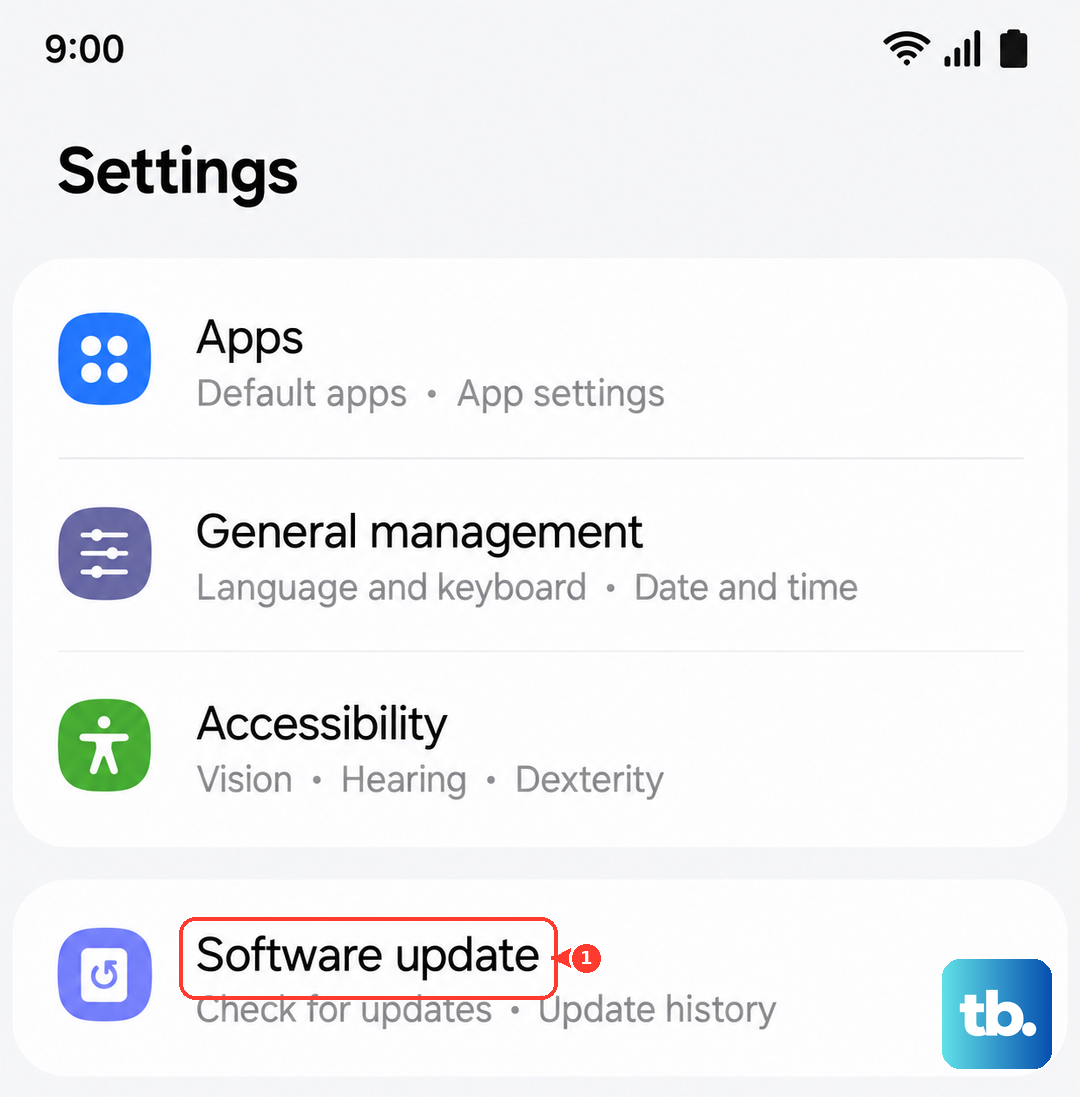
It's also a good idea to check for updates to the "Phone" and "Carrier Services" apps in the Google Play Store. Open the Play Store, tap your profile icon, go to "Manage apps & device," and see if updates are available.
Reset App Preferences or Network Settings
If the problem seems linked to permissions, you can reset app preferences without deleting any personal data. This returns all app notification and permission settings to their defaults. Go to Settings > Apps > Menu (three dots) > Reset app preferences and confirm.
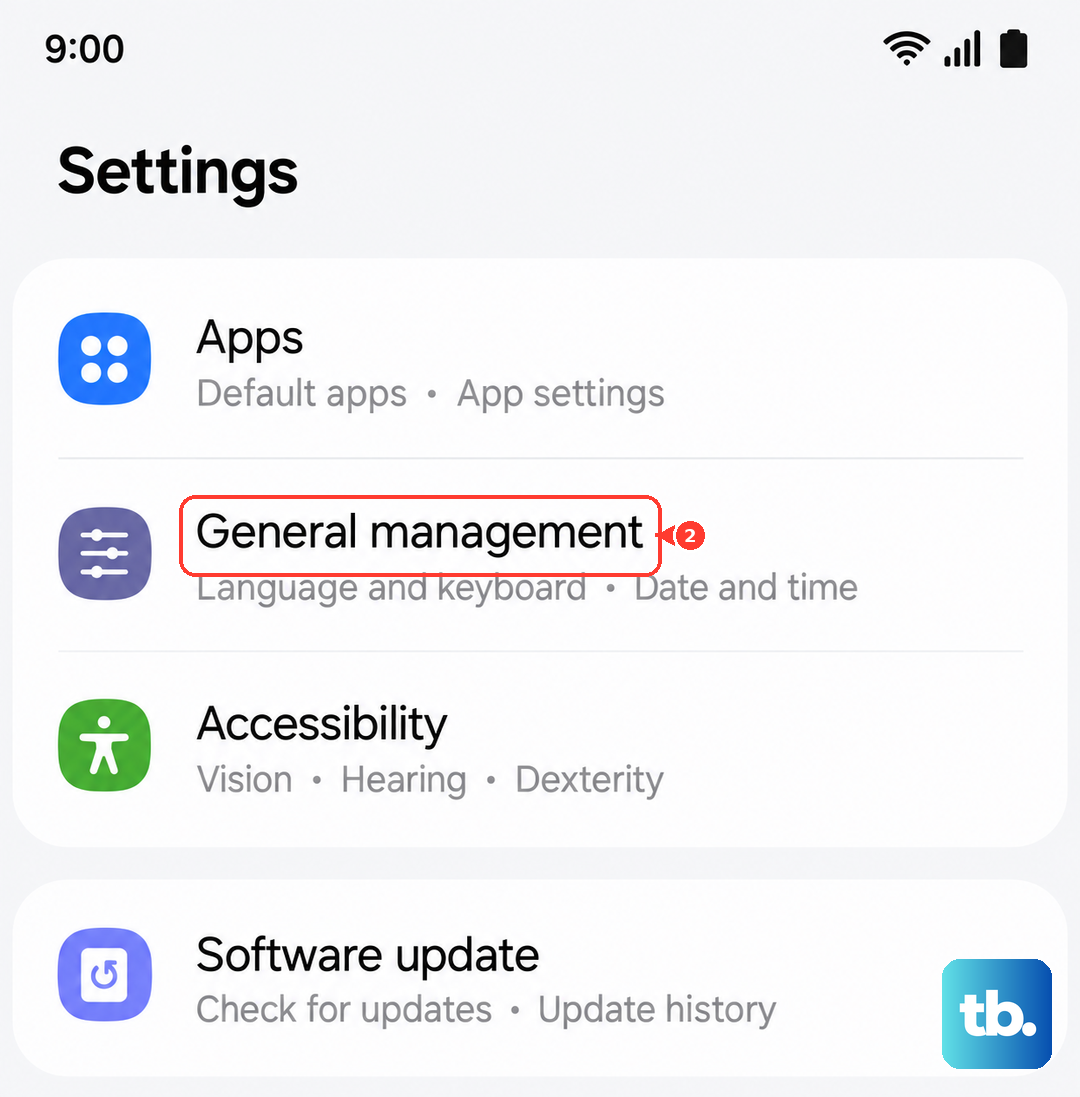
For issues that might be network-related, like calls over Wi-Fi not ringing, try resetting network settings. Go to Settings > General management > Reset > Reset network settings. This will erase all Wi-Fi networks, Bluetooth pairings, and mobile data settings, so you'll need to reconnect to your networks afterward.
Check for Software Conflicts in Safe Mode
Booting into Safe Mode temporarily disables all third-party apps you've downloaded. If your phone rings normally in Safe Mode, a recently installed app is likely interfering. To enter Safe Mode, press and hold the Side key until the power menu appears, then press and hold the "Power off" option on your screen until you see a prompt to reboot to Safe Mode.
Test a call while in this mode. If it works, restart your phone normally to exit Safe Mode. Then, consider uninstalling apps you installed around the time the problem started, especially any that manage sound, calls, or accessibility services.