
When your Samsung Galaxy S25+ sends every call straight to voicemail, it's like your phone has decided to ghost the world. This is a common but fixable problem, usually tied to a setting or a temporary network hiccup. I'd start by checking the most obvious things first, as they often do the trick.
First, pull down the notification shade twice to see your full Quick Settings panel. Look for the Airplane Mode icon, if it's lit up, tap it to turn it off. While you're there, also tap the mobile data icon to turn it off and then back on. This quick refresh of your connection can sometimes kick things back into gear.
Next, give your phone a fresh start. Press and hold the Volume Down button and the Side button together for about ten seconds. Keep holding until you see the Samsung logo appear, then let go. This force restart is more thorough than a standard reboot and clears out minor software glitches that could be blocking calls.
Check Your Do Not Disturb and Focus Modes
One UI 7 has several ways to silence calls that are easy to activate by accident. Swipe down and check for the Do Not Disturb or Moon icon in your quick settings. If it's on, tap it to disable it.
You should also dig into the settings. Go to Settings > Notifications > Do Not Disturb. Make sure it's toggled off. Also, look at any scheduled times or rules that might be active. While you're there, check Settings > Digital Wellbeing and parental controls > Focus modes. If a Focus mode like "Work" or "Sleep" is running, it could be set to silence calls.
Review Call Blocking and Spam Protection
Samsung's call features are smart, but sometimes they're a little too eager. Open your Phone app and tap the three-dot menu in the top right, then go to Settings > Call blocking and spam protection.
Look at the "Blocked numbers" list to make sure no important contacts are there by mistake. You can also temporarily turn off "Caller ID and spam protection" to see if that's the culprit. Some users have found that aggressive spam filters on a new phone like the S25+ can mistakenly block legitimate calls.
Disable Any Call Forwarding
Call forwarding is a classic reason for the straight-to-voicemail issue. If it's enabled, your carrier's network is redirecting calls before your phone even rings. To check, open the Phone app, tap the three-dot menu, and go to Settings > Supplementary services.
Tap on "Call forwarding." You'll see options for different scenarios. Tap "Voice calls" and then "Always forward." The number field should be empty. If there's a number there, tap "Disable" to turn it off. Repeat this for "When busy," "When unanswered," and "When unreachable" to be thorough.
Inspect Your SIM Card
A loose or faulty SIM card can cause all sorts of network problems. You'll need the SIM ejector tool that came in the S25+ box. Gently push it into the small hole on the SIM tray on the bottom edge of the phone.
Pull the tray out and remove the SIM card. Give the gold contacts a quick wipe with a soft, dry cloth, then carefully reseat the card in the tray. Push the tray back in until it clicks. After the phone reboots, check if you have signal bars. If you see "Emergency calls only" or no signal, the SIM itself or your carrier account might be the issue.
Reset Your Network Settings
This is a powerful step that resets all your cellular, Wi-Fi, and Bluetooth connections to factory defaults. It fixes a lot of persistent network bugs. Go to Settings > General management > Reset > Reset network settings.
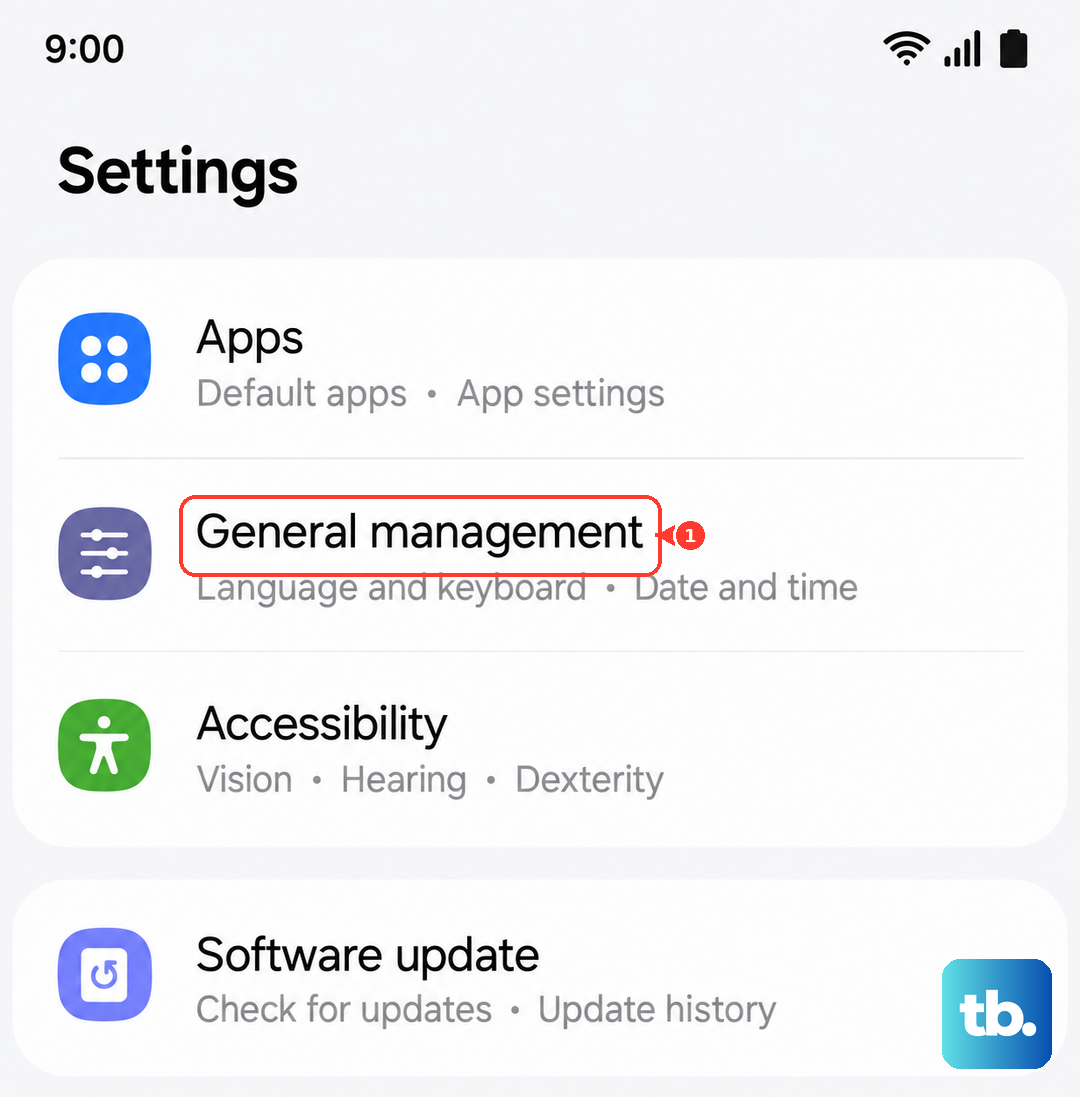
Tap "Reset settings" and confirm. Your phone will restart. Remember, this will erase all saved Wi-Fi passwords, so you'll need to log back into your networks. It will also forget all paired Bluetooth devices. For the S25+, this can be especially helpful if you're also experiencing the occasional Wi-Fi 7 disconnection issue, as it clears the network stack completely.
Update Your Phone's Software
Samsung frequently releases updates that fix bugs, including ones related to calling and network connectivity. Make sure your S25+ is running the latest version of Android 15 and One UI 7. Go to Settings > Software update > Download and install.
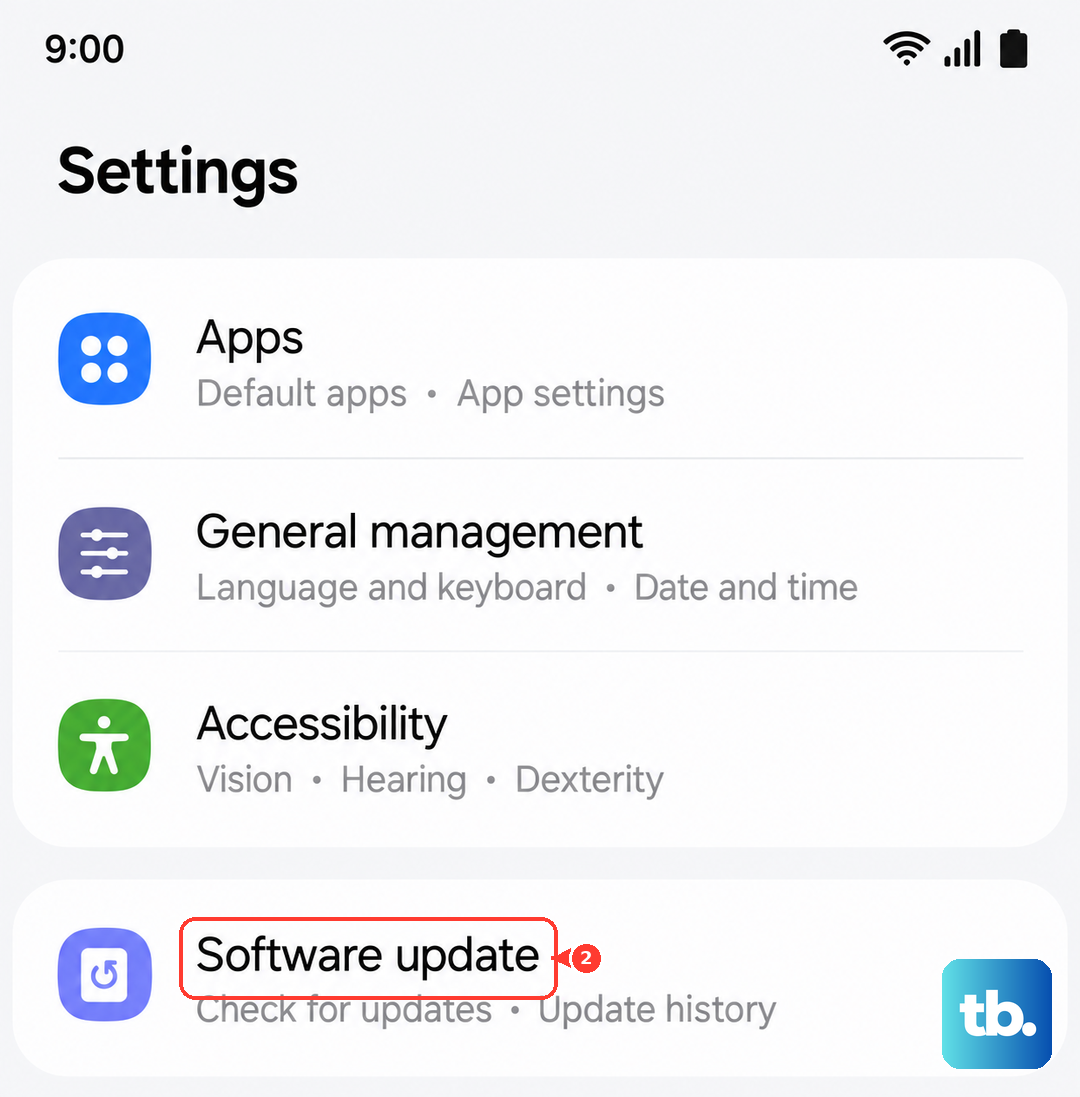
Let it check for updates. If one is available, connect to Wi-Fi and plug in your charger (a 45W Samsung charger is ideal for speed, but any will work). Installing updates can resolve underlying software conflicts that might be causing your call problems.
Clear the Phone App's Cache and Data
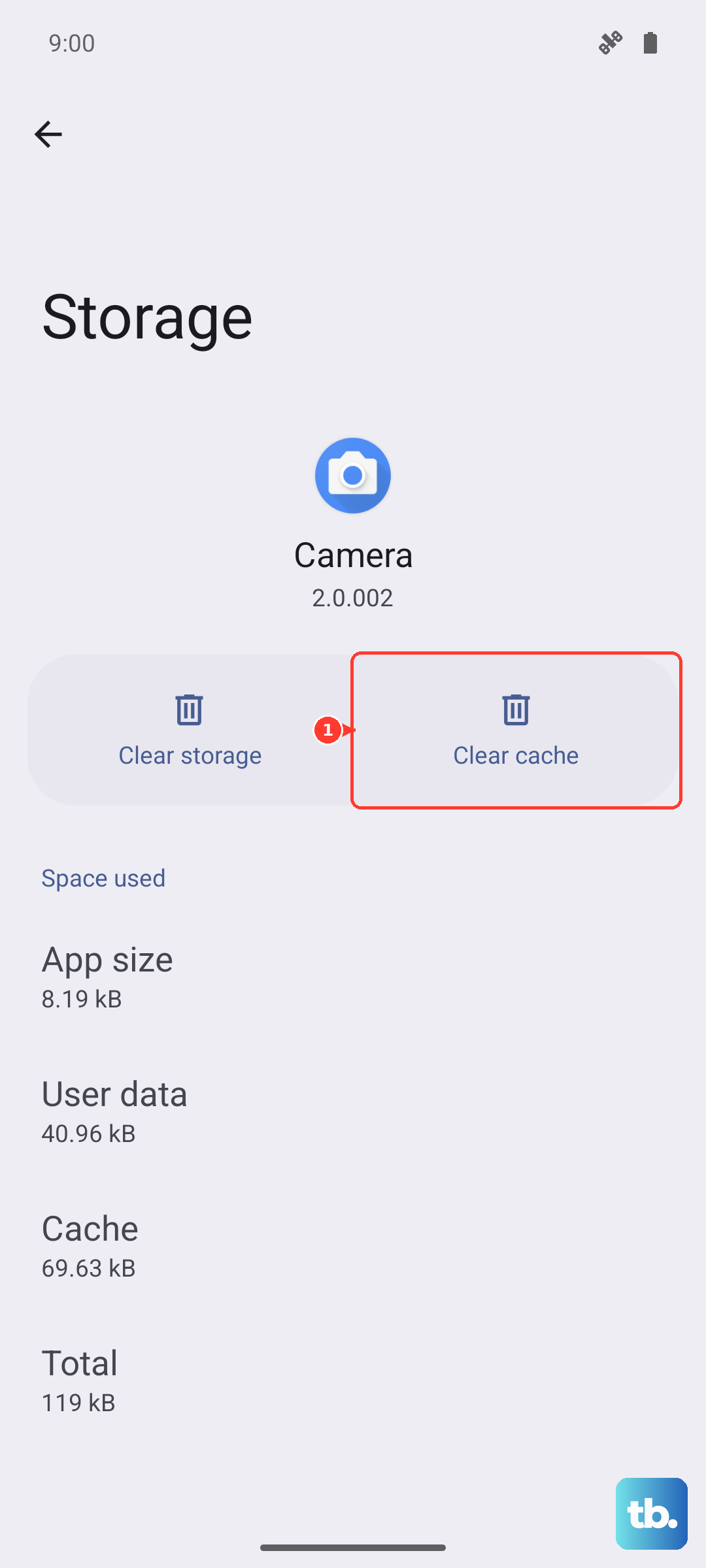
The Phone app can accumulate corrupted temporary files. Clearing its cache is safe and won't delete your contacts or call history. Go to Settings > Apps > Phone.
Tap on "Storage." First, tap "Clear cache." If the problem persists, you can go back and tap "Clear data." This will reset the app to its default state, so you may need to re-grant permissions, but your contacts are stored separately and won't be affected.
Check for Problematic Third-Party Apps
An app you recently installed could be interfering with the phone's core functions. Think about any call recorder, dialer, or security apps you've added. Try booting your S25+ into Safe Mode, which disables all third-party apps temporarily.
To do this, press and hold the power button until the power menu appears. Then, tap and hold the "Power off" icon on the screen until you see a "Safe mode" prompt. Tap to restart in Safe Mode. If calls work normally in Safe Mode, a downloaded app is likely the cause. You'll need to uninstall apps one by one to find the offender.
Contact Your Mobile Carrier
Sometimes the issue is on your carrier's end. They can check for outages in your area, reprovision your line on their network, or see if there's an account issue. It's worth giving them a call from another phone.
You can also ask them to check your call forwarding settings from their side, as these can sometimes be activated remotely. They might also suggest updating your carrier settings, which can be done through a prompt they send or within your phone's network settings menu.