
Seeing "No Service" or a missing signal icon on your Samsung Galaxy S25+ can stop you from making calls, sending texts, or using mobile data. It's a common hiccup that usually has a simple fix, especially on a new device like this running Android 15 and One UI 7.
I'd start with the quickest solutions first. Often, a simple restart or toggling a setting is all it takes to get your bars back.
Restart Your Phone and Check Airplane Mode
First, give your Galaxy S25+ a fresh start. Press and hold the Volume Down and Side button together for about ten seconds until you see the Samsung logo. This force restart can clear out any temporary software glitches that might be blocking the cellular radio.
While you're at it, swipe down from the top of your screen twice to open the full Quick Settings panel. Make sure the Airplane Mode icon isn't highlighted. If it is, tap it once to turn it off.
Reinsert Your SIM Card
A SIM card that's come slightly loose can cause this exact problem. Grab the SIM ejector tool that came in the S25+ box and gently push it into the small hole on the bottom frame of the phone.
The SIM tray will pop out. Take the SIM card out, give the gold contacts a quick look for any dirt or damage, and then firmly reseat it. Push the tray back in until it clicks. Wait a minute for the phone to re-register on the network.
Toggle Mobile Data and Check Signal
Head into your settings to make sure everything is switched on correctly. Go to Settings > Connections > Mobile networks and ensure "Mobile data" is enabled.
While you're there, glance at the signal strength indicator at the top of your screen. If you're in a basement, a large building, or a rural area, try moving to a window or going outside. The initial battery drain some users see during setup shouldn't affect signal, but being in a poor coverage area definitely will.
Reset Your Network Settings
If the basic steps don't work, a network settings reset is a great next move. This clears all your saved Wi-Fi networks, Bluetooth pairings, and cellular configurations without touching your personal files or apps.
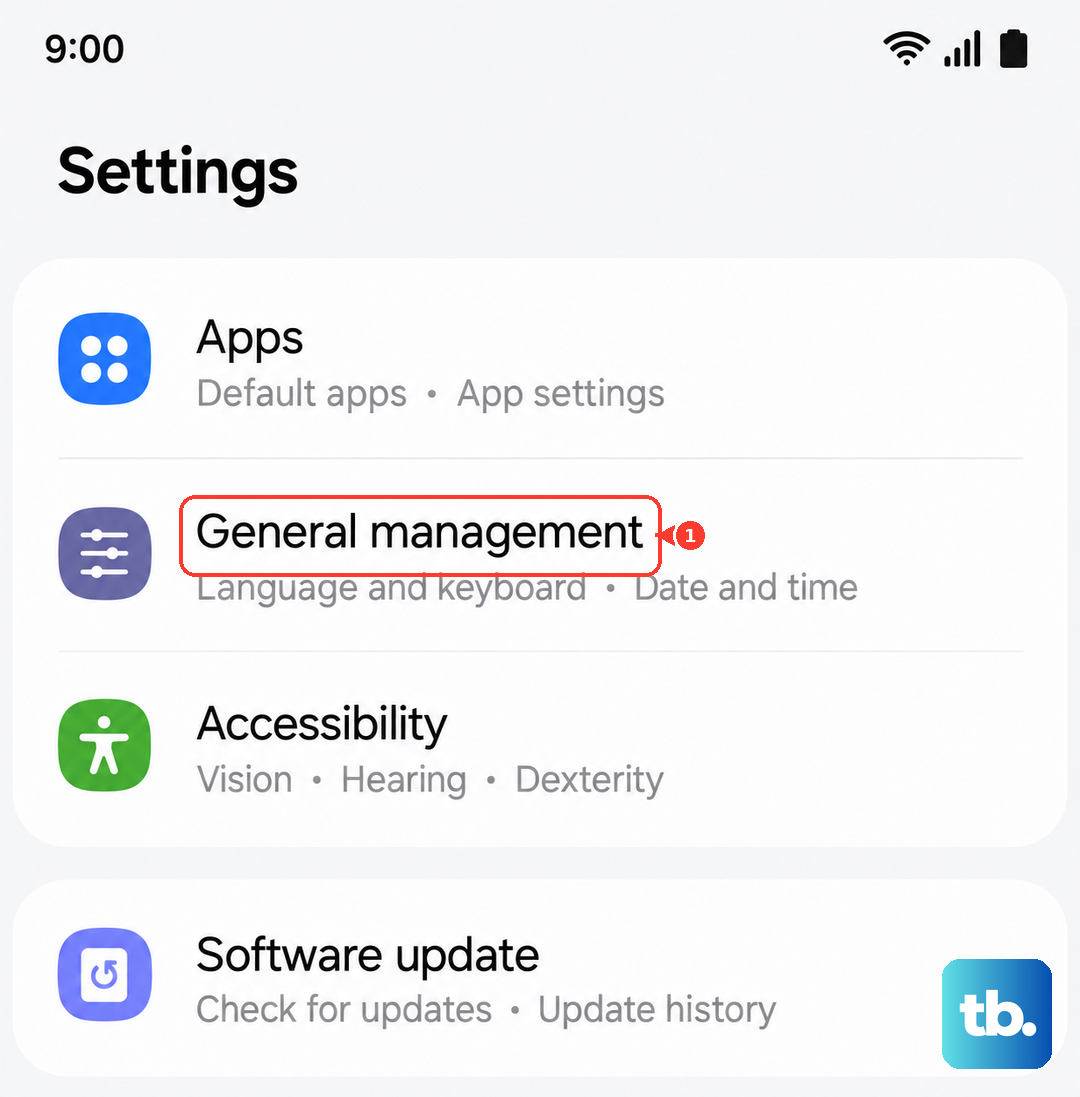
On your S25+, go to Settings > General Management > Reset. Tap on "Reset network settings" and confirm. Your phone will reboot. After it comes back on, you'll need to reconnect to Wi-Fi and Bluetooth devices, but it often resolves stubborn network issues.
Update Your Access Point Name (APN)
Your APN is the gateway between your phone and your carrier's network. If these settings are wrong or outdated, you'll get no service. Go back to Settings > Connections > Mobile networks > Access Point Names.
You should see a list for your carrier. Tap the three-dot menu in the top right and select "Reset to default." If that doesn't populate the correct settings, you'll need to get the exact APN details from your carrier's website or customer service and enter them manually here.
Manually Select Your Network Operator
Sometimes your phone gets stuck trying to connect to a weak or incorrect tower. You can force it to find the right one. Go to Settings > Connections > Mobile networks > Network operators.
Tap "Search now" and wait for the list to populate. Select your specific carrier from the list (e.g., "T-Mobile" or "Verizon Wireless") instead of leaving it on "Select automatically." This can establish a more stable connection.
Check for a Software Update
Samsung regularly releases updates that fix bugs, including ones related to cellular connectivity. Since the S25+ launched with Android 15, early software builds can sometimes have radio issues that get patched later.
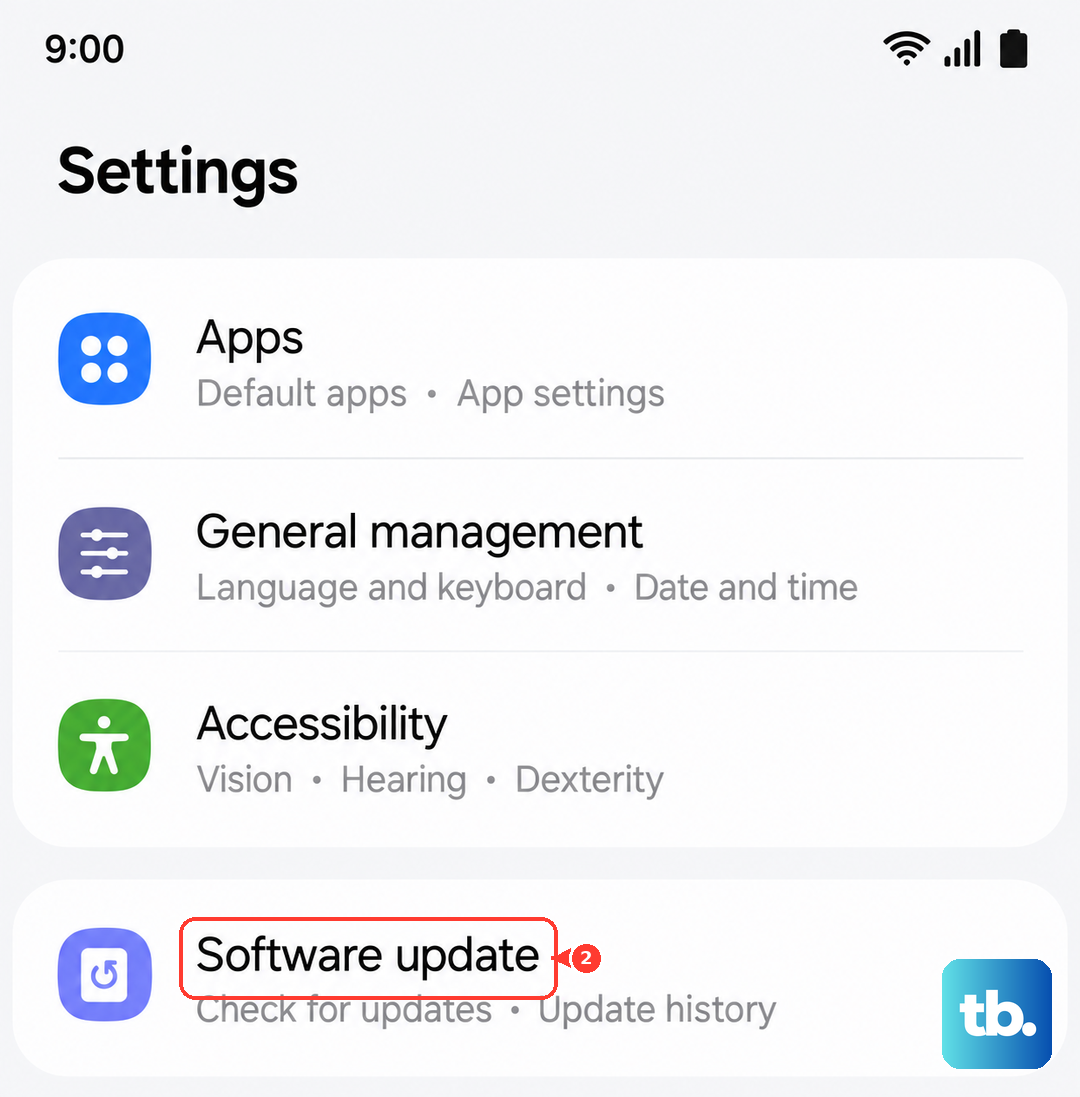
Go to Settings > Software update and tap "Download and install." If an update is available, let it install completely. Your phone will restart, and it's worth checking your signal after it boots up.
Use the Phone Information Menu
Android has a hidden diagnostic menu that lets you interact directly with the phone's radio. Open your Phone app and dial *#*#4636#*#*. This should open the "Testing" menu.
Tap "Phone information." Look for a "Run Ping Test" button to check connectivity. You can also tap the three-dot menu and select "Select radio band" to make sure it's set to your region. Be careful not to change other settings here unless you know what they do.
Disable Any VPN or Ad-Blocking Apps
Third-party apps that route your traffic, like VPNs or certain ad blockers, can interfere with your cellular connection. Go to Settings > Connections > More connection settings > VPN.
If you see any VPN profiles here, tap the settings icon next to them and choose "Delete." Also, consider temporarily disabling any apps from the Play Store that claim to block ads or change your network proxy in the background.
Contact Your Carrier and Test Your SIM
If you've tried everything on the phone itself, the problem might be with your carrier account or the physical SIM card. The first step is to call your carrier's support line. Ask them if there's a service outage in your area or if there's an issue with your account, like an unpaid bill.
They can also help you test your SIM. If you have access to another unlocked phone, you can pop your S25+ SIM card into it. If the other phone also gets no service, you know the SIM or account is the problem, and you'll likely need a replacement SIM card from your carrier's store.