
When your Samsung Galaxy S25+ microphone stops picking up your voice, it can turn simple tasks into frustrating ones. People can't hear you on calls, voice recordings lack audio, and Google Assistant stops listening. The good news is that this may be a software or settings hiccup you can fix yourself.
Start by confirming the basics with a free online mic test. It shows a live level meter and lets you hear a short playback, so you know in seconds whether any signal is coming through.
Before we jump into the fixes, it's a good idea to confirm which microphone is acting up. Your S25+ has several: one at the bottom by the USB-C port, one at the top near the earpiece, and others for video recording and noise cancellation.
Test Your S25+ Microphone
Open your Voice Recorder app, tap the red record button, and speak for a few seconds. Play it back. If your voice sounds muffled or isn't there at all, you've confirmed the issue. You can also try making a quick video with the rear camera to test those mics.
Another quick test is to open Google Assistant by saying "Hey Google" or swiping up from the bottom corners. Ask it a simple question like "What time is it?" If it doesn't respond correctly, it's likely not hearing you.
Remove Your Phone Case
This is the easiest thing to check. Some cases, especially rugged or poorly designed ones, can partially cover the microphone holes. Take the case off completely and test your voice recorder again. I've seen this solve the problem more often than you'd think.
Disconnect Bluetooth Accessories
If your Galaxy Buds, a smartwatch, or a car stereo are connected, your phone might be trying to use their microphone instead of its own. Swipe down from the top of your screen to open Quick Settings and tap the Bluetooth icon to turn it off temporarily. Now try a test call or recording.
Restart Your Galaxy S25+
A simple reboot clears out temporary glitches that can affect hardware like the microphone. Press and hold the Side button and Volume down button until the power menu appears, then tap "Restart" and tap "Restart" again. Give it a minute to fully boot up before testing again.
Check App Permissions
Your phone has granular permission controls. If your mic works in some apps but not others, like WhatsApp or Zoom, the app might be blocked. Go to Settings > Apps, select the problematic app, then tap Permissions. Make sure the Microphone permission is set to "Allow."
Clear the App's Cache and Data
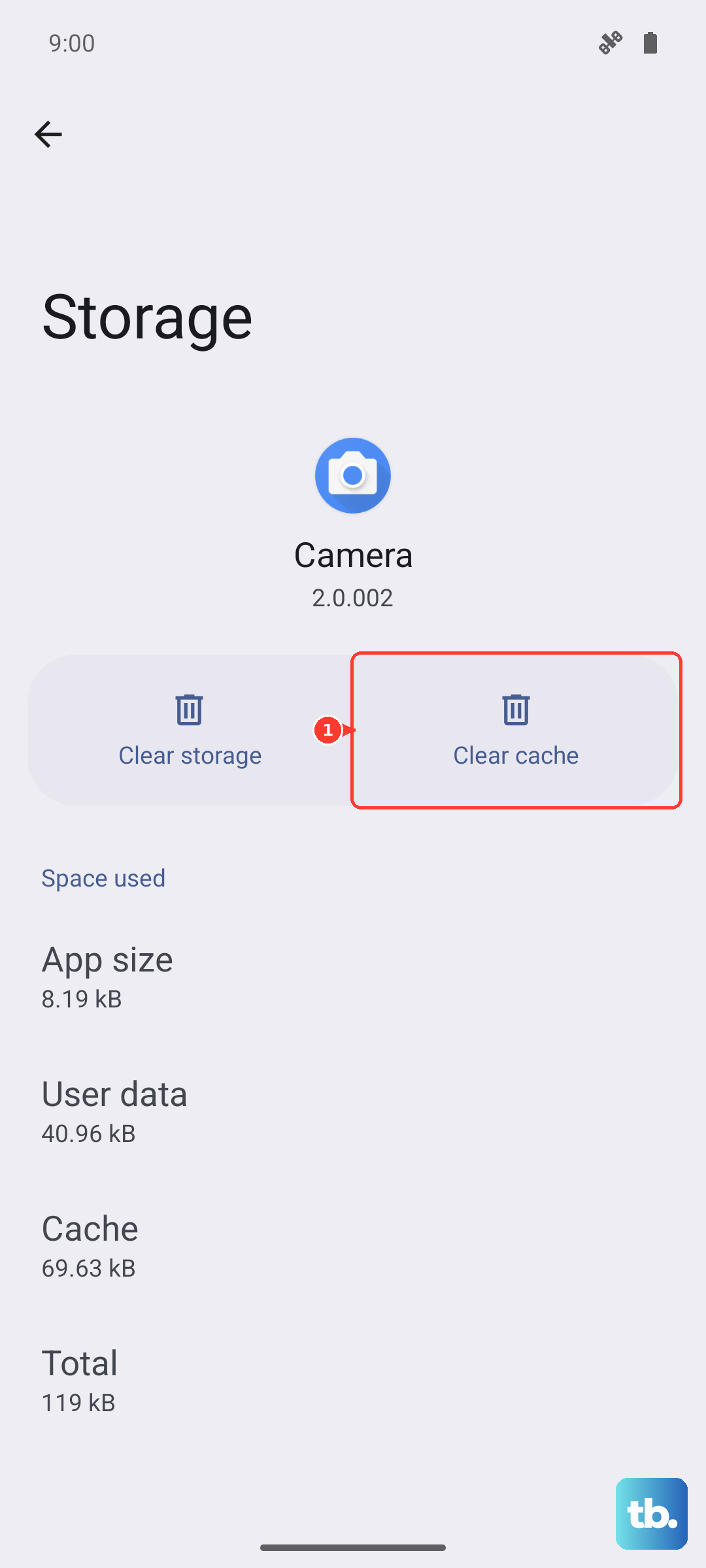
If a specific app is having mic issues, its stored data might be corrupted. Go to Settings > Apps, select the app, and tap Storage. Tap "Clear cache" first. If that doesn't work, tap "Clear data," then "Delete" to confirm. Be aware that clearing data will reset the app, so you might lose saved settings within it.
Look for Physical Blockages
Turn your phone off, unplug it, and remove its case before cleaning. Gently wipe the device with a soft microfiber cloth, without pushing anything into the microphone openings or using compressed air. If the phone is wet, pat the earpiece, bottom microphone, and external speaker with a clean, soft cloth, then let the phone air-dry before making a call.
Update Your Software
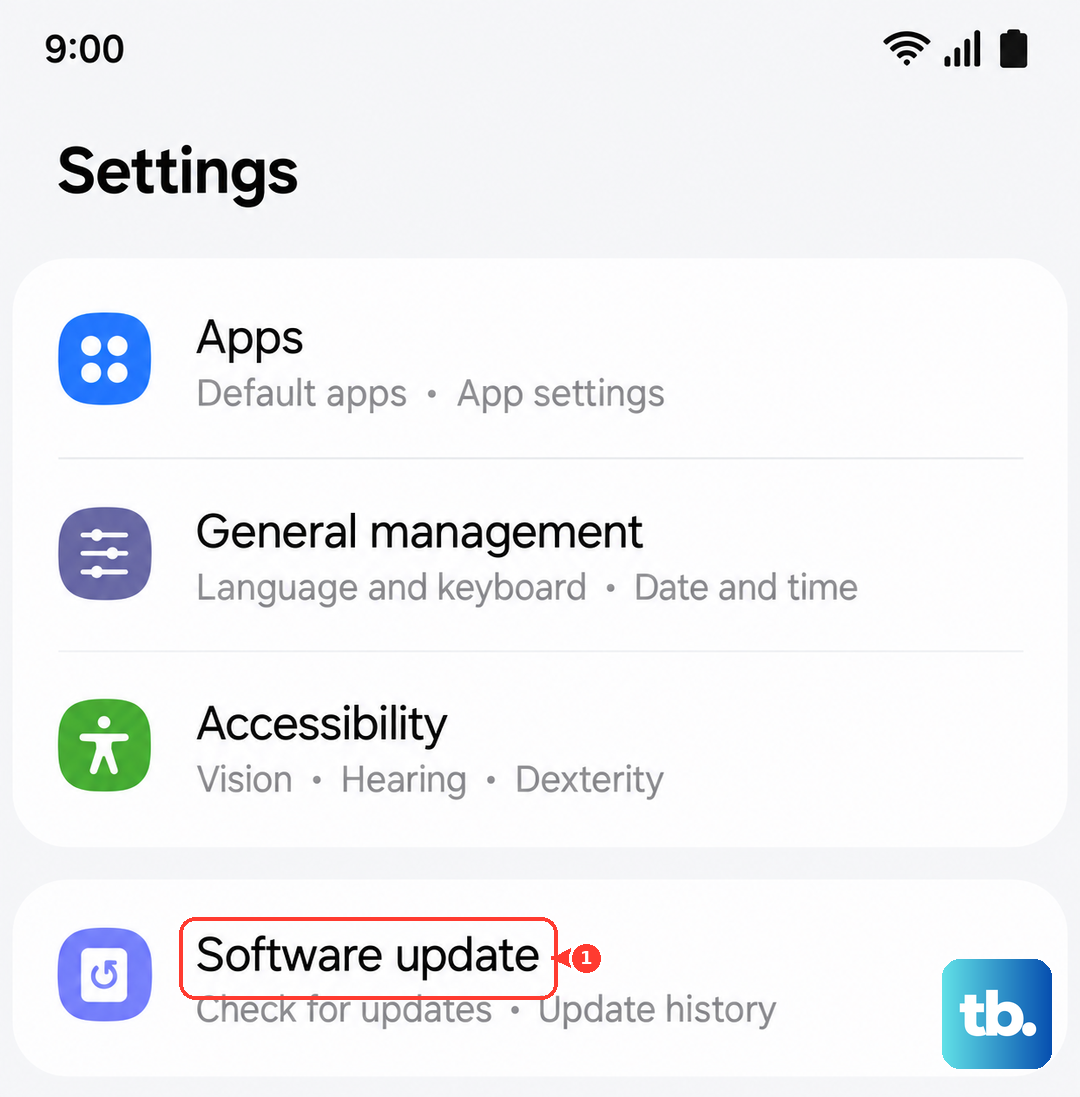
Samsung regularly releases updates that fix bugs, including audio issues. Go to Settings > Software update and tap Download and install. Make sure your phone is connected to Wi-Fi and has at least a 50% charge before proceeding.
Check for Sound Settings Interference
Some sound enhancement features can sometimes cause conflicts. Go to Settings > Sounds and vibration > Sound quality and effects. Try turning off features like "Adapt Sound" or "Dolby Atmos" temporarily to see if your microphone function returns.
Boot Into Safe Mode
This starts your phone with all third-party apps disabled. If the microphone works in Safe Mode, a recently downloaded app is likely causing the problem. To enter Safe Mode, press and hold the Side button and Volume down button together to open the power menu. Touch and hold "Power off," then tap "Safe mode." Restart normally to exit Safe Mode.
Reset All Settings
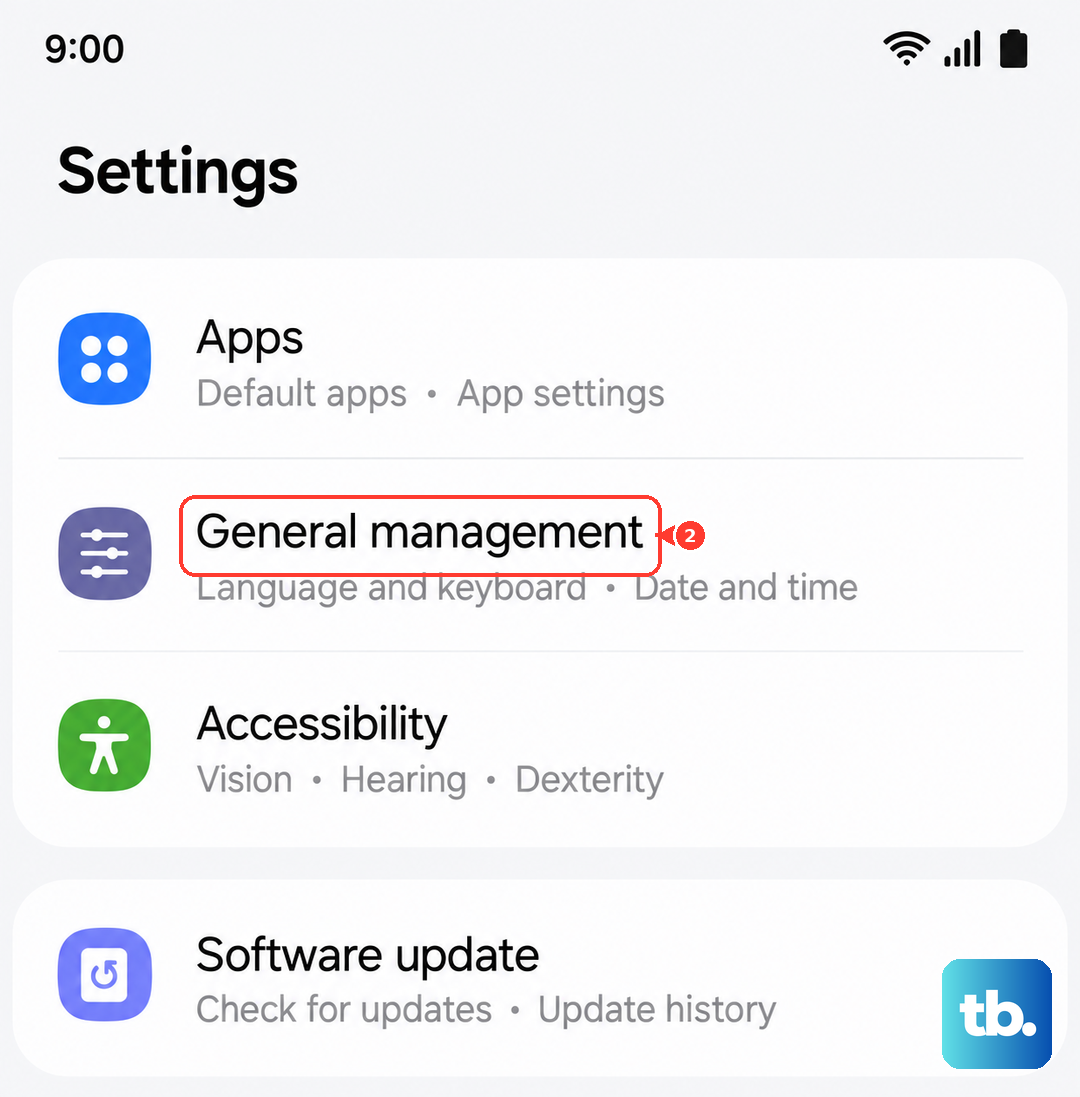
This resets settings to default while keeping security and language settings, accounts, personal data, and settings for downloaded apps. It can resolve deeper configuration conflicts. Go to Settings > General management > Reset > Reset all settings. Review the information, tap Reset settings, then tap Reset to confirm.
Perform a Factory Reset
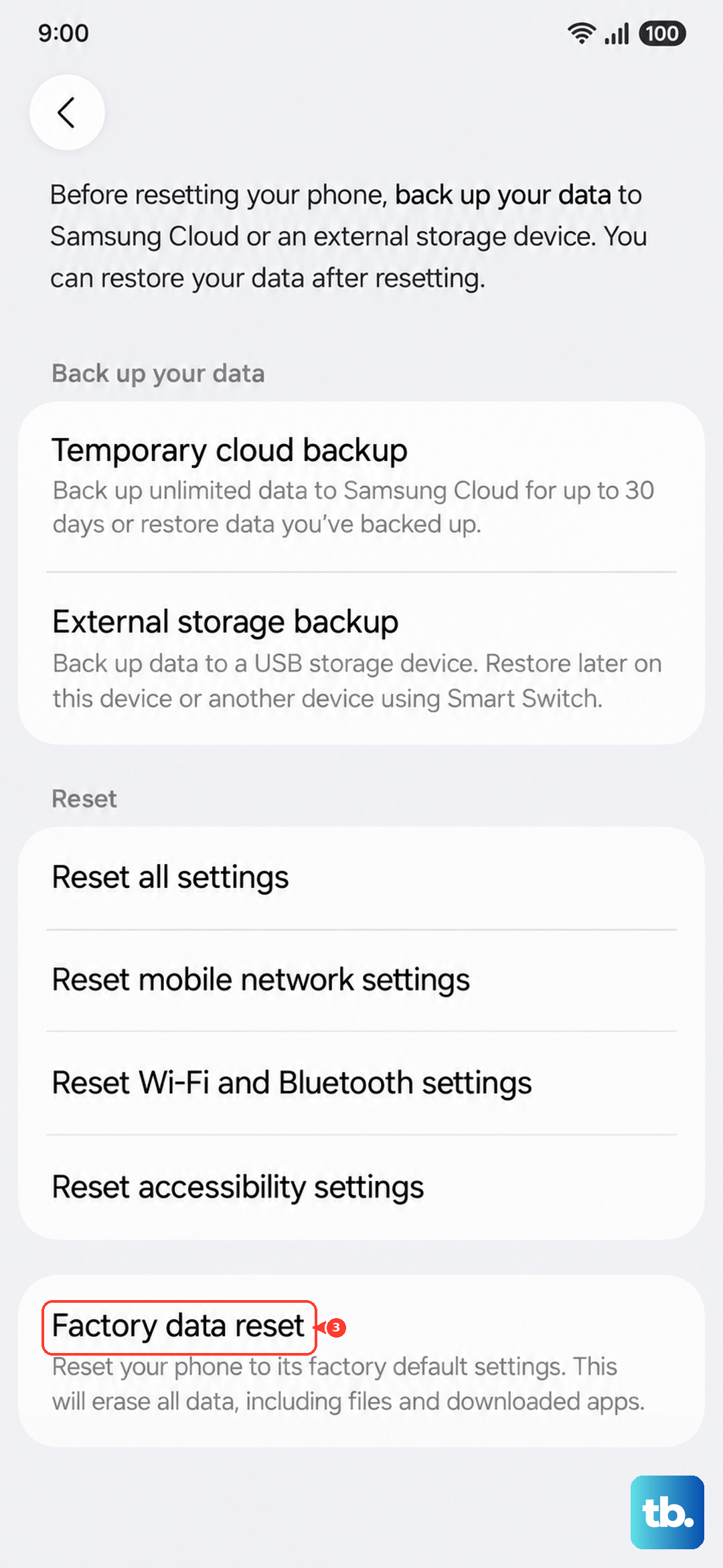
Consider this your last resort before seeking repair. A factory reset will erase everything on your phone. So, first, ensure all your photos, contacts, and files are backed up to Samsung Cloud or your Google account. Then, go to Settings > General management > Reset > Factory data reset. Follow the prompts to erase the device.
If you've worked through all these steps and your microphone is still silent, the issue could be physical. Damage from moisture, a hard drop, or a manufacturing defect could have affected the internal microphone module. At that point, contacting Samsung Support or a certified repair center would be the next step.