If your brand new Samsung Galaxy S25+ is already feeling sluggish, it can be pretty disappointing. You expect flagship speed, not lag. The good news is, there are several straightforward things you can do to get it running smoothly again.
Performance hiccups on a new phone often come from background setup tasks, an overloaded system, or a few specific settings. I'd start with a simple restart and work through these steps. Most of the time, you won't need to do anything drastic.
Perform a Force Restart
Before anything else, give your phone a fresh start. This clears out any temporary glitches in the memory that could be causing lag. It's different from just turning the screen off and on.
Press and hold the Volume Down button and the Side button (power button) at the same time. Keep holding them for about 10 seconds until you see the Samsung logo appear on the screen, then let go. Your phone will boot up fresh.
Close Recent Apps Properly
While Android is good at managing memory, having dozens of apps in the recent menu can sometimes slow things down, especially if one is misbehaving. Don't close apps constantly, but a periodic clear can help.
Swipe up from the bottom of the screen and hold to open the recent apps view. You can swipe each app card away individually, or tap the three-dot menu and select "Close all" to clear them in one go.
Check for Software Updates
Samsung frequently releases updates that include performance optimizations and bug fixes. An early software bug could be the culprit for your slowdown.
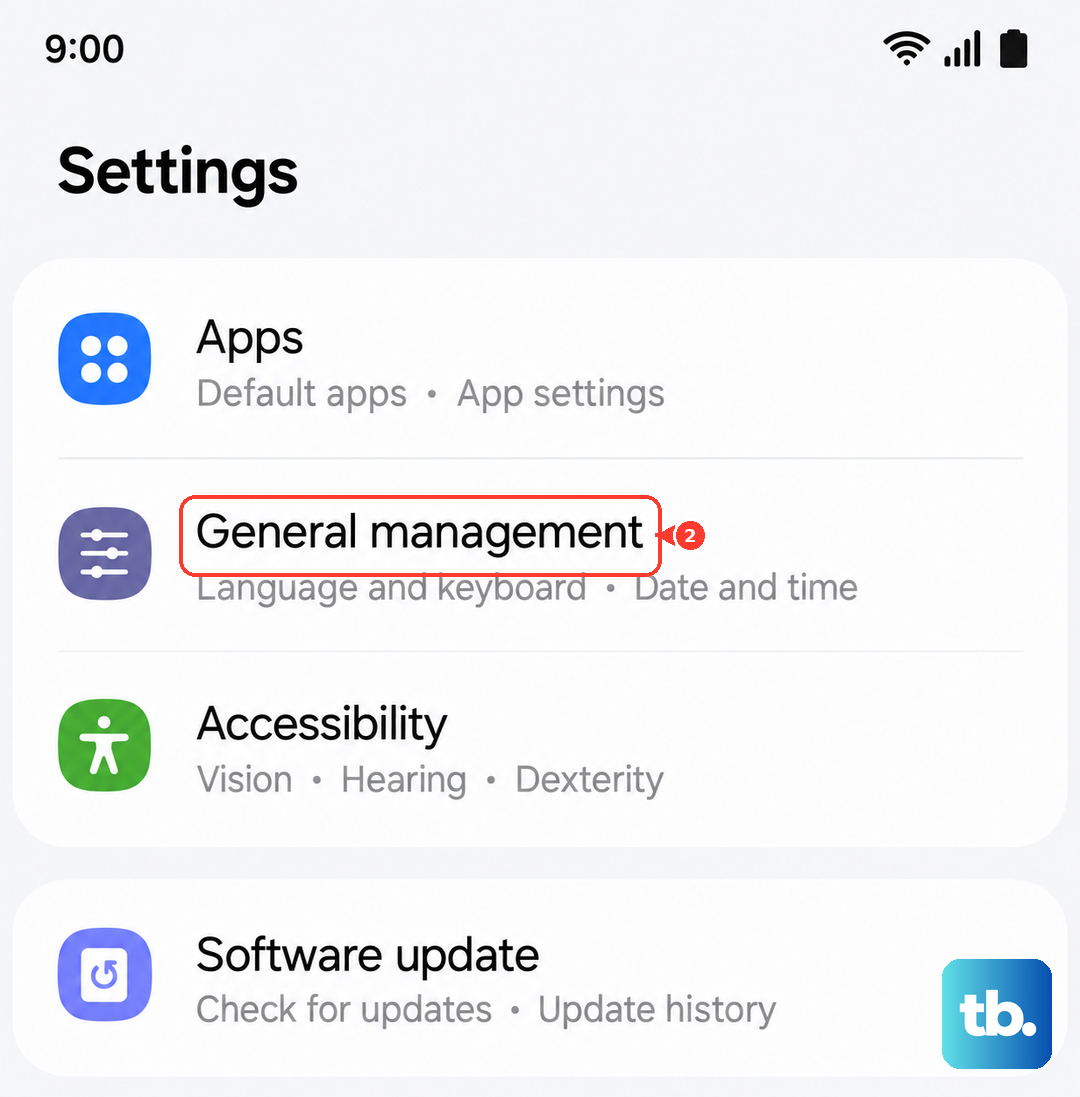
Go to Settings > Software update and tap "Download and install." If an update is available, make sure your phone is charged above 50% and connected to Wi-Fi before installing it.
Free Up Storage Space
Phones slow down when storage is nearly full. The S25+ has plenty, but if you've been downloading a lot during setup, it's worth checking. Aim to keep at least 10-15% of your storage free.
Head to Settings > Device care > Storage. Here, you'll see a breakdown of what's using space. Tap on categories like "Apps" or "Images" to review and delete items you don't need. The "Clean now" button can also remove temporary junk files.
Manage Background App Activity
Some apps are overly eager and run processes in the background even when you're not using them. This drains the battery and can eat up performance. Samsung's device care has a good tool for this.
Open Settings > Device care > Memory. Tap "Apps not used recently" to see a list. You can put specific apps to sleep here, which prevents them from running in the background until you next open them.
Disable or Reduce Animations
The smooth transition animations in One UI look great, but they can make the phone feel slower than it is. Speeding them up or turning them off can make navigation feel instant.
First, enable Developer Options by going to Settings > About phone and tapping "Software information" 7 times. Then, go back to Settings, find "Developer options," and scroll to the "Drawing" section. Look for "Window animation scale," "Transition animation scale," and "Animator duration scale." Change each from 1x to 0.5x to speed them up, or off to disable them completely.
Turn Off Always On Display
The Always On Display is a useful feature, but it does require the processor and screen to work even when the phone is asleep. If you're chasing every bit of performance and battery, turning it off can help.
Navigate to Settings > Lock screen > Always On Display. Simply toggle the switch at the top to the off position. You can also set it to tap to show, which is a good middle ground.
Clear App Caches
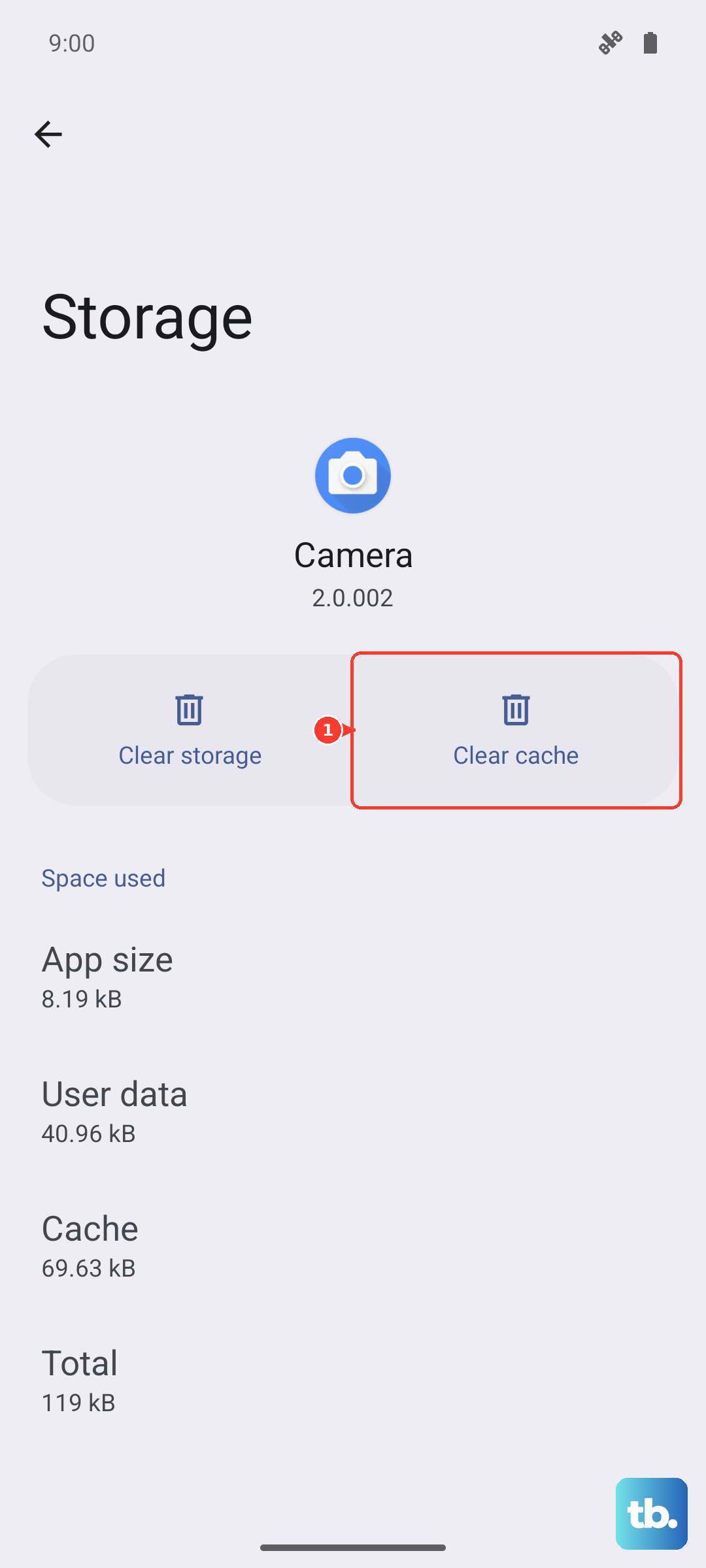
Over time, apps store temporary data (cache) to load faster. If this cache gets corrupted or too large, it can have the opposite effect and slow the app down. Clearing it is safe and won't delete your login info or personal data.
Go to Settings > Apps. Select an app that's been feeling slow, then tap "Storage." You'll see an option to "Clear cache." Do this for a few problematic apps, especially social media or browser apps.
Give It a Couple of Days
If your S25+ is fresh out of the box and feels slow, this is a critical step. After setup, the phone works hard in the background indexing files, optimizing apps, and learning your usage patterns. This process can take 24 to 48 hours.
During this time, you might notice some warmth and faster battery drain, which is normal. Plug it in overnight and let it sit on Wi-Fi. Very often, performance smooths out significantly once this background work is complete.
Check for Problematic Wi-Fi Connections
There have been some reports of the S25+ occasionally disconnecting from Wi-Fi 7 routers, which could make the phone feel slow as it struggles with network connectivity. If your lag seems tied to internet tasks, try this.
Go to your Wi-Fi settings, tap on your connected network, and select "Forget." Restart your router, then reconnect your phone to the network. As a test, you can also try switching your router to a Wi-Fi 6 mode temporarily to see if the connection stabilizes.
Reset All Settings
If you've tried everything and the lag persists, this is a stronger step. It will reset all your system settings (like Wi-Fi passwords, Bluetooth connections, and display preferences) back to default without touching your personal data, photos, or apps.
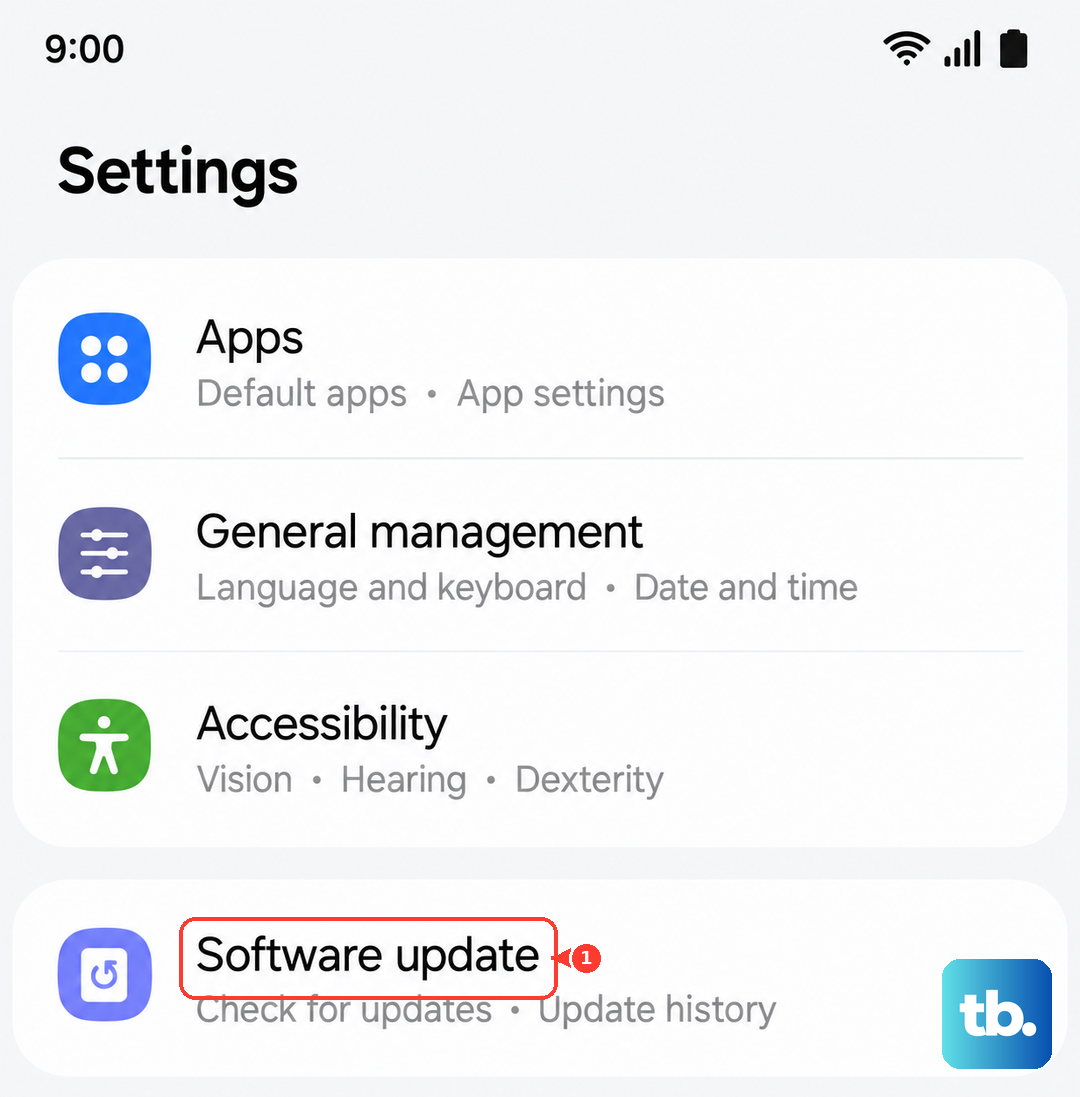
Open Settings > General management > Reset > Reset all settings. Enter your PIN or password if prompted, and confirm. You'll need to set up things like your wallpaper and ringtones again, but it can resolve deeper software conflicts causing slowdowns.