
When your Samsung Galaxy S25+ screen won't flip to landscape for videos or web browsing, it's usually a quick settings fix. The auto-rotate feature relies on your phone's sensors and software working together, and a small glitch can stop it.
I'd start by checking the quick settings panel. Swipe down from the top of your screen twice to open the full quick settings menu. Look for the icon that says "Portrait" or has a circular arrow around a phone.
If the icon is gray or says "Portrait," tap it. It should turn blue and say "Auto rotate." Try tilting your phone to see if the screen rotates now. This is the most common fix and takes about five seconds.
Enable Home Screen Rotation in One UI
By default, the S25+ home screen doesn't rotate, even with auto-rotate on. If you're trying to get your app icons to switch to landscape, you need to enable a separate setting.
Tap the text label "Portrait" or "Auto rotate" in your quick settings panel, not just the icon. This opens the rotation settings menu. Here, you'll see a toggle for "Rotate to Landscape Mode."
Switch this toggle on. Now, when you hold your phone sideways with auto-rotate enabled, your home screen and app drawer should also flip to a landscape layout.
Perform a Force Restart
If the setting is correct but rotation is still stuck, a force restart can clear out temporary software bugs. This is different from a normal restart and doesn't delete any data.
On the Galaxy S25+, press and hold the Volume Down button and the Side key (power button) at the same time. Keep holding them for about 10 seconds until you see the Samsung logo appear on the screen.
Release the buttons and let the phone reboot completely. This process can often resolve sensor hiccups that a standard restart might miss.
Check for App-Specific Rotation Locks
Some apps, especially video players or games, have their own internal rotation settings. If rotation works in your web browser but not in Netflix, for example, the issue is likely with that specific app.
Open the app that's having trouble and look for a rotation lock icon within its player or settings menu. You might also check the app's settings in your phone's main Settings app under Apps, then select the problematic app.
See if there's a display or rotation setting there. If the problem started after a recent app update, try clearing that app's cache from its storage settings.
Update Your Phone's Software
Occasional bugs in Android 15 or One UI 7 can affect sensor performance. Samsung regularly releases updates that include fixes for these kinds of issues.
Go to Settings > Software update > Download and install. If an update is available, make sure your phone is charged above 30% and connected to Wi-Fi before proceeding.
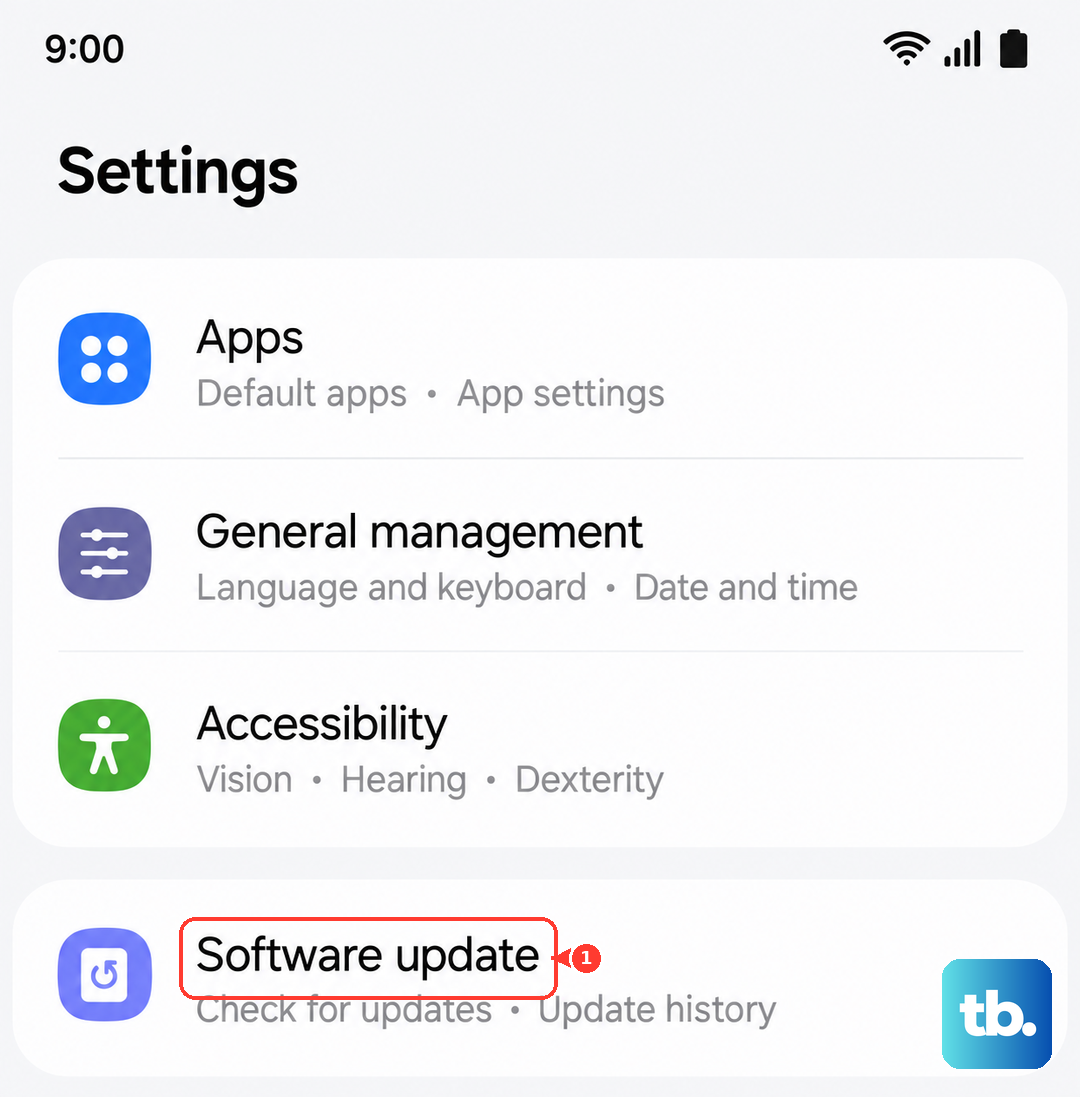
After the update installs and your phone restarts, test the auto-rotate function again. It's a good practice to keep your S25+ updated to avoid known glitches, like the occasional Wi-Fi 7 disconnection issue some users report.
Run a Sensor Diagnostic Test
Your S25+ has a hidden diagnostic menu that lets you test the accelerometer and gyroscope directly. This can tell you if there's a deeper sensor problem.
Open your Phone dialer and enter *#0*#. This will launch the secret test menu. Tap on the "Sensor" box from the grid of options.
On the sensor test screen, you'll see data for the x, y, and z axes. Slowly tilt and rotate your phone. If the sensors are working, the numbers should change smoothly in response to your movements.
Check for Physical Interference
Make sure you're not accidentally blocking the screen rotation with your hand. The touchscreen is very sensitive, and if your palm is resting on the edge of the display while you tilt, it can prevent the rotation.
Also, check if you have a very thick or poorly fitted case. In rare cases, a case can put pressure on the frame and interfere with the internal sensors. Try removing the case and testing rotation without it.
Ensure the screen is clean, as sometimes moisture or significant grime can cause unexpected touch input that the system interprets as you wanting to hold the screen in place.
Consider a Factory Reset as a Last Resort
If you've tried everything else and the sensors test fine, a software conflict might be the cause. Before this step, ensure you have a complete backup of your data.
Go to Settings > General management > Reset > Factory data reset. Tap "Reset" and follow the prompts. This will erase all your apps, accounts, and personal files, returning the phone to its out-of-box state.
After the reset, set up the phone minimally without restoring apps immediately. Test the auto-rotate function right away. If it works now, the issue was likely a conflicting app or corrupted system setting.