
When your Samsung Galaxy S25 stops ringing for incoming calls, it can leave you feeling disconnected. This issue on One UI 8 can stem from a misconfigured setting, a network hiccup, or a software bug. The fixes are usually straightforward, and you can often get your calls flowing again in just a few minutes.
Check the Basics First
Start with these quick actions. They resolve a surprising number of call reception problems on the Galaxy S25. First, pull down the Quick Settings panel from the top of your screen and make sure Airplane Mode is off. If it was on, toggle it off and wait a moment for the network to reconnect.
Next, perform a force restart. Press and hold the Volume Down button and the Side button together for about 10 seconds until you see the Samsung logo appear. This clears temporary glitches better than a standard restart. Also, check your signal bars; if you're in a basement or a rural area with poor coverage, calls may not come through.
Review Do Not Disturb and Focus Modes
One UI 7 has robust Focus Modes that can silence calls. Swipe down twice to open your full Quick Settings and look for the "Do Not Disturb" or "Focus" icon. If it's highlighted, tap it to turn it off. For a deeper check, go to Settings > Notifications > Do Not Disturb.
Look at the rules and schedules here. You might have a custom schedule enabled that's activating during your work hours. Also, check Settings > Digital Wellbeing and parental controls > Focus modes to see if any active mode is blocking call notifications.
Inspect Call Blocking and Spam Protection
Samsung's built-in spam protection is great, but it can sometimes be overzealous. Open your Phone app and tap the three-dot menu in the top right, then select Settings > Caller ID and spam protection. Here, you can review your block list to see if any important numbers were accidentally added.
You can also temporarily toggle off "Block spam and scam calls" to see if that's what's intercepting your incoming calls. I've seen this setting filter out calls from legitimate businesses that get flagged incorrectly.
Verify Your Network and SIM Card
Sometimes the issue is with your carrier, not your phone. Use another device to check your carrier's website or social media for reported outages in your area. If everything seems fine there, it's time to look at your SIM card.
Power off your S25 and use the SIM ejector tool to pop out the tray. Remove the SIM card, gently clean the gold contacts with a soft, dry cloth, and reinsert it firmly. Power the phone back on. If you have access to another compatible phone, testing your SIM card in it can tell you if the problem follows the card.
Reset Your Network Settings
This is a powerful step that clears all network-related configurations without touching your personal data. On your S25, navigate to Settings > General management > Reset > Reset network settings. Tap to confirm.
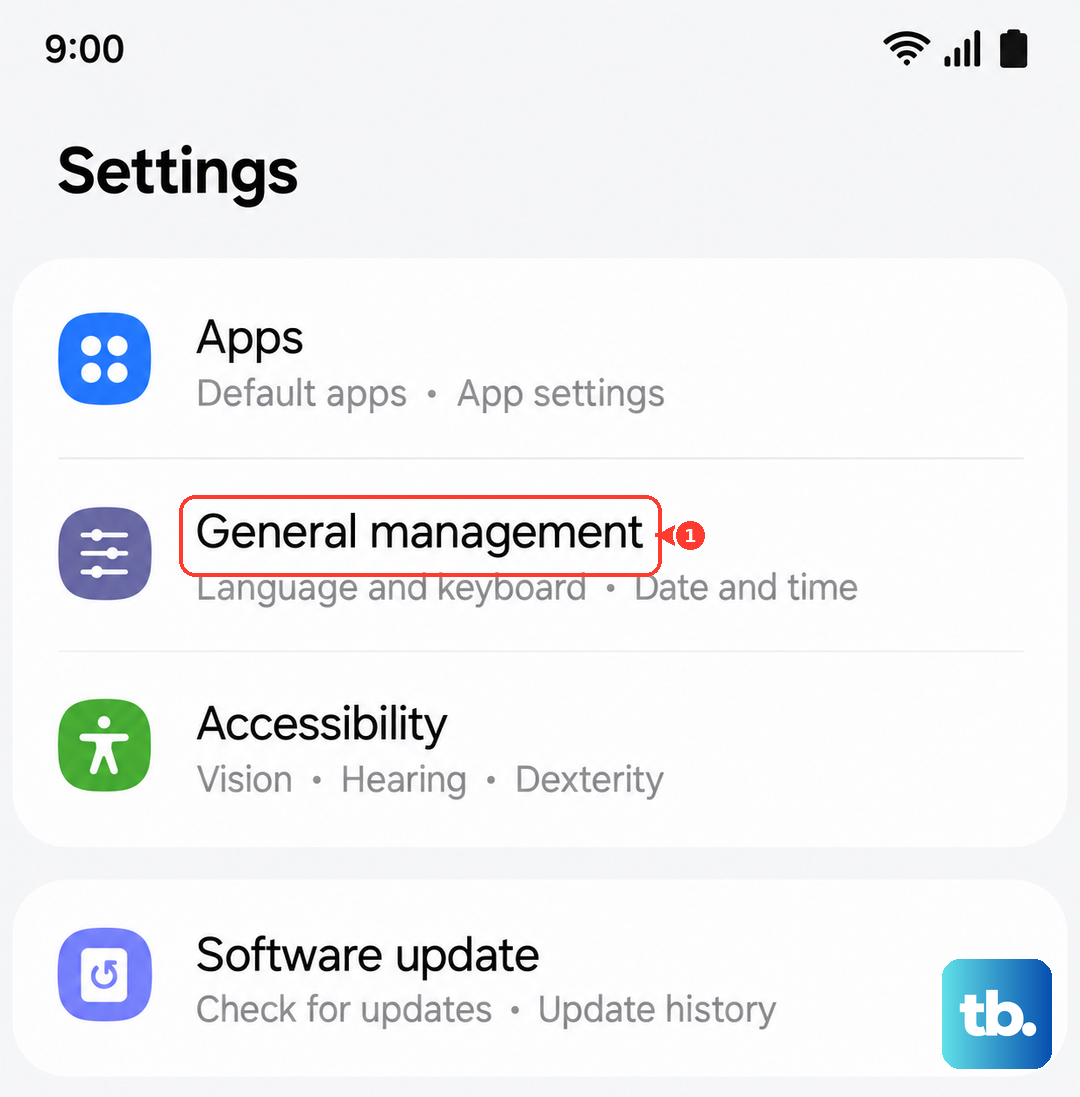
Be aware this will erase all saved Wi-Fi passwords, Bluetooth pairings, and mobile data preferences. Your phone will reboot and you'll need to reconnect to Wi-Fi networks and re-pair Bluetooth devices, but it often resolves persistent call and signal issues.
Check for Call Forwarding
Call forwarding could be silently sending your calls to another number or straight to voicemail. To check, open the Phone app and tap the three-dot menu. Go to Settings > Supplementary services > Call forwarding.
Look at each option (like "Always forward" or "When busy"). They should all be set to "Disable" or show your own number. If any are set to forward to a different number, that's likely why you're not receiving calls directly on your device.
Update Your Software
Outdated software can contain bugs that affect calling. Samsung regularly releases updates that fix these kinds of issues. Go to Settings > Software update > Download and install.
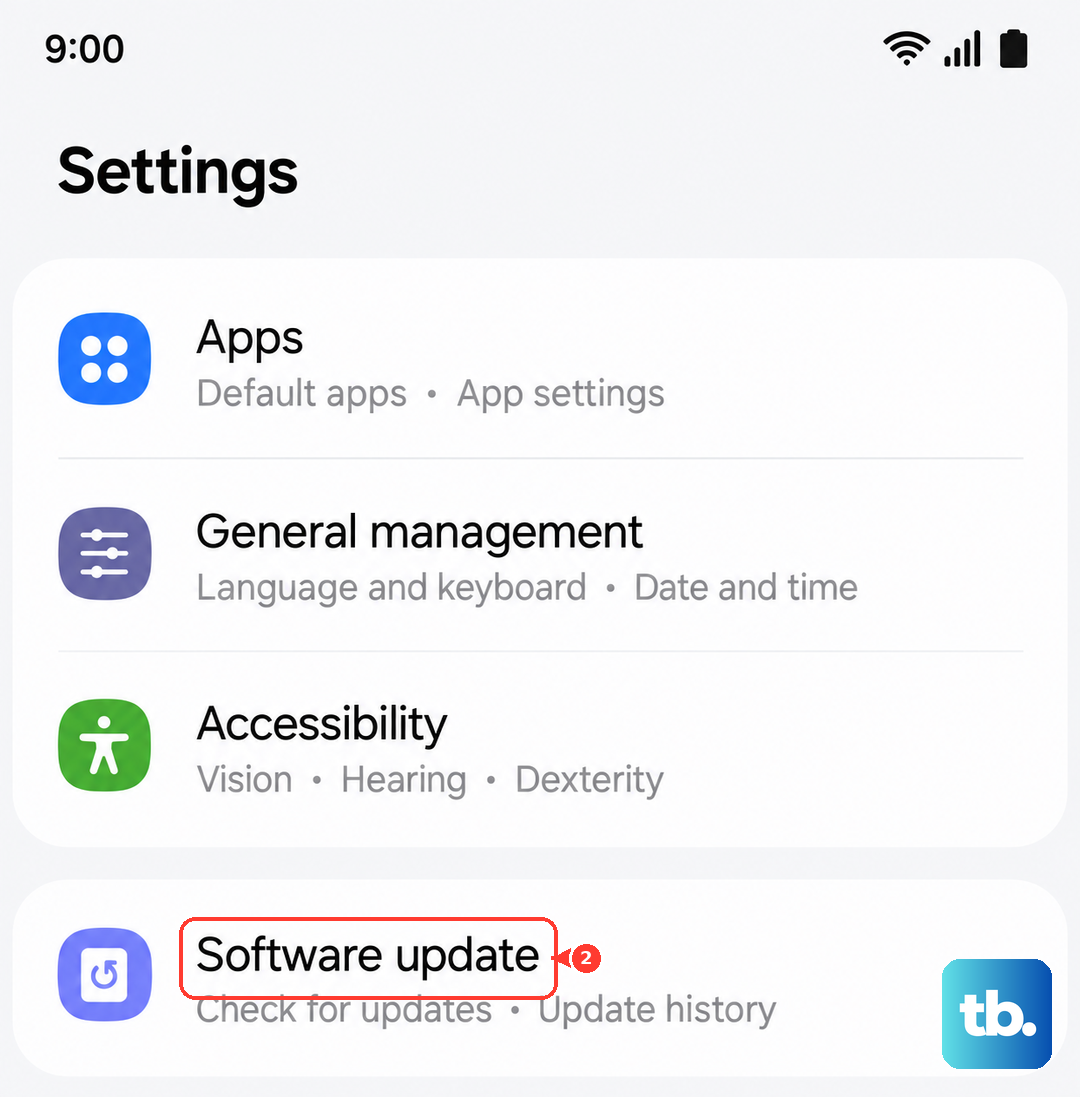
Let the phone check for updates. If one is available, connect to Wi-Fi and install it. I'd recommend doing this before moving on to more drastic steps, as a software patch is often the official fix for widespread calling problems.
Clear the Phone App's Cache and Data
The Phone app can accumulate corrupted temporary files. Go to Settings > Apps, then find and tap on "Phone" in the list. Select Storage and then tap "Clear cache." This is safe and won't delete your call history or contacts.
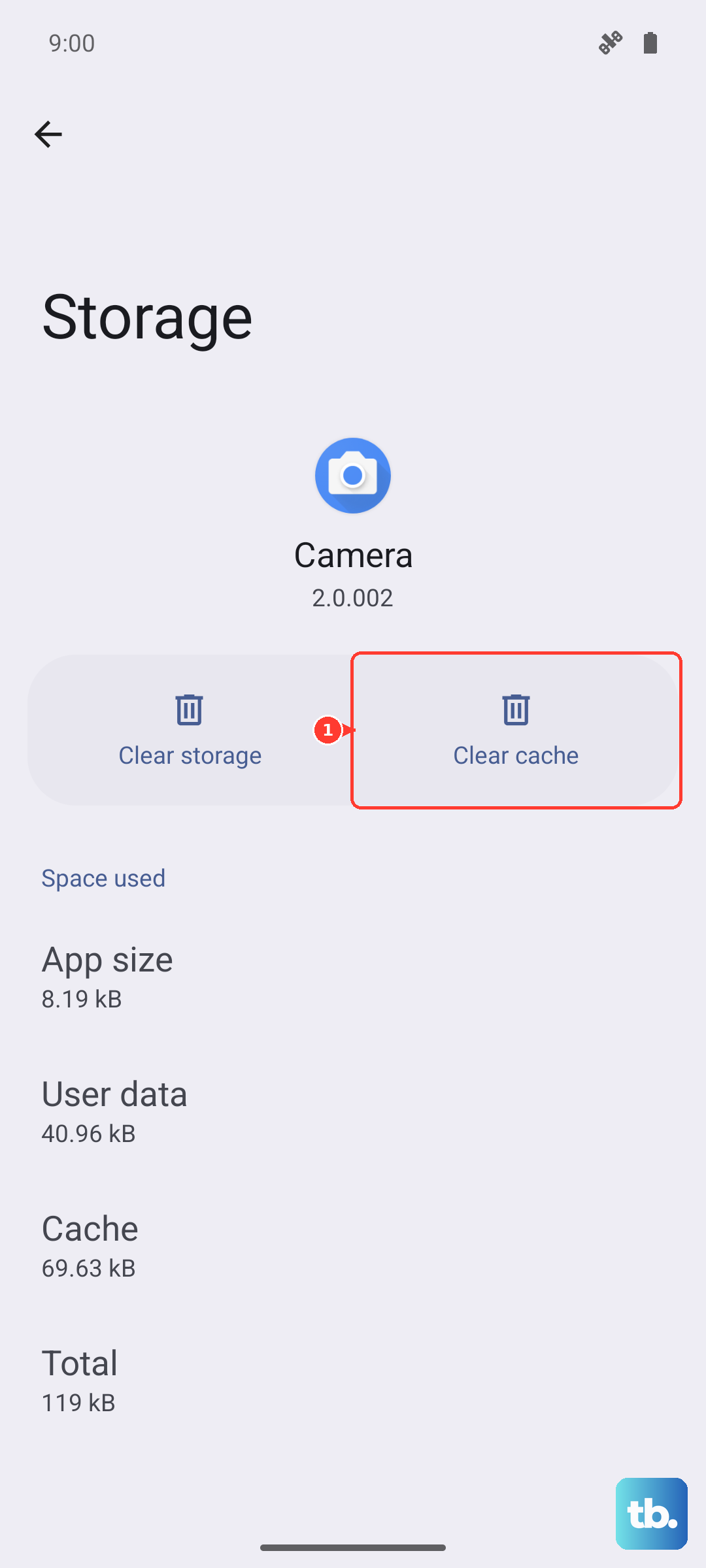
If the problem persists, you can go back and tap "Clear data." This is more thorough and will reset the app to its default state, so you may lose some in-app settings, but your core information is safe.
Review App-Specific Permissions
A recently installed app might be interfering with telephony services. Think about any new apps you added around the time the problem started. You can try booting your S25 into Safe Mode to check.
Press and hold the power button until the power menu appears. Then, tap and hold the "Power off" option until you see a prompt to reboot into Safe Mode. In this mode, all third-party apps are disabled. If you can receive calls normally here, a downloaded app is the culprit.
Contact Your Carrier for Advanced Support
If you've tried everything and calls still aren't coming through, your carrier can perform deeper checks. They can verify your line provisioning on their network, check for any account-level call bars, and reprovision your connection.
They may also suggest updating your network access point names (APN). You can find these settings at Settings > Connections > Mobile networks > Access Point Names. Your carrier can provide you with the correct details to enter if needed.