That "No SIM card" error on your Galaxy S25 can stop you in your tracks. It's usually something simple you can fix yourself, often in just a minute or two.
Let's start with the quickest things first. Swipe down from the top right of the screen to open the Quick settings panel, then tap the Airplane mode icon. Wait about ten seconds, then tap it again to turn it off. If your Notification and Quick settings panels are combined, swipe down from the top of the screen and open Quick settings from there.
If that doesn't do it, restart the phone. For a normal restart, press and hold the Side button and Volume down button for a few seconds, then tap Restart and confirm. If the phone is frozen, press and hold both buttons for about ten seconds until it turns off and the Samsung logo reappears.
Check Your SIM Card Settings
It's worth making sure your SIM hasn't been accidentally disabled in settings. Open Settings and go to Connections > SIM manager. Make sure the switch next to your active SIM or eSIM is turned on.
You can also check the network mode from Settings > Connections > Mobile networks > Network mode. Choose the auto-connect option that includes 5G and LTE, such as 5G/LTE/3G/2G (auto connect), if it is available for your SIM, carrier plan, and area.
Inspect and Clean the Physical SIM
Now, let's look at the SIM card itself. Power your S25 off completely. Find the SIM ejector tool that came in the box (a paperclip works in a pinch) and gently push it into the tiny hole on the SIM tray, usually on the bottom edge of the phone.
Carefully pull the tray out and remove the SIM card. Look closely at the gold-colored contacts. If you see any dust, lint, or a faint oily film, that's likely the culprit. Gently wipe the contacts with a clean, dry microfiber cloth.
While you have it out, take a quick look at the SIM tray slot inside the phone. Use a can of compressed air to give it a brief blast to dislodge any pocket lint. Blow on the SIM card itself too, then carefully reinsert it, making sure it's seated flush in the tray before sliding it back in.
Update Your Phone's Software
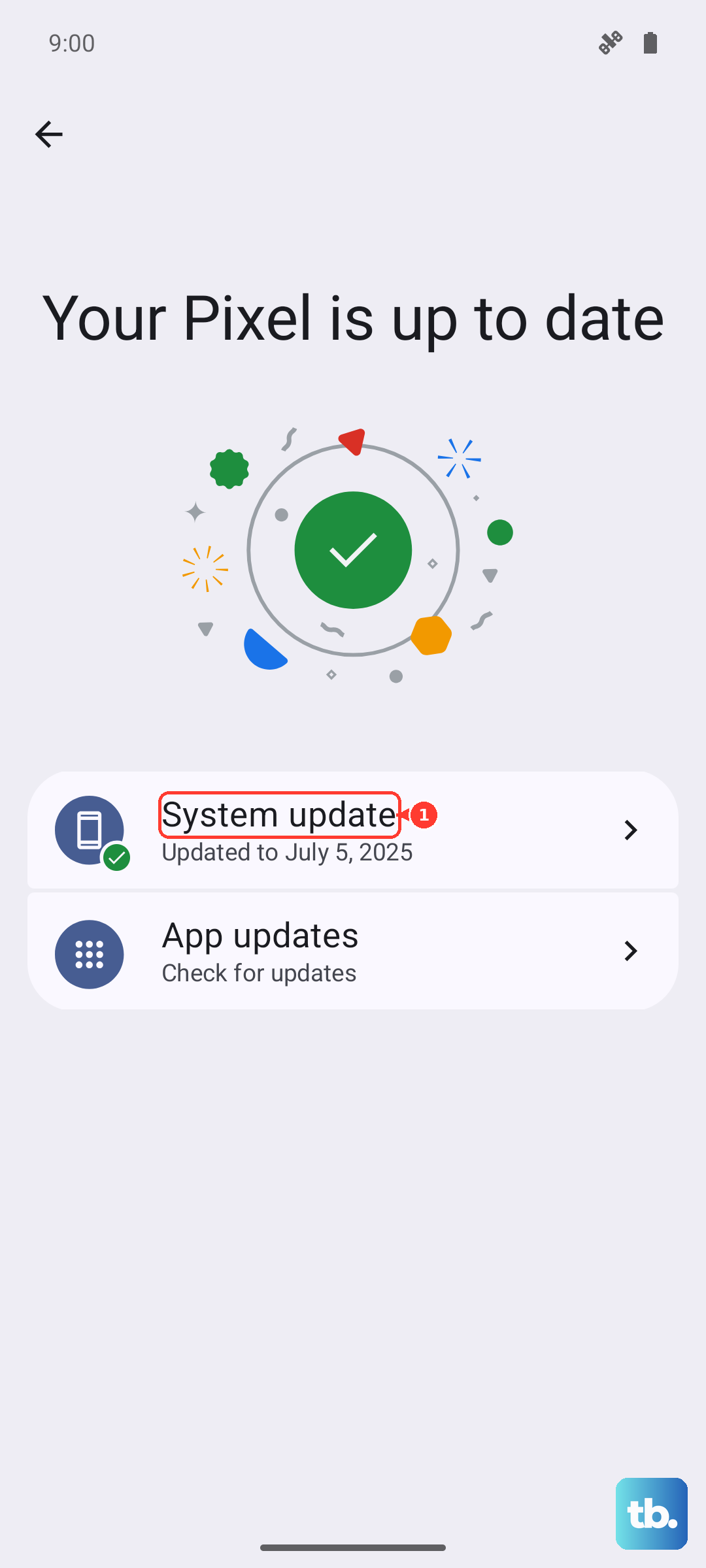
Software updates can include stability, carrier, and security fixes, so install any update that is available for your model and carrier.
Go to Settings > Software update and tap Download and install. If an update is available, follow the on-screen prompts to download and install it. Some carrier models may show an extra step such as Check for system updates or Check for software updates.
Reset Your Network Settings
This step resets the phone's mobile network settings without erasing your photos, messages, or apps. On current Galaxy software, Samsung separates the mobile network reset from the Wi-Fi and Bluetooth reset.
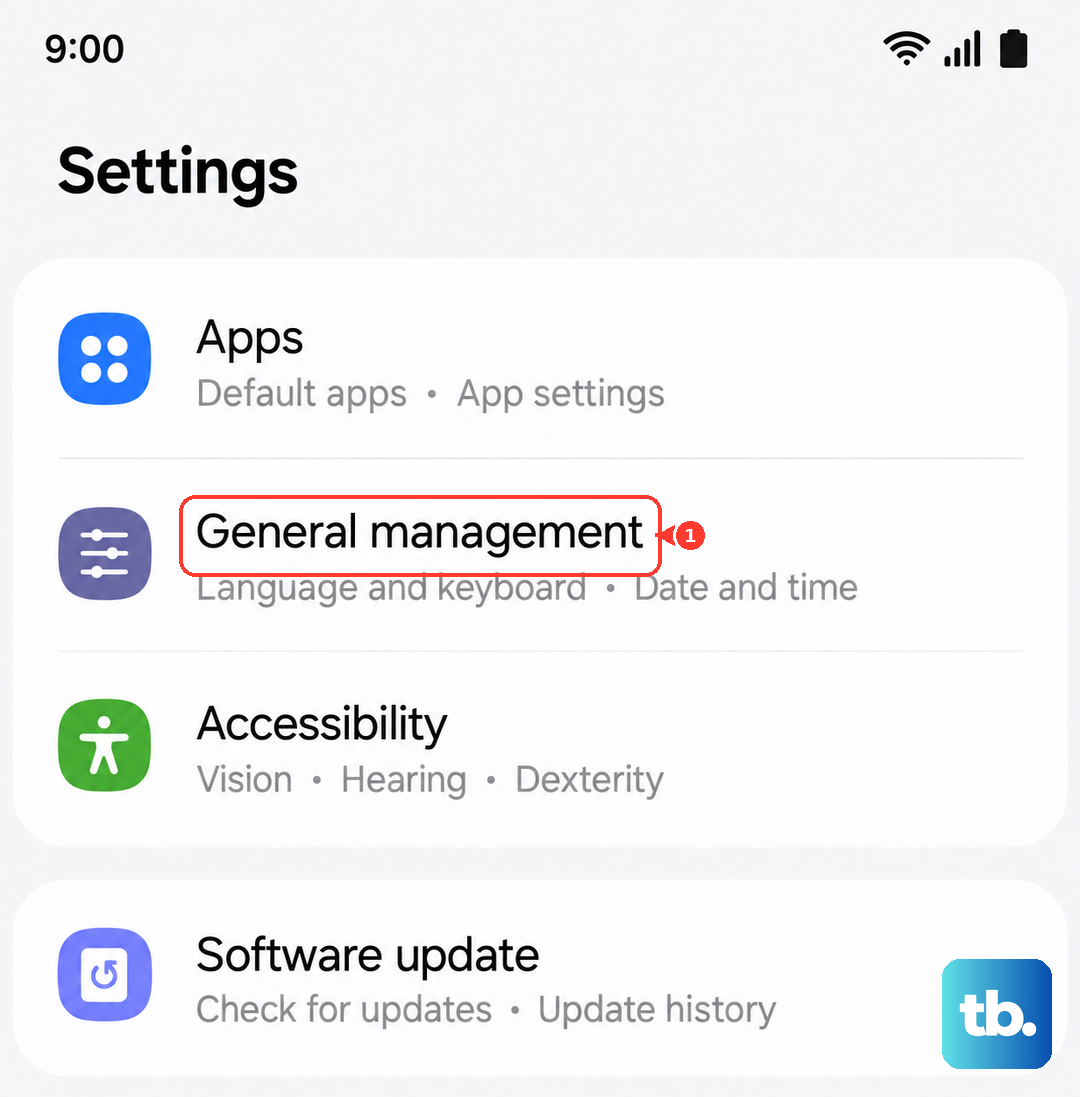
To do this, open Settings and go to General management > Reset > Reset mobile network settings. Tap Reset settings and confirm when prompted. If you also need to clear saved Wi-Fi networks or Bluetooth pairings, use Reset Wi-Fi and Bluetooth settings from the same Reset screen.
Clear the SIM Toolkit Cache
System apps that manage the SIM can accumulate corrupted cache data. You can clear this without any risk. Go to Settings > Apps. Tap the three-dot menu in the top right and select Show system apps.
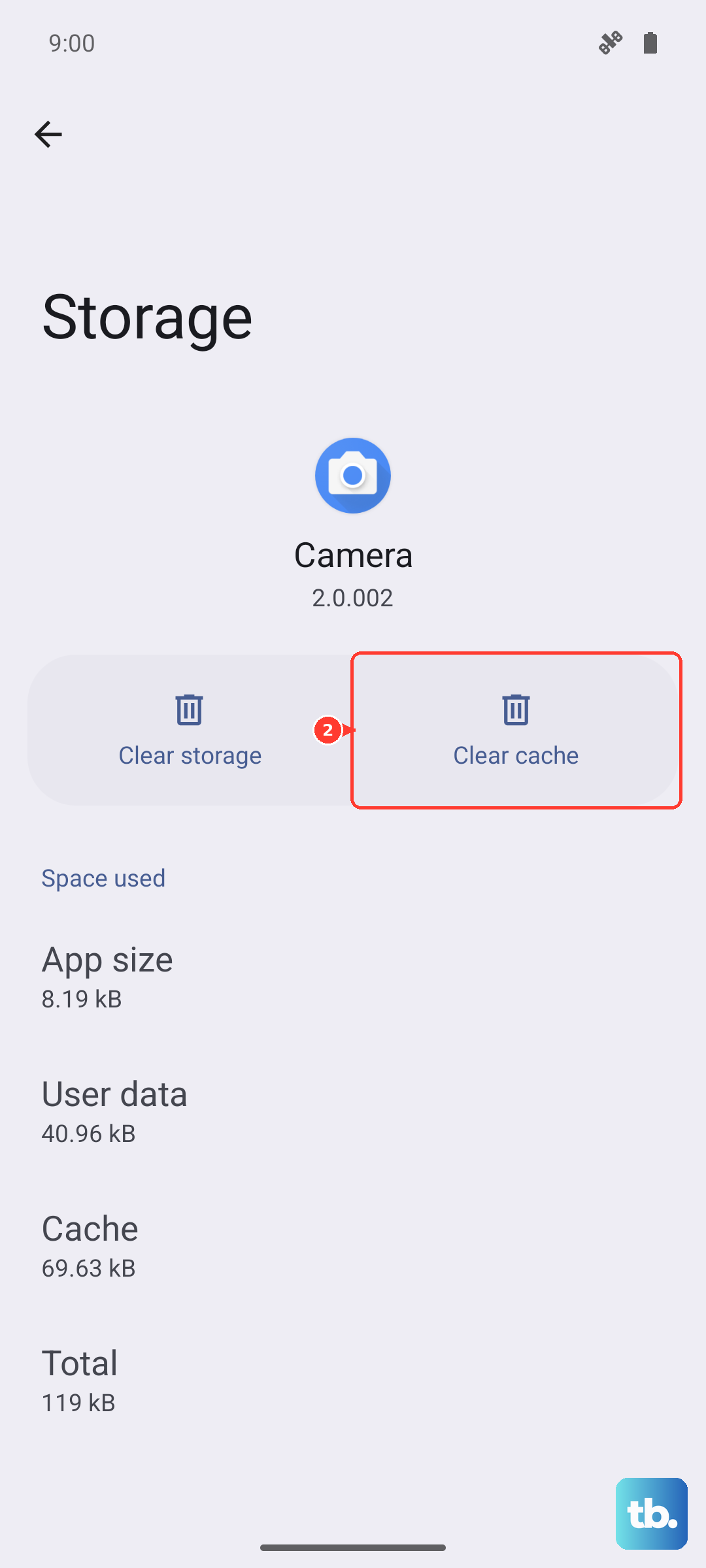
In the search bar, type "SIM". Find and tap on SIM Toolkit or SIM Application Toolkit. Go into Storage and tap Clear cache. Do the same for SIM Card Manager if you see it in the list.
Check and Reset APN Settings
Incorrect Access Point Name (APN) settings usually affect mobile data rather than physical SIM detection, but they are still worth checking if the phone sees the SIM and mobile data will not work. Go to Settings > Connections > Mobile networks > Access Point Names.
Tap More options (the three-dot icon) > Reset to default, then tap Reset. If prompted, select the SIM service and tap OK, then restart the phone.
Try Manual Network Selection
If automatic registration is failing, you can try manual network selection. Go back to Settings > Connections > Mobile networks.
Tap Network operators, then turn Select automatically off. When the carrier list appears, choose your carrier from the list. If your carrier does not appear or the phone still will not register, turn automatic selection back on and contact your carrier.
Test with an eSIM
The Galaxy S25 supports eSIM, though eSIM availability depends on your country and carrier. If the physical SIM tray or reader is suspect, contact your carrier and ask whether your line can be moved to eSIM.
Your carrier may use a QR code, carrier download, manual activation code, or the built-in conversion option. On the phone, start from Settings > Connections > SIM manager > Add eSIM. If your carrier supports direct conversion, select the SIM in SIM manager and use Convert to eSIM.
Consider a Factory Reset
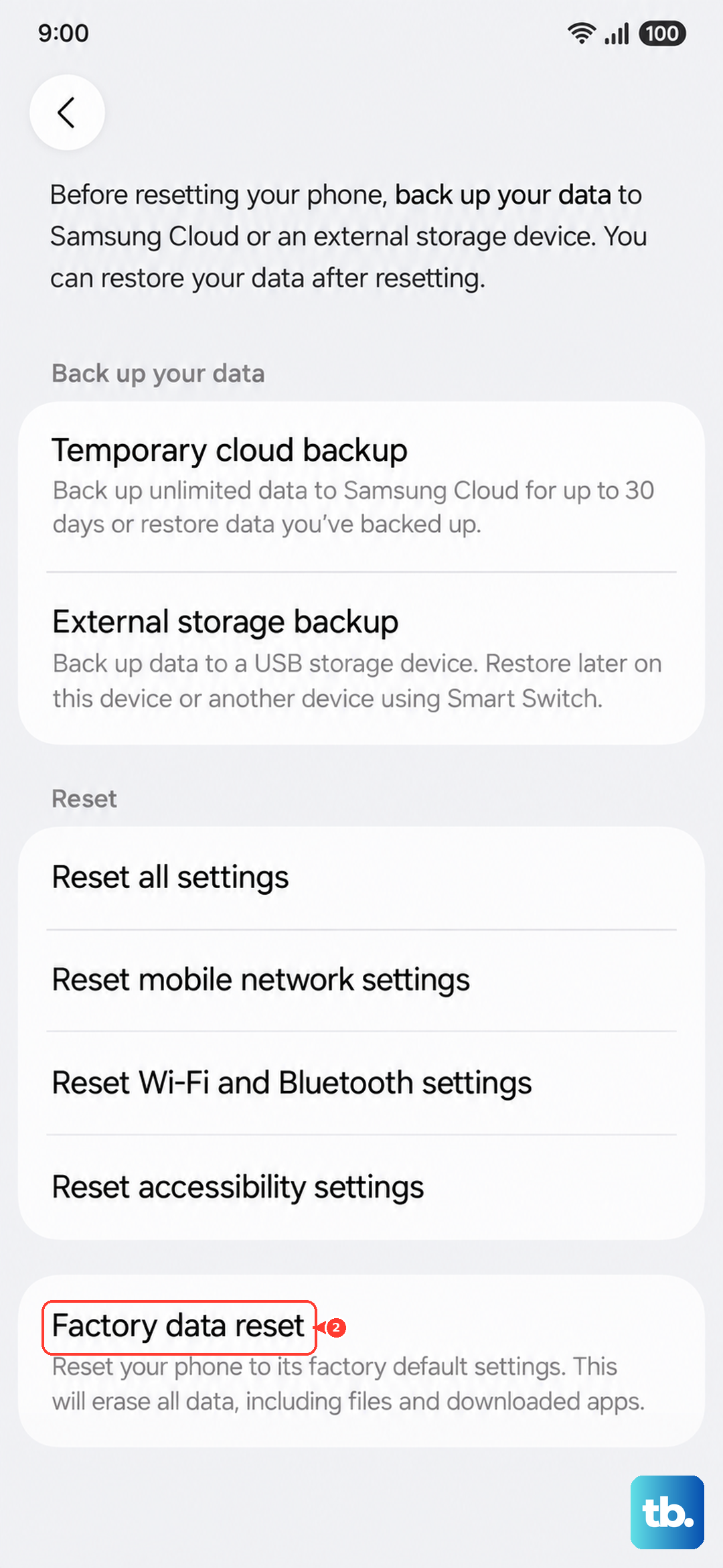
This is a last resort for software-related issues. A factory reset will erase all data on your phone, so you must back up everything important first using Samsung Cloud or a computer.
Once backed up, go to Settings > General Management > Reset > Factory data reset. Follow the prompts. After the reset, set up the phone as new initially to see if the SIM is detected before restoring your backup.