
When your Samsung Galaxy S25 microphone stops picking up your voice, it can turn simple phone calls into a frustrating game of charades. The issue might be with the phone itself, or it could be a specific app acting up. Before we jump into fixes, let's quickly figure out where the problem is.
To separate a hardware fault from a settings problem, try a mic test in your browser. Record a few seconds and play it back, and you will know exactly what you are dealing with.
Test Your Galaxy S25 Microphone
Open your Voice Recorder app. It's a great built-in tool for this. Tap the record button, speak a few sentences, and then play it back. If your voice sounds clear, the main microphone is likely fine and the issue is app-specific.
If the recording is muffled or silent, try making a regular phone call. Ask the person on the other end if they can hear you. You can also try using Bixby by pressing and holding the Side button. If Bixby doesn't respond, it points to a wider microphone problem.
Check for Physical Blockages First
The S25 has several microphone holes. You'll find the primary one at the bottom next to the USB-C port, another small pinhole at the top of the frame, and one on the back near the camera array. Take a close look at these.
Dust, pocket lint, or even a tiny bit of debris from a case can easily block these openings. I'd start by gently blowing into the bottom port or using a can of compressed air to clear it out. Be careful not to insert anything metallic.
Also, remove your phone case. Some cases, especially rugged ones with port covers, can misalign and cover the microphone holes without you realizing it. Test the microphone again with the case off.
Disconnect Bluetooth and Audio Accessories
If you have Galaxy Buds, a smartwatch, or any Bluetooth headphones connected, your phone might be trying to use their microphone instead. This is a very common hiccup.
Swipe down from the top of your screen to open the Quick Settings panel and tap the Bluetooth icon to turn it off temporarily. Now try your voice recorder or a call again. If that fixes it, you know the issue was with audio routing.
Restart Your Phone
A simple restart clears out temporary glitches that can affect hardware like the microphone. Just press and hold the Side button and Volume Down button together, then tap "Restart" on the screen.
If your screen is frozen and you can't access the menu, you can force a restart. Press and hold the Volume Down button and the Side button for about 10 seconds until you see the Samsung logo appear.
Review App Permissions in One UI 7
In Android 15 with One UI 7, apps need explicit permission to use your microphone. If an app like WhatsApp, Zoom, or Instagram can't hear you, this is the first place to check.
Go to Settings > Privacy > Permission manager. Tap on "Microphone" here. You'll see a list of all your apps. Find the app that's having trouble and make sure the permission is set to "Allow" and not "Deny."
Update Your Software
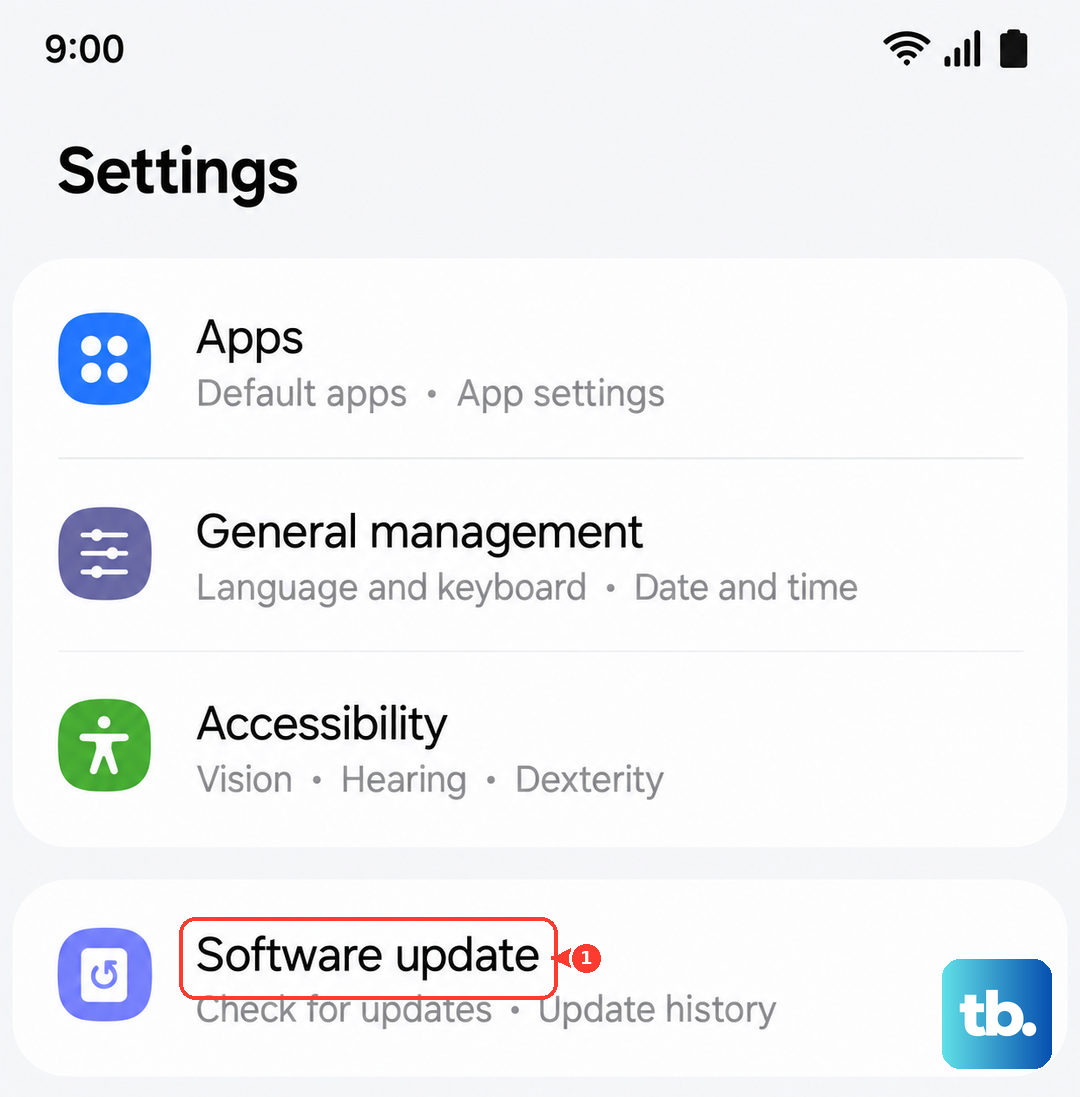
Samsung regularly releases updates that fix bugs, including audio and microphone issues. It's worth checking if you're running the latest version of One UI.
Head to Settings > Software update and tap "Download and install." If an update is available, let it install completely. Your phone will restart, and it's a good idea to test the microphone again afterward.
Clear the App's Cache and Data
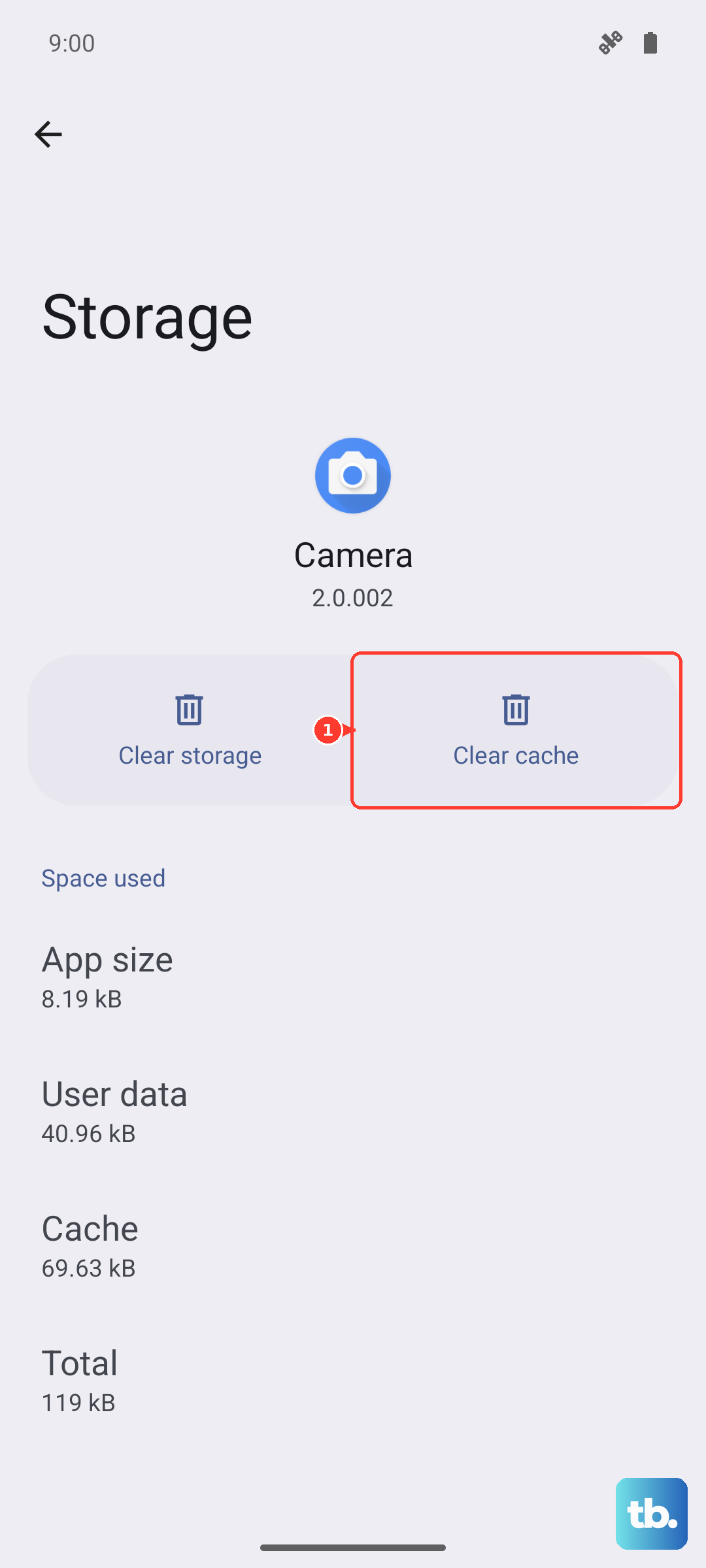
If only one app has microphone problems, its stored data might be corrupted. Clearing the cache is safe and won't delete your login info or personal data within the app.
Go to Settings > Apps, select the problematic app, and then tap "Storage." Choose "Clear cache" first and test the app. If the issue persists, you can try "Clear data," but be aware this will reset the app to its default state, so you might need to log in again.
Check for Sound Settings and Adaptations
Samsung includes several audio enhancement features that can sometimes interfere. Go to Settings > Sounds and vibration > Sound quality and effects.
Look for any settings like "Adapt sound" or "UHQ upscaler" and try turning them off temporarily to see if it makes a difference. You can also try disabling "Dolby Atmos" from the Quick Settings panel as a test.
Reset All Settings
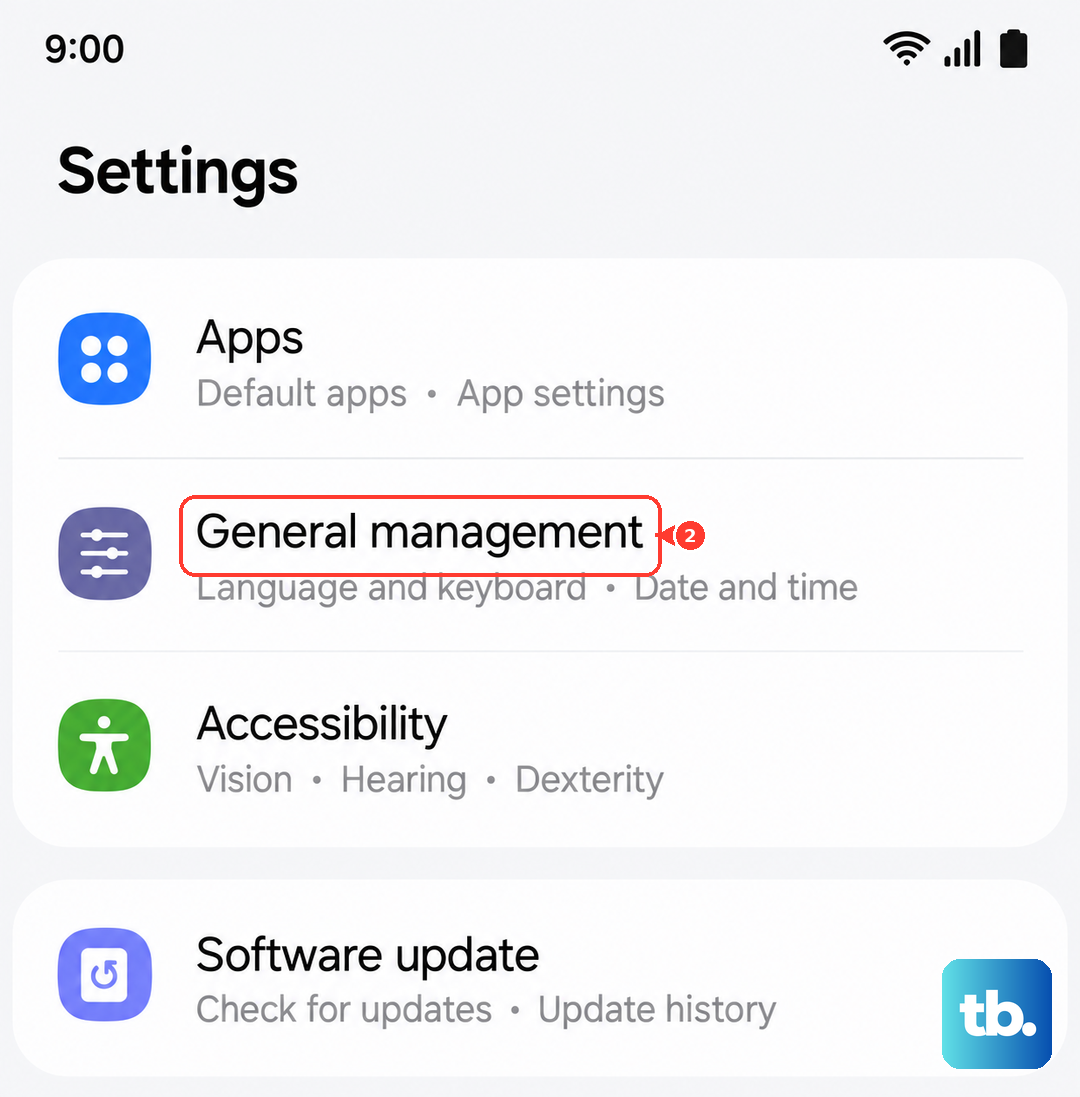
This is a more thorough step that resets all your system settings (like Wi-Fi passwords, Bluetooth connections, and display preferences) back to default without touching your personal photos, messages, or apps.
Go to Settings > General management > Reset > Reset all settings. Enter your PIN if prompted and confirm. After the phone reboots, you'll need to reconfigure your preferences, but it can resolve conflicts causing hardware issues.
Boot into Safe Mode
Safe mode temporarily disables all third-party apps you've downloaded. If the microphone works perfectly in safe mode, you know a recently installed app is causing the conflict.
To enter safe mode, press and hold the Side button until the power off menu appears. Then, press and hold the "Power off" option on your screen. It will ask if you want to reboot to safe mode. Tap "OK."
Test your microphone here. If it works, restart your phone normally to exit safe mode. You may need to uninstall apps one by one to find the culprit, starting with any recent audio or recorder apps.