
If your Samsung Galaxy S25 FE is taking forever to load web pages or buffer videos, the issue is almost always in your settings or network. I'd start by checking your mobile data mode, as that's a common culprit on this model.
Go to Settings > Connections > Mobile networks > Network mode. Make sure it's set to "5G/LTE/3G/2G (auto connect)" for the fastest available speed. If you're in an area with spotty 5G, you can manually select "LTE/3G/2G (auto connect)" for a more stable connection that often feels faster.
Clear Your Browser's Cache and Data
Your browser stores temporary files to speed up return visits to websites. Over time, this cache can get bloated or corrupted, which actually slows things down. Clearing it gives you a fresh start.
For Samsung Internet, open the app and tap the three-line menu. Go to Settings > Privacy and security > Delete browsing data. Check the boxes for "Cached images and files" and "Site data," then tap delete. If you use Chrome, the path is similar: open Chrome, tap the three-dot menu, then go to History > Clear browsing data.
Enable Data Saver and Adaptive Battery
Background apps constantly syncing data can choke your bandwidth. The S25 FE's Data Saver feature is great for stopping that. Head to Settings > Connections > Data usage > Data Saver and toggle it on. This will restrict background data for most apps.
While you're managing performance, enabling Adaptive Battery can help too. It learns your usage patterns and limits power to apps you don't use often, which can free up system resources for your current tasks. Find it under Settings > Battery > More battery settings.
Use Intelligent WiFi Features
Samsung's software includes some smart features to keep you on the best network. Go to Settings > Connections > WiFi and tap the three-dot menu, then select "Intelligent WiFi." Here, you can toggle on "Switch to mobile data."
When this is on, your phone will automatically use your cellular connection if the WiFi you're on becomes painfully slow or drops out. It's a seamless way to avoid those loading wheels.
Check for App-Specific Problems
Sometimes the slowdown is just one app. If a particular app like Instagram or Facebook is loading slowly, try clearing just its cache. Go to Settings > Apps, select the problematic app, then tap "Storage." You'll see an option to "Clear cache." This deletes temporary files without touching your login info or saved data.
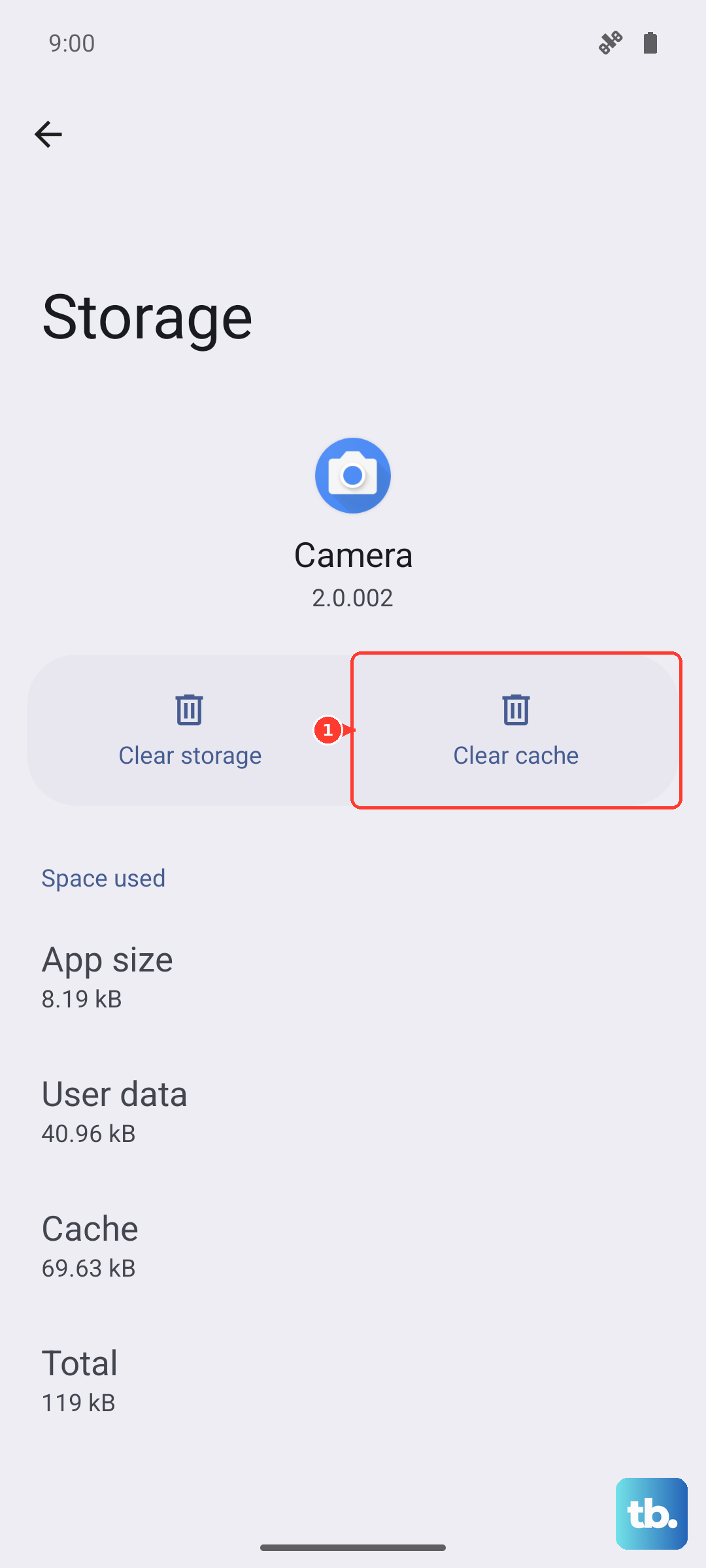
Also, check if the app has high background activity. From the same app info screen, tap "Battery." If it shows "Background usage," you can tap "Background restriction" and set it to "Restricted" to prevent it from running when you're not using it.
Reset Your Network Settings
If you're still dealing with laggy internet after trying the steps above, a network settings reset is a strong next move. This will erase all saved WiFi networks, Bluetooth pairings, and mobile data preferences, so you'll have to reconnect to everything.
To do this, go to Settings > General management > Reset > Reset network settings. Tap to confirm. After your phone reboots, reconnect to your WiFi and test your speed again. This often clears up obscure software glitches affecting the modem.
Manage Your Mobile Data Connection
The Exynos 2400 chip in the S25 FE is powerful, but it can run warm during heavy, sustained use like gaming or long video calls. When the device gets hot, the system may throttle performance, including network speeds, to cool down. If your phone feels warm and the internet is slow, give it a break to cool off.
Also, consider turning off 5G when you don't need the absolute top speed. You can do this by going back to Settings > Connections > Mobile networks > Network mode and selecting "LTE/3G/2G (auto connect)." LTE is plenty fast for most tasks and uses less battery, which can help keep temperatures in check.
Perform a Software Update
Software updates frequently include modem firmware improvements and bug fixes that can directly impact network stability and speed. It's worth checking if you're running the latest version.
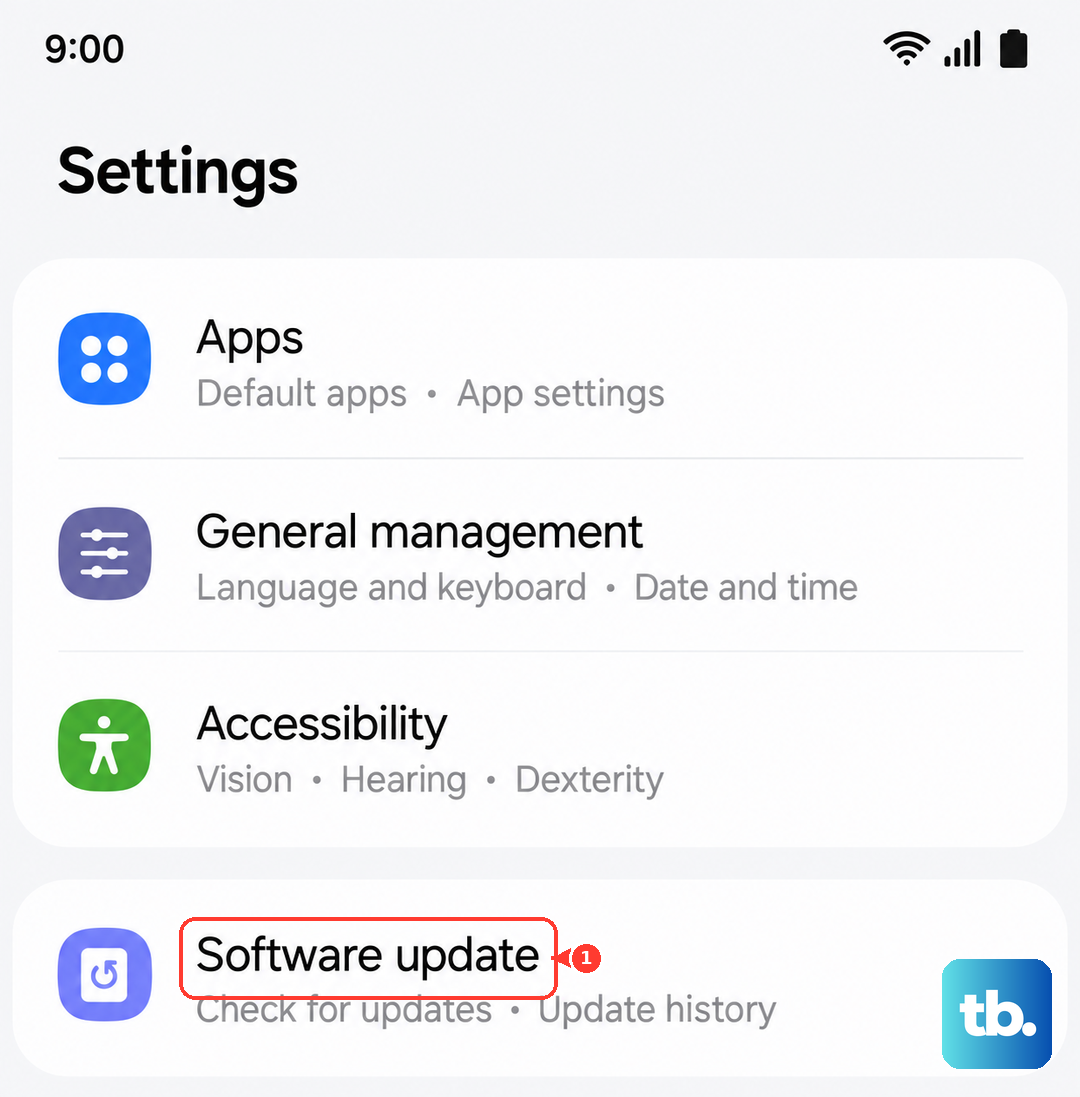
Go to Settings > Software update > Download and install. If an update is available, I'd recommend installing it while connected to a stable WiFi network. There have been occasional reports of display flicker after updates, but a subsequent update usually resolves it, so staying current is key.
Give Your Phone a Fresh Start
When all else fails, a force restart can clear out temporary system glitches that a normal power cycle might miss. For the Galaxy S25 FE, press and hold the Volume Down button and the Side key (power button) together for about 10 seconds. Release when you see the Samsung logo.
This is different from a factory reset. It simply reboots the phone's hardware and can resolve a surprising number of intermittent issues, including sluggish data connections.