
If your Samsung Galaxy S25 FE has gone quiet, missing alerts for texts, emails, or apps, it's a problem that needs a quick fix. Notifications are the lifeline of your phone, and when they stop, you can miss important stuff. Let's get them working again.
The first thing I'd try is a simple force restart. It's the go-to move for any weird phone behavior. Just press and hold the Volume Down button and the Side button together for about ten seconds. Keep holding until you see the Samsung logo appear on the screen. This refreshes the system without touching any of your data.
Check Do Not Disturb and Focus Modes
It sounds obvious, but it's the most common culprit. Swipe down twice from the top of your screen to open the Quick Settings panel. Look for the Do Not Disturb icon, it looks like a circle with a line through it. If it's highlighted, tap it to turn it off.
Also, check if any Modes or Routines are active. Go to Settings > Modes and Routines. If a mode like "Sleep" or "Work" is running, it might be blocking notifications. You can either turn the mode off or tap on it to customize which apps can notify you while it's active.
Review App-Specific Notification Settings
Android 15 and One UI 7 give you granular control, but sometimes an app's notifications get turned off by mistake. Open Settings > Notifications > App notifications. Here you'll see a list of all your apps.
Find the app that's not alerting you, like Gmail or Messages, and tap on it. Make sure the toggle at the top is set to "On." Then, check the types of notifications below, like "Inbox notifications" or "New messages", and ensure they are also enabled and set to make a sound or vibrate.
Ensure Background Data and Battery Permissions
To save battery, Android can restrict what apps do in the background. If an app is put to "sleep" or "deep sleeping," it won't check for new messages. Go to Settings > Apps, select the problematic app, and then tap Battery.
Set the background usage to "Unrestricted." This tells your S25 FE to let the app run normally even when you're not actively using it. While you're here, it's a good idea to turn on Adaptive Battery in your main battery settings. It learns your usage patterns and won't restrict the apps you use most often.
Clear the Cache for the Problem App
Corrupted temporary files can break an app's notification function. Clearing the cache is a safe first step. Go back to Settings > Apps, select the app, and tap Storage. Hit "Clear cache." This doesn't delete any of your personal data, login info, or messages. It just cleans out the temporary junk.

If that doesn't work, you can try "Clear data" on the same screen, but be warned: this will reset the app to its freshly installed state. You'll likely need to log back in and reconfigure any settings within that app.
Check for Software Updates
Glitches with notifications are often fixed in system updates. Samsung is pretty good about pushing out patches. Go to Settings > Software update > Download and install. If an update is available, install it. It's a good practice to plug your phone in or make sure it has plenty of battery before starting.
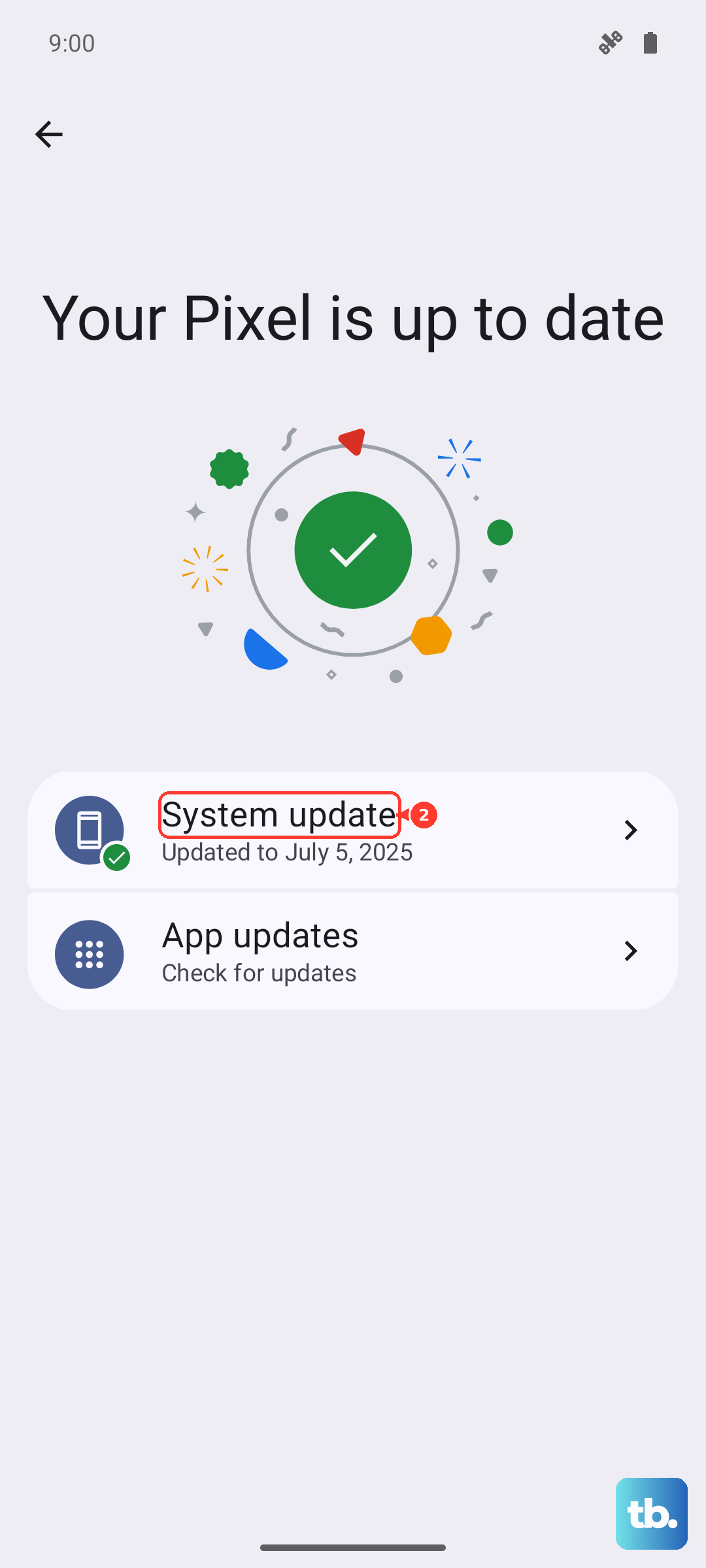
After the update completes, your phone will restart. Give it a few minutes to settle, then test if your notifications are coming through. Updates can sometimes introduce minor bugs, but they more frequently resolve them.
Reset App Preferences
This is a broader fix that resets all your app-related system settings without deleting any app data. It will revert permissions, background restrictions, and notification settings back to default for all apps. You'll have to re-allow permissions the next time you use each app.
To do this, go to Settings > Apps > Menu (three dots) > Reset app preferences. Tap reset to confirm. This is a very useful step if you're having issues with multiple apps, not just one.
Inspect Notification Channels and Categories
For apps like Discord, Slack, or email clients, there are often sub-categories of notifications. You might have muted a specific channel or sender by accident. The best way to check is to go into the app's own settings menu.
Look for a section called "Notifications" or "Alert settings." Inside, you can see all the different types of alerts the app can send and make sure the ones you want are enabled. Sometimes you swipe a notification away and tap "silence" without realizing it.
Disable Any Battery Saving Modes
Power saving modes, including the standard "Power saving" and the more aggressive "Adaptive power saving," limit background activity. While great for extending battery life, they can delay or block notifications. Pull down your Quick Settings panel and make sure no battery saver icon is active.
For a more permanent solution if you need notifications, go to Settings > Battery > Power saving. You can adjust the settings here or just turn the feature off completely. Remember, you can always turn 5G off in your connection settings to save battery without crippling notifications.
Clear the System Cache Partition
This clears temporary system files that can cause all sorts of issues, including notification hiccups. The process is a bit different than just restarting. First, turn off your Galaxy S25 FE completely.
Now, press and hold the Volume Up button and the Side button at the same time. Keep holding them both as you connect your phone to a computer or a charger with a USB-C cable. When you see the Android Recovery screen, let go of the buttons.
Use the Volume Down button to highlight "Wipe cache partition." Press the Side button to select it. Then, highlight "Yes" and press the Side button again. Once it's done, select "Reboot system now."
Review Sound and Vibration Settings
Finally, let's make sure the basics are set. Go to Settings > Sounds and vibration > Volume. Ensure the Notification volume slider is turned up. You can also check Settings > Sounds and vibration > Notification sounds to make sure a specific sound is selected and isn't set to "Silent."
If your phone is running warm, perhaps from gaming or being in a hot environment, the system might throttle performance. This is a known behavior with the Exynos chip. Let it cool down, as extreme heat can sometimes cause temporary system instability that might affect background services.