
Missing calls on your Samsung Galaxy S25 FE can be a real headache, especially when you're expecting something important. The phone might vibrate or just light up the screen without making a sound. Let's get straight to the most common fix first.
Pull down the Quick Settings panel from the top of your screen and look for the sound mode icon. If you see a speaker with a slash through it or the word "Mute," tap it to switch back to "Sound" or "Vibrate" mode. You can also quickly press the Volume Up button on the side to ensure your ringtone volume isn't set to zero.
Check Do Not Disturb and Modes
One UI's Modes and Routines (formerly Bixby Routines) and Do Not Disturb are powerful but can silence calls if they're active. Swipe down twice to open your full Quick Settings panel and look for the Do Not Disturb icon, which looks like a circle with a line through it.
If it's highlighted, tap it to turn it off. For a deeper check, go to Settings > Modes and Routines. Here, you'll see any active modes like Sleep, Driving, or Work. Tap into each one and make sure the "Mute notifications and sounds" option isn't enabled, or simply turn the mode off entirely.
Adjust Your Volume and Ringtone
On your S25 FE, there are separate volume sliders for media, notifications, and ringtones. When you press the volume buttons, make sure you've selected the ringtone slider by tapping the three-dot menu that appears. Slide it all the way up.
You can also go to Settings > Sounds and vibration > Volume to adjust each slider manually. While you're there, tap on "Ringtone" and try selecting a different default tone. Sometimes a corrupted or custom audio file can cause the phone to default to silence.
Review App-Specific Sound Settings
Samsung's phone app has its own notification settings that can override the system. Open the Phone app, tap the three-dot menu in the top right, and go to Settings > Notifications.
Ensure notifications are turned on for "Incoming calls." Tap into that category and verify that "Sound" is enabled and set to a tone you can hear. Also, check the "Notification categories" within the Phone app settings to make sure nothing is muted.
Disconnect Bluetooth Accessories
If your S25 FE is connected to a smartwatch, wireless earbuds like Galaxy Buds, or a car stereo, incoming call audio might be routed there. Pull down the Quick Settings panel and tap the Bluetooth icon to turn it off temporarily, then have someone call you to test.
You can also check connected devices by going to Settings > Connections > Bluetooth. If you want to keep Bluetooth on but prevent calls from going to a specific device, tap the gear icon next to that device and turn off the "Calls" audio option.
Check for Blocked Numbers and Call Forwarding
Open the Phone app and tap the three-dot menu, then go to Settings > Block numbers. See if the number trying to reach you has been accidentally added to the list. You can also check if "Block unknown callers" is enabled, which silences calls from numbers not in your contacts.
Call forwarding is another setting to verify. In the Phone app settings, tap Supplementary services > Call forwarding. Make sure all forwarding options, like "Always forward" or "When busy," are set to "Disable."
Examine Focus-Assist Features
Beyond Do Not Disturb, Samsung has features designed to minimize interruptions. Go to Settings > Notifications > Do not disturb. Look at the "Schedules" to see if one is active based on time or location.
Also, check Settings > Notifications > Advanced settings > Hide notifications while screen is on. If this is enabled, your phone won't show or play sounds for calls when you're actively using it, which might be the issue if you're missing calls while browsing.
Restart Your Galaxy S25 FE
A simple restart clears out temporary glitches in the system software that could be interfering with the sound service. Press and hold the Side key and Volume Down button together for about ten seconds until you feel a vibration and see the Samsung logo.
This force restart method works even if the screen is frozen. I'd do this after trying the volume and mute checks, as it's a quick fix for many random software hiccups.
Update Your Software
Software updates for Android 15 and One UI 7 often include bug fixes for issues just like this. Connect to Wi-Fi, then go to Settings > Software update > Download and install.
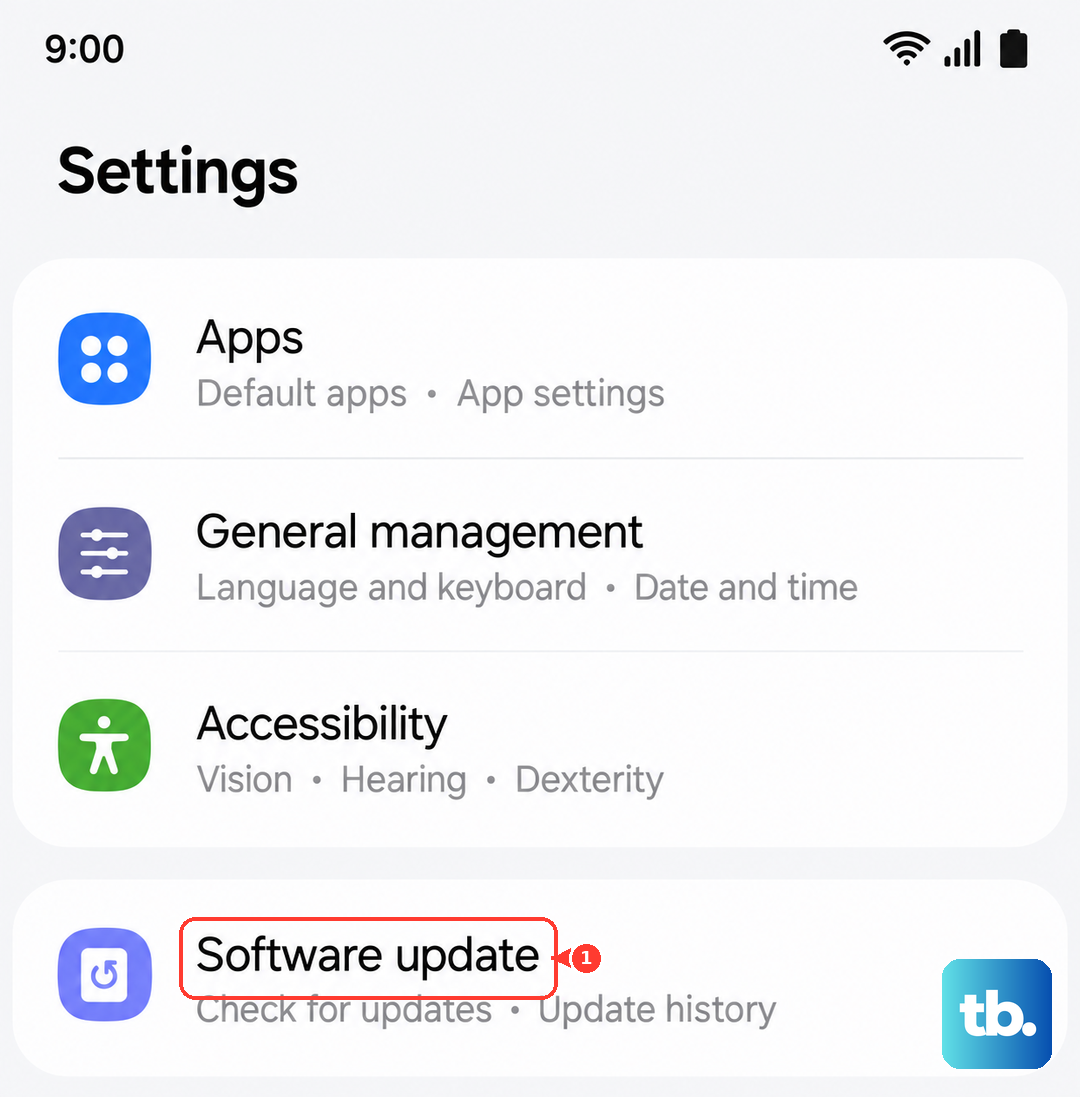
Make sure your battery is above 30% before starting. If an update is available, install it and test your ringtone afterward. Some users have reported occasional audio or display glitches after updates that are resolved by subsequent patches.
Reset App Preferences or Network Settings
If the problem seems linked to the Phone or Contacts app, you can reset app preferences without losing your data. Go to Settings > Apps, tap the three-dot menu, and select Reset app preferences. This resets notification settings and default app assignments.
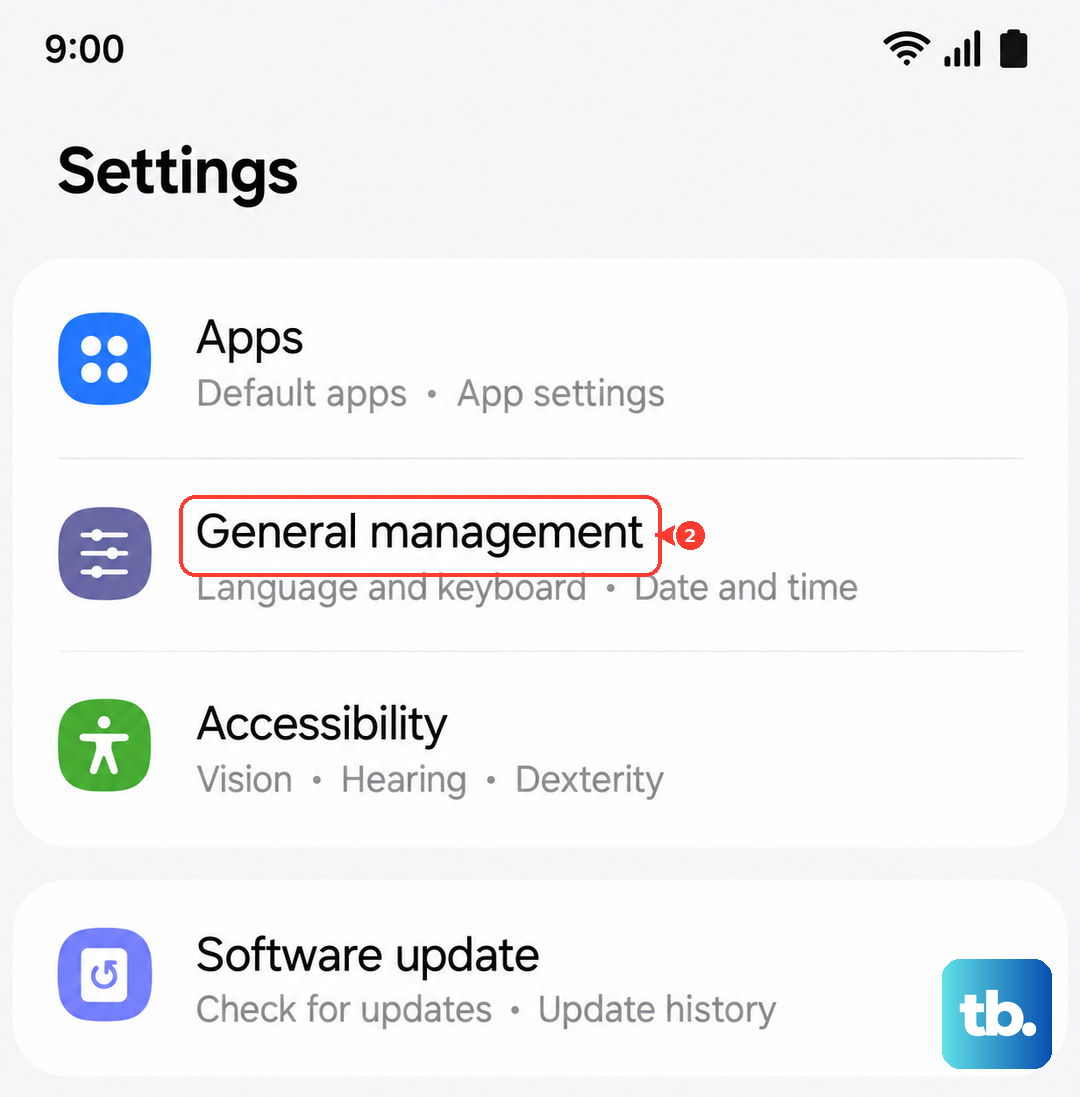
For issues that might be network-related, like calls going straight to voicemail, try resetting network settings. Go to Settings > General management > Reset > Reset network settings. You'll need to re-enter Wi-Fi passwords and re-pair Bluetooth devices afterward.
Check for Sound Assistant and Other Modules
If you've used Good Lock modules from the Galaxy Store, the Sound Assistant module gives you advanced audio control. Open the Sound Assistant app and check if you've set a per-app volume for the Phone app that's too low or muted.
Also, look in Settings > Sounds and vibration > Separate app sound. This feature can route specific app audio, like calls from your Phone app, to a different output like Bluetooth. If it's configured oddly, it could be causing the silence.
As a final step, if the ringtone works for some contacts but not others, open the Contacts app, edit that specific contact, and tap "Ringtone" to set a sound directly for them. Individual contact settings can sometimes override the default.