When your Samsung Galaxy S25 FE stops ringing for incoming calls, it can leave you feeling disconnected. This issue often stems from a simple setting or a temporary glitch in One UI 7. I've found that starting with a few quick checks can usually get things back on track without much fuss.
First, pull down the notification shade twice to see your full Quick Settings panel. Make sure the Airplane Mode icon isn't highlighted. If it is, tap it to turn it off. A simple restart can also clear out temporary software hiccups. Just press and hold the Side button and Volume Down button together for about ten seconds until you see the Samsung logo.
Also, take a quick glance at your signal bars. If you're in a basement or a building with thick walls, you might just have poor reception. Stepping near a window or going outside can sometimes make all the difference.
Check Do Not Disturb and Focus Modes
One UI's Focus Modes are incredibly useful, but they can silently block calls if you forget they're on. Swipe down from the top of your screen and look for the "Focus" icon in your Quick Settings. If it's active, tap it to turn it off.
For more control, go into Settings > Notifications > Do Not Disturb. Here, you can see if a schedule is enabled or if exceptions are set up incorrectly. Make sure "Calls" or "Repeat callers" are allowed if you want calls to come through.
Review Call Blocking and Spam Protection
Samsung's built-in spam protection is great for filtering out robocalls, but it can sometimes be a little too aggressive. Open your Phone app and tap the three-dot menu in the top right, then go to Settings > Caller ID and spam protection.
You can toggle "See caller and spam ID" off temporarily to see if that's the issue. Also, tap on "Block numbers" to review your list. A number might have been accidentally added there, preventing their calls from ever ringing through.
Inspect Your SIM Card
A loose or faulty SIM card is a classic culprit for call problems. You'll need the SIM ejector tool that came with your S25 FE. Gently push it into the small hole on the SIM tray, usually on the bottom frame of the phone.
Carefully remove the tray and take out the SIM card. Give the gold contacts a quick wipe with a soft, dry cloth and then reseat the card firmly in the tray. Push the tray back in until it clicks. After the phone reboots, check if your signal returns.
Disable Call Forwarding
Call forwarding is another setting that can redirect your calls without you realizing it. To check this, open the Phone app and tap the three-dot menu. Go to Settings > Supplementary services.
Tap on "Call forwarding" and look at each option (like "Always forward" or "When busy"). If any of them are enabled with a number you don't recognize, tap on it and select "Turn off". This ensures calls are coming directly to your S25 FE again.
Reset Your Network Settings
If you're still having trouble, resetting your network settings can clear out any corrupted connection data. This will erase saved Wi-Fi networks, Bluetooth pairings, and mobile data preferences, so be prepared to reconnect to your wireless devices afterward.
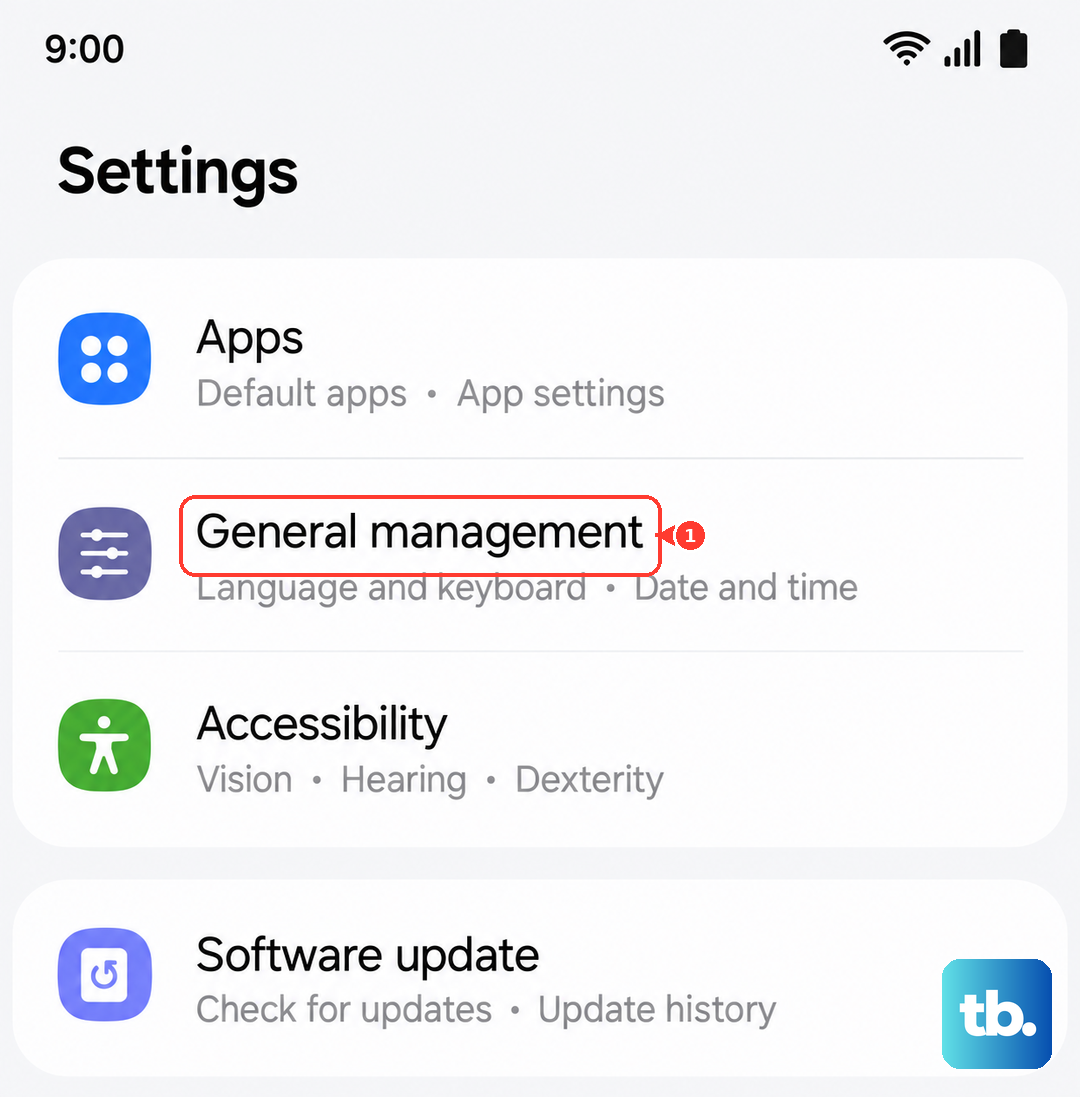
Go to Settings > General management > Reset > Reset network settings. Tap "Reset settings" and confirm. Your phone will reboot, and you'll need to reconnect to your cellular network. This often resolves persistent calling issues related to the network stack.
Update Your Phone's Software
Running outdated software can lead to all sorts of bugs, including call problems. Samsung regularly releases updates that fix these kinds of issues. Make sure your S25 FE is on the latest version of Android 15 and One UI 7.
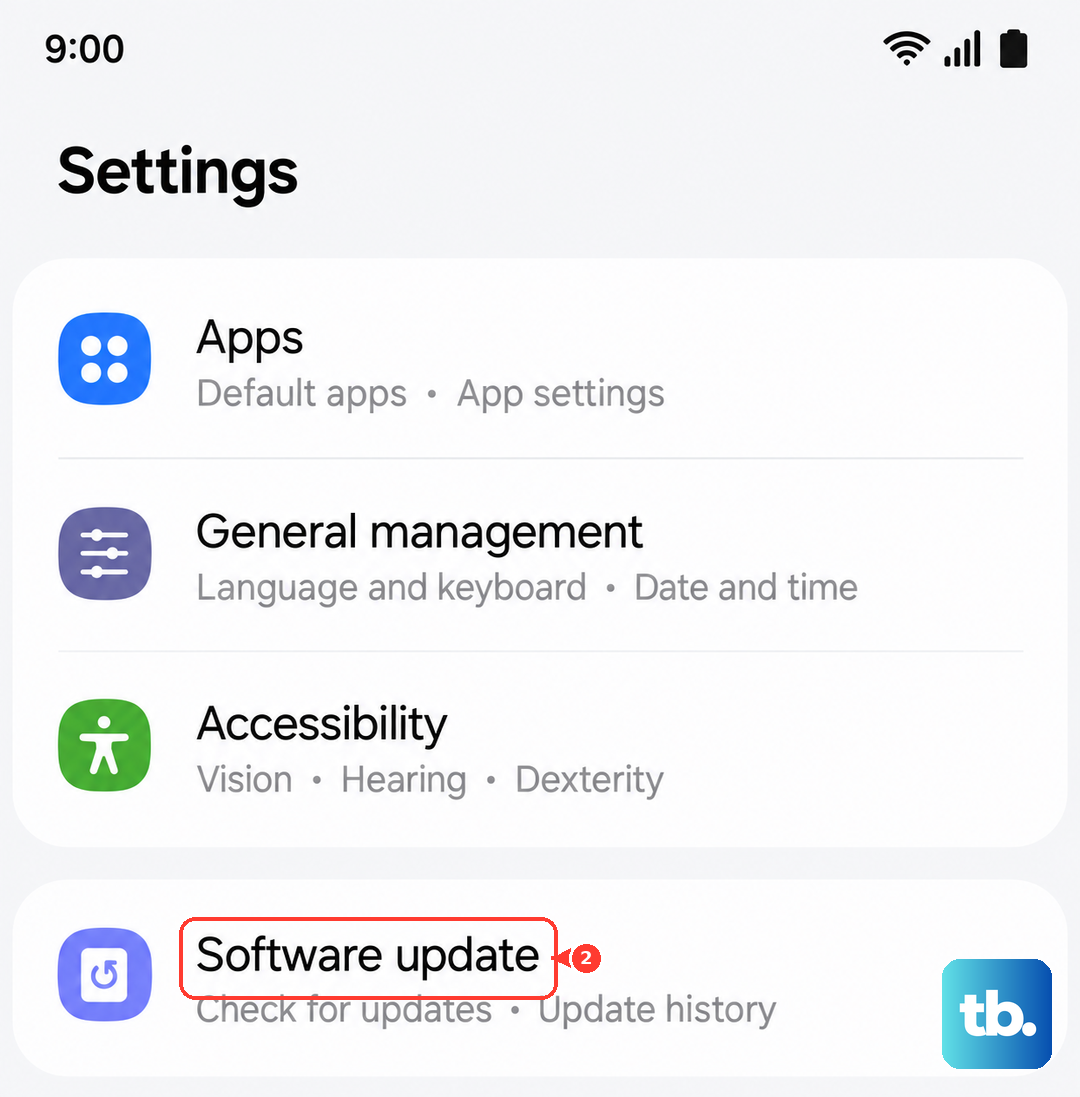
Head to Settings > Software update > Download and install. If an update is available, connect to Wi-Fi and let it install. I'd recommend doing this before moving on to more drastic steps, as a software patch is often the simplest fix.
Clear the Phone App's Cache and Data
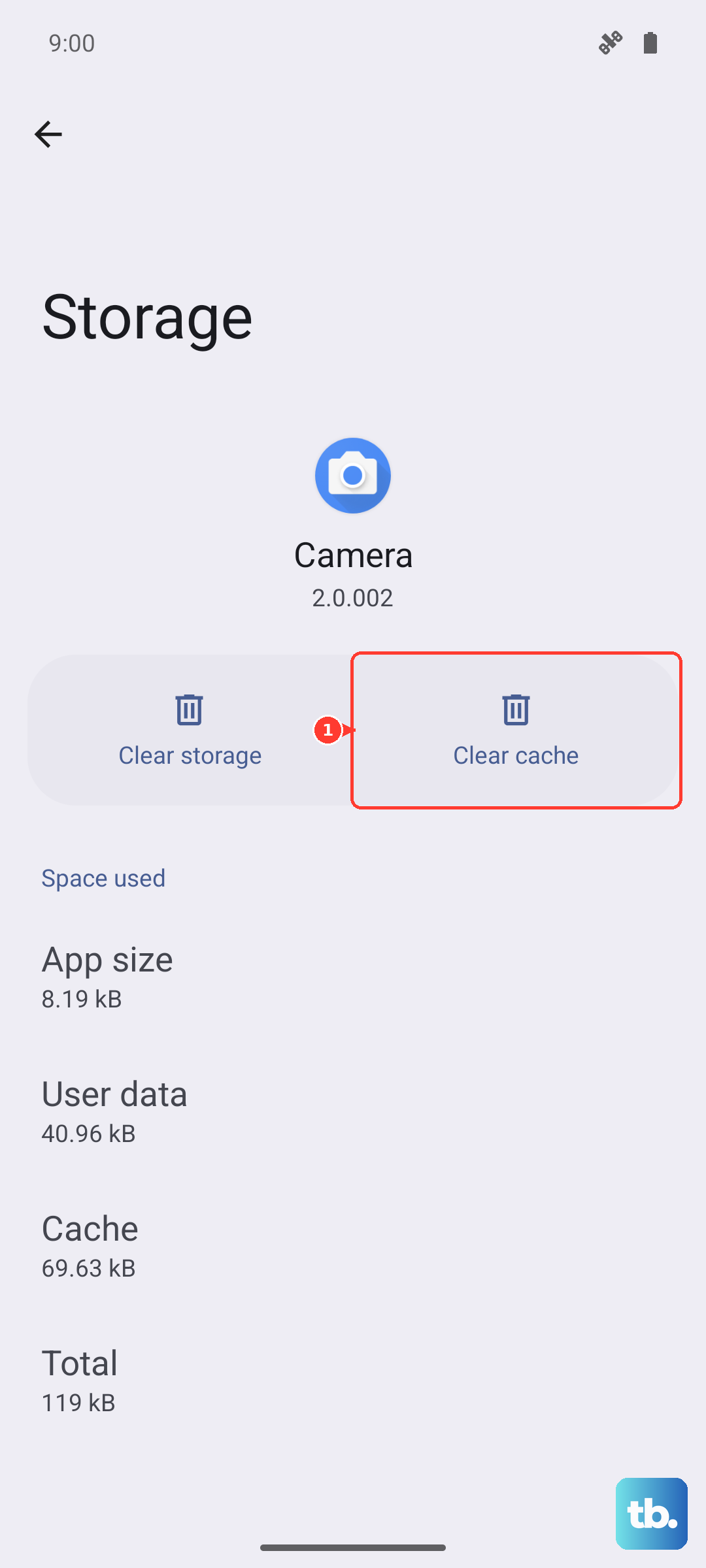
The Phone app itself can accumulate corrupted cache data over time. Clearing this forces the app to start fresh. Go to Settings > Apps, then find and tap on "Phone" in your app list.
Tap on "Storage" and then hit "Clear cache". If the problem persists, you can go back and tap "Clear data". Don't worry, this won't delete your call log or contacts, but it will reset the app's preferences.
Check for Problematic Third-Party Apps
Sometimes, an app you've installed can interfere with core phone functions. Think about any call-related apps, dialers, or security suites you've added recently. Try booting your phone into Safe Mode to see if the problem goes away.
To do this, press and hold the Side button until the power menu appears. Then, tap and hold the "Power off" option on the screen. You'll see a prompt to reboot into Safe Mode. Tap it. If calls work normally in Safe Mode, a downloaded app is likely the cause. You can then uninstall apps one by one to find the offender.
Perform a Factory Reset
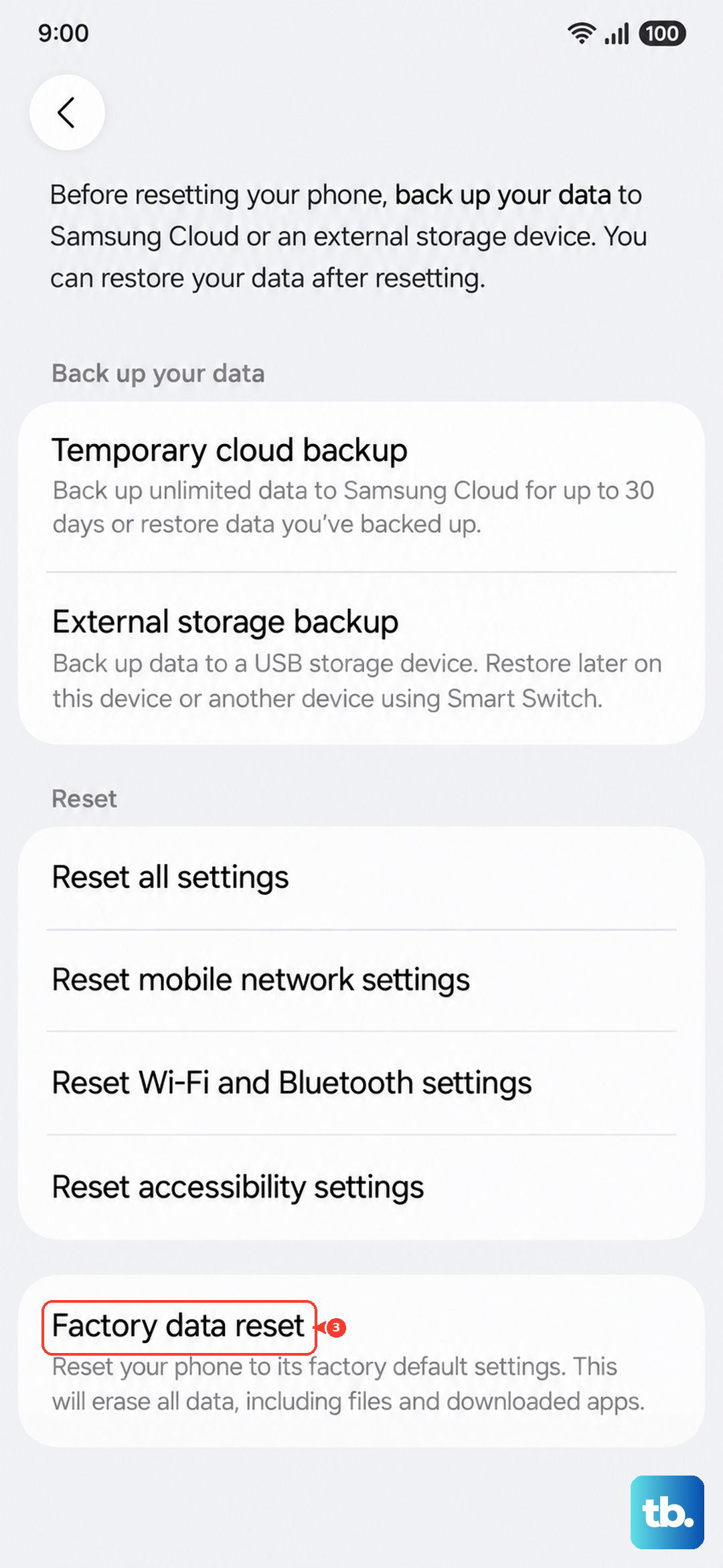
This is your last resort, as it will erase everything on your phone. Before you do anything, ensure all your photos, messages, and app data are backed up to your Samsung account or Google Drive.
Once backed up, go to Settings > General management > Reset > Factory data reset. Scroll down and tap "Reset". Enter your PIN if prompted and confirm. The phone will erase itself and reboot. After setup, test a call before restoring your data to see if the issue is resolved.