
Is your Samsung Galaxy S25 FE feeling sluggish and unresponsive? Even a powerful phone with the Exynos 2400 chip can start to lag after a while. The good news is you can almost always fix it yourself with a few simple steps.
Performance slowdowns usually come from a handful of common places. Too many apps running in the background, storage getting too full, or a software glitch are typical culprits. Let's get right into the quickest ways to speed things up.
Restart Your Phone
This is the universal first step for a reason. A simple restart clears out temporary system files and stops any background processes that might be stuck and hogging resources. Just press and hold the volume down button and the side button together for about ten seconds until you see the Samsung logo.
Your phone will reboot, and you'll often notice an immediate improvement in responsiveness. It's a good habit to restart your phone once a week to keep things running smoothly.
Close Unused Apps Running in the Background
Android and One UI are great at managing memory, but having dozens of apps suspended in the background can still slow things down. To close them, swipe up from the bottom of the screen and hold to enter the recent apps view.
You can swipe each app card away to close it individually, or tap the three-dot menu and select "Close all" to clear everything at once. I'd recommend doing this if you're about to play a demanding game or use the camera intensively.
Check and Free Up Storage Space
When your phone's internal storage gets too full, it has less room to operate efficiently, which can cause noticeable lag. Head to Settings > Device care > Storage to see a breakdown of what's using space.
The Device Care tool can help you clean junk files with a tap. For manual cleaning, look at your photos, videos, and downloaded files. Consider moving media to a cloud service or an SD card if you have one. Aim to keep at least 10-15% of your storage free.
Update Your Apps and Software
Outdated apps can have bugs that hurt performance, and system updates from Samsung often include important optimizations and fixes. First, open the Galaxy Store and tap the menu icon to check for app updates.
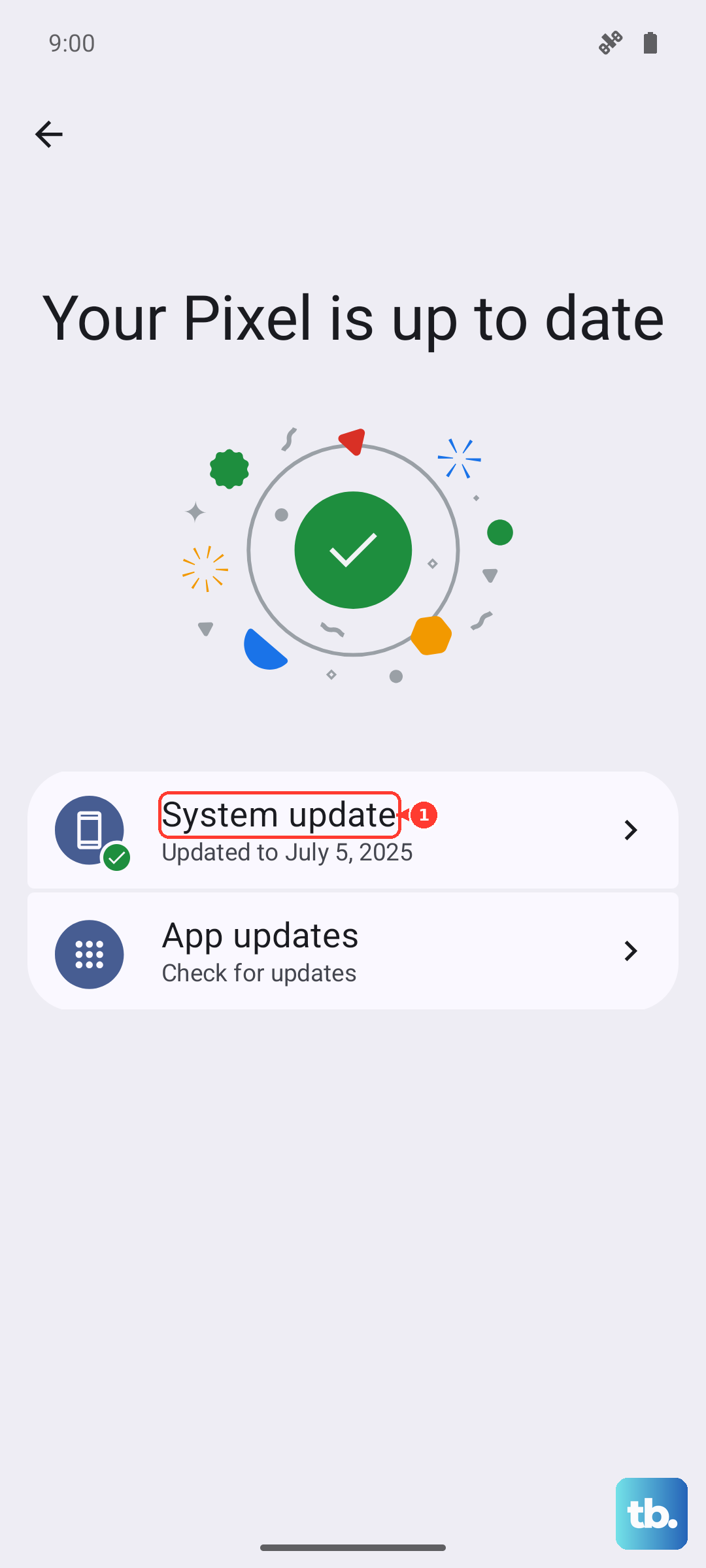
Then, go to Settings > Software update and tap "Download and install." If there's an update available, install it. Some users have reported occasional display flicker after updates, which is usually fixed by a subsequent patch, so staying current is key.
Manage Background Activity and Refresh
Some apps are very active in the background, constantly syncing data or checking for notifications. You can put these on a leash. Go to Settings > Apps, select a power-hungry app, and tap "Battery."
Here, you can set it to "Restricted" to limit its background activity. Also, check Settings > Connections > Data usage > Data saver and turn it on to restrict background data for all apps when you're not on Wi-Fi.
Enable Adaptive Battery and Power Saving
Your S25 FE has smart features designed to improve both battery life and performance over time. Make sure Adaptive Battery is turned on in Settings > Battery > More battery settings.
For an immediate boost, you can enable a power saving mode. Go to Settings > Battery and select "Power saving." This limits background network usage and CPU speed slightly, which can actually make the interface feel snappier if your phone is struggling.
Clear App Caches
Over time, apps store temporary data (cache) that can become corrupted or bloated, slowing them down. You can clear the cache for individual apps. Go to Settings > Apps, select the problematic app, then tap "Storage."
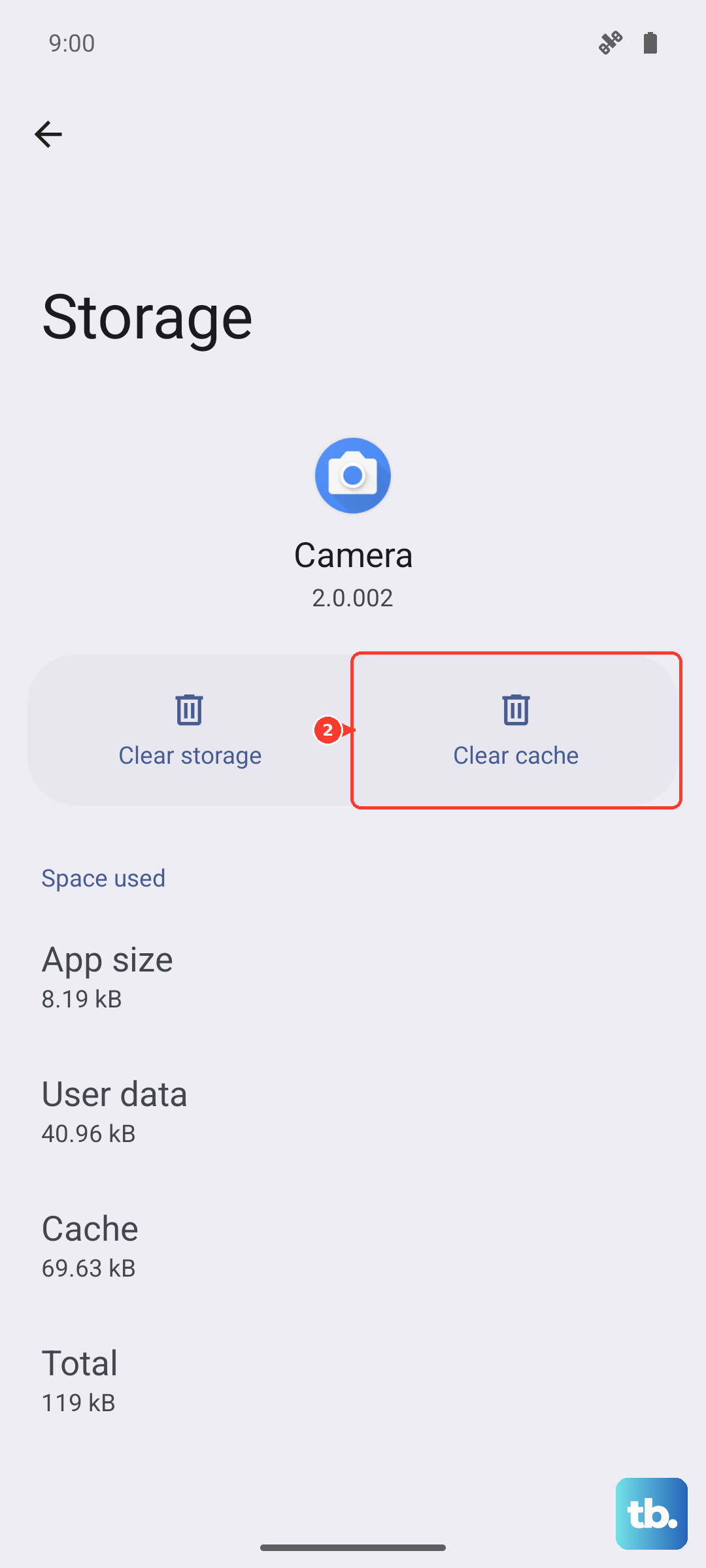
Tap "Clear cache." This won't delete your login info or personal data within the app. It's a good trick for apps like Chrome, Instagram, or Facebook that feel slow to load.
Reduce Animations and Visual Effects
One UI's animations are smooth, but they take processing power. Speeding them up or turning them off can make your phone feel instantly faster. You'll need to enable Developer Options first by going to Settings > About phone > Software information and tapping "Build number" seven times.
Then, go back to Settings and find "Developer options." Scroll to the "Drawing" section and look for "Window animation scale," "Transition animation scale," and "Animator duration scale." Change each of these from 1x to 0.5x to speed them up.
Check for Overheating
The Exynos 2400 chip in the S25 FE is powerful but can run warm during extended gaming or video recording. When the phone gets too hot, it will intentionally throttle performance to cool down, causing lag.
If your phone feels hot and slow, close demanding apps and let it cool down. Avoid using it while it's charging, especially with a fast 45W charger, as this generates additional heat. Using it in a cool environment helps maintain peak performance.
Turn Off 5G When Not Needed
Constantly searching for a 5G signal, especially in areas with spotty coverage, can use extra battery and CPU resources. If you're not actively downloading large files, switching to 4G/LTE can help.
Go to Settings > Connections > Mobile networks > Network mode and select "LTE/3G/2G (auto connect)." You can always switch it back when you need the maximum mobile speed. This is one of those specific tips that really helps with daily battery and thermal management.
Perform a Soft Reset on Settings
If you've tried everything and your phone is still slow, a reset of your system settings can help. This won't delete your photos, apps, or personal data, but it will revert all your settings (like Wi-Fi passwords, ringtones, and display preferences) back to default.
Go to Settings > General management > Reset > Reset all settings. Enter your PIN if prompted and confirm. After the phone reboots, you'll need to reconfigure your preferences, but it often clears out any deep software conflicts causing lag.