
When your Samsung Galaxy S25 FE starts rebooting on its own, it pulls you right out of whatever you're doing. This can be a sign of a software hiccup, a misbehaving app, or sometimes a deeper system issue. The good news is there's a solid list of things you can try yourself to get it back on track.
Before you dive into any of the fixes below, it's a smart move to make sure your data is backed up. You can use Samsung Cloud or Google One. This way, if you need to take more serious steps later, your photos and files are safe.
Force Restart Your Galaxy S25 FE
This is almost always the first thing to try. A force restart clears the phone's temporary memory and can stop a minor software glitch in its tracks. For the S25 FE, press and hold the Volume Down button and the Side (power) button together for about 10 seconds.
Keep holding until you see the Samsung logo appear on the screen, then let go. The phone will boot up normally. I've found this resolves a surprising number of random restart issues right away.
Check for App Updates and Conflicts
Outdated or buggy apps are a very common cause of instability. Start by heading to the Galaxy Store and Google Play Store to update everything. In the Play Store, tap your profile icon in the top right and go to Manage apps & device to see available updates.
If the restarts started after installing a specific app, that app is the prime suspect. Try uninstalling it to see if the problem stops. You can also boot into Safe Mode to check. Press and hold the power button, then tap and hold the "Power off" icon on the screen until you see the Safe Mode prompt.
If the phone is stable in Safe Mode, a third-party app is likely the culprit. You'll need to uninstall apps one by one to find the offender.
Update Your Phone's Software
Samsung regularly releases updates that fix bugs and improve stability. Go to Settings > Software update and tap Download and install. Make sure you're connected to Wi-Fi and have at least a 50% charge.
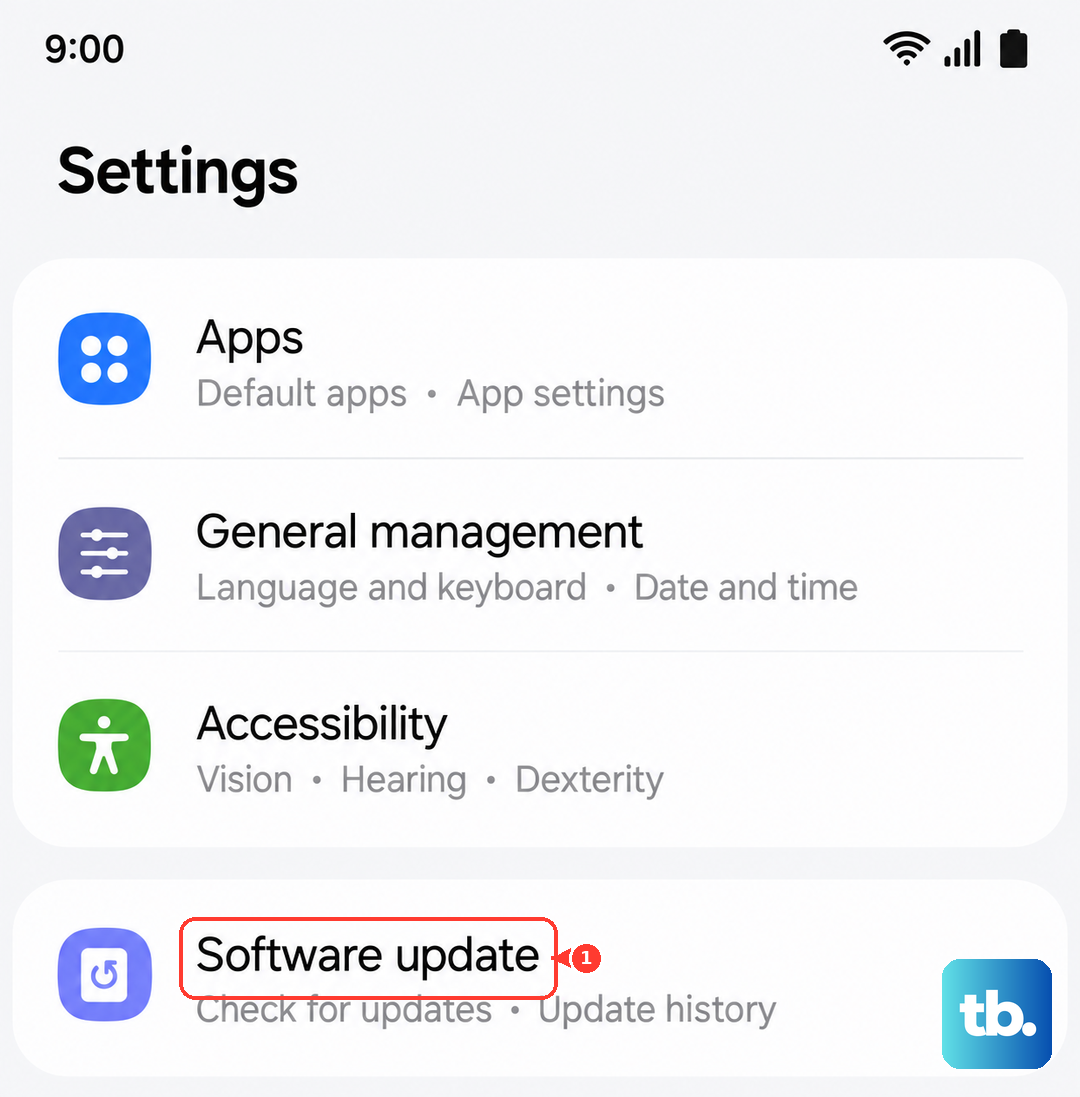
Since the S25 FE runs on Android 15 with One UI 7, there have been updates to address things like occasional display flicker. Installing the latest update often clears up random restart problems caused by known software bugs.
Clear the System Cache
Over time, cached data from apps and the system can become corrupted. Clearing this cache can resolve weird behavior without touching your personal data. You'll need to boot into Recovery Mode.
First, turn off your phone completely. Connect it to your computer with a USB-C cable. Then, press and hold the Volume Up and Side buttons together. When you feel a vibration, release the Side button but keep holding Volume Up until you see the Android Recovery screen.
Use the volume buttons to navigate to Wipe cache partition and press the power button to select it. Confirm the action, then select Reboot system now. This process takes about 30 seconds.
Review Battery and Temperature Settings
The Galaxy S25 FE's Exynos 2400 chip is powerful but can get warm during intensive tasks. If the phone overheats, it may restart to protect itself. Check if the restarts happen during gaming or video calls.
You can help manage this by turning off features you don't need, like 5G, when you're not using them. Also, go to Settings > Battery and enable Adaptive battery. This helps optimize performance and can reduce heat.
Make sure you're using a compatible charger. While the S25 FE supports 45W wired charging, it doesn't come with a charger in the box. Using a low-quality or underpowered charger can sometimes cause power delivery issues.
Free Up Storage Space
When your phone's storage is critically full, the operating system doesn't have room to work properly, which can lead to crashes. Go to Settings > Device care > Storage to see how much space you have left.
The S25 FE will offer recommendations here, like removing unused apps or large files. Try to keep at least 10% of your storage free. You can use Samsung Cloud or Google Photos to back up and remove old videos and pictures.
Reset All Settings
If the problem persists, you can reset all your system settings to their defaults without erasing your personal data. This will revert Wi-Fi networks, Bluetooth pairings, sound settings, and display preferences.
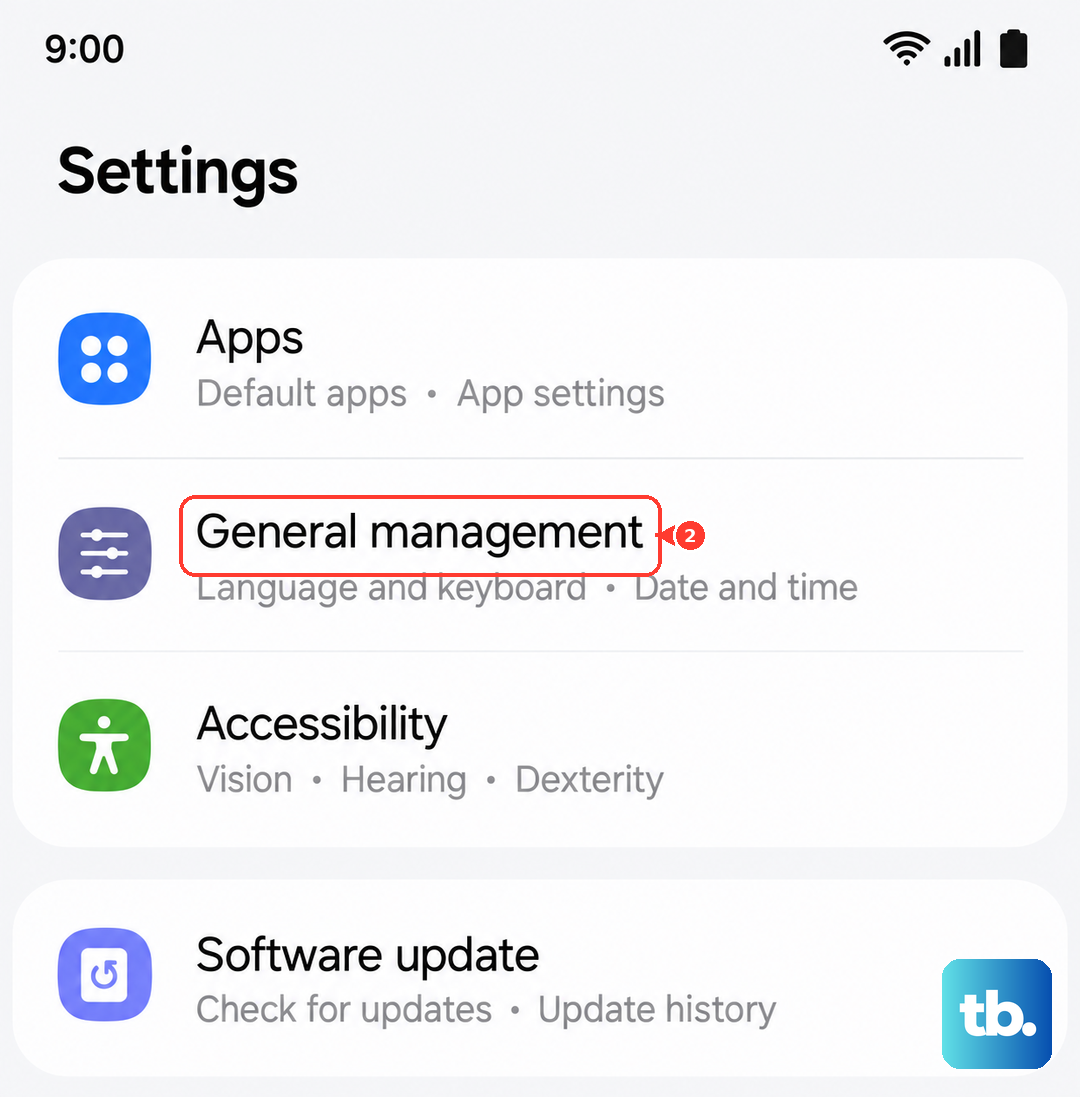
Go to Settings > General management > Reset > Reset all settings. Enter your PIN or password if prompted and confirm. After the phone reboots, you'll need to reconnect to Wi-Fi and adjust any custom settings again, but it often clears up persistent software conflicts.
Check for Hardware Issues
While less common, a hardware problem can cause random restarts. Start with the simple stuff. Remove your SIM card tray using the ejector tool and inspect the SIM card for any visible damage or corrosion.
Gently clean the metal contacts on the SIM card with a soft, dry cloth and reinsert it. Also, try using the phone for a while without a case. A case that doesn't fit perfectly or traps heat could potentially contribute to overheating issues.
Perform a Factory Reset
This is the most comprehensive software fix. A factory reset will erase everything on your phone and return it to its original out-of-the-box state. This is why that backup we mentioned first is so important.
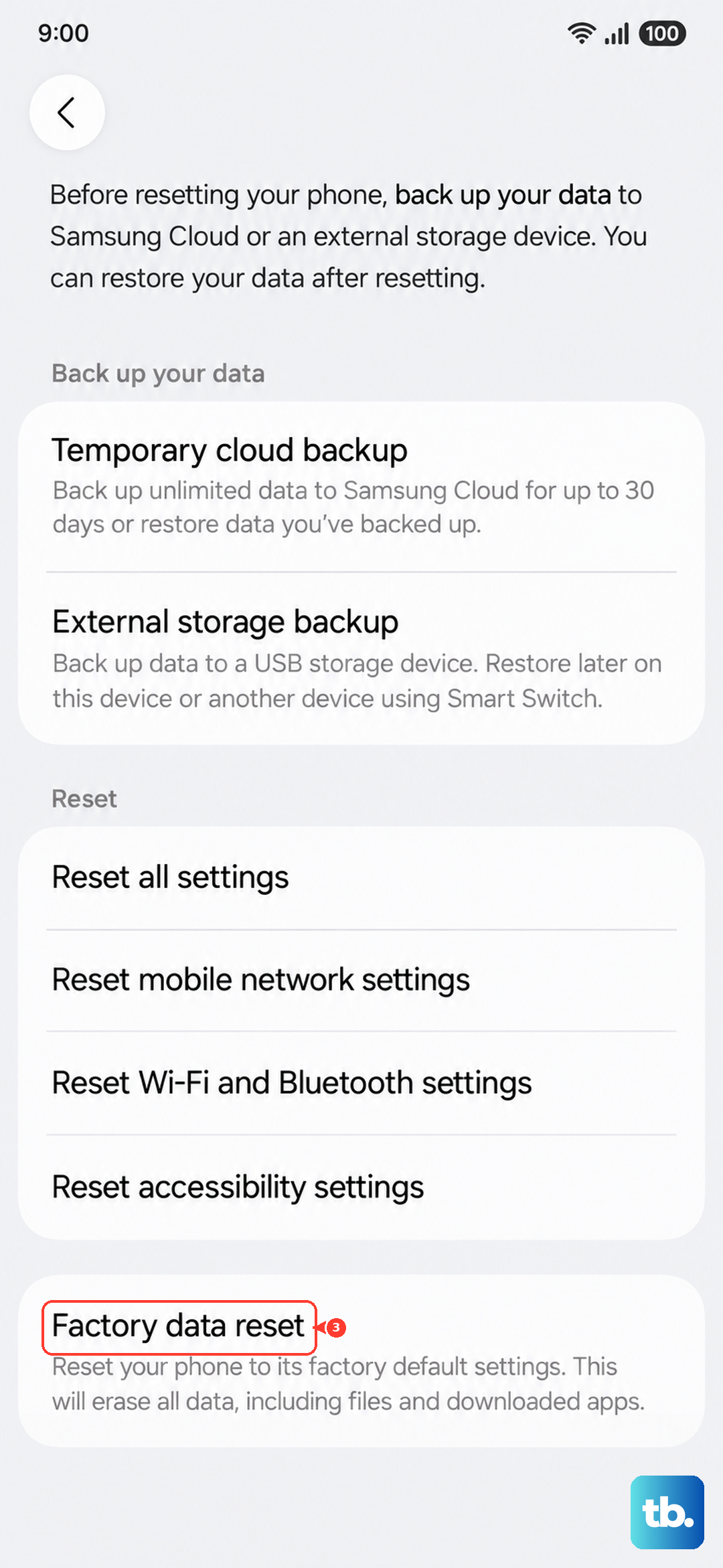
To do this, go to Settings > General management > Reset > Factory data reset. Tap Reset and then Delete all. Your phone will take several minutes to reset and reboot. After setup, you can restore your data from your backup.
If the random restarts continue even after a fresh factory reset, it's more likely there's a hardware fault. At that point, contacting Samsung Support or visiting an authorized service center would be the next step.