When your Samsung Galaxy S25 FE stops sending or receiving emails, it can leave you feeling disconnected. Whether you're missing a work message or can't reply to a friend, these problems need a quick fix. The solutions are usually straightforward, especially on Android 15 with One UI 7.
Before we get into the specific steps, let's cover a few universal basics. Make sure you have a solid internet connection, either via Wi-Fi or mobile data. It's also worth checking if your email provider, like Gmail or Outlook, is having a widespread service outage. Finally, double-check that you're using the correct email address and password.
Check Your Sync and Fetch Settings
Your phone controls how often it checks for new emails. If these settings are off, messages won't arrive automatically. Open the Samsung Email app, tap the three-line menu, and go to Settings. Select your account and look for sync or fetch options.
Ensure "Sync Email" is turned on. You can also adjust the sync schedule here. For immediate delivery, choose "Push" if your provider supports it. Otherwise, set it to check every 15 or 30 minutes. I've found that after a major OS update, these settings can sometimes revert to a less frequent schedule.
Toggle Airplane Mode to Reset Connections
A quick network reset can clear up temporary glitches that block email. Swipe down twice from the top of your screen to open the full Quick Settings panel. Tap the Airplane mode icon to turn it on.
Wait about 15 seconds, then tap the icon again to disable it. Your phone will reconnect to mobile networks and Wi-Fi. Try opening your email app again to see if messages start flowing. This is one of the fastest fixes for intermittent connection issues.
Force Close and Restart the Email App
If the app itself is frozen or buggy, a fresh start can help. Swipe up from the bottom of the screen and hold to enter the recent apps view. Find your email app, whether it's Gmail or Samsung Email, and swipe it all the way up to close it.
Wait a moment, then tap the app icon to reopen it. This clears the app from your phone's memory and can resolve minor software hiccups without affecting your accounts or data.
Switch Between Wi-Fi and Mobile Data
Sometimes the problem is with one specific network. If you're on Wi-Fi and emails aren't working, try turning it off to force the phone to use your cellular data. Swipe down to the Quick Settings and tap the Wi-Fi icon to disable it.
Check if your email works on mobile data. If it does, the issue is likely with your Wi-Fi network. You might need to restart your router. Conversely, if mobile data isn't working, ensure data is enabled for the email app in Settings > Connections > Data usage > Mobile data usage.
Verify Your Email Account Password
Passwords expire, get changed, or sometimes the saved login becomes corrupted. The best way to check is to open a web browser on your phone and try to sign into your email account's website directly.
If you can't sign in on the web, you'll need to reset your password with your email provider. Once you have the new password, you must update it on your phone. Go to Settings > Accounts and backup > Manage accounts, select your email account, and tap "Sync account" or "Update account."
Check for App and System Updates
Outdated software is a common culprit. First, check for updates to your email app in the Google Play Store or Galaxy Store. Open the store, tap your profile icon, and go to "Manage apps and device" to see available updates.
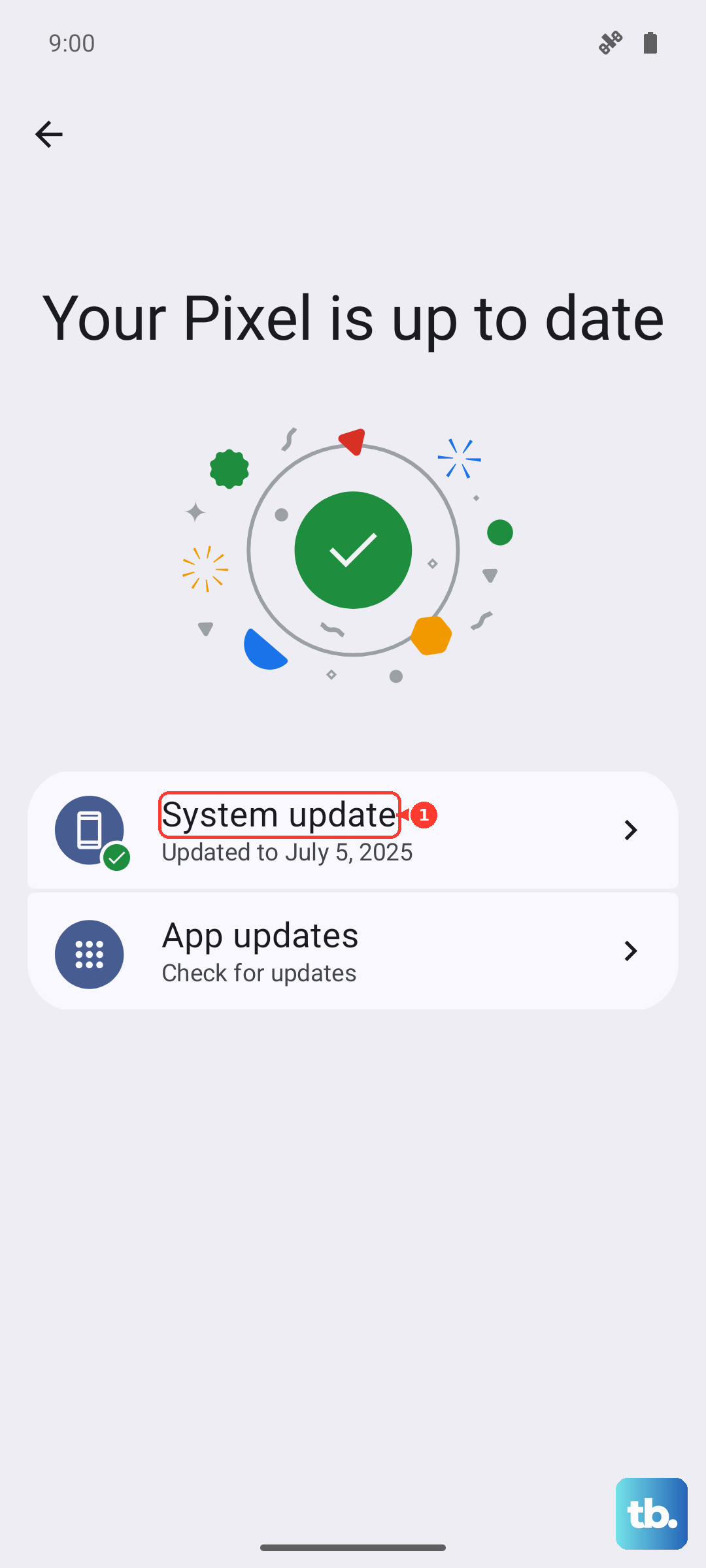
Next, check for a system update. Go to Settings > Software update > Download and install. If an update is available, install it. Updates often contain critical bug fixes for connectivity and app performance, which can resolve email problems.
Clear the Email App's Cache and Data
Corrupted temporary files can cause all sorts of app misbehavior. Go to Settings > Apps, then find and select your email app. Tap on "Storage" and you'll see two options: "Clear cache" and "Clear data."
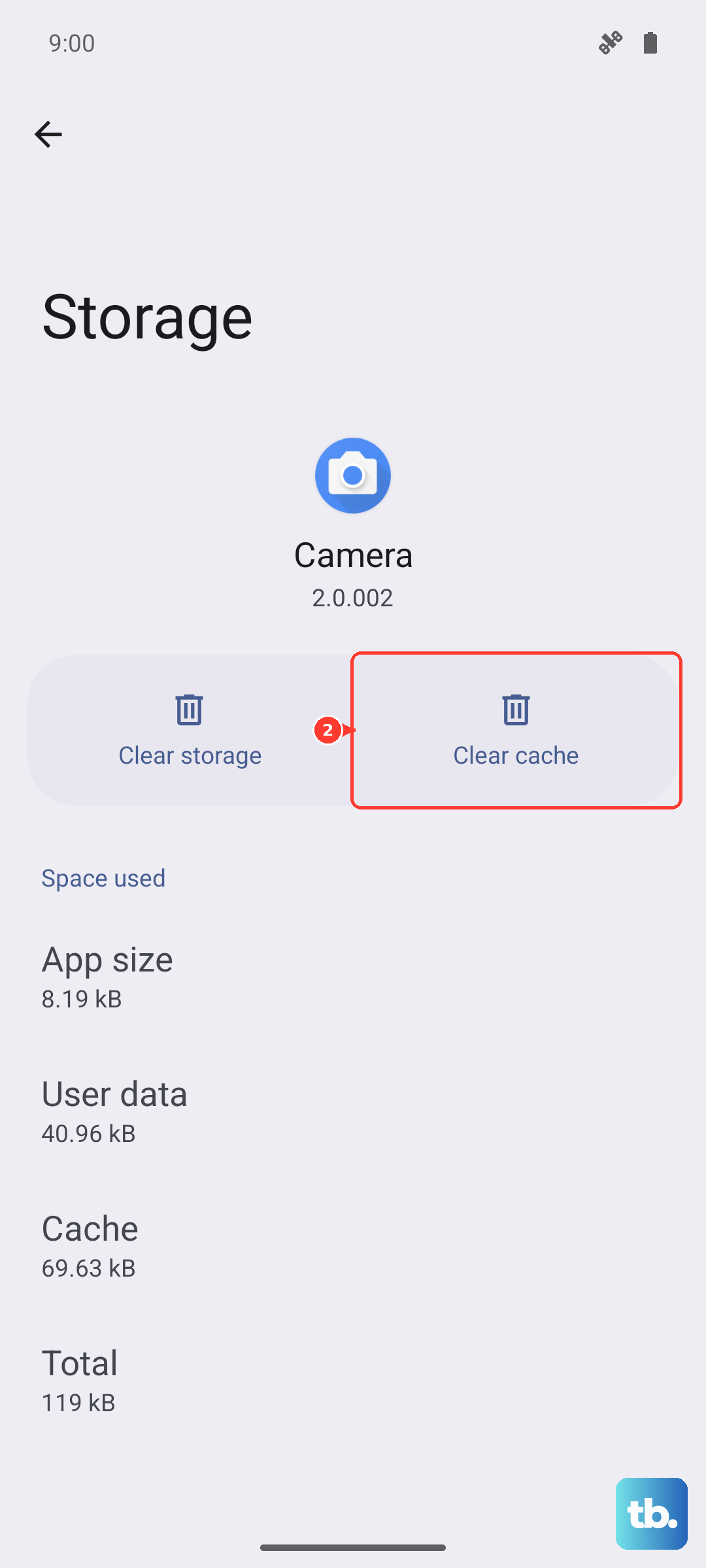
Start by tapping "Clear cache." This is safe and won't delete your emails or account. If the problem persists, you can try "Clear data." A warning: this will remove the app's settings and may log you out, so you'll need to set up your account again.
Disable Battery Optimization for the Email App
Android's battery saving features can sometimes be too aggressive, preventing apps from syncing in the background. To fix this, go to Settings > Apps, select your email app, and tap "Battery."
Set the battery setting to "Unrestricted." This allows the app to run freely in the background, ensuring you get email notifications promptly. For overall battery health on the S25 FE, you can still use features like Adaptive Battery, but making this exception for your mail app is key.
Review Your Notification Settings
If emails are arriving but you're not getting alerts, the notification settings might be muted. Long-press on your email app's icon and tap "App info." Then, tap Notifications.
Make sure notifications are turned on for the app. Then, tap into "Notification categories" to ensure alerts are enabled for new messages. You can customize the sound and vibration here as well.
Remove and Re-add Your Email Account
This is a more thorough reset that can fix persistent sync issues. Go to Settings > Accounts and backup > Manage accounts. Select the problematic email account and tap "Remove account."
Confirm the removal. Don't worry, this doesn't delete emails from the server. Then, go back and tap "Add account" to set it up again from scratch. This process refreshes all the connection settings and often resolves stubborn problems.
Disable Any Active VPN
A VPN can interfere with the connection to your email server. If you're using a VPN, swipe down to the Quick Settings panel and look for the VPN tile. Tap it to disconnect.
You can also go to Settings > Connections > More connection settings > VPN to manage and turn off any active VPN profiles. Try sending or receiving an email without the VPN enabled to see if that was the blockage.
Perform a Force Restart on Your Phone
A simple reboot can clear out system-level glitches. For the Galaxy S25 FE, press and hold the Volume Down button and the Side key (power button) simultaneously for about 10 seconds.
Release the buttons when you see the Samsung logo. The phone will restart. This is different from a normal power off and on, as it fully clears the device's active memory. It's a great step if multiple apps are acting up.
Check Your Date and Time Settings
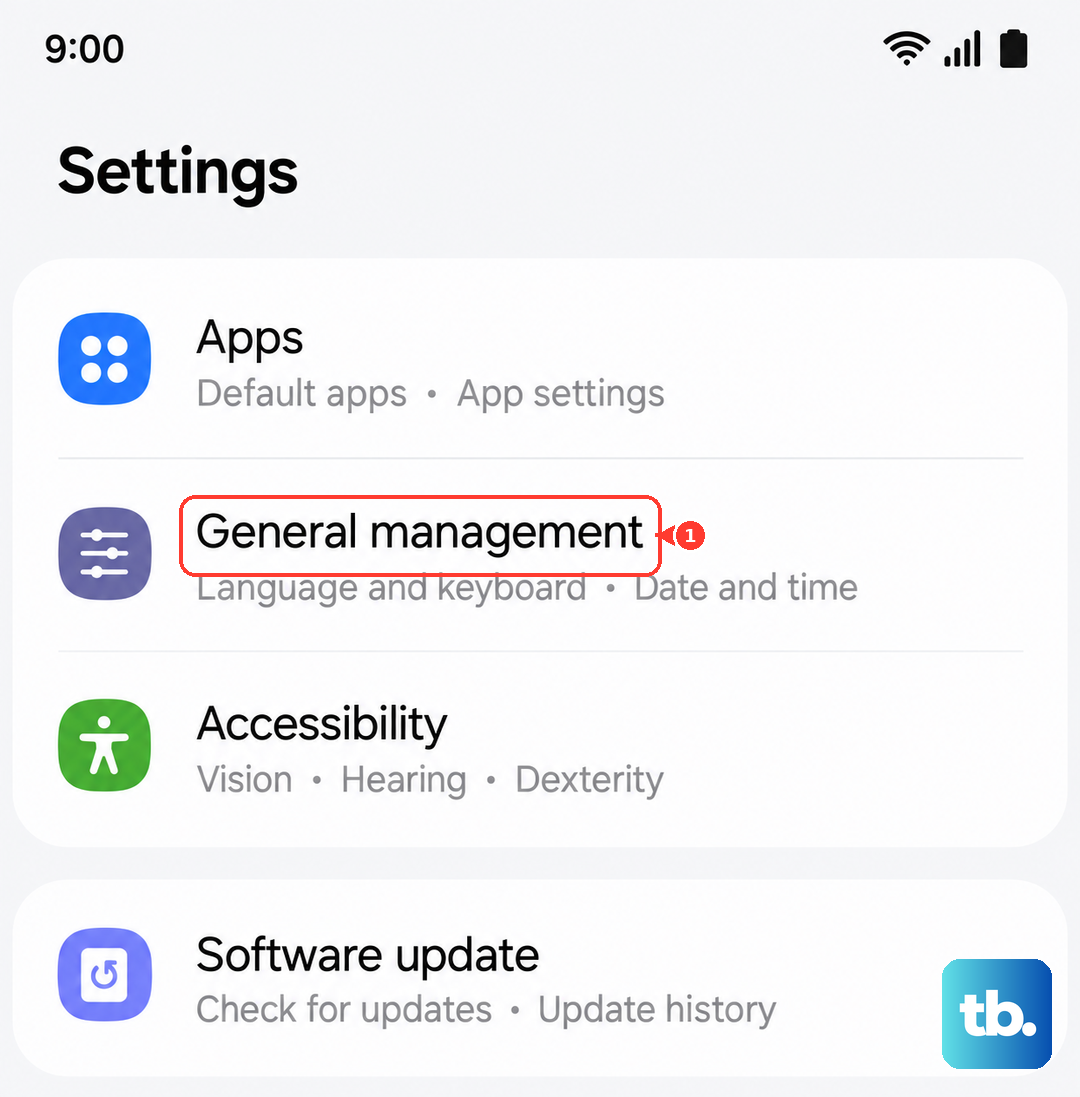
Incorrect time settings can cause security certificate errors, preventing your phone from connecting to email servers. Go to Settings > General management > Date and time.
Make sure "Automatic date and time" is switched on. This allows your phone to get the correct time from your network provider. Also, ensure "Automatic time zone" is enabled. This is a small setting that causes surprisingly big problems.
Reset Your Network Settings
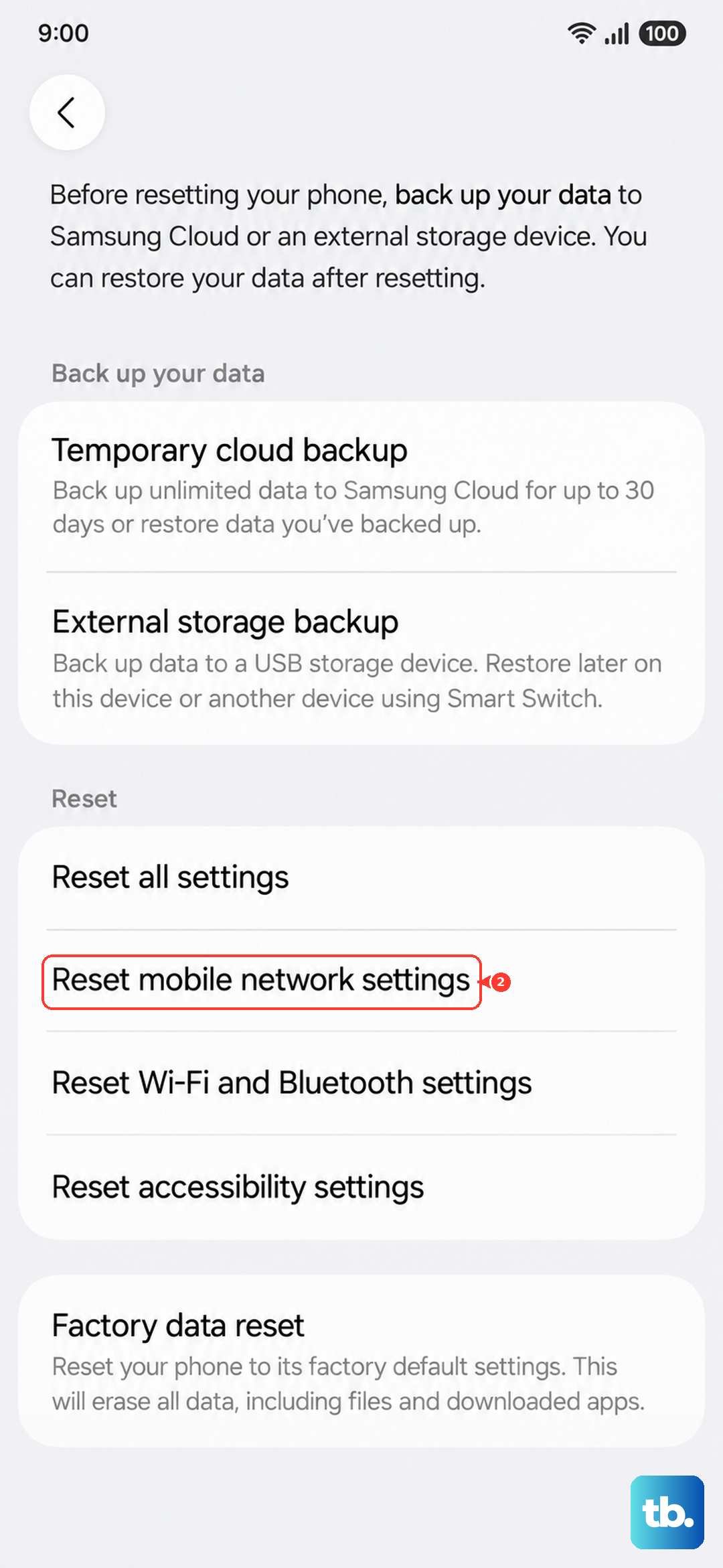
If all else fails and the issue seems tied to connectivity, you can reset all network-related settings. This will erase saved Wi-Fi networks, Bluetooth pairings, and mobile data preferences. Go to Settings > General management > Reset.
Tap "Reset network settings." You'll need to enter your PIN or password to confirm. After the reset, you'll have to reconnect to your Wi-Fi and re-pair Bluetooth devices, but it can resolve deep-seated network configuration errors that affect email.