
When your Samsung Galaxy S25 FE gets stuck and won't download apps, it can bring your day to a halt. You're trying to get a new app for work or a game, and it just hangs on "Pending" or "Downloading." I've found this is usually a quick fix, often related to a temporary glitch in the Google Play Store or your connection.
Let's go through the steps that work for the S25 FE, starting with the simplest solutions you can try in under a minute.
Check Your Connection and Restart
First, make sure your phone is actually online. Swipe down from the top of your screen to open the Quick Settings panel. Look for the Wi-Fi or mobile data icon. If you're on Wi-Fi, try turning it off and using your mobile data instead, or vice versa.
Some public or corporate Wi-Fi networks can block the ports the Play Store needs. A quick network switch often gets things moving.
Next, give your phone a fresh start. Press and hold the Volume Down button and the Side button (power button) together for about 10 seconds until you see the Samsung logo. This force restart clears out any minor software hiccups that might be stopping your downloads.
Clear the Google Play Store Cache
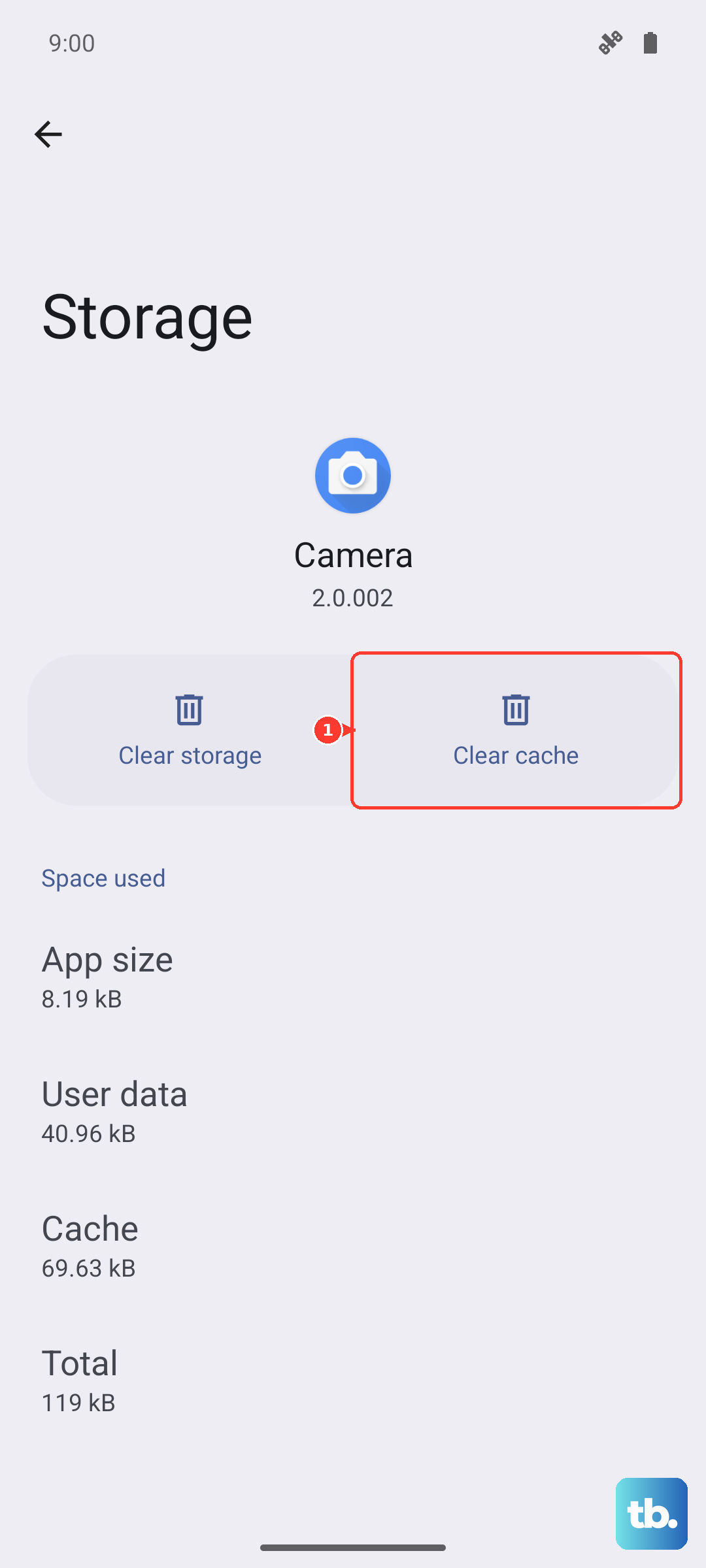
The most common fix for a stuck download is clearing the Play Store's temporary files. Over time, this cache can get corrupted. Go to Settings > Apps, then find and tap on Google Play Store.
Tap on Storage, and then tap Clear Cache. This doesn't delete any of your data or accounts. After doing this, open the Play Store again and try your download. If it's still stuck, you can go back and tap Clear Data as a next step.
Verify Your Date and Time Are Correct
This one catches a lot of people off guard. Google's servers use your phone's time to verify downloads. If your clock is off, downloads can fail. Open Settings > General Management > Date and time.
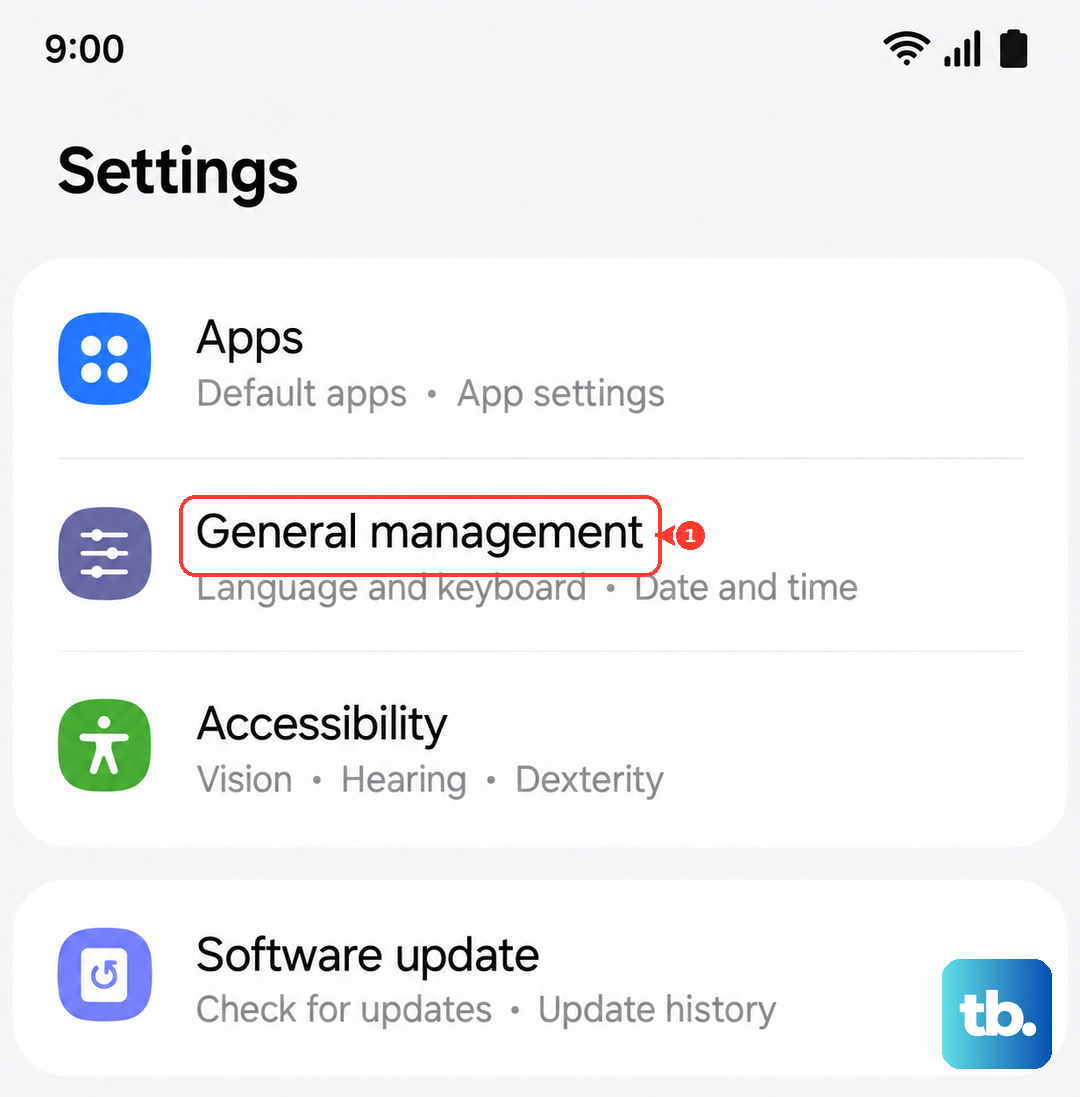
Make sure Automatic date and time is turned on. If it's already on and you're having issues, try turning it off for a moment, then set the date and time manually correctly before turning automatic back on.
Manage Google Play Services
Google Play Services works in the background to help apps and the Play Store run. If it's acting up, your downloads will too. Head back to Settings > Apps, then find Google Play Services (you may need to tap the three-dot menu and select Show system apps to see it).
Tap Storage and then Clear Cache. You can also tap Manage storage and then Clear all data. Don't worry, this just resets the service and won't harm your personal info. After this, force stop the app by tapping Force stop on its main info page, then reopen the Play Store.
Check for Software Updates
Since you're running Android 15 with One UI 7, it's worth making sure you have the latest patch. Samsung and Google frequently release updates that fix bugs affecting app stores and services. Go to Settings > Software update and tap Download and install.
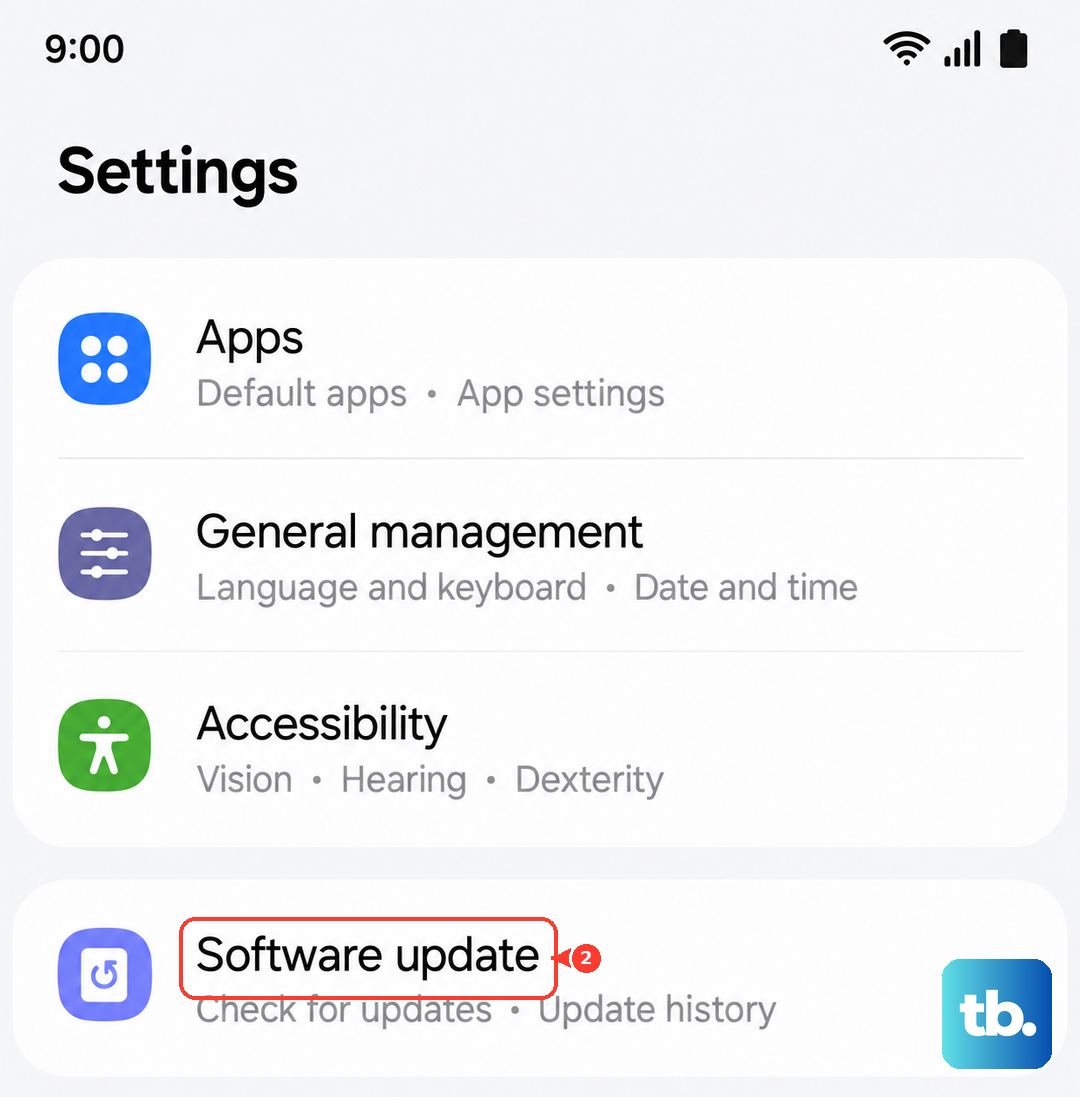
If an update is available, install it. The phone will restart. I've seen updates resolve download issues, especially if they started after a previous software change.
Review Your Storage Space
The S25 FE needs some free space to download and unpack app files. If you're getting an "Insufficient storage" error, you'll need to clear some room. Go to Settings > Device care > Storage to see what's using your space.
You can use the built-in cleanup tools there, or manually uninstall apps you no longer use. Sometimes, just clearing old WhatsApp media or moving photos to Samsung Cloud or Google Photos can free up enough gigs to get your download going.
Reset Your App Preferences
This is a useful step that resets permissions, background restrictions, and other app settings without deleting any app data. It can fix issues if a system app like Download Manager was accidentally disabled. Go to Settings > Apps.
Tap the three-dot menu in the top right, then select Reset app preferences. Confirm the action. This will re-enable any apps you've disabled and reset notification and permission settings, so you may need to re-allow notifications for your favorite apps afterward.
Remove and Re-add Your Google Account
If there's a sync problem with your account, it can block downloads. To refresh it, go to Settings > Accounts and backup > Manage accounts. Select your main Google account.
Tap Remove account. Remember, this will remove account-specific data like saved passwords for that account from the phone. After removing it, restart your S25 FE with the force restart method. Then, go back to Settings > Accounts and backup > Manage accounts > Add account to sign back in.
Check for Problematic Apps or VPNs
If you've recently installed a new security app, ad blocker, or VPN, try temporarily disabling it. These apps can sometimes interfere with the Play Store's connection. Also, if you're using a VPN, try disconnecting from it to see if downloads work on your regular connection.
You can check running services in Settings > Device care > Memory to see what's active in the background.
As a Last Resort: Factory Reset
If you've tried everything else and your S25 FE still won't download a single app, a factory reset is the final step. This will erase all data and return the phone to its out-of-box state.
Crucially, back up everything first. Use Samsung Cloud or Google One to back up your apps, settings, and data. When ready, go to Settings > General Management > Reset > Factory data reset. Tap Reset and confirm. After the phone restarts, set it up as new, log into your Google account, and try downloading an app immediately to test.